Working with digital art software often involves a series of repetitive actions that, while seemingly minor, can significantly impact workflow efficiency and artistic outcome. Among these, rotating and flipping the canvas is a fundamental technique for artists. This practice is not merely about changing the orientation of your artwork; it's a critical step in identifying and correcting subtle errors in proportion, symmetry, and overall composition that can become invisible when viewed from a single perspective over extended periods. Clip Studio Paint, a powerful and versatile tool favored by many illustrators and comic artists, offers several intuitive methods to achieve these canvas manipulations, including dedicated shortcuts and menu options. Understanding how to effectively utilize these features can transform a tedious process into an almost subconscious action, thereby enhancing productivity and the quality of your finished pieces.
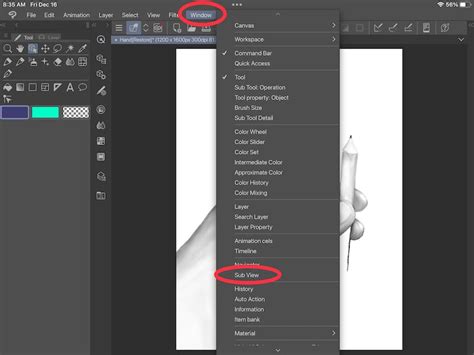
Navigating the View Menu for Canvas Transformations
Clip Studio Paint provides direct access to canvas rotation and flipping functions through its "View" menu, a central hub for display-related adjustments. At the very top of this menu, you will find a section dedicated to rotating your canvas. These options allow for incremental rotation, often in predefined steps, which can be useful for quick adjustments.
Beyond simple rotation, the "View" menu also houses the "Rotate/Invert" submenu. This submenu is your gateway to more direct canvas transformations. Here, you can choose to "Flip Horizontal" or "Flip Vertical." This action, crucially, only alters your view of the document; it does not permanently change the underlying orientation of your canvas data. This distinction is vital, as it means you can flip your canvas to review your work from a different perspective without committing to a permanent change that might require further manipulation to correct later.
For instance, if you've been working on a drawing for an extended period, your brain can become accustomed to its current orientation, potentially masking subtle imperfections. Flipping the canvas horizontally, for example, can reveal skewed proportions or asymmetrical elements that were previously overlooked. This temporary inversion is a powerful diagnostic tool for ensuring the accuracy and balance of your artwork.
It is also important to note that within the "Rotate/Invert" menu, there is an option to "Reset Rotation." This command will return your canvas to its original, unrotated state, which is incredibly useful if you've made several rotations and want to quickly return to the default view. This ensures that you can experiment freely with different orientations without fear of losing your original perspective.
The Power of Shortcuts: Accelerating Your Workflow
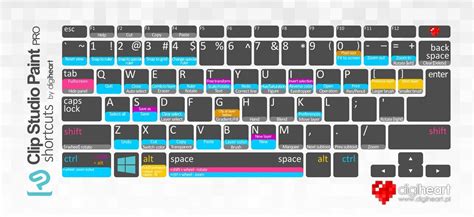
While the "View" menu offers accessible options for rotating and flipping, constantly navigating through menus can disrupt the flow of creative work, especially for artists who frequently employ these transformations. This is where keyboard shortcuts become invaluable. Clip Studio Paint, like most professional art software, allows for extensive customization of hotkeys, enabling artists to tailor the interface to their specific needs and preferences.
The default shortcut for flipping the canvas horizontally in Clip Studio Paint on Windows is Ctrl + Shift + H. For rotating the canvas, you can often use the R key and then drag your mouse left or right to rotate. To reset the canvas rotation, the default shortcut is typically Ctrl + Shift + R, or you can access it via the "View" menu as mentioned earlier.
However, the true power lies in assigning custom shortcuts to these actions. To do this, you would navigate to File > Shortcut Settings. Within this window, you can select the setting area as "Main Menu" and then scroll down to find the "View" menu. Expanding this menu will reveal all the associated options, including rotate and flip commands. Here, you can assign your preferred key combinations to these actions. This customization is particularly beneficial for artists who habitually flip their canvas, as it allows for near-instantaneous execution of the command without diverting attention from the artwork itself.
Beyond View: Editing and Flipping the Canvas
It's important to differentiate between flipping the canvas for viewing purposes and actually editing the canvas in a flipped orientation. While the "View" menu's "Rotate/Invert" options change your perspective, there are instances where you might want to permanently flip your artwork. For these situations, Clip Studio Paint offers a parallel set of commands under the Edit > Rotate/Invert Canvas menu.
Here, you will find options like "Flip Horizontal" and "Flip Vertical." When you select these commands, the actual canvas content is mirrored. This is a destructive edit, meaning it permanently alters the artwork's orientation within the file. Therefore, it's advisable to use these commands judiciously and ideally after you have utilized the "View" menu's flipping options to confirm that a permanent flip is indeed what you intend. Artists might choose to do this if they are working on a piece that will be presented or printed in a specific mirrored orientation, or if they find that working on the flipped version for a period helps them to finalize certain aspects of the composition.
Essential Navigation Tools: Panning and Zooming
While canvas rotation and flipping are crucial for reviewing and correcting artwork, efficient navigation also relies heavily on panning and zooming. These tools allow you to move around your canvas and adjust your viewing scale, enabling you to work on fine details or assess the overall composition from a distance.
Panning the Canvas
To pan your canvas, you can utilize the Hand Tool. This tool is typically found in the tool tab, often represented by an icon resembling a hand. Selecting this tool allows you to click and drag anywhere on your canvas, moving the artwork within the viewing window. A highly convenient shortcut for activating the Hand Tool temporarily is to press and hold the Spacebar. While the Hand Tool is active, only the canvas will move, ensuring that your drawing tools remain unaffected.
Zooming In and Out
Zooming is another fundamental aspect of digital art. You'll need to zoom in to render intricate details and zoom out to evaluate the broader picture. Clip Studio Paint offers multiple ways to achieve this:
- Toolbar: The toolbar usually contains a Magnifying Glass Tool. Selecting this tool and clicking on the canvas will zoom in, while holding Alt (or Option on Mac) and clicking will zoom out.
- Bottom Bar: At the bottom of the Clip Studio Paint interface, there's often a zoom slider or input field, allowing for precise zoom level adjustments. Adjacent to this, you might find two magnifying glass icons for quick zoom in/out actions.
- Mouse Wheel: For a more fluid zooming experience, you can often use your mouse wheel. Scrolling up typically zooms in, and scrolling down zooms out.
- Shortcuts: As with other functions, shortcuts can significantly speed up zooming. The common shortcut for zooming in is Ctrl + '+' (plus sign), and for zooming out, it's Ctrl + '-' (minus sign).
- Navigation Window: The "Navigation Window" (usually found on the right side of the interface) provides a visual overview of your canvas and allows you to zoom in and out using a slider or by clicking on specific zoom level buttons. This window also often includes direct buttons for rotating and flipping the canvas, offering another accessible point for these transformations.
Utilizing Hardware for Enhanced Workflow: The TourBox Experience
For artists seeking to streamline their workflow even further, specialized hardware controllers can be a game-changer. The TourBox, particularly models like the Elite, has garnered significant praise for its ability to enhance productivity in digital art software, including Clip Studio Paint. These controllers feature a variety of buttons, dials, and scroll wheels that can be fully customized to trigger specific software functions.
Users have reported that creating custom presets for their TourBox significantly speeds up common actions like zooming, panning, rotating, and flipping the canvas. The tactile nature of dedicated hardware buttons means that these operations can be performed with greater speed and less reliance on complex keyboard shortcuts or menu navigation. For instance, one could assign a button to instantly flip the canvas horizontally, another to reset rotation, and dials to control zoom level. This level of integration allows artists to keep their hands closer to their drawing tablet and stylus, minimizing interruptions and fostering a more immersive creative process. The investment in such hardware is often deemed "well worth the price" by users who experience a noticeable improvement in their overall workflow efficiency.
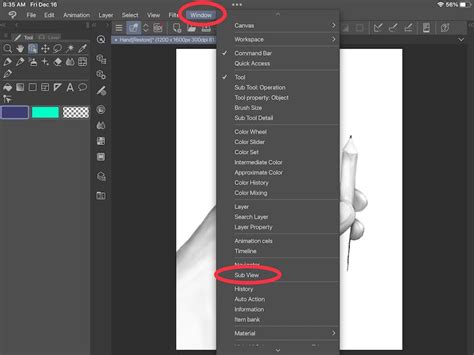
How to Make a Duplicate Window of Your Canvas in Clip Studio Paint (Multiple Windows Same Painting)
The Importance of Regular Canvas Flipping
The practice of regularly flipping your canvas, whether horizontally or vertically, is not just a matter of preference; it's a fundamental aspect of developing strong artistic skills. When you stare at an image for an extended period, your brain can adapt to any visual errors or imbalances, making them difficult to perceive. By flipping the canvas, you present your artwork to your brain in a "fresh" way, much like viewing it for the first time.
This simple act can immediately highlight issues with:
- Proportion: Are the relative sizes of elements correct? A character's head might look proportionate in one orientation but appear too large or small when flipped.
- Symmetry: For symmetrical or near-symmetrical designs, flipping can reveal subtle deviations that break the intended balance.
- Composition: Does the overall arrangement of elements lead the viewer's eye effectively? Flipping can sometimes reveal awkward negative space or unbalanced visual weight.
- Line Weight and Flow: The perceived weight and direction of lines can change when viewed from a different angle, helping to identify areas that feel clunky or don't flow as intended.
Therefore, incorporating canvas flipping into your regular drawing and painting process is a highly effective strategy for self-critique and refinement. It's a technique that separates experienced artists from novices, as it demonstrates a conscious effort to maintain objectivity and accuracy in their work. The ease with which Clip Studio Paint allows for these transformations, especially with the aid of shortcuts or custom hardware, makes it an indispensable part of the digital artist's toolkit.