When working with Adobe Photoshop, particularly when collaborating with developers or migrating designs to web environments, accurately identifying and extracting font information from a PSD file is a crucial step. This article delves into various methods and tools available within Photoshop and beyond to help you pinpoint the exact fonts used in your designs, ensuring seamless integration and consistent visual representation across different platforms. Whether you're a designer aiming to hand off precise specifications or a developer needing to replicate a visual style, understanding how to "find font" in Photoshop is an indispensable skill.
Accessing Font Information Directly in Photoshop
Photoshop offers several built-in functionalities to reveal font details embedded within your project files. These methods are often the most straightforward and efficient for designers working within the application.
The Character Panel: Your Primary Font Detective
The Character panel is the central hub for all text-related properties in Photoshop. To access it, navigate to Window > Character. Once open, a small box will display comprehensive font information.
When you select a text layer using the Text tool (T icon with serifs) and click on the text area to edit it, the Character panel will update to reflect the properties of that specific text. Within the Character panel, locate the font selection dropdown menu. A key observation is that at the end of this list, fonts that are used in the image but are missing from your system will often appear in a light grey color. This visual cue is a direct indicator of missing fonts, allowing you to identify them immediately.
For instance, if a developer has asked you to replicate a design, and you're handed a PSD file where certain fonts are not installed on your system, this method becomes invaluable. The Character panel will list these fonts, often with bracketed names or a distinct visual difference, signaling the need for font acquisition. This is particularly helpful when trying to know document fonts along with their styles, sizes, colors, and formatting.
Utilizing the Layers Tab for Font Filtering
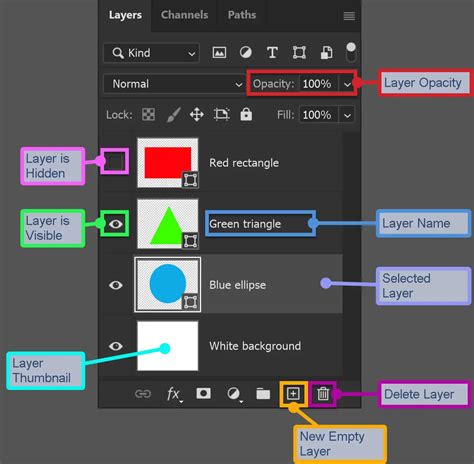
Another integrated approach involves using the Layers tab. There is an option within the Layers tab that allows you to filter all of the layers to show only the text layers. By isolating these layers, you can then inspect each one individually using the Character panel to ascertain the font used. This filtering capability streamlines the process of identifying fonts, especially in complex PSDs with numerous layers.
Scripting for Automated Font Extraction
For more advanced users and for automating the process, Photoshop's scripting capabilities offer a powerful solution. JavaScript-based scripts can be written to iterate through the layers of a PSD file and extract text layer data.
Custom Scripts for Developers
This method is particularly beneficial when delivering comps to developers. A JavaScript-based script can be developed to overlay font information directly onto the design mockups. This is actually very easy to do using PS scripts, which can iterate through the layers of your PSD and pull text layer data. The script can then save this information as a new file, typically in your Photoshop > Presets > Scripts folder, making it readily accessible for future use.
A rough but working "lite" version of such a script can be developed to automate the extraction of font names, styles, sizes, and colors. This approach is efficient for large projects or when consistency in font specifications is paramount. The script can be designed to identify document fonts along with their styles, sizes, colors, formatting, etc., providing a comprehensive overview for development teams.
How to Customize Fonts in Photoshop
External Tools for Font Identification
When Photoshop's built-in tools or custom scripts aren't sufficient, or if you only have an image of the design and not the original PSD, external font identification tools become essential.
WhatTheFont: Your Go-To Online Font Identifier
One of the most popular and effective tools for identifying fonts from an image is WhatTheFont. This online service is a simple and easy font finder that can help you identify fonts. The process is straightforward:
- Take a Snap: Take a clear, zoomed-in snap of the text you need to identify.
- Upload the Image: Upload this image to the WhatTheFont website.
- Get Guesses: The tool will then do its best to identify the font by searching through its extensive database and comparing it to the font in your image.
WhatTheFont works by analyzing the shapes and characteristics of the letters in your uploaded image. It then presents a list of potential font matches, along with a preview of how each font would look with your text. You can even enter your own text and play with the font size for a more accurate preview. WhatTheFont is available for both iOS and Android devices, making it a versatile tool for designers on the go.
Other Font Finder Tools
Beyond WhatTheFont, numerous other font finder or font identifier tools exist. These tools are great for finding the name of a font or similar alternatives. They often work on a similar principle of image analysis and database comparison. Exploring these options can provide a wider range of results and potential matches, especially for more obscure or custom fonts.
Handling Missing Fonts and Special Characters
A common scenario is encountering fonts that are not installed on your system. Photoshop's behavior in this regard can be a helpful clue. As mentioned earlier, missing fonts may appear in a distinct style within the font dropdown, such as in light grey or with square brackets around their names. This indicates that Photoshop is aware of the font's presence in the PSD but cannot render it locally.
The issue can be compounded when dealing with special characters. For instance, the spade symbol (♠) is a special character that not all fonts include. If a logo uses such a character from a font that is not installed, identifying it can be challenging. In such cases, it might be necessary to download the required font or find an alternative that supports the special character.
The Font Substitution Prompt
When Photoshop encounters a missing font, it often prompts the user with a font substitution dialog. This dialog typically displays the name of the missing font, allowing you to identify it. Even if the font isn't directly visible in the dropdown, the substitution prompt is a clear indicator of what font is needed. It's important to note that some versions of Photoshop might handle these prompts differently, and older versions like CS4 Extended might have rendering issues that affect how missing fonts are displayed.
Advanced Techniques: Hex Editors and Font Metadata
In rare and complex situations, if you're unable to identify a font through standard methods, more advanced techniques might be employed. One such method involves opening the PSD file in a free hex editor. Font names are often stored in Unicode within the file's metadata. By searching for nearby tags like "FontType" and looking backward, you might be able to locate the font name. This is a more technical approach and usually reserved for situations where all other methods have failed.
It is often recommended to save a copy of the file with only the text layer and nothing else before attempting such advanced investigations. This isolates the relevant data and simplifies the search process.
Understanding Font Properties Beyond the Name
Identifying the font name is only part of the puzzle. For accurate design replication and development, understanding other font properties is crucial. These include:
- Font Styles: Bold, Italic, Light, Regular, etc.
- Font Sizes: Measured in points or pixels.
- Colors: Using RGB, CMYK, or Hex values.
- Formatting: Kerning, leading, tracking, alignment, and other typographic attributes.
- Character Settings: Specific settings that might be tied to the version of Photoshop used, such as faux bold or faux italic options present in the Character window.
By meticulously extracting all these details, you ensure that the visual integrity of the design is maintained when converting from a PSD to other formats like HTML & CSS. This comprehensive approach minimizes misinterpretations and facilitates a smoother workflow between design and development teams.