Christmas, a time steeped in the warmth of love and family, brings people together to celebrate what truly matters. Amidst the festive spirit, why not elevate your gift-giving by creating something truly personal and memorable? Photoshop offers a powerful and versatile toolkit to craft unique Christmas cards, stunning personal desktop wallpapers, and a myriad of other bespoke gifts that will undoubtedly impress your loved ones. This guide delves into the expansive possibilities of using Photoshop for your Christmas creations, drawing inspiration from a wealth of tutorials and techniques.
Designing Festive Landscapes and Winter Wonders
The magic of a winter wonderland can be brought to life within Photoshop, transforming ordinary photographs into extraordinary Christmas scenes. For those looking to challenge their skills and explore the software's capabilities, creating a snowy landscape from desert photography is an excellent starting point. This technical endeavor demonstrates the powerful possibilities of Photoshop, allowing you to reimagine arid terrains into frost-covered vistas.
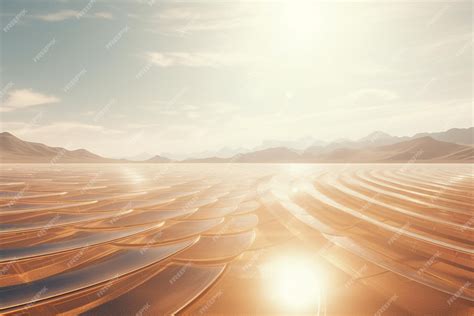
Similarly, you can design a winter-themed holiday card or wallpaper by employing various techniques. Photoshop filters and transformations are instrumental in conjuring fantastic winter illustrations, turning summer photos into enchanting nighttime winter scenes. The ability to manipulate light and shadow, add atmospheric effects, and blend different elements seamlessly allows for the creation of breathtaking holiday artwork.
Bringing 3D Elements and Magical Touches to Life
For those seeking to add depth and dimension to their Christmas creations, combining 3D modeling software with Photoshop opens up a world of possibilities. You can create 3D text in programs like Cinema 4D and then intricately refine it using Photoshop's 3D capabilities. Basic filters and the brush tool become your allies in designing beautiful Christmas wallpapers that feature striking three-dimensional elements.
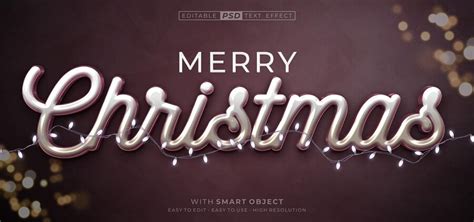
Beyond static 3D text, Photoshop excels at creating magical photo manipulations. Imagine designing a fairy winter scene with a luminous crescent moon suspended above clouds, adorned with shiny icicles and a captivating glow effect. Such creations evoke a sense of wonder and enchantment, perfect for a Christmas gift.
Further embracing the fantastical, you can craft a Christmas night landscape photo manipulation. This involves mastering different editing techniques, learning to create realistic light sources, and effectively utilizing layer groups to organize your complex compositions. For a truly whimsical touch, consider a Christmas night scene featuring a flying Santa, complete with funny and fairy-tale twisted trees. This type of artwork often involves combining seven or more different images to achieve the desired magical effect.
Crafting Ornaments and Decorative Elements
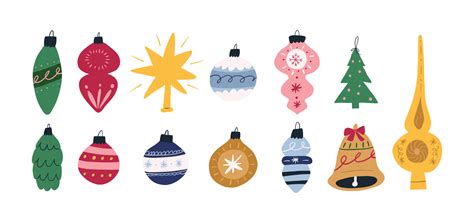
Christmas ornaments are iconic symbols of the holiday season, and Photoshop provides the tools to design them with elegance and flair. You can create elegant Christmas postcards featuring intricately ornamented balls. Simple yet effective tools like the Ellipse Tool and Brush Tool, combined with creative use of Layer Styles, can result in stunning designs.

To design a background for your ornaments, the Gradient Tool, Pen Tool, and Layer Styles are invaluable. You can paint delicate snowflakes and a shimmering Christmas glass ball, adding a touch of handcrafted beauty. Creating Christmas ornaments often involves using specific brushes, textures, and standard Photoshop filters to achieve a polished look. For that extra sparkle, consider designing shiny red balls, perfect for greeting cards and wallpapers.
The creation of Christmas and New Year greeting cards can be greatly enhanced by incorporating these shiny red balls. Simple techniques, as mentioned, are key. Similarly, a greeting card can feature a glowing Christmas ball intertwined with a festive green ribbon. Achieving this effect often relies on the Brush Tool and carefully applied Layer Styles.
Enchanting Text Effects for the Holidays
Text effects can add a personalized and artistic touch to any Christmas design. A glossy candy cane text effect, for instance, can be achieved using a variety of Layer Styles, offering an easy yet impactful way to incorporate a classic holiday motif.
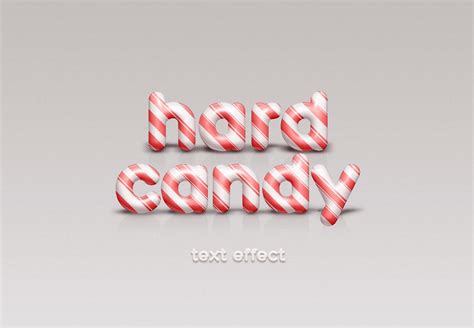
For a more elaborate design, you can create a Christmas tree text effect using a Christmas tree branch brush and embellishing it with glitter stars and a cute silver bow. The knitted argyle text effect, potentially created with the help of Filter Forge, can bring a cozy, festive texture to your holiday illustrations.
Taking a more technical route, a 3D ice text effect can be realized by combining 3D modeling software like Modo with Photoshop for texturing and post-production. This results in a visually striking and professional-looking design. For a nostalgic feel, you can design 80s Christmas artwork, utilizing basic filters and effects to achieve a vintage aesthetic.
The candy cane text effect can also be approached with assistance from Adobe Illustrator, blending vector drawing tools with Photoshop's refinement capabilities. An icy snowflake text effect can be crafted using simple Photoshop techniques, evoking the crispness of winter. Furthermore, creating Xmas tree typography involves arranging the letters of "XMAS" to form a Christmas tree, complete with light effects and decorative balls.
A winter season-inspired text effect, reminiscent of a snow globe, can add a charming touch. The gingerbread cookies text effect offers a delightful, edible aesthetic, achieved through layer styles, filters, and other simple elements. For a playful design, a Santa hat knitted Christmas text effect can be created using basic brush knowledge and work paths.
More sophisticated text effects include a sweet candy cane text created with a custom pattern and clipping masks, or a candy Christmas glass text effect where the letters are filled with virtual sweets.
Designing Memorable Christmas Cards
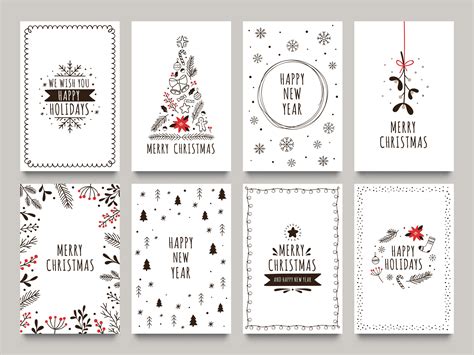
The act of creating a Christmas card can be transformed into an artistic endeavor with Photoshop. You can design an adorable Christmas card using digital illustration and painting techniques, including drawing the main character and typography.
For a truly unique keepsake, consider producing a novel pop-up holiday card. This process involves transforming your concept into a functional piece of cardboard, offering a tactile and engaging element to your greeting.
You can design a cool Christmas wallpaper from scratch using gradients, layer styles, and the Ellipse Tool, creating a festive backdrop for any device. For general Christmas and New Year greeting cards, backgrounds, and header images, Photoshop allows for the creation of unique-looking designs in just a few simple steps.
A special Christmas card might involve combining family photographs, with each member decorated and then composited in Adobe Photoshop. Creating an amazing Christmas card with a shining decorative star is achievable using simple shapes and gradients. Even fluffy clouds, often associated with winter skies, can be masterfully created in Photoshop for your festive designs.
An unusual Christmas card with a 3D effect can be based on a template, adding a sense of depth and dimension. For a more artistic approach, you can paint a Santa Christmas greeting card, learning step-by-step how to create a one-page illustration with beautiful lighting.
Painting Christmas cards, Watercolor tutorial
A typographic Christmas card can be made eye-catching by using a texture on the background. For party celebrations, a cool Christmas party flyer can be designed using Adobe Photoshop. A Christmas greeting card can be adorned with decorative snowflakes, snow, and a banner. A nice Christmas card with a great paper snowflake on a green background is also a popular and achievable design.
Illustrating the Spirit of the Christmas Tree
The Christmas tree is central to holiday decorations, and Photoshop offers numerous ways to illustrate and decorate it. You can draw Christmas trees using gradients and the Pen tool, creating sweet and simple designs. A straightforward illustration for Christmas can be achieved by learning to use brush presets and modify their properties.
A Merry Christmas tree design can be created using custom shapes and the Pen Tool, incorporating stars for added sparkle. Tips on how to create and decorate a Christmas tree with balls and stars involve adding Layer Styles, drawing Christmas balls with the Ellipse Tool, and applying brushes.
For a more dynamic scene, you can create a blueish picture featuring Santa Claus and a great Christmas Tree. A colorful Christmas background can be achieved with a Christmas Tree and glossy balls, utilizing Layer Styles, the Ellipse Tool, and Custom Shapes.
A magical Christmas tree Photoshop manipulation tutorial can transform a scene into a magical forest with a beautifully lit Christmas tree as the focal point, perhaps even including reindeer as symbolic elements. A fantasy Christmas tree floating island can be created from an easy-to-follow photo manipulation tutorial. For a retro feel, an isometric pixel art Christmas tree can be designed in Adobe Photoshop.
Exploring Additional Festive Photoshop Techniques
Beyond specific objects and themes, Photoshop offers a range of techniques for enhancing any Christmas creation. You can create a festive cocktail using Photoshopâs 3D capabilities, perfect for New Year's celebrations. A gingerbread cookie scene can be built using Smart Objects, offering a unique approach to digital crafting.
Creating a seamless pattern tile with a Christmas theme involves using guides and defining patterns from scratch. A magical Christmas snow globe can be conjured using a variety of brushes and images. A customized Christmas rubber stamp, or even a Santa Claus letter, can be created for a personalized touch.
A winter white Christmas image featuring a beautiful snowing night sky can be designed with attention to atmospheric detail. Gorgeous and yummy Christmas cookies can be created as vectors, utilizing basic shape tools, the pen tool, and various layer styling techniques.
Learning to draw walking Santa without photo resources, akin to a cartoon drawing tutorial, is also possible. A Christmas star can be designed by arranging multiple stars to form one larger one. Christmas lights can add a festive flair to your text, simulating a string of lights.
A Christmas card can be designed with different images, playing with colors like blue and orange for a nice contrast. Creating snow from scratch requires only a custom brush and some blurs to achieve a winter wonderland effect. Simulating rope lights to write text involves a blend of layer styles and hand tracing with the pen tool.
An 'ugly sweater' can be designed using textures, shapes, and non-destructive editing techniques. A Christmas reindeer can be painted, simulating a watercolor style. A background for your Christmas card can be created with specific festive elements in mind. An eroded Christmas text tutorial offers a grunge style, perfect for a "Grinch" theme.
Finally, a creative holiday thank you card can be designed through a detailed Photoshop tutorial, and a realistic falling snow effect can be achieved with a dedicated Photoshop tutorial.