For many users, Adobe Photoshop represents the pinnacle of image editing and manipulation. However, transitioning to a different operating system, such as Ubuntu, can present a challenge when seeking comparable functionality. The good news is that the Linux ecosystem boasts a robust selection of powerful image editing tools that can rival Photoshop's capabilities, often with unique strengths of their own. While the workflow might differ, and some functions may be found in unexpected places, the effort invested in learning these alternatives is a worthwhile endeavor, unlocking a world of creative possibilities on your Ubuntu system.
GIMP: The Closest Contender to Photoshop
When the discussion turns to Photoshop alternatives on Linux, GIMP (GNU Image Manipulation Program) inevitably emerges as the primary candidate. For years, it has been recognized as the closest you'll get to matching Photoshop's power and extensive feature set. While the menu layouts and function naming conventions may differ from what Photoshop users are accustomed to, these are minor adjustments that become intuitive with practice. Learning where functions are located and how they are named is a small price to pay for the immense capabilities GIMP offers.
The experience of using GIMP alongside Photoshop has been described as seamless by long-time users. Even back in the days of purchasing Photoshop CS2 and running it on Windows XP, users began experimenting with GIMP. While early Windows ports of GIMP were less refined than their native Linux counterparts, they provided a valuable glimpse into its potential. Today, the integration is so advanced that users can fluidly switch between applications mid-project without missing a beat. Although Photoshop may possess a few exclusive features, GIMP counters with its own unique functions not found in Adobe's offering. For those who still rely on older Adobe software, it's worth noting that CS2, being one of the last 'Creative Suites,' runs remarkably well under WINE, the Windows emulation layer for Linux. This allows for a dual-application workflow directly within Ubuntu.
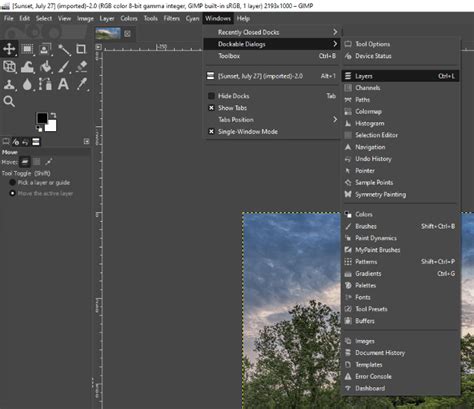
GIMP is equipped with all the essential tools needed to craft stunning images from scratch or enhance existing photographs. The latest release, version 3.0, marked a significant advancement with the introduction of non-destructive editing. This crucial feature allows for modifications to an image without altering the original data, providing a safety net and greater flexibility during the editing process. GIMP boasts an extensive library of filters, and its capabilities can be further expanded by installing the G'MIC plugin, which offers a vast array of additional effects and tools.
The program's compatibility with file formats is another strong suit. GIMP reads most common image file formats and can export to nearly as many, ensuring broad interoperability. Furthermore, it supports plugins and custom brushes, features a configurable workspace, and provides all the necessary tools for professional-grade image manipulation.
Key GIMP Features to Explore:
- Layers and Layer Masks: Fundamental for complex image composition and selective editing.
- Gradients: Essential for smooth color transitions and background creation.
- Fuzzy Select Tool: An efficient way to select areas of similar color.
- Smart Guides and Snapping: Aids in precise alignment and composition.
- Extensive Filter Library: Offers a wide range of artistic and corrective effects, further enhanced by G'MIC.
While GIMP offers a wealth of customizable options that arguably surpass Photoshop in certain areas, the primary learning curve lies in its user interface. For individuals accustomed to Photoshop's established UI, a period of adjustment is necessary to become proficient with GIMP's layout and conventions. GIMP can be readily installed from Ubuntu's standard software repositories or via Flatpak for a more isolated and up-to-date installation.
Krita: A Powerhouse for Digital Painting and Illustration
Krita stands out as another formidable Photoshop alternative for Ubuntu, pushing the boundaries of image editing with the integration of AI plugins. While GIMP has long been the default go-to, Krita has rapidly closed the gap, especially with its accelerated development cycle compared to GIMP. Krita is primarily geared towards digital painters and illustrators, offering a more intuitive and user-friendly experience than GIMP for these specific creative pursuits.
To access the latest features, including AI capabilities, it's recommended to download Krita as an AppImage or install it via Snap or Flatpak. The versions available in standard Ubuntu repositories can often be outdated. While users might encounter occasional installation issues with the Snap version, the Flatpak installation typically proceeds effortlessly.
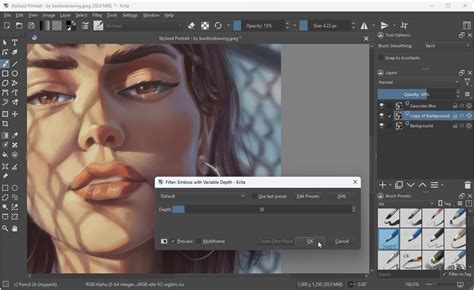
Krita boasts robust support for color spaces, including RGB and CMYK, at both 8- and 16-bit integer channel depths, which are critical for professional print and digital workflows. Its advanced painting brushes are a significant draw for artists, offering a wide range of textures and behaviors. The generative AI functionality, while not for creating entirely new images from scratch, is a powerful tool for transforming existing images, adding a new dimension to the creative process. To utilize this feature, users need to download the AI plugin from the project's GitHub page and install it manually.
RawTherapee: Mastering RAW Image Development
For photographers who work extensively with RAW image files, RawTherapee is an indispensable tool on Ubuntu. This program is specifically designed for developing RAW images captured by a wide array of digital cameras, allowing users to extract the utmost color detail and dynamic range from their files.
RawTherapee offers non-destructive editing, a crucial aspect for preserving original image data. Its processing engine operates at 32-bit floating-point precision, ensuring high-fidelity color manipulation. The software incorporates advanced demosaicing algorithms, potent color correction tools, HDR tone mapping support, batch editing capabilities, and sophisticated noise reduction. It also provides fine-grained control over white balance, exposure values, and other RAW-specific adjustments, features commonly found in professional photography software.
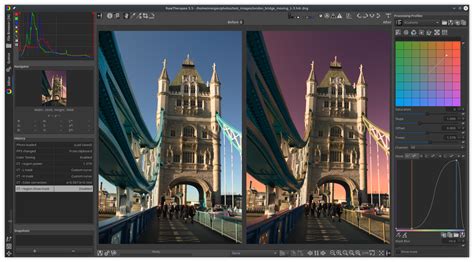
It's important to acknowledge that working with RAW files and specialized tools like RawTherapee requires a certain level of technical understanding. Users who are new to RAW processing might find the interface and terminology initially daunting. However, for those who invest the time to learn, RawTherapee provides unparalleled control over image development, from basic exposure adjustments to intricate detail and color grading. RawTherapee is available for free installation on Linux via an AppImage.
Processing Photographs in Rawtherapee
Inkscape: The Vector Graphics Powerhouse
While GIMP and Krita focus on raster graphics (pixel-based images), Inkscape occupies a different but equally crucial niche: vector graphics. For tasks that involve creating logos, illustrations, diagrams, or any design that requires scalable graphics, Inkscape is the go-to solution on Ubuntu. It serves as a powerful alternative to Adobe Illustrator.
Inkscape offers a comprehensive suite of tools for vector manipulation, including layers, paths, gradients, and text tools. It supports a wide array of file formats, including SVG (Scalable Vector Graphics), AI, EPS, PDF, PS, and PNG, ensuring broad compatibility with other design software and workflows. The program also features a rich ecosystem of extensions and filters, and even includes a filter editor for custom effects.
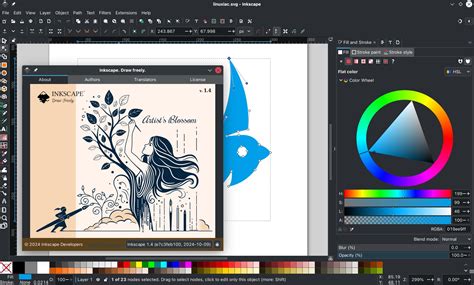
One of the notable aspects of Inkscape is its extensive filter and extension system, which can significantly expand its capabilities. However, the user interface, with its multitude of tool icons, can initially appear cluttered and overwhelming. It takes time and practice to familiarize oneself with the purpose of each icon and its associated tool. Despite this initial hurdle, with consistent use, users become adept at navigating the interface and efficiently utilizing its powerful vector editing features.
MyPaint: Focused on Freehand Creation
MyPaint is another image editing application available for Ubuntu that, while offering basic editing tools, is primarily oriented towards freehand image creation. Its strengths lie in its suitability for digital painting and sketching, especially when used in conjunction with graphic tablets. MyPaint provides a streamlined and distraction-free environment for artists to bring their ideas to life through brushwork and creative expression. While it may not possess the extensive feature set for complex photo manipulation found in GIMP or Krita, its focus on the artistic process makes it a valuable tool for illustrators and digital painters seeking a dedicated drawing application.
The Ubuntu Ecosystem: A Wealth of Creative Options
Ubuntu has made significant strides in becoming more accessible to novice users, but a persistent challenge for those migrating from Windows has been the compatibility with commonly used software. Fortunately, the landscape of creative applications on Linux has matured considerably.
For image editing and creation, GIMP stands out as a prominent solution, often hailed as a perfect alternative to Photoshop. While it may not handle Photoshop's PSD files with the same seamlessness as other programs, its overall functionality is immense. Inkscape, on the other hand, excels in vector graphics, positioning itself as a superior choice to Photoshop in that domain, and is often compared to CorelDraw.
Krita is widely regarded as a worthy "Photoshop clone," with its development team actively focusing on enhancing compatibility with native Photoshop files, thereby minimizing user issues during file exchange. Krita also supports a range of plugins and add-ons, similar to GIMP and Photoshop, further extending its capabilities. Although Krita deals with image editing, its core focus is on image creation, making it a versatile tool for a broad spectrum of digital artists.
MyPaint, as mentioned, is geared towards the world of image creation, particularly for those who leverage graphic tablets. It provides the fundamental tools necessary for artistic expression and element creation. For new users exploring Ubuntu's software offerings, understanding the distinct strengths of each applicationâGIMP for general image manipulation, Krita for digital painting and illustration, Inkscape for vector design, and MyPaint for freehand artistryâwill help in choosing the most suitable tool for their specific creative needs.