Navigating the intricate world of image editing often demands a level of precision that goes beyond mere visual estimation. Whether the goal is to meticulously crop an image to exact dimensions or to achieve a perfectly calibrated rotation, the need to accurately measure distances and angles within a photograph becomes paramount. While the human eye can be a useful guide, it is prone to inaccuracies, leading to suboptimal results when exactitude is required. Fortunately, Adobe Photoshop equips its users with a powerful yet often underutilized instrument designed precisely for these tasks: the Measurement tool. This comprehensive tutorial will delve into the functionalities of the Measurement tool, transforming complex geometric calculations into intuitive, user-friendly operations.
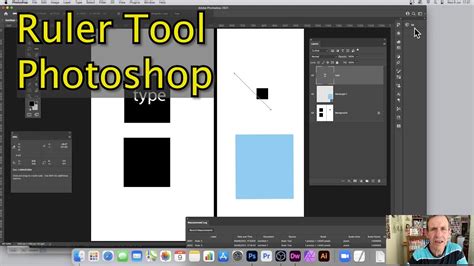
Unveiling the Ruler Tool: Core Functionality and Interface
When the Measurement tool is activated in Photoshop, it manifests as a pair of rulers, strategically positioned along the left and top edges of your document window. These rulers serve as the foundation for all subsequent measurements, providing a visual framework for understanding spatial relationships within your image. The tool's interface is designed to offer a wealth of information at a glance. Upon placing measurement points, you are presented with unique readings for your start and end points, the calculated width and height of your measured area, the precise angle of any segment, and the total distance covered. This detailed feedback ensures that you are always informed about the spatial characteristics of your selections.
The flexibility of these rulers is a key aspect of the tool's utility. You are not confined to a single measurement; the system allows for the adjustment of ruler sizes and the creation of multiple start and end points. This capability is particularly beneficial when analyzing complex compositions or when needing to establish several reference points. Furthermore, you can lock these rulers, ensuring that any new points you introduce are placed with unwavering accuracy along the established measurement markings. Complementing the visual rulers are vertical and horizontal cursors that dynamically track your mouse's movement across the screen. These cursors provide real-time X and Y coordinate readouts, offering an additional layer of precision for pinpointing exact locations.
Beyond Simple Distances: Exploring the Measurement Tool's Modes
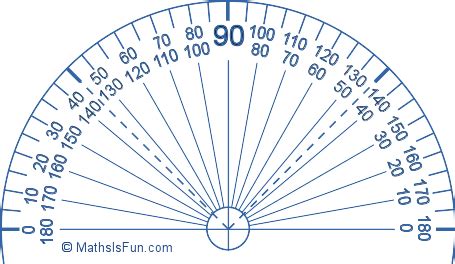
The Measurement tool's capabilities extend far beyond simply calculating linear distances. It offers specialized modes that cater to a wider array of editing needs. One such powerful feature is the "protractor mode." This mode allows for the accurate measurement of angles within your image. After you establish an initial distance line, protractor mode enables you to add a second distance line. The intersection and relative positions of these two lines then allow Photoshop to calculate and display the angle formed between them. This is invaluable for tasks requiring precise alignment, such as correcting skewed horizons or ensuring that architectural elements are rendered at their intended angles.
Another critical application of the Measurement tool lies in its ability to straighten images. Often, photographs are captured with a slight tilt, which can detract from their professional appearance. The Measurement tool allows you to identify a straight line within the image - such as a horizon or a building edge - and then use this information to rotate the entire image to align perfectly with that line. This process can be combined with cropping to refine the composition and remove any extraneous elements that result from the rotation. The tool provides a concrete measurement, enabling you to rotate your image to a specific number of degrees with confidence, rather than relying on visual guesswork.
The Measurement tool is an indispensable ally when trying to ascertain exact distances between two points. This is particularly true when undertaking precise cropping operations or when a specific degree of rotation is required for aesthetic or technical reasons. The tool provides the data necessary to achieve these exacting standards.
Addressing Accuracy: Custom Measurement Scales and Fine-Tuning
While the Measurement tool is remarkably powerful, there may be instances where its default readouts require further refinement for absolute accuracy. Sometimes, especially when working with complex perspectives or when the tool's automatic detection might not perfectly align with the user's intent, the measured lengths might not precisely reflect the desired real-world distances. This is where the concept of a "custom measurement scale" becomes crucial.
Accurate Dimensions in Photoshop
This advanced feature allows you to input your own desired values, effectively calibrating the tool to your specific needs. For example, let's consider a scenario where you are using protractor mode and measuring two lengths, denoted as D1 and D2. If these provided lengths do not precisely correspond to the actual distances you need to work with, you can create a custom measurement scale. By entering your own known or intended measurements, you instruct Photoshop to recalculate and display the actual distances between your points based on your custom parameters. This ensures that the measurements you obtain are not just relative within the image but accurately represent real-world dimensions, a vital capability for professional print work, architectural visualizations, or any application where precise scaling is non-negotiable.
The ability to create a custom scale transforms the Measurement tool from a simple measuring device into a sophisticated calibration instrument. This is particularly relevant when dealing with images that have been scaled or resized, where the pixel dimensions might not directly translate to the intended physical dimensions without a reference point. By establishing a custom scale, you can ensure that all subsequent measurements within that document accurately reflect the desired real-world scale, providing a level of control that is essential for professional-grade image manipulation. This feature empowers users to overcome potential discrepancies and achieve unparalleled accuracy in their editing workflows.
tags: #photoshop #measurement #tool