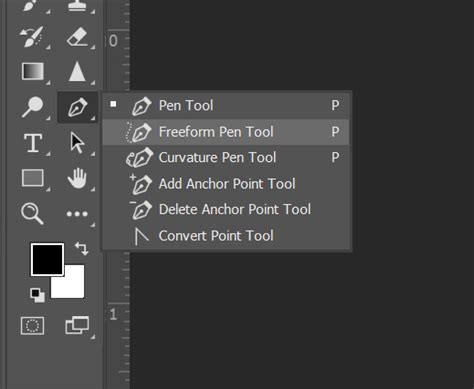
The Pen Tool in Adobe Photoshop is a cornerstone for designers and illustrators who require precise vector path creation. Its ability to generate clean, scalable lines and shapes makes it indispensable for tasks ranging from intricate logo design to complex photo manipulations. However, with software updates and varying user workflows, encountering issues with this powerful tool is not uncommon. This article delves into specific problems users have reported, offering insights and potential solutions to ensure your creative process remains uninterrupted.
The Elusive Anchor Point and Connecting Line Conundrum
One of the most vexing issues reported by users, particularly after recent Photoshop updates (such as v23.01 and v24.0), is the intermittent appearance of anchor points and connecting lines when using the Pen Tool. Users describe clicking to place a node, only to find nothing appears, or seeing only fragments of lines when attempting to create Bezier curves. This problem persists even after basic troubleshooting steps like restarting the computer.
"When I try to use the Pen Tool it sometimes puts the nodes in but doesn't create a linking line. I can drag and create a line but not see my straight line or see to close a path," one user stated. Another reported, "Every time I use the Pen tool, I can never see the anchor points. I click. Nothing happens. But if I move the canvas, either by zooming or moving, the anchor points and connecting lines will appear. If I create a Bezier curve using the Pen tool, I will see fragments of the lines."
A common workaround that has provided temporary relief for some is to reset preferences on quit. However, this is not an ideal long-term solution. A more promising fix, frequently cited for addressing display issues with the Pen Tool, involves disabling Photoshop's Native Canvas. To do this, navigate to Preferences > Technology Previews... and check the box labeled "Disable Native Canvas." After restarting Photoshop, the Pen Tool's anchor points and lines should render correctly. This setting is particularly relevant for users experiencing visual glitches where paths only become visible after manipulating the canvas.
Can't See Real-Time Preview of Pen Tool (SOLVED!) | Photoshop
The Unintended Layer Shift: Understanding Undo Behavior
For those who rely heavily on the Pen Tool for creating custom vector shapes - a process that often involves iterative refinement - a particularly disruptive behavior can occur after using the Undo command (Ctrl+Z or Backspace). Instead of simply reverting the last action on the current path, Photoshop can, under certain circumstances, initiate a new path on a separate layer. This leaves the original shape unfinished and fragments the user's workflow.
"When I'm drawing a shape but need to back up a little by pressing Ctrl+Z, when I put down my next point it starts in on a new layer, leaving my original shape unfinished," a user explained. This behavior, described as "errant Undo behavior," is acknowledged by experienced users and is often considered a bug rather than an intended change.
While the exact trigger for this issue can be elusive, it's understood that when undoing in the middle of drawing a path, Photoshop needs to be explicitly informed that you intend to continue working on the same path. The recommended method to rectify this is to click on the last point of the existing path before placing your next point. This action signals to Photoshop that you are indeed continuing the current path, rather than starting a new one. While this solution requires a conscious adjustment in workflow, it effectively circumvents the unintended layer creation. The hope among users is that Adobe will address this behavior in future updates to restore a more seamless undo experience for path creation.
Streamlining the Shape: Accessing Combine and Subtract Options
Another point of contention for users upgrading from older Photoshop versions, such as CS5.5 to CS6, is the perceived difficulty in accessing certain shape-related options. Specifically, the combine and subtract functionalities, which are crucial for Boolean operations on vector shapes, seem to have had their accessibility altered.
"I'm just frustrated that they've made some options more difficult to get to and was wondering if there's a way to expand them so they're all visible?" a user inquired. The good news is that these "Real Vector Commands," as they are now sometimes referred to, are still present and functional. Their names have been updated to better reflect their purpose.
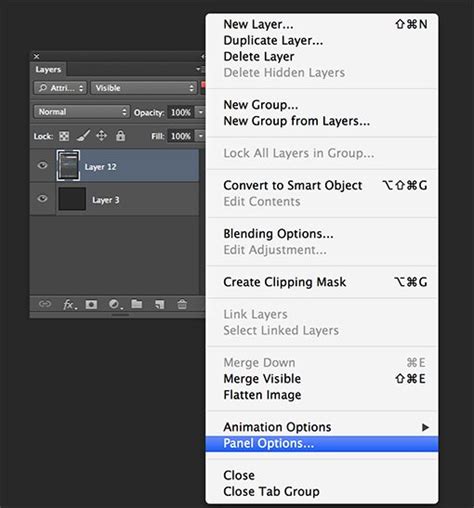
These combine and subtract options can be found within the Layer menu. By navigating to Application Menu > Layer > Combine Shapes, users can access these powerful tools. Furthermore, for users who prefer keyboard shortcuts or utilize specialized hardware like Wacom tablets, these commands can be assigned custom shortcuts. This allows for quick and efficient access, effectively bringing them back to a more prominent and accessible position within the user's workflow. The ability to assign these to Wacom buttons, for instance, can significantly speed up the process of creating complex, multi-layered vector artwork.
Pen Pressure and Cursor Issues: A Deeper Dive
Beyond path creation, problems with pen pressure sensitivity and cursor visibility can also hinder the effectiveness of the Pen Tool, especially when used in conjunction with graphics tablets. These issues can stem from several sources: incorrect Photoshop settings, driver malfunctions, or problems with Windows Ink.
If pen pressure isn't registering correctly, the first step is to check Photoshop's brush settings. Pressing the F5 key opens the Brush Settings panel. Within this panel, users should navigate to "Shape Dynamics" and ensure that the selection box for this section is checked. A visual indicator of a potential problem is a triangle with an exclamation mark next to the pen pressure option.
If the issue persists, the next crucial step is to verify the status of Windows Ink. Photoshop relies on Windows Ink being activated for proper pen pressure functionality. Users are advised to ensure Windows Ink is turned on in their tablet's settings. If these steps do not resolve the problem, further investigation into tablet driver updates or specific Windows Ink settings may be necessary, with Adobe's support resources often providing detailed troubleshooting guides for persistent issues.
The challenge of the Pen Tool not displaying anchor points or lines until the canvas is moved can also be linked to display driver issues or how Photoshop interacts with the graphics hardware. While disabling the Native Canvas is a broad solution for some visual glitches, ensuring that graphics drivers are up-to-date is a fundamental step in resolving many display-related anomalies within graphics-intensive applications like Photoshop. A corrupted or outdated display driver can lead to a variety of rendering problems, including the delayed appearance of vector elements.
Embracing Evolution: Adapting to Photoshop's Changes
The evolution of software like Photoshop inevitably brings changes, some of which can initially disrupt established workflows. The reported issues with the Pen Tool, while frustrating, highlight the importance of understanding how these tools function and how to adapt to their updated behaviors. The core functionality of the Pen Tool remains robust, empowering users to create precise vector graphics. By familiarizing oneself with the troubleshooting steps for visual glitches, understanding the nuances of undo behavior, and knowing how to access and customize shape modification tools, users can overcome these challenges. The key lies in a combination of technical solutions, such as adjusting preferences and ensuring driver compatibility, and a willingness to adapt one's workflow to accommodate software updates, ultimately ensuring that the Pen Tool continues to be a powerful ally in the creative process.