The dreaded "Scratch disk full" error in Adobe Photoshop can bring your creative workflow to an abrupt halt. This message, often appearing as "Could not initialize Photoshop because the scratch disks are full" or "Could not complete your request because the scratch disks are full," signifies a critical issue with the temporary storage space that Photoshop relies upon to function. For users running Photoshop CC on macOS Sierra, like one individual experiencing this problem on a MacBook Air, this error can prevent the application from opening altogether. Understanding the nature of scratch disks and how they are utilized is the first step towards resolving this pervasive problem.
The Crucial Role of Photoshop's Scratch Disk
A scratch disk is essentially temporary memory that programs like Photoshop use to store and access project files while the program is running. Think of it as a digital workbench where Photoshop places elements of your ongoing project for quick access. This process is vital for handling large, high-resolution images and complex operations. Photoshop works faster using a scratch disk than it would if it were required to access your primary RAM for scratch space. The "scratch disk full" error usually happens because of a buildup of temporary files and cache in Photoshop, which prevents the program from working properly. Another underlying reason for the "scratch disk full" error could be a general lack of hard drive space on your computer. Your scratch disk relies on available disk space, and if you're running low, you may encounter this error. For programs like Photoshop to run effectively, you need plenty of storage space.
Identifying and Clearing Photoshop's Cache and Temporary Files
One of the primary culprits behind a full scratch disk is the accumulation of Photoshop's cache and temporary files. Your Photoshop cache holds old drafts of your projects and helps your high-resolution images load more quickly. Although Photoshop automatically deletes your cache when you exit the program, it can sometimes miss some files. This is where manual intervention becomes necessary.
Photoshop also creates temporary files as backups for your projects. These can often be found by searching your system for any folders named "Photoshop Temp" followed by a string of numbers. Sometimes, these files can be hidden, requiring you to dig deeper into your Mac's file system. On a Mac, hidden files and folders will typically appear as grayed-out icons, indicating that they are not meant for everyday access but can be navigated to if you know where to look.
Windows 10: How To Delete Temporary Files! [Permanently]
Managing System-Level Temporary Files and Disk Space
Beyond Photoshop's specific temporary files, your Mac itself stores unnecessary files that can contribute to overall disk space depletion. Clearing your Mac's cache can help get rid of these temporary files, freeing up valuable space that Photoshop can utilize. Like all apps and programs, Photoshop uses RAM to perform tasks. To see how much RAM your Photoshop projects are actually using, regularly check your RAM memory status. If you find that Photoshop is consistently demanding a significant portion of your RAM, consider an upgrade to a larger RAM module if your system allows.
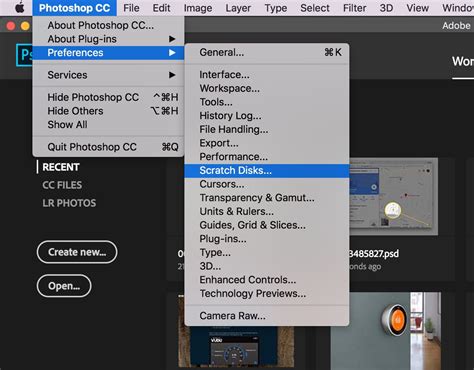
If you have multiple drives on your Mac, you can change your Photoshop scratch disk location to a larger drive. This is a powerful strategy when one drive is consistently filling up. By designating a drive with more free space as your primary or secondary scratch disk, you can alleviate the pressure on a smaller, more crowded drive.
Advanced Troubleshooting and System Optimization
When manual cleaning doesn't yield the desired results, there are more advanced troubleshooting steps and system optimization techniques to consider. Resetting Photoshop preferences can sometimes resolve issues, as the Photoshop preference file may become corrupted, affecting how it handles scratch disks.
If you have enough storage space to spare, you can also defragment your Mac hard drive to boost performance. Defragmentation reorganizes fragmented data on your hard drive, making it more efficient for programs like Photoshop to access files. Alternatively, another way to clean up your Mac and create space if your storage is full is to delete any large files or programs that you no longer need. This is a straightforward but often overlooked method for reclaiming significant disk real estate.
Leveraging Third-Party Tools for Effortless Cleanup
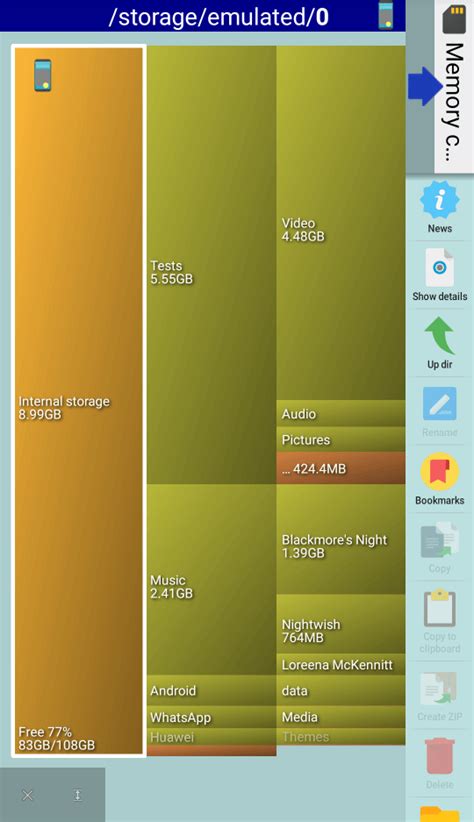
Manually cleaning up your Mac's disk space can be a tedious and time-consuming process. Sifting through endless folders and identifying unnecessary files can be overwhelming. For this reason, automated cleanup tools can be invaluable. Software like Avast Cleanup for Mac is designed to do the hard work for you. It regularly scans your computer for hidden junk, temporary files, and other clutter that can impede performance and consume valuable disk space. Cleanup tools can help keep clutter from piling up, while also clearing your caches. Plus, some can sort through duplicate and blurry photos, further optimizing your storage.
The Ultimate Solution: Hardware Upgrades
When all else fails, and even after thorough software-based cleaning, you continue to experience scratch disk errors, it may be time to consider a hardware upgrade. Programs like Photoshop require a substantial amount of disk space to work properly. To ensure the longevity and optimal performance of your Mac, upgrading to a larger, solid-state drive (SSD) is often the most effective long-term solution. SSDs offer significantly faster read and write speeds compared to traditional hard drives, which can greatly benefit Photoshop's performance, especially when dealing with large files and complex operations. If you’re consistently getting Photoshop scratch disk errors, you'll likely start to receive similar error messages from other demanding applications, indicating a fundamental limitation in your system's storage capacity.
The History States and auto-recovery features within Photoshop can consume significant scratch disk space during complex operations. This means that even with a generally clean system, intensive editing sessions can quickly fill up the available scratch disk space. Therefore, ensuring ample free space is crucial for uninterrupted creative work.
Setting up additional scratch disks for temporary files can also be a strategic move. By configuring Photoshop to use multiple drives for scratch disk purposes, you distribute the workload and increase the total available temporary storage. This is particularly beneficial if you have a fast secondary drive that can be dedicated to scratch disk operations.
Ultimately, addressing "Photoshop scratch disk full" errors involves a multi-faceted approach. It begins with understanding the function of scratch disks, followed by diligent manual cleaning of Photoshop's temporary files and system caches. Leveraging automated cleanup tools can streamline this process. When software solutions are exhausted, considering hardware upgrades, such as larger SSDs or additional storage, becomes the most robust path to ensuring your creative software operates without these frustrating limitations.