When working with Adobe Photoshop, the ability to precisely isolate and manipulate specific areas of an image is fundamental. This isolation is achieved through "selections," which can be created using a variety of tools like the Lasso, Marquee, or Magic Wand. Once a selection is made, it's often necessary to remove it to continue editing or to refine the chosen area. This process is known as "deselection." Understanding how to deselect efficiently is a crucial skill that can significantly streamline your workflow, prevent unintended edits, and enhance your overall productivity in Photoshop. This comprehensive guide will delve into the various methods for deselecting in Photoshop, covering everything from simple shortcuts to more nuanced techniques for subtracting from existing selections.
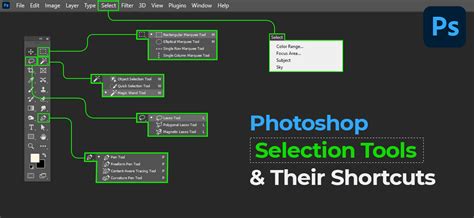
The Fundamentals of Deselection: Clearing the Marquee
At its core, deselecting in Photoshop means removing the active selection outline, often referred to as the "marching ants." This action liberates the rest of your image from the confines of the selection, allowing for broader editing or the creation of new selections without interference from the previous one.
Keyboard Shortcuts: The Fastest Route
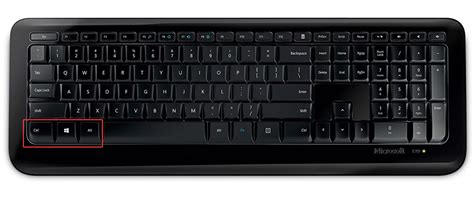
The most immediate and widely used method for deselecting is through keyboard shortcuts. These are designed for speed and efficiency, allowing you to clear a selection with a single key combination.
- For Windows users: Press
Ctrl+D. - For Mac users: Press
Command+D.
This shortcut instantly removes the selection marquee, effectively returning your entire image to an editable state. It's a habit that seasoned Photoshop users cultivate: after completing edits within a selected area, they tap this shortcut to reset their canvas, ensuring no lingering selections interfere with subsequent actions. This is a fundamental principle that applies across most selection tools, including the Marquee tools, Lasso tools, and even the Magic Wand and Quick Selection tools.
Menu Commands: A Visual Approach
For those who prefer a visual approach or find it easier to remember through menu navigation, Photoshop offers a clear path to deselect.
- Navigate to the Select menu located at the top of the Photoshop interface.
- From the dropdown menu, choose the Deselect option.
This action performs the exact same function as the keyboard shortcut, clearing the active selection marquee. Adobe's own help documentation confirms that Select > Deselect is the designated command to clear the current selection.
Contextual Menus: Right-Click for Convenience
Another intuitive method for deselecting involves using the contextual menu. This approach is particularly useful when your cursor is already within the selected area.
- Perform a right-click (or Control+click on a Mac) anywhere inside the active selection.
- A context-sensitive menu will appear.
- Select Deselect from this menu.
This method offers a quick and accessible way to remove a selection without needing to remember a specific keyboard shortcut or navigate through menus.
Beyond Full Deselection: Subtracting from Selections
Often, you might find yourself needing to refine an existing selection rather than removing it entirely. Perhaps you've made a broad selection with the Magic Wand and want to exclude a specific part, or you've used the Lasso tool and realized a portion of your selection is incorrect. In these scenarios, simply pressing Ctrl+D or Command+D would remove the entire selection, which is not the desired outcome. Photoshop provides powerful tools to subtract from active selections.
Using the Alt/Option Key: Carving Out Unwanted Areas
The Alt (Windows) or Option (Mac) key is your best friend when you need to remove specific parts from an active selection. This technique works in conjunction with most selection tools.
- Ensure you have an active selection.
- Select any of the primary selection tools (e.g., Lasso, Polygonal Lasso, Magnetic Lasso, Marquee tools, Magic Wand, Quick Selection Tool).
- Hold down the
Alt(Windows) orOption(Mac) key. You will typically notice a small minus sign (-) appear next to your cursor, indicating that you are now in "subtract from selection" mode. - Click and drag over the area you wish to remove from the current selection. As you drag, Photoshop will carve out that portion, leaving the rest of your original selection intact.
This method is incredibly versatile and allows for precise adjustments to your selections. For instance, if you've selected an entire object but need to exclude a small shadow or a background element that was accidentally included, holding Alt/Option and drawing over that unwanted area will effectively "unselect" it.
The Subtract from Selection Icon
Many of Photoshop's selection tools feature an options bar that provides visual controls for modifying selections. Among these controls is an icon that allows you to switch to "subtract from selection" mode.
- With an active selection, locate the options bar, usually positioned below the main menu.
- Look for an icon that typically depicts overlapping squares, with one being subtracted from another. Clicking this icon will change the tool's behavior to subtract from the existing selection.
- Alternatively, you can often find specific "Subtract from Selection" icons directly within the tool's settings.
Once this mode is activated, any new selection you draw will be subtracted from the currently active selection. This offers a more deliberate approach compared to the Alt/Option key method, as it visually confirms the mode you are in before you start drawing.
Quick Mask Mode: Painting Away Unwanted Areas
Quick Mask mode offers a unique and visual way to refine selections, particularly for complex shapes or feathered edges. It allows you to use painting tools to edit your selection.
- Enter Quick Mask Mode: Press the
Qkey on your keyboard. Your current selection will typically be displayed as a semi-transparent red overlay (this color can be customized in Photoshop's preferences). Areas not selected will be covered by this overlay. - Paint to Subtract: Select the Brush tool. To remove an area from your selection (i.e., to make it covered by the red overlay), paint with black. To add an area back to your selection (i.e., to remove the red overlay), paint with white.
- Exit Quick Mask Mode: Once you've finished refining your selection, press the
Qkey again to exit Quick Mask mode. Your selection will be updated accordingly. You can then useCtrl+D/Command+Dto clear the refined selection if desired.
This method is exceptionally useful for fine-tuning the edges of a selection, especially when dealing with intricate details like hair or fur, or when you need to feather the edges of your selection.
Bài 32: Quick Mask, Select and Mask | Làm Chủ Photoshop CC 2018
Tool-Specific Deselection Behaviors
While the core methods of deselecting are universal, some tools have slightly different nuances or additional ways to manage selections.
Lasso and Marquee Tools: Clicking Outside the Boundary
For tools like the Lasso and Marquee, a simple click or drag outside the current selection boundary can also cancel it.
- Clicking Outside: If you have an active selection made with a Lasso or Marquee tool, simply clicking anywhere on the canvas outside of that selection will deselect it. Photoshop interprets this as an intent to start a new selection, thereby canceling the old one.
- Dragging Outside: Similarly, if you initiate a drag operation outside the boundaries of your current selection, it will also result in the deselection of the previous area. This is consistent with how these tools operate when creating new selections.
Magic Wand and Quick Selection Tools: Initiating New Selections
The Magic Wand and Quick Selection tools are designed to select areas based on color and texture. When you have an active selection made with these tools, you can deselect by initiating a new selection.
- Clicking Anywhere Outside: With the Magic Wand or Quick Selection tool active, simply clicking anywhere on the image outside your current selection will begin a new selection process, effectively ending the previous one.
- Alt/Option Click (Magic Wand): As mentioned in the subtraction section, for the Magic Wand tool specifically, holding
Alt(Windows) orOption(Mac) and clicking on an area is a direct way to "unselect" that portion.
Pen Tool and Paths: Exiting Edit Mode
The Pen tool creates vector paths, which are different from pixel-based selections. While paths can be converted into selections, they are managed separately.
- Pressing Esc: If you are actively editing a path with the Pen tool, pressing the
Esckey will exit path editing mode. This doesn't necessarily deselect a converted selection but rather stops the current path manipulation. - Deselecting Paths: To deselect a vector path itself, you can often click on a "deselect path" button in the options bar (which may look like a dotted square) or click on the blank page icon at the bottom of the Paths panel. Community tips also suggest
Shift-clickingthe path name in the panel. - Converting to Selection: Remember that once you have a path, you can convert it into a selection by
Ctrl+clicking(Windows) orCommand+clicking(Mac) the path thumbnail in the Paths panel, or by using the "Load Path as a Selection" option in the Paths panel menu. Once converted to a selection, standard deselection methods likeCtrl+D/Command+Dapply.
Deselecting Layers and Masks
While the focus of this guide is on deselecting image selections, it's important to distinguish this from deselecting active layers or masks, which have their own unique procedures.
Deselecting Layers
In Photoshop, only one layer can be actively selected at a time for editing. To deselect a layer and remove its highlight in the Layers panel:
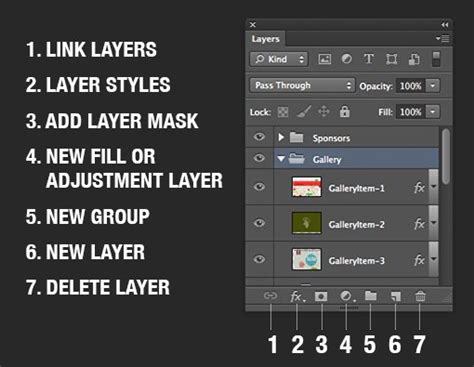
- Clicking in Empty Space: The simplest method is to click on an empty area within the Layers panel, typically below all the visible layers. This deselects any currently highlighted layer.
- Ctrl/Command-Clicking a Selected Layer: Alternatively, you can
Ctrl-click(Windows) orCommand-click(Mac) on the currently selected layer in the Layers panel. This action will deselect it.
Deselecting Masks
A mask, whether pixel-based or vector-based, is not a "marching ants" selection in the traditional sense. It's an overlay that controls the visibility of a layer.
- Clicking Back on the Layer Thumbnail: To "deselect" editing on a mask and return to normal layer editing, simply click back on the layer thumbnail itself or click on another layer in the Layers panel.
- Exiting Quick Mask Overlay: If you are viewing the mask overlay (often shown in red or gray), pressing
Qwill toggle you out of Quick Mask mode, or pressingEsccan also exit certain editing modes.
Text Editing and Deselection
When you are typing text, Photoshop temporarily creates an outline around the text area. Once you finalize your text entry (by pressing Enter or Esc), this "selection" is complete.
- Clicking Outside the Text Box: To deselect any highlighted text characters or the active text editing area, simply click outside the text box or switch to a different tool.
- Switching Tools: Activating any tool other than the Type tool will typically exit text editing mode and deselect the text.
Each of these scenarios â layers, masks, and text â involves exiting a specific editing mode or clicking away from the active element, rather than using the standard selection deselection commands.
Common Questions and Troubleshooting
Even with these methods, users sometimes encounter issues with deselection.
"Why isn't Ctrl+D (Cmd+D) working?"
This is a common point of confusion. The Ctrl+D/Command+D shortcut only functions when there is an active selection present. If nothing is selected, pressing this shortcut will have no effect. Additionally, if a specific tool like the Type tool or Pen tool is in a special editing mode, you might need to exit that mode first (usually by pressing Enter or Esc) before Ctrl+D/Command+D will work on any underlying selections.
"Can I use Marquee tools to deselect?"
Yes. As discussed, with an active selection, using a Marquee tool (or a Lasso tool) and clicking or dragging outside the boundaries of the current selection will effectively clear it. This is a direct way to deselect without using shortcuts or menu commands.
"How do I undo a selection instead?"
It's important to distinguish between "deselecting" and "undoing." The Undo command (Ctrl+Z/Command+Z) reverses your last edit â such as a filter application, a brush stroke, or a transform. It does not undo the creation of a selection itself. Deselecting is the act of removing the active selection marquee. If you wish to undo the creation of a selection, you would typically need to either deselect and then re-select correctly, or use the History panel to step back to a point before the selection was made.
"Is there a way to deselect in one click?"
The Ctrl+D/Command+D shortcut is the fastest one-click method. The right-click context menu, requiring two clicks (right-click then click "Deselect"), is also very swift.
The Importance of Workflow and Efficiency
Mastering deselection is more than just knowing a few shortcuts; it's about integrating these techniques into a fluid workflow. Forgetting to deselect after completing edits can lead to unintended consequences. For example, if you draw a new shape or apply a filter with an active selection still in place, that action might only affect the previously selected area, leading to confusion and potential rework. Regularly practicing these deselection methods will help them become second nature, saving you time and preventing frustrating mistakes.
For those looking to further enhance their Photoshop efficiency, consider exploring external controllers like TourBox. These devices can be programmed with custom shortcuts for various Photoshop functions, including deselection and selection modifications, allowing for even quicker adjustments and a smoother creative process.
By understanding and practicing the various methods for deselecting in Photoshop, you empower yourself to work more precisely, efficiently, and with greater confidence, ensuring that your creative vision is accurately translated onto the digital canvas.