Procreate, a powerful digital art application predominantly used on iPad, offers artists a robust suite of tools for creating stunning artwork. Among these features are an array of brushes, layers, and effects, all of which contribute to its versatility. However, Procreate also presents users with a long list of export options, which, if new to digital art, can feel overwhelming. This guide aims to demystify the most common Procreate file types, explaining their practical applications in an easy-to-understand manner.
Procreate's Native File Format: The .procreate File
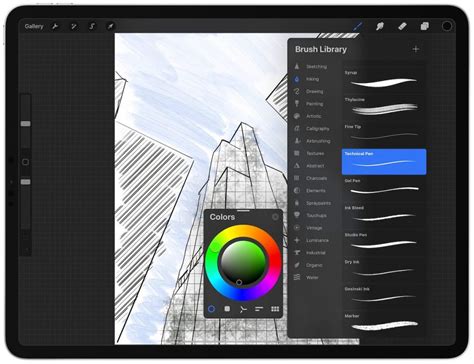
Every artwork you create in Procreate is automatically saved as a .procreate file format on your iPad. This native format is crucial for several reasons. Your progress is continuously saved as you draw, ensuring that you don't lose your work. The .procreate file format is exceptional because it stores all the data and layers within a Procreate artwork. This makes it the ideal choice for backing up your work or transferring it between devices while retaining the complete ability to edit. Furthermore, this format also stores video data within your image file. When you import video, Procreate renders the individual video frames within the Animation Assist feature. This means that all layers, masks, and effects are perfectly preserved, and even your signature is carried over in this file format, allowing the recipient to view it.
Seamless Collaboration: PSD (Photoshop Document)
Procreate's support for the PSD file format is a significant advantage for artists who work across different software. This format allows for seamless interchangeability between Procreate and Adobe Photoshop. When you import an Adobe Photoshop document (PSD) into Procreate, it preserves locked layers, layer groups, compatible filters, and layer blend modes. Exporting your Procreate artwork as a layered Adobe Photoshop PSD ensures that your layers, layer names, opacity, visibility, and blend modes are maintained. This is achieved by saving your image in the standard format used by Adobe Photoshop. It's important to note, however, that some complex layer effects created in Photoshop may not appear exactly as intended when viewed or edited in Procreate.
Sharing Online: JPEG (Joint Photographic Experts Group)
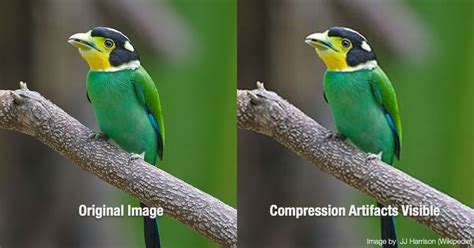
The JPEG file format is one you'll encounter most often online. It was originally designed to make images smaller and facilitate quicker loading times. To achieve this, JPEG employs compression techniques that reduce file size by removing some image data. This is known as a 'lossy' format. Consequently, JPEG flattens your artwork into a single layer, exchanging some visual quality for a much smaller file size. While this makes it an excellent choice for sharing your art with the world on the web due to its efficiency, it means you lose your Procreate layers upon export.
Preserving Quality and Transparency: PNG (Portable Network Graphics)
PNG files offer a compelling alternative to JPEG for online sharing, especially when image quality and transparency are paramount. PNG utilizes lossless compression, meaning it flattens your artwork but retains full image quality without discarding data. While PNG files are typically slightly larger in file size than JPEGs, they are equally versatile. This 'lossless' format is ideal for digital artwork, particularly when you need to preserve transparency, such as for logos or graphics that will be placed over other backgrounds. PNG is also an excellent choice for animations with transparent elements.
High-Quality Archiving and Print: TIFF (Tagged Image File Format)
For those situations where the highest possible image quality is essential, the TIFF file format is often the preferred choice. TIFF is frequently used for storing high-quality images and enjoys broad support across a wide array of graphics applications. Procreate TIFF export flattens your layers but perfectly preserves your image quality. Exporting with layers would result in TIFF files being significantly larger. Used for decades in print production, it is compatible with all major software, making it a reliable option when preparing your artwork for printing.
Animation and Looping Graphics: GIF (Graphics Interchange Format)
Procreate can export animations as GIFs, a format commonly used for web animations. This format makes each layer of your animation a frame in a looping sequence. If your canvas has five layers, your animation will loop through those five frames. GIF uses the most common and versatile format for web animations. It's important to remember that GIFs are limited in their color palette and are generally not suitable for high-fidelity photographic images, but they excel at simple, looping animations and graphics.
How to Make Animated GIFs in Procreate
Versatile Document Sharing: PDF (Portable Document Format)
The PDF format is a remarkably versatile file type that can be opened on virtually any device, making it an excellent choice for sharing artwork, especially when the recipient might not have a dedicated graphics program. Procreate allows you to export your entire artwork as a multi-page PDF, where each layer becomes a single page. This is a convenient way to share a layered composition in a universally accessible format.
Choosing the Right Format for Your Needs
The best file format for your Procreate artwork depends entirely on your intended use.
- For ongoing editing and maximum data preservation: Always use the
.procreatenative file format. This ensures all your layers, masks, effects, and even video data are kept intact. - For collaboration with Photoshop users: Export as a PSD file to maintain layer compatibility.
- For sharing online where file size is a concern: JPEG is a good option, but be aware of the quality loss due to compression.
- For sharing online where quality and transparency are key: PNG is the superior choice, offering lossless compression and transparency support.
- For preparing high-quality prints: TIFF is recommended for its excellent image quality preservation.
- For simple web animations: GIF is suitable for looping graphics.
- For universal document sharing: PDF is ideal for ensuring your artwork can be viewed on any device.
Procreate 5.3 introduced improvements to how files are compressed. It's worth noting that files exported from Procreate 5.3 may not open in older versions of Procreate and Procreate Pocket.
Beyond Basic Export: Sharing Layers
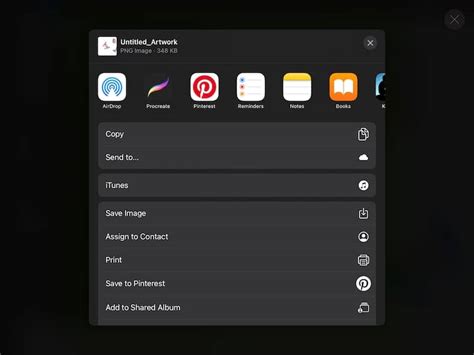
Procreate offers advanced options for sharing your work, particularly when it comes to layers. Under the Share menu, within the "Share Layers" section, you'll find various layer export formats. You can export all layers together into a single multi-page PDF, where each layer becomes a separate page. Alternatively, you can choose to export each layer as a separate PNG file, resulting in a folder populated with individual PNGs for each layer. iOS Sharing also provides the flexibility to export your image to any app integrated with the iOS Sharing system.
Procreate is a powerful tool for digital artists. Its versatility and user-friendly interface make it a joy to use. With practice and exploration, it’s an app that can truly transform the way you create art. So pick up your Apple Pencil, fire up Procreate, and let your creativity flow!