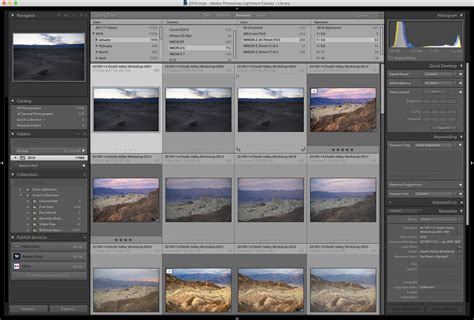
The sheer volume of digital photographs can be overwhelming. With thousands of images accumulating over years, the ability to quickly and accurately retrieve specific photos becomes paramount. This is where diligent keywording in Adobe Lightroom emerges as a critical, yet often underestimated, organizational tool. While many photographers import and edit with enthusiasm, the task of applying descriptive keywords can feel daunting, leading to procrastination or inconsistent application. However, a well-structured keywording strategy is not merely about creating tags; it's about unlocking the full potential of your photo library, enabling efficient searching, and empowering the creation of dynamic collections.
The Challenge of Keywording: Overcoming Overwhelm
Many users express a sense of being "lost on where to begin" when it comes to keywording. The initial impulse to tag based on broad categories like "people, places, and things" can quickly expand into a complex web of considerations. Questions arise: Should dog photos be tagged simply as "dogs," or more specifically as "labrador retrievers," or perhaps by the dog's individual name, like "Brownie"? The desire for a perfect, comprehensive system can lead to paralysis, as evidenced by one user who, after experiencing inconsistency with Picasa, pushed off keywording for over two years. The fear of implementing a "fundamental flaw in my structure" after investing significant time is a common hurdle. This perfectionist tendency can be a significant barrier, leading to the avoidance of keywording altogether, despite the eventual difficulty in locating images.
The sheer scale of a large photo library, such as one exceeding 31,000 images, amplifies this challenge. The process of manually sifting through folders, especially when remembering the exact year a photo was taken becomes tricky, is time-consuming and inefficient. This is where a proactive and systematic approach to keywording becomes not just beneficial, but essential for long-term photographic organization.
Building a Foundation: Establishing a Keyword Strategy
A fundamental aspect of effective keywording is establishing a clear strategy before diving in. This involves considering what types of searches you are most likely to perform and what information is most crucial for retrieving your images. The "beauty of Lightroom" lies in its flexibility; as long as consistency is maintained, various levels of specificity can be employed.
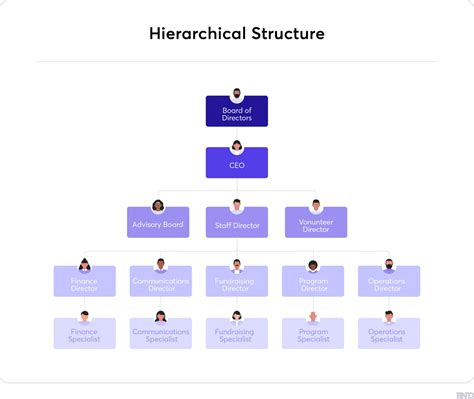
One of the first decisions to make is whether to adopt a single, flat list of keywords or to implement a hierarchical structure. Both approaches have strong proponents. A flat list is simpler to manage initially, while a hierarchical system, with its parent-child relationships, offers greater depth and precision for complex searches. This structure can be likened to organizing files on a computer, where folders and subfolders significantly ease navigation.
For instance, instead of a single keyword like "dog," a hierarchical system might look like: "Animals > Mammals > Canines > Dogs > Labrador Retriever > [Dog's Name]". This allows for granular searching. If you search for "Canines," you will retrieve all images tagged with any level of canine specificity, including dogs, wolves, and foxes, if they are included in your hierarchy.

Key Considerations for Keyword Selection:
- Specificity vs. Generality: Decide on the level of detail. Is "ocean" sufficient, or should it be "ocean AND water"? Often, a balance is best. Use broad terms for general categories and more specific terms for distinct subjects.
- People, Places, Things, and Beyond: While these are common starting points, consider expanding to include:
- Event Types: For example, "Birthday," "Wedding," "Concert."
- Subjects/Themes: "Wildlife," "Landscape," "Architecture," "Portraits."
- Photographic Principles: While less common for retrieval, some might consider "Black and White," "Long Exposure," or "Macro."
- Emotions/Moods: "Joyful," "Serene," "Dramatic."
- Colors: While Lightroom's color labels exist, keywords like "Red," "Blue," or "Sunset Colors" can also be useful.
- Consistency: This is paramount. Whether you use singular or plural forms (e.g., "animal" vs. "animals"), scientific names, or nicknames, choose a convention and stick to it. Synonyms can also be managed. For example, if you use "Autumn," you can add "Fall" as a synonym so a search for either term yields the same results.
- Personal vs. General: For personal photos, use names of pets (e.g., "Maui," "Kona") if you're likely to search by name. For other people's pets, you might use the breed. For your own pets, consider adding a broader "Pets" or "Animals" keyword for easier collection creation.
- Geographic Tagging: While Lightroom's Map module allows for physical placement of photos, geographic keywords can be complementary. If you frequently photograph in specific regions, creating a detailed geographic hierarchy (e.g., "Places > Continents > Countries > States/Provinces > Cities > Specific Landmarks") can be incredibly powerful, especially if you often search by location. However, as one user noted, "if you never go near the Australian Capital Territory don't go and flesh out that part of the hierarchy." Focus on areas you actually photograph.
Implementing Keywording in Lightroom: Tools and Techniques
Lightroom offers several intuitive tools to facilitate the keywording process, making it more efficient and less tedious.
The Keywording Panel
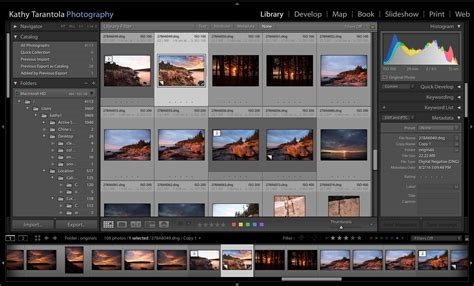
Located in the right-hand panel of the Library module, this is the primary area for adding keywords. You can type new keywords directly into the "Click here to add keywords" field. As you type, Lightroom will suggest keywords from your existing catalog, aiding consistency and speed.
The Keyword List Panel
This panel displays all the keywords you have ever applied to images in your catalog. It's here that you can build your keyword hierarchy. You can drag and drop keywords to create parent-child relationships, or import keyword lists from plain text files, often created in a simple text editor. Using tabs in a text file can pre-define hierarchies for import. For example:Animals Mammals Canines Dogs
When you import this list, "Mammals" will become a child of "Animals," "Canines" a child of "Mammals," and so on. Organizing your list alphanumerically can also improve accessibility.
Keyword Sets
Keyword Sets are predefined groups of common keywords that you frequently apply together. For example, you might create a "Sports" set with keywords like "Action," "Athlete," "Field," "Game." When you select a Keyword Set, relevant keywords become readily accessible, saving you from typing them repeatedly. Lightroom comes with some pre-built sets, and you can create your own.
The Painter Tool (Keyword Painter)
This is a highly efficient tool for applying keywords to multiple photos simultaneously.
- Navigate to Grid View (press 'G').
- In the toolbar at the bottom, click the Painter icon (resembling a spray paint can).
- From the dropdown menu, select Keywords.
- Type the desired keyword(s) into the text field.
- Click on individual thumbnails to "paint" the keyword onto them, or click and drag across a selection of thumbnails to apply the keyword to all of them.
- Crucially, do not click "Done" until you are finished applying keywords with the Painter tool for that session.
Syncing Keywords
If you have multiple photos with the same subject matter, select one that has already been keyworded, then select the other photos you wish to apply the same keywords to. In the bottom right of the Lightroom interface, click the "Sync…" button (or use the Sync Metadata panel). This allows for simultaneous application of keywords across a batch of images.
Applying Keywords During Import
While it's tempting to rush through import, taking a few extra moments to apply initial keywords can be a significant time-saver in the long run. If you're importing a batch of photos from a specific event or location, you can add relevant keywords at this stage.
How to use Lightroom classic keywords | PPT LrC
Strategies for Tackling Existing Libraries
The task of keywording a large, existing library can seem insurmountable. Several strategies can help manage this:
- Start Now, Go Back Later: The most commonly advised approach is to begin keywording all new imports consistently. Once this habit is established, gradually work backward through your existing library as time and motivation allow.
- Focus on High-Frequency Searches: Identify the types of images you search for most often. For one user, this was "people (family, friends, etc.)". They prioritized going back and adding "people" keywords to all their images first, finding it enormously helpful.
- Temporary Static Collections: For events that span multiple dated folders (e.g., "Christmas"), create temporary collections. This allows you to group photos from various time periods that share a common event or theme, making it easier to apply consistent keywords.
- Workflow Collections: Utilize Smart Collections to focus on specific metadata fields that need attention. For instance, create a Smart Collection for images missing keywords, or missing specific types of keywords (e.g., missing location data). This allows you to concentrate your efforts on one aspect at a time.
- Year by Year or Event by Event: Tackle your library chronologically, one year at a time, or by major events. This breaks down the daunting task into manageable chunks.
Advanced Techniques and Best Practices
- Hierarchical Keywords for Precision: As discussed, hierarchies offer unparalleled control. For example, "New Mexico > White Sands National Park > Plants" allows you to find all plants within White Sands, or all items within New Mexico, or specifically plants in White Sands.
- Leveraging Smart Collections: Smart Collections are dynamic and automatically update based on defined criteria. By using keywords within Smart Collections, you can create collections that automatically populate with images matching specific keyword combinations. For example, a Smart Collection could be set to find all images tagged with "dogs" AND "park" AND "sunny."
- Keyword Synonyms: Use synonyms to ensure that variations of a term lead to the same results. Add "Fall" as a synonym for "Autumn" if you use "Autumn" as your primary keyword.
- Exportable vs. Internal Keywords: Lightroom allows you to designate keywords that are not exported with the file's metadata. This can be useful for internal organizational tags that you don't want to share externally.
- Consistency in Naming: Decide on capitalization conventions and stick to them. Some users prefer all-caps for top-level keywords to distinguish them from more granular child keywords.
- Regular Review and Refinement: Your keywording system isn't set in stone. Periodically review your keyword list. Are there categories that are no longer relevant? Are there new subjects or styles you need to incorporate? Lightroom's flexibility allows you to rename, merge, or move keywords as your needs evolve.
- Exporting and Importing Keywords: If you use multiple computers or want to share your keyword structure, you can export your keyword list from Lightroom and import it into other catalogs or applications. This ensures consistency across different setups. When transferring files, remember to save metadata to files (Ctrl+S or Cmd+S) to ensure keywords are written to XMP sidecars or embedded in DNGs.
The Enduring Value of Keywording
While the initial setup and ongoing maintenance of a robust keywording system require an investment of time, the rewards are substantial. The ability to find any image in a vast library within seconds transforms your workflow from a chore into a powerful creative resource. It empowers you to rediscover forgotten gems, curate specific collections for projects or personal yearbooks, and ultimately, to spend more time on the creative aspects of photography rather than the administrative burden of organization. The perceived complexity of keywording is often a barrier of perfectionism; by adopting a systematic, consistent, and iterative approach, photographers can transform their chaotic archives into an organized and easily navigable treasure trove of memories and artistic expression.