Creating an eBook for free is an achievable goal for many content creators, and Adobe InDesign offers a powerful and intuitive platform to achieve this. This tutorial delves into the process of converting your InDesign layouts into eBook formats, with a particular focus on the widely adopted EPUB format. We will explore how to leverage InDesign's features to produce both interactive PDFs and reflowable EPUBs, catering to different publishing needs and ensuring your content reaches a broad audience effectively.
Understanding eBook Formats: EPUB vs. Interactive PDF
Before diving into the practical steps, it's essential to understand the distinctions between various eBook formats and their suitability for different purposes. While an InDesign interactive PDF is not strictly an InDesign EPUB format, it offers a compelling alternative for sharing content with interactive elements that set it apart from a standard EPUB. Interactive PDFs allow you to retain the original layout of your INDD document precisely as designed, including your chosen fonts, text formatting, and master content. This makes them an excellent choice for books with non-traditional designs, such as handbooks, picture books, portfolios, or magazines, where preserving the visual fidelity is paramount.
On the other hand, EPUB (Electronic Publication) is the open-source eBook format that serves as the standard for most distribution channels. eBooks are a great way to get your content out to a wide audience quickly and cheaply, and the process of designing, exporting, and selling can be really fun. There are two primary forms of EPUB: reflowable and fixed layout. Reflowable EPUBs are designed to be flexible, with readers able to set their own font choices and enlarge text size to improve legibility. The content adapts dynamically to the screen size and orientation of the reading device, much like a web browser. This flexibility makes reflowable EPUBs ideal for e-readers and tablets, as well as for a broad range of devices where content adaptability is key. Fixed-layout EPUBs, conversely, use complex code to replicate each page precisely as it appears in the InDesign document, mimicking the print layout. While this option might seem simpler for design-heavy books, it is generally considered an outdated approach for most eBook documents, except for "picture books" like children's books, graphic novels, or dense pictorial information sources such as repair or how-to manuals or art books. For those seeking an exact electronic replica of a document, a PDF is often a more appropriate choice than a fixed-layout EPUB.
Crafting Interactive PDFs in InDesign
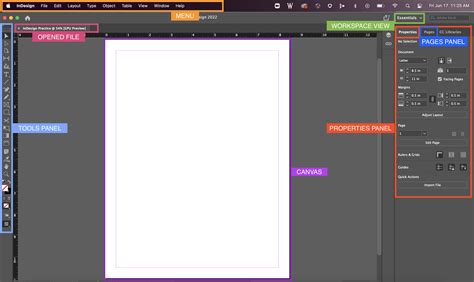
Interactive PDFs are a powerful tool within InDesign, allowing for rich user experiences with features like hyperlinks and cross-references. To add a clickable cross-reference link, for example, you would highlight the text you wish to use as the link. Then, by Right-Clicking (Windows) or Control-Clicking (Mac) and choosing Interactive > New Hyperlink, a window will open. From the "Link To" menu at the top, select "Page." You can also specify the zoom settings of the destination page; "Fixed" is usually a sensible pick, but you can adapt the zoom specifically depending on your preference. Click "OK" to apply the hyperlink and return to your InDesign document.
When exporting your document as an interactive PDF, navigate to File > Export. Give your eBook a suitable name and save it to a folder you can easily find. If your document is set up as single-page spreads, you can check the "Pages" option. If you've created a document with facing pages, like a conventional print book, you have the option of choosing whether to export the document as pairs of facing Spreads, retaining the look of your original design. Checking "View After Exporting" allows you to preview your design immediately after export. You also have the option to "Open in Full Screen Mode," which dedicates the entire screen to your eBook. It's often worth turning on "Create Tagged PDF" if you plan to allow readers to copy and paste sections of your book's text perfectly, as this helps maintain text integrity.
In the "Compression" section of the export dialog, you can adjust the quality of images in your PDF. You can either maximize image quality for a polished result or compress image quality to save on file size. Additionally, you can add optional security settings to your eBook. While not appropriate for all scenarios, this can be useful if you're sharing your eBook with a limited audience or wish to maintain confidentiality. Click "OK" to exit the Security window. Your interactive PDF InDesign document will then open in Adobe Acrobat, with your interactivity settings preserved. It's crucial to test your hyperlinks and cross-references before sharing your eBook with others to ensure everything has been set up correctly.
Create Interactive Button in InDesign
Preparing Your InDesign Document for Reflowable EPUB Export
For reflowable EPUB export, a different set of preparation steps is required to ensure optimal results. EPUBs are designed to be fluid, meaning they adapt to the reader's device and preferences. Therefore, preserving the exact visual formatting of your InDesign document is often secondary to ensuring content readability and accessibility.
Adjusting Document Setup
Begin by adjusting your document setup for eBook export. In InDesign, go to File > Document Setup. In the window that opens, set the "Intent" to "Web." For the "Page Size," set the Width to 612 px (8.5 in) and Height to 792 px (11 in). Remember, EPUBs are designed to be flexible, with readers able to set their own font choices if they wish. So, don't worry excessively about preserving the perfect text formatting in your design.
Styling Your Text
Consistent use of Paragraph and Character Style Sheets in your InDesign files is paramount for EPUB export. Always create and use Style Sheets for styling text. If you don't set any structure or information hierarchy in your InDesign file, the EPUB conversion will impose its own logic, typically organizing content from left-to-right and top-to-bottom. This can lead to unexpected results, especially with stacked or overlapping objects. For the most control and best results, you will want to impose a structure on your files, instructing InDesign to flow image and text content in a specific order.
Anchoring Images and Objects
When you insert images into your layout, you will need to ensure they are anchored in place on the page. Place your Type Tool (T) cursor between two paragraphs where you would like the image to be anchored. Then go to File > Place, choose your image, and Open it. There are several ways to anchor images. In some cases, you may want your images to appear inline, flowing with your text. This requires anchoring your images to the baseline of the relevant text. This is achieved by selecting the image box with the Type Tool cursor and adjusting the "Baseline Shift" in the Application Bar to meet your needs. Alternatively, you can anchor an image to a text location by clicking the image box with the Selection Tool, revealing a small solid blue box at the top. Drag and drop this box near the text it should always appear adjacent to. After dropping the anchor, the blue box will turn into an anchor icon. If you have more than one image that needs to always appear together, group them as one object and then anchor the entire group.
Utilizing the Articles Palette for Content Flow
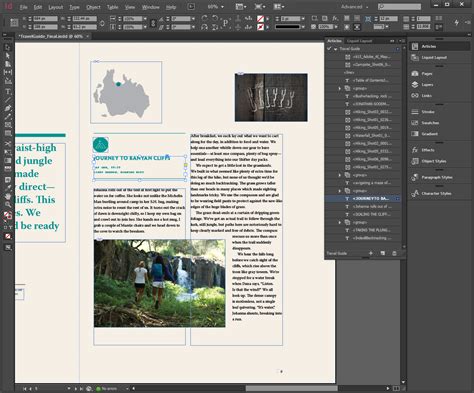
The Articles Palette is a crucial tool for controlling the reading order and structure of your EPUB content. It can be found under the Windows pull-down menu. Open the Articles Palette and begin adding your content, starting with your front cover. Select the placed InDesign cover with your Selection tool and name the article with a clear description in the "New Article" dialog box that opens. This ensures that the export process understands the intended order of your content. If a page has multiple objects, you can group them and add the entire grouping as a single article.
Managing Images with Object Export Options
In InDesign CS 5.5 and later, the "Object Export Options" feature provides granular control over how images are handled during EPUB export. With the image selected, a dialog box with three tabs will appear, allowing you to dictate custom rasterization, size, alignment, spacing, and even create "Alt Text" tags. Creating Alternative Text is vital for accessibility, providing descriptions for visually impaired readers using screen readers and for situations where images may not display.
Creating a Table of Contents for EPUB
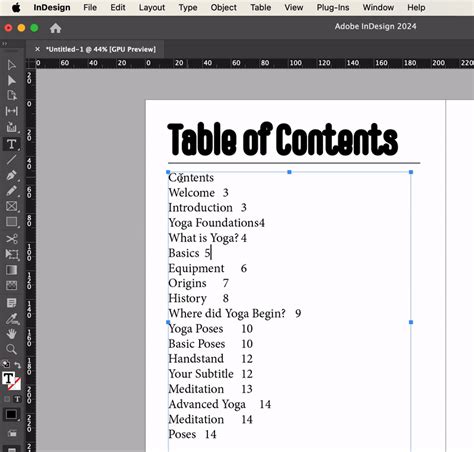
A Table of Contents (ToC) is essential for navigation within an eBook. InDesign can auto-generate a ToC based on your Paragraph Styles. Ensure you have dedicated paragraph styles for your chapter titles and subtitles. Go to Layout > Table of Contents. In the window that opens, you can set the title of your ToC and specify the "Style" for the ToC title. Under "Styles in Table of Contents," select the paragraph style used for your chapter titles throughout the book. You can then dictate how the generated ToC content should look using "Entry Style." You can also choose where to place the page number and apply specific character styles for elements like dotted lines between the entry and the number. Crucially, check "Create PDF Bookmarks" and "Include Book Documents" if applicable.
Exporting Your EPUB
Once your InDesign document is prepared, you're ready to export. Go to File > Export. Name your eBook and choose "EPUB (Reflowable)" or "EPUB (Fixed Layout)" from the Format menu. For reflowable EPUBs, you can select a cover for your EPUB under the "Setup" options. The "EPUB (Reflowable)" export dialog box offers several tabs:
- General: Here, you can choose your EPUB version (EPUB 2.0 is generally recommended for broader compatibility, while EPUB 3.0 supports more embedded media). You'll also set the "Unique Identifier" (like an ISBN) and decide on the "EPUB Cover" option, such as "Rasterize First Page." The "Ordering" refers to the reading order, defaulting to "Based on Page Layout" if no structure is applied. Under "Formatting Options," you can set the "Book Margin."
- Image: Ensure "Preserve Appearance from Layout" is checked. You can also adjust image settings like resolution, format method (Progressive or Baseline for JPEGs), palette (for GIFs), and interlacing. Individual image settings can override global ones.
- Advanced: This tab allows you to control CSS generation. Check "Include Style Definitions" for InDesign to build CSS based on your InDesign Paragraph and Character styles. You can also choose to "Use Existing CSS File" if you have custom CSS. You can specify breaks in your EPUB document based on Paragraph Styles and control the location of footnotes.
If you checked the "View EPUB after Exporting" button, the EPUB will open in your default e-reader application. Otherwise, navigate to the folder where the EPUB is saved and open it from there.
Considerations for EPUB Export
EPUBs, being based on XHTML and CSS, are fluid and can appear differently from device to device. Do not let this variability aggravate you; it's an inherent characteristic of the format. Instead, design and optimize your EPUB to display cleanly on standards-compliant readers first, such as Thorium Reader or Calibre Reader. If your audience or market demands it, you can then optimize for specific non-compliant readers like Kindle or Apple's iBook reader, understanding that this may affect compatibility with other devices.
When working with fonts, the EPUB format supports embedding OpenType (OTF) and most TrueType (TT) fonts, but not Postscript (PS) fonts. However, it is generally recommended not to embed fonts. Readers will use their native fonts, and embedding can bloat file size and lead to display errors. If you do choose to embed, ensure the fonts are embeddable.
Adding metadata is crucial for your EPUB file. This includes the book title, author's name, blurb, descriptive keywords, and copyright information. This metadata makes your work discoverable through text searches.
For those looking to convert their EPUB files further, applications like Calibre offer free, open-source e-book management capabilities for Mac, PC, and Linux. Calibre can organize and manage various e-book file types and sync them to personal devices, with some e-book editing functionalities, such as adding additional metadata.
By following these guidelines, you can effectively create and export professional-quality eBooks from Adobe InDesign, ready to be shared and enjoyed across a wide range of digital devices.