Picsart is a powerful and versatile photo and video editing platform that has gained immense popularity worldwide. Developed by Team Picsart, it's available as an Android and iOS app, and increasingly, as a robust desktop application for Windows. This tutorial aims to guide you through the essential features and functionalities of Picsart for PC, enabling both beginners and experienced users to create professional-looking edits with ease.
Getting Started with Picsart on PC
For users who prefer a desktop experience, Picsart is now available for Windows, enhanced for PC and Microsoft Surface Pro X. This desktop edition allows you to unleash your full creativity with new and improved editing tools for all your personal and business needs. Whether you're crafting an artistic edit or developing promotions for your business, Picsart offers a wide array of free and premium editing tools to achieve the perfect design.
To begin, you can download the Picsart for Windows application directly from the Microsoft Store. Once installed, you'll find a user-friendly interface designed to make editing accessible even for beginners. The platform also boasts an "offline" mode, allowing you to continue working on projects even without an internet connection, which is particularly useful for last-minute tasks.

Core Editing Tools and Features
Picsart is equipped with a comprehensive suite of tools that cater to every aspect of photo editing. These tools range from fundamental adjustments to advanced creative effects, all designed to be intuitive and efficient.
Basic Photo Adjustments
The foundation of any good edit lies in mastering basic adjustments. Picsart provides several essential tools for this purpose:
- Crop Tool: This is perhaps the most basic yet incredibly important editing tool. With Crop, you can adjust the framing of your photograph. This is especially helpful when preparing an image for social media, where specific dimensions are often required, such as the classic 1:1 ratio popular on Instagram. The Crop tool is also great for highlighting the composition of your picture.
- Straighten Tool: Similar to the Crop tool, Straighten is very basic but endlessly helpful. Especially when taking pictures with a smartphone, achieving ideal angles can be challenging. An otherwise great image can be flawed by a slight tilt to the right or left, or if you've captured your picture from below instead of straight on. This tool allows you to correct such imperfections.
- Light and Exposure Adjustments: Light is fundamental to photography. The amount of light within your photo can affect the mood and the amount of detail captured.
- Contrast Tool: If you wish your images could be bolder and brighter, the Contrast tool is your ally. This adjustment heightens the shadows and highlights in an image, creating a bolder, more eye-catching aesthetic. Conversely, you can reduce the contrast for a more mellow and muted look.
- Saturation Tool: While contrast enhances light and dark tones, saturation directly deals with color. Increasing saturation makes colors brighter and more intense.
- Clarity Tool: When working with a phone camera that has a less-than-stellar lens, the Clarity tool comes into play. By adjusting clarity, you heighten the sharpness of the picture, adding definition.
- Shadows and Highlights Tools: When editing a photograph, it's crucial to consider how its disparate parts interplay. The Shadows tool allows you to adjust the darker tones, while the Highlights tool functions similarly for lighter tones. The Highlights tool is particularly useful for reducing glare in over-exposed pictures.
- Temperature Tool: The temperature of a photograph significantly affects its overall mood and style. The Temperature tool allows you to adjust the white balance and colors, making them warmer or colder. Warm images often evoke natural light and a pleasant feeling, making them popular on social media. Colder images are frequently associated with editorial styles or retro aesthetics like Polaroid photos.
Creative Effects and Filters
Picsart distinguishes itself with a vast array of creative effects and filters that can transform your images in unique ways.
- Effects Gallery: Upon opening an image in the Picsart editor, you can explore the Effects gallery for a wide range of overlays and adjustments. These can be applied individually or customized to create a unique look.
- Blur Effects: These effects can adjust the focus of your photos, creating depth or isolating subjects.
- Artistic Effects: This category offers a diverse range of filters that can imbue your images with painterly qualities, transforming them into something resembling traditional art.
- Distort Effects: For those seeking truly unique visual transformations, the Distort effects offer a wild ride with interesting visual rearrangements.
- Paper Effects: In contrast to more dramatic effects, the Paper gallery offers nuanced and gentle textures that can add a subtle artistic touch to your images.
- Sketch Effects: This is an easy way to add a creative outline effect to your image. By selecting Effects and then tapping on Sketch, you can apply various sketch styles.
- Magic Effects: These effects allow you to apply some magical color transformations to an image, often used to enhance the beauty of selfies or create vibrant, eye-catching visuals.
- Pop Art and Colors Effects: Inspired by artists like Andy Warhol, these effects make your photos pop with character and style. You can easily adjust colors in your images in just a few taps.
- Canvas and Sketch Effects: If you're looking to get a bit artsy, these collections offer fun effects that blend your photos with paintings and add interesting pencil strokes.
- Light Effects: Picsart Light Effects provides a wide range of filters that transform images in natural and striking ways. They can be used to create a light and airy look or for more bold and dramatic transformations.
- Color Toning Tool: This tool is all about the tone of your image. It allows you to warm up or cool down your photo while preserving the main colors. You can apply warm color filters like orange or pink, or cooler tones like blue and green for a more mellow aesthetic.
- Rainbow Filters: These filters make adding a splash of color to photos easy, with countless adjustable rainbow filters to find the perfect custom hue and application.
Creating "GLOWING ANIME DRAWING" Using Picsart | Picsart Tutorial | Thomas Tutorial PH
Overlays and Masks
Photo overlays and masks are an easy and fun way to add extra light and dimension to your photos.
- Light Flares, Bokeh, Dust Textures, Snowy Blizzard: These are examples of photo overlay effects that can enhance your images. Like other effects, they can be further adjusted to create a custom look.
- Masks: This tool allows you to add masks of definite shapes onto any image. You can also use the "Shape" option to define an area of the image where the effect is applied, or use the "Invert" option to apply the effect outside that shape.
Advanced Features
Picsart also offers advanced features that allow for more intricate editing:
- Duplicate Photos: While not explicitly detailed for PC, the ability to duplicate elements within an image is a common feature in advanced editors, allowing for creative compositing.
- Drawing Tools: You can draw anything on the image with the drawing tools. This includes brushes of different types, shapes, and colors, as well as the ability to draw text, shapes, and other creative elements.
- Lens Flare Tool: This tool glorifies your image simply by adding a lens flare effect, mimicking natural light.
- Border Tool: This tool is used to fill the border or add a border to any image, customizing its presentation.
- Double Exposure: Creating a double exposure effect is now achievable in just a few clicks. In the Picsart web editor, navigate to the Effects tool and select Color Exposure. There are various types of color exposure to experiment with.
Understanding Photo Presets and Filters
Picsart also plays a significant role in the creation and application of photo presets, a concept that has become increasingly important for maintaining a consistent visual aesthetic.
- What are Photo Presets? Photo presets are essentially combinations of editing settings. Their purpose is to save time, allowing you to instantly apply a specific look to an image with just one click or tap. They are designed to create a cohesive aesthetic across platforms and touchpoints.
- Presets vs. Filters: While often used interchangeably, there's a distinction. Filters are typically pre-embedded in apps like Snapchat and Instagram, offering basic adjustments to color tone and exposure. Presets, on the other hand, are more unique and customizable, allowing for finer tuning of images. Filters can be seen as tools within an app, whereas presets are entirely customizable.
- Creating Your Own Presets with Replay: Picsart's "Replay" feature is a powerful tool for creating custom mobile presets. When you edit a photo and save it with the Replay toggle turned on, all your manual edits are saved as a Replay. This means you can later apply that exact sequence of edits to any other photo by tapping on Replay in the Editor toolbar and selecting your custom Replay. This eliminates the need to tediously copy editing steps or pay for external presets.
- How to Create a Replay Preset:
- Open your photo in the Picsart Editor.
- Use Picsart editing tools to create your desired look.
- When ready to save, ensure the Replay toggle is turned on.
- Tap "Post" to save your edits as a Replay.
- Using Your Custom Presets: To apply your custom preset to another image, simply tap on Replay in the Editor toolbar, select your saved Replay, and tap to apply it.
- How to Create a Replay Preset:
- Exploring and Using Community Presets: Your Replay presets, as well as those created by other Picsart users, are also available on the Picsart Web Editor. You can search for community Replays, discover trending preset filters, and access your recently used or saved favorites.
- Examples of Preset Styles:
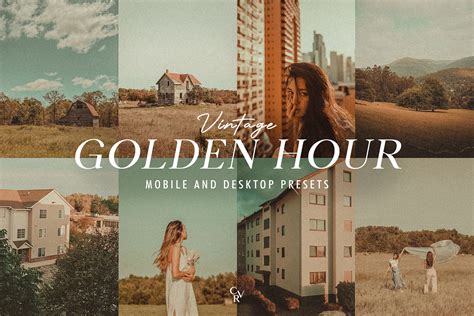
- Vintage Presets: Achieve a '90s film, grainy, retro look with a touch of nostalgia. Start with a filter, long-press to manually adjust color and blur, and toggle Replay on to save.
- Golden Hour Presets: Get that coveted golden hour glow anytime. Combining filters like SUN3, BRL2, and BRNZ4 can create the illusion of buttery sunlight.
- Futuristic Presets: A blend of punk and neon creates a cool, gradient preset with slight dystopian vibes, adding mystery.
- Millennial Aesthetic Presets: Characterized by light and airy looks with soft, dreamy qualities and neutral hues.
- Bold Brand Presets: Designed to make photos for brands or businesses pop, these presets help images stand out online and save design time without compromising quality.
- Moody Presets: Incorporate mood and mystery by combining shadows with other lighting effects.
- Black and White Presets: A classic for a reason, adding an element of intrigue. Experiment with settings to find the perfect black and white preset for your aesthetic.
Video Editing in Picsart
Picsart isn't just for photos; it also offers robust video editing capabilities.
- Interface: The video editing section provides a clear interface to manage your video projects.
- Trim Tool: Used to reduce the length of your video clips, allowing you to focus on the essential parts.
- Music Tool: Add background music to your videos from a library of options or your own files.
- Effect Tool: Contains a variety of filters with awesome colors to enhance the visual appeal of your videos.
- Backgrounds: You can pick any solid color background or choose from Picsart's vast library of content. Users can also opt to remove and replace their existing background.
Picsart as a Creative Ecosystem
Picsart is more than just an editing tool; it's a complete creative ecosystem.
- World's Largest Creative Platform: With over a billion downloads and more than 150 million monthly active creators, Picsart is recognized as the world's largest creative platform.
- AI-Powered Tools: Its AI-powered tools empower creators of all levels to design, edit, draw, and share content anywhere.
- Open-Source Content Collection: The platform has amassed one of the largest open-source content collections globally, including photos, stickers, backgrounds, and templates.
- Collaborations: Picsart has collaborated with major artists and brands such as BLACKPINK, Taylor Swift, Lizzo, Ariana Grande, Warner Bros. Entertainment, iHeartMedia, and Condé Nast, underscoring its influence and reach.
- Target Audience: Picsart tools are used by consumers, marketers, content creators, and businesses, fulfilling both personal and professional design needs.

Conclusion for Aspiring Creators
Whether you are a photographer, a graphic design student, or an individual looking to acquire new professional skills, Picsart offers a comprehensive learning path. The platform's user-friendly interface, extensive toolset, and vibrant community make it an ideal environment for both beginners and advanced users. By exploring the various editing tools, effects, and the innovative Replay feature for creating custom presets, you can elevate your photos and videos to a professional level. The availability of Picsart on PC further enhances its accessibility, providing a powerful yet easy-to-use solution for all your creative endeavors. Don't hesitate to experiment and discover the full potential of this dynamic creative platform.