DaVinci Resolve, a powerful video editing software, can sometimes present users with a frustrating "failed to write to project library folder" error. This message typically appears when the application is unable to save or render files to a designated location, often stemming from permission issues. While the error message might suggest a specific problem, the root cause can sometimes be more nuanced, requiring a systematic approach to identify and resolve. This article will delve into the common reasons behind this error and provide comprehensive troubleshooting steps, drawing upon user experiences and the underlying principles of file system management.
Understanding DaVinci Resolve's Project Library Structure
Unlike some other non-linear editing (NLE) software, DaVinci Resolve's project management operates on a unique system. Instead of individual project files that encapsulate all associated media, Resolve organizes projects within a "Project Library." This library is essentially a user-created folder that houses all your projects, timelines, and associated data. When you first install DaVinci Resolve, you are prompted to create this folder. It's crucial to understand that this isn't where your raw media files are stored; rather, it's a central repository for Resolve's internal project data and backups.
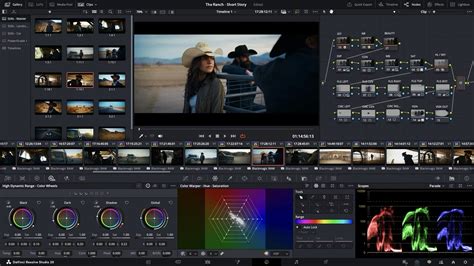
The importance of this Project Library cannot be overstated. It's the backbone of your project organization within Resolve. The software creates backups of your projects automatically at regular intervals, typically every 20 minutes by default, which can be adjusted in the User Preferences. These backups are invaluable for recovering from accidental deletions or data corruption. Restoring a backup involves navigating to the backup list, selecting the most recent version of your desired project, and clicking "Load." This process, while seemingly straightforward, relies entirely on the integrity and accessibility of the Project Library folder.
A common misconception is that one might delete this "Fred" folder, as one user described their experience, believing it to be temporary cache or a redundant file. However, deleting this folder, unless you intend to completely erase all your existing projects and start anew, will lead to data loss. The Project Library folder is designed to persist for the entire duration of your use of Resolve. Therefore, it's imperative to name this folder something memorable and to avoid deleting it. Recommendations for storage include placing it on your fastest, permanently attached drive to ensure optimal performance.
Furthermore, DaVinci Resolve supports the creation of multiple Project Libraries. This can be beneficial for organizing projects by year, client, or specific programs, as suggested by the Resolve Help files. For instance, you might create a "2023 Projects" library, a "Client A Projects" library, or even separate libraries for distinct television series. The ability to move projects between these libraries offers flexibility in managing large volumes of work. However, the initial creation, naming, and storage location of your primary Project Library are critical steps that significantly impact future workflow and data management.
Diagnosing the "Failed to Write" Error: Permissions and Beyond
The "DaVinci Resolve is unable to render to the selected path as it does not have write permission" error is the most direct indicator of the problem. This message, while seemingly straightforward, can be triggered by various underlying issues.
File System Permissions: The Primary Suspect
The most common culprit is indeed file system permissions. Even if you've checked the permissions of the specific folder you're trying to render to and confirmed that all users have read and write access, the issue might lie deeper within the folder hierarchy.
Step-by-step permission verification:
- Target Folder: Ensure the specific folder designated for renders or project library storage has "Read & Write" permissions for your user account. This can be checked by right-clicking the folder in Finder (macOS) or File Explorer (Windows), selecting "Get Info" or "Properties," and navigating to the "Sharing & Permissions" or "Security" tab.
- Parent Folders: Crucially, verify the permissions of all parent folders leading up to your target folder. If any of these intermediate folders have restrictive permissions (e.g., "Read Only"), it can prevent DaVinci Resolve from writing to the subfolder, even if the subfolder itself has correct permissions. This is because the application needs to traverse these parent directories to access the final destination.
- Disk/Volume Permissions: In some cases, the entire drive or volume where your project library or render destination resides might have incorrect permissions. Ensure that the drive itself is not set to "Read Only."
Repairing Permissions:
While "repairing permissions" was mentioned as an initial step by one user without success, it's a valid troubleshooting technique. On macOS, this was historically done through Disk Utility. For modern macOS versions, the system generally manages permissions more dynamically, but ensuring your user account has full administrative privileges is a good starting point. On Windows, checking and correcting permissions within the Security tab of folder properties is the equivalent.
Drive Status and System Locks
Another possibility is that the drive itself is in a partially locked state, preventing write operations. This can sometimes occur due to unexpected system shutdowns, external drive disconnections, or software conflicts.
- Finder/File Explorer Check: In Finder on macOS, you can check the disk's general information to see if it's mounted as read-only. On Windows, the drive's properties will indicate its status.
- External Drive Considerations: If you're using an external drive, ensure it's properly connected and not experiencing any hardware issues. Sometimes, a faulty USB cable or port can cause intermittent read/write problems.
Application-Specific Issues and Best Guesses
DaVinci Resolve, like any complex software, can sometimes exhibit unexpected behavior. The error message "DaVinci Resolve is unable to render to the selected path…" might be a "best guess" by the application when it encounters an underlying issue it cannot precisely diagnose.
- Software Updates: Ensure you are running the latest stable version of DaVinci Resolve and that your operating system is up-to-date. Bugs that cause permission-related errors are often addressed in software updates.
- Antivirus/Security Software: Aggressive antivirus or security software can sometimes interfere with file writing operations, falsely identifying them as malicious activity. Temporarily disabling such software (with caution) can help determine if it's the cause. Remember to re-enable it afterward.
- Corrupted Preferences: In rare cases, DaVinci Resolve's preference files can become corrupted, leading to various glitches. Resetting Resolve's preferences can sometimes resolve such issues. This usually involves deleting or renaming specific preference files in your user profile's application support directory.
Best Practices for Project Library Management and Rendering
To proactively prevent "failed to write" errors and ensure a smooth workflow, adopting certain best practices is highly recommended.
Strategic Project Library Placement
The location of your Project Library folder is paramount. While you can technically store it anywhere, consider these recommendations:
- Fastest Drive: Store it on your fastest drive, ideally an internal SSD or a high-speed external SSD connected via Thunderbolt or USB 3.2 Gen 2 or higher. This significantly speeds up project loading, saving, and backup operations.
- Dedicated Drive: For very large projects or professional workflows, consider a dedicated drive solely for your DaVinci Resolve Project Libraries and associated cache files.
- Avoid Cloud Sync Folders: Do not store your Project Library folder within cloud synchronization folders (e.g., Dropbox, Google Drive, OneDrive) that are actively syncing. This can lead to file corruption and conflicts as Resolve attempts to write data while the sync software is also trying to access and upload those files.
Naming Conventions and Organization
- Descriptive Naming: As highlighted by the user experience, naming your Project Library folder something clear and unambiguous is crucial. "Resolve Library" or "DaVinci Projects" are good examples. This prevents accidental deletion.
- Multiple Libraries: Utilize multiple Project Libraries for better organization if your workload demands it. This can involve creating libraries per year, per client, or per major project.
- Project Archiving: When a project is completed, consider archiving it. DaVinci Resolve allows you to delete projects from the Project Manager. When deleting, you're often given options to archive the project's media, renders, or both. Choosing to archive media is generally recommended to save space, but if you've done extensive Fusion work or need to preserve rendered elements, archiving renders might be necessary.
Understanding Media Storage vs. Project Library
It's vital to reiterate the distinction between where your raw media files are stored and where the Project Library resides. DaVinci Resolve does not store your video files within the Project Library folder. Your media is stored separately on your chosen storage devices. The Project Library contains the pointers to these media files, project settings, timelines, and backup data.
Cara Guna Project Libraries dalam DaVinci Resolve
Regular Backups and Restore Procedures
The automatic backup feature in DaVinci Resolve is a lifesaver.
- Verify Backup Settings: Regularly check your User Preferences to ensure the backup frequency is set to your comfort level. The default of 20 minutes is a good balance, but for critical work, you might consider a more frequent interval if your system can handle it.
- Practice Restores: Familiarize yourself with the restore process. Knowing how to access and load backups can save you from significant data loss in an emergency.
Render Destination Management
When rendering your final output, ensure the chosen destination folder:
- Has Sufficient Space: The drive containing the render destination should have ample free space to accommodate the final video file.
- Is Not on a Read-Only Volume: Verify that the destination drive is not mounted as read-only by the operating system.
- Is Accessible: Ensure no other software is actively locking the destination folder or files within it.
By understanding the intricacies of DaVinci Resolve's project management system and diligently managing file permissions and storage locations, users can effectively troubleshoot and prevent the "failed to write to project library folder" error, ensuring a more stable and productive editing experience.