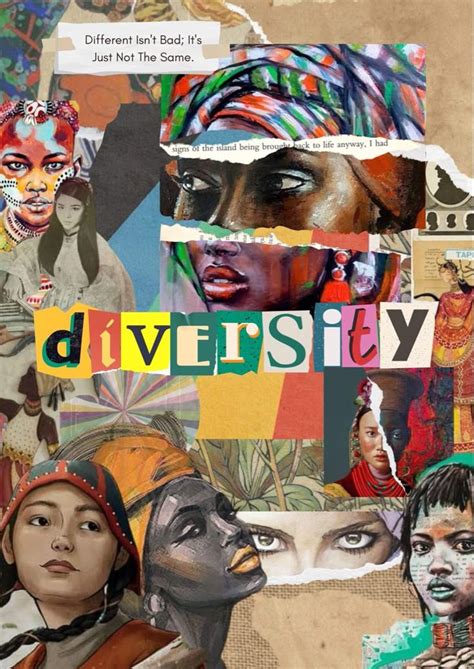
Adding text to a photograph is a fundamental yet powerful technique that can transform an ordinary image into a compelling message, evoke a specific mood, or elevate it to the status of a masterpiece. Whether you're aiming to craft poignant Instagram quotes, design engaging promotional content, create captivating story slides, or even generate shareable memes, understanding how to effectively integrate text into your visuals is key. Every image inherently tells a story, but the deliberate addition of text ensures that it tells the right story, conveying your intended meaning with clarity and impact. This guide will delve into the art and science of creating impactful text overlays, with a particular focus on the versatile capabilities of the Picsart photo editor.
The Genesis of Typographic Inspiration: From Street Signs to Star Power
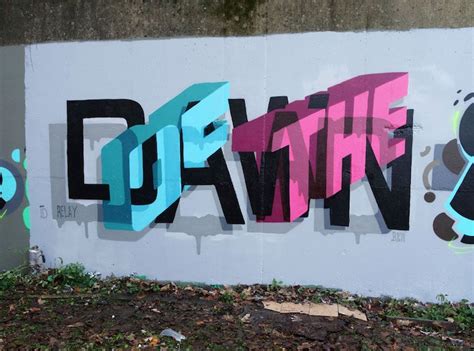
The journey of transforming everyday visuals into artistic statements is often sparked by unexpected encounters. Consider the experience of Vietnamese artist Maxk Nguyen. While strolling through the bustling streets of Ho Chi Minh City, he encountered a humble sign advertising boiled eggs. For most, this would be a simple advertisement. However, Nguyen's artistic eye perceived something more: a unique and compelling piece of typography. This moment of inspiration led him to capture the sign's image and embark on a creative endeavor. He began crafting captivating text overlays, humorously incorporating the words "boiled eggs" onto photographs featuring renowned personalities such as Rihanna, G-Dragon, Pharrell, Miley Cyrus, Adele, and Sam Smith. Nguyen's work exemplifies how innovative text integration can imbue familiar images with a fresh, artistic dimension, demonstrating that even the most mundane words can become visually striking elements when placed in the right context.
Unlocking the Power of Picsart for Text Overlays
Picsart stands as a testament to the democratization of creative expression. It’s not just an app; it's a comprehensive ecosystem offering a vast repository of free-to-use content, robust editing tools, and a constant stream of creator inspiration. With an impressive one billion downloads and a thriving community of over 150 million monthly active creators, Picsart has firmly established itself as the world's largest creative platform. Its influence is further amplified through collaborations with major artists and brands, including BLACKPINK, Taylor Swift, the Jonas Brothers, Lizzo, Ariana Grande, Jennifer Lopez, One Direction, Sanrio (Hello Kitty), Warner Bros. Entertainment, iHeartMedia, and Condé Nast, among others. This widespread adoption and industry recognition underscore its efficacy and appeal.
You can download the Picsart app or start editing directly on the web to enhance your photos and videos. The platform provides thousands of quick and easy editing tools, trendy filters, fun stickers, and brilliant backgrounds, all designed to elevate your visual content.
Step-by-Step: Crafting Your First Text Overlay in Picsart
Creating a text overlay in Picsart is an intuitive process, even for beginners. While you don't have to use the phrase "boiled eggs," this tutorial will guide you through the essential steps, empowering you to apply these techniques to any text you choose.
Initiate a New Project: Begin by opening the Picsart app and selecting a photo you wish to edit. Alternatively, for a blank canvas, tap on the layers icon located in the bottom right corner of the screen. Within the layers panel, tap the eye icon next to the background layer to hide it. This action will present you with a transparent layer, ideal for constructing your text overlay from scratch.
Adding Your Text: Navigate to the photo editor interface and tap on the "Text" icon. Here, you can type the desired text. Once you've entered your words, confirm your input.
Positioning and Sizing: Select your newly created text overlay. You can then drag and place it onto your image, adjusting its size and orientation to achieve the desired composition.
Color Customization: To modify the color of your text, Picsart offers a straightforward solution: the "Color Replace" photo effect. Access this by tapping on "Effects," then navigating to "Color," and selecting "Color Replace." A cursor will appear, allowing you to drag and precisely choose your desired color.
Refining Placement and Appearance: Continue to adjust the size and placement of your text overlay until it harmonizes perfectly with your image. Experiment with different positions, scales, and rotations to find the most aesthetically pleasing arrangement.
Beyond the Basics: Elevating Your Typography Game
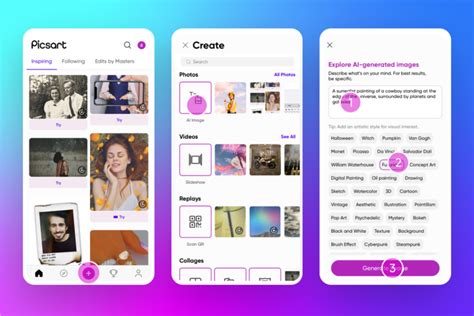
While adding text is simple, making it look truly great requires a touch of finesse and an understanding of design principles. Picsart's Text Editor transforms your device into a powerful design studio, offering capabilities that go far beyond basic text insertion.
Key Principles for Effective Text Placement and Styling:
Fonts Carry Emotion: The choice of font is paramount. Different fonts evoke distinct emotions and convey varying degrees of formality, playfulness, or seriousness. A serif font might lend an air of tradition and elegance, while a sans-serif font can appear modern and clean. Script fonts can add a personal, artistic touch. Experiment with Picsart's extensive font library to find one that perfectly matches the tone and message of your image.
Contrast is Crucial: Placing white text on a light background, for instance, can render it nearly invisible, diminishing its impact. Ensure sufficient contrast between your text and the background image. This can be achieved by selecting text colors that stand out, using a contrasting outline or shadow, or placing the text over a less visually busy area of the photo.
Strategic Placement: Keep your text away from cluttered or visually busy areas of the photograph. Instead, utilize empty space, often referred to as "negative space," to allow your text to breathe and be easily legible. This strategic placement ensures that your message remains the focal point.
Color Harmony: Match your text colors with the existing tones present in your photo for a cohesive and professional look. This doesn't mean using the exact same colors, but rather selecting hues that complement the overall color palette of the image, creating a visually pleasing synergy.
Adding Flair and Dimension: Don't be afraid to experiment with advanced styling options. Try curved text to add dynamism, layered shadows to create depth, or adjust transparency to subtly integrate the text with the background. Picsart offers a range of effects and tools to help you achieve these sophisticated looks.
How to Curve Text in Picsart 2024?
Exploring Alternative Text Editing Tools
While Picsart offers a robust and integrated solution, it's beneficial to be aware of other tools and methods for adding text to photos, especially for quick edits or when working across different platforms.
Built-in Mobile and Desktop Solutions:
iPhone/iPad Markup: For users of Apple devices, the built-in "Markup" feature within the Photos app provides a quick and straightforward way to add text.
- Launch the Photos app.
- Select the photo you wish to edit.
- Tap "Edit" in the top-right corner.
- Tap the Plus (+) button in the bottom-right corner.
- Select "Text" to add your desired text.
- Customize the font, size, and color.
- Save your edited photo.
Mac Photos App: Similar to iOS, the Apple Photos app on Macs also includes Markup functionality for easy text addition. The process mirrors that on iPhones and iPads, offering a familiar interface for Mac users.
Google Photos: The Google Photos app also offers a user-friendly editing suite that includes text functionality.
- Open the Google Photos app.
- Select the photo for editing.
- Tap "Edit" (represented by three horizontal lines at the bottom of the picture).
- Tap "Text" to add your text.
- Customize your text as needed.
- Save your changes.
Windows 10 Photos App: Microsoft's Photos app for Windows 10 provides a convenient way to add text to your images.
- Launch the Photos app.
- Open the editing tool by clicking "Edit & Create" in the upper-right corner.
- Click "Text" at the top of the screen.
- Add and customize your text.
- Save your photo.
Windows Paint App (Older Versions): For users on older Windows versions (Windows 8 or 7), the classic Paint application remains a viable option for basic text additions.
- Open the Paint app.
- Open the picture you want to edit.
- Click the "Text" tool (usually represented by a "T" icon).
- Click on the image where you want the text to appear.
- Type and customize your text.
- Save your photo. Remember to click the "Select" tool to deselect the text box after you're done.
These built-in applications are excellent for quick edits and annotations, offering accessibility without requiring any additional software installation.
Picsart Quicktools: Instant Edits, No Account Needed
For those seeking immediate results without the commitment of creating an account or downloading software, Picsart offers "Quicktools." This comprehensive suite of editing tools is entirely free to use and accessible directly through your web browser.
Using the "Add Text to Photo" Quicktool:
- Access the Tool: Navigate to the Picsart Quicktools website and select the "Add Text to Photo" tool.
- Upload Your Image: Upload the photo you wish to edit.
- Add Text: Click "Add Text" in the top-right corner to create a text box on your image.
- Customize Your Text: Utilize the provided options to select fonts, adjust colors, sizes, and positioning.
- Download Your Edit: Once satisfied with your creation, download the enhanced image.
This streamlined approach ensures that you can add text to images in mere seconds, with just a few clicks, making it an incredibly efficient solution for rapid image enhancement.
For those looking to push their creative boundaries further, the Quicktools also include a "Font Generator," which allows you to instantly create unique fonts suitable for social media bios, graphic designs, and more.
The Picsart Advantage: Free, Powerful, and Limitless Creativity
Picsart distinguishes itself in the crowded landscape of photo editing applications by offering a powerful, free-to-use platform that doesn't necessitate any software installation. This means you can seamlessly add text to your images in seconds, with minimal effort and no financial outlay. Unlike many other third-party apps that may come with hidden costs or limitations, Picsart provides a comprehensive suite of tools that empower users to achieve professional-looking results without spending hours on complex editing processes or wasting money on expensive software.
With Picsart, you can send the right message, evoke the desired mood, and create visually stunning content by leveraging trendy fonts, eye-catching effects, and fun text styles that perfectly complement your visual's aesthetic. The platform's commitment to providing accessible, high-quality creative tools makes it an indispensable resource for anyone looking to enhance their photos and videos and express themselves visually. Whether you're a seasoned graphic designer or a casual user, Picsart offers the flexibility and power to turn your creative visions into reality.