The digital landscape is constantly evolving, with new formats emerging to optimize image delivery and usability. Among these, WebP stands out as a modern, versatile image format developed by Google, designed to enhance web performance through superior compression capabilities, supporting both lossy and lossless quality. On the other hand, the ICO format has long been the standard for icons in Microsoft Windows operating systems, meticulously crafted to display small images of varying resolutions and color depths. This article delves into the intricacies of converting WebP to ICO, exploring the "why," "how," and "what to expect" from this essential transformation.
Understanding the Formats: WebP and ICO
WebP is a contemporary image format developed by Google, engineered to provide both lossy and lossless compression. Its primary objective is to enable the creation of smaller, faster-loading images without compromising on high quality, making it an ideal choice for web applications. A key advantage of WebP is its support for transparency and animation, offering a significant upgrade over older formats like JPEG and PNG in terms of efficiency and features. The format's ability to achieve smaller file sizes while maintaining visual fidelity is a testament to its advanced compression algorithms, often utilizing VP8 video codec-based compression. The typical MIME type for WebP is image/webp.
In contrast, ICO is a traditional image file format primarily used for storing icons on Microsoft Windows systems. Its defining characteristic is the ability to contain multiple image icons of different resolutions and color depths within a single file. This multi-faceted nature allows for high-quality display across various screen resolutions and system contexts, from desktop shortcuts to the taskbar. Common preset sizes for ICO files include 16x16, 24x24, 32x32, 48x48, 64x64, 96x96, 128x128, and 256x256 pixels. Users can also specify custom sizes, typically up to 256px. The ICO format's MIME type is image/vnd.microsoft.icon. It's worth noting that if application icons are not displaying correctly in the Windows 10/11 graphical user interface (GUI), such as on the task bar, desktop shortcut, or start menu, converting to a properly structured ICO file can resolve this issue.
Why Convert WebP to ICO?
The necessity to convert WebP to ICO arises from the fundamental differences in their primary use cases. While WebP excels in delivering optimized images for web browsing, ICO is specifically designed for the iconographic needs of operating systems, particularly Windows. For instance, websites often embed multiple icon sizes using a single .ico file, as exemplified by the link rel icon directive in HTML, to ensure optimal display across different platforms and devices.

When developing applications for Windows, or customizing system icons, developers and users often require ICO files. A WebP image, despite its advanced compression and quality, cannot be directly used as an icon by the Windows GUI. Therefore, a conversion process is essential to extract or resample the WebP image data into the layered structure that an ICO file requires, bundling the appropriate bitmaps for various display contexts. This ensures that your application or custom icon is recognized and displayed correctly, whether it's a desktop shortcut, a taskbar icon, or a favicon.
The Conversion Process: How to Transform WebP to ICO
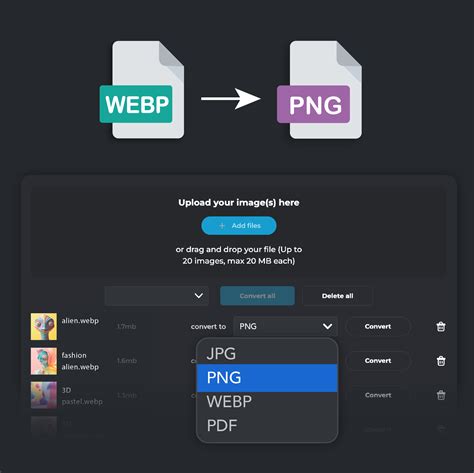
Converting WebP to ICO is a straightforward process, especially with the availability of numerous online tools and software converters. The general workflow involves uploading your WebP file, selecting ICO as the output format, and then downloading the converted file.
Here's a typical step-by-step guide:
- Upload WEBP File: The first step is to provide the WebP file to the converter. This can usually be done by dragging and dropping the file into the designated area on the converter's interface or by using a "browse" function to locate the file on your computer.
- Choose ICO as Output: Select
.icoas the desired destination format. Most converters will present a list of supported output formats. - Configure Settings (Optional but Recommended): Many converters offer options to customize the output ICO file. This can include:
- Selecting Icon Sizes: You can choose from a range of standard sizes (e.g., 16x16, 32x32, 48x48, 64x64, 128x128, 256x256 pixels) or specify a custom size. It's generally recommended to include multiple common sizes within a single ICO file for maximum compatibility.
- Color Depth: Options for color depth, such as 24-bit RGB or 32-bit RGBA (including alpha transparency), can be selected.
- Transparency: If your WebP image has transparency, ensure the converter supports and preserves it. ICO files can indeed support alpha channels when using PNG-encoded entries within the ICO structure.
- Initiate Conversion: Click the "Convert" button to start the transformation process.
- Download ICO File: Once the conversion is complete, you will be prompted to download your newly created ICO file.
Online Converters: Convenience at Your Fingertips
Online converters offer a highly convenient solution for WebP to ICO conversion, eliminating the need for software installation. These tools are accessible from any device with an internet connection, be it a Windows PC, Mac, Linux machine, or a mobile device.
Several online platforms are lauded for their efficiency and user-friendliness. For example, services like MConverter are frequently praised for their speed, error-free performance, and high-quality output. Users often highlight the ease of use: "Click. Upload. Choose format. Download." The ability to convert files directly from File Explorer, via a right-click "open with" option or the "Share" button, is a significant convenience factor for many.
Another aspect that users appreciate in online converters is their broad format support. Tools that can handle a wide array of file conversions, not just WebP to ICO, become indispensable in a daily workflow. The fact that many of these services are free, or offer generous free tiers, further enhances their appeal. For instance, a free plan might allow for a certain number of conversions per day, with limitations on file size and the number of files processed simultaneously. Premium plans often unlock higher limits, faster processing, and additional features.
Convert PNG to ICO File Online | Easy Steps & Best Converters (2024)
Quality and Transparency Preservation
A crucial consideration when converting WebP to ICO is the preservation of image quality and transparency. WebP, unlike JPG, supports alpha transparency. This means that areas of the WebP image that are transparent should ideally remain transparent in the resulting ICO file. Reputable converters will ensure that this transparency is fully preserved, so your icon has a clean background where the original WebP image was transparent.
For the sharpest icons, it is advisable to use a high-resolution source WebP image, ideally at least 256x256 pixels. While converters aim to maintain original quality, automatic downscaling for smaller icon sizes can sometimes lead to a loss of fine detail or legibility. Therefore, for critical applications or highly detailed icons, manually editing or resizing the image for specific small icon sizes before conversion can yield superior results.
Batch Conversion and Advanced Features
For users who need to convert multiple WebP files to ICO format simultaneously, batch conversion capabilities are essential. Many online converters support this feature, allowing users to upload and process a set of WebP files in one go. The number of files that can be converted at once varies by service; some might support up to 20 WEBP files simultaneously, while others might have different limits based on their free or paid tiers.
When performing batch conversions, it's helpful if the converter can maintain the structure of an imported folder, although this is a less common feature for simple online tools. More advanced features might include the ability to crop images before conversion or preview the converted images before the final download.
Considerations for Multi-Resolution ICO Files
Creating a single .ico file that contains multiple image sizes and color depths is a standard practice for Windows programs. This ensures that the operating system can select the most appropriate icon representation based on the display context. When converting WebP to ICO, choosing an option that generates a multi-resolution ICO is highly recommended. This typically includes common sizes like 16x16, 32x32, 48x48, 64x64, 128x128, and 256x256 pixels.
The conversion process involves extracting or resampling the WebP image frames into these various ICO icon sizes and color depths. The resulting ICO file then contains the necessary bitmaps for different display scenarios, ensuring your icon looks good everywhere.
Limitations and Tips for Optimal Conversion
While the conversion process is generally robust, there are a few limitations to keep in mind:
- Animation: ICO format does not support animation. If you are converting an animated WebP file, the converter will typically flatten it to a single frame or a composite image. You might need to choose which frame you want to use as the static icon.
- Extreme Lossy Compression: If the source WebP image was created with very aggressive lossy compression, fine details might be lost when downsampling to very small icon sizes, even with the best converters.
Tips for best results:
- Optimize Each Size: For optimal cross-platform compatibility and clarity, generate individual icon sizes (e.g., 16x16, 32x32, 48x48, 256x256).
- Preserve Transparency: Ensure you export ICO entries as 32-bit (RGBA) bitmaps if transparency is important, as ICO supports alpha channels.
- High-Resolution Source: Use a high-resolution WebP image as your source for the best visual outcomes, especially for larger icon sizes.
- Manual Editing: For small icon sizes where legibility is paramount, consider manual editing or resizing rather than relying solely on automatic downscaling.
- Consistent Naming: When batch converting, ensure input images are consistently named and sized to avoid mismatched resolutions in multi-entry ICO files.
User Experiences and Testimonials
The effectiveness and ease of use of WebP to ICO converters are frequently highlighted in user testimonials. Many users express satisfaction with tools that are "quick and error-free," "high quality," and "did the job. And did it well." The straightforward process of uploading, converting, and downloading is a common theme.
Some users particularly appreciate converters that handle specific challenges, such as converting WEBM files without "weird bleeds" or accurately converting animated GIFs without losing the animation (though animation is not supported in ICO, this highlights the converter's general capability). The ability to convert files quickly and efficiently, saving time and hassle, is a major draw. For example, one user mentioned finding a converter that "did webp to gif without killing the animation," showcasing the diverse needs users have for image conversion.
The user-friendliness of the interface is another frequently praised aspect. Tools that are intuitive and require no technical expertise are highly valued. As one user put it, "I am not a big time computer wizard so I need apps that do what they say do in a straightforward process. This app does just that!"
The reliability of these tools is also a key factor. Users report successful conversions of various file types, from video files for specific devices to complex design files like AI to PNG, with accuracy and fidelity. The availability of free services is also a significant advantage, with many users expressing gratitude for tools that solve their problems "within seconds for free."
Conclusion: Bridging the Gap Between Web and Desktop Icons
Converting WebP to ICO is a vital process for anyone needing to utilize modern, efficiently compressed web images as icons in operating systems, particularly Windows. While WebP offers superior compression and features for web use, ICO remains the standard for native icon representation. By understanding the characteristics of both formats and utilizing the numerous online and offline conversion tools available, users can seamlessly bridge this gap. The process is generally straightforward, with a focus on preserving quality and transparency, and the availability of batch conversion and customization options further enhances its utility. Whether you are a software developer creating application icons or a user customizing your desktop, the ability to convert WebP to ICO ensures your visual elements are displayed correctly and effectively across different digital environments.