The realm of 3D asset creation often hinges on the intricate details that bring virtual objects to life. At the forefront of this process are powerful software solutions that enable artists to craft realistic and stylized textures. Among these, Adobe's Substance suite stands out, offering two prominent tools: Substance Painter and Substance Designer. Users often find themselves comparing Substance Painter vs. Designer, not only because both can be employed for designing stylized, cartoonish, or abstract gaming art but also because they allow for the exploration of various unique styles through customizable settings, colors, effects, and blending modes of created nodes and layers. The key question then becomes: what precisely sets these two Adobe software apart, and which option should you pick for your specific needs?
Understanding the Core Functionality
At their core, Substance Painter and Substance Designer serve distinct yet complementary roles in the 3D texturing pipeline.
Substance Painter: The 3D Painting Canvas
Substance Painter is fundamentally a layer-focused tool that allows users to paint and directly apply materials to 3D objects. It functions much like traditional 2D image editing software, offering familiar tools such as Clone, Smudge, and Paint. This intuitive approach makes it a more accessible entry point for those new to 3D texturing.
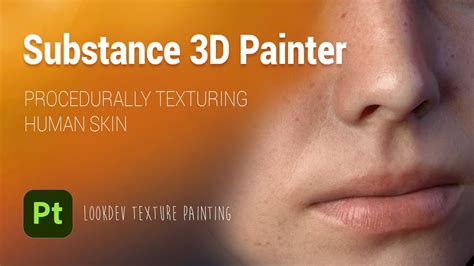
New features, like Projection, which intelligently applies materials to a model's surface while accounting for the camera's point of view, are seamlessly integrated, further enhancing its user-friendliness. Adding a material can be a complex process, especially in a 3D environment, requiring careful attention to curves and shadows. Fortunately, a wealth of helpful online communities and video guides are available to assist users through every step.
As a dedicated texturing solution, Painter's primary application involves baking. Baking is a crucial process that transfers data from a high-polygon (high-poly) 3D mesh to a lower-polygon (low-poly) mesh in the form of a texture file (bitmap). This technique allows artists to leverage the intricate details of a high-poly model, which can contain millions of polygons for high-resolution detail, without incurring the significant performance costs associated with rendering such complex geometry. A low-poly mesh, typically consisting of a few thousand polygons, is far more efficient for real-time rendering. Baking essentially "bakes" the surface characteristics of the high-poly mesh onto the low-poly mesh as texture data, providing the visual fidelity of the former with the performance benefits of the latter. Substance Bakers process mesh characteristics and bake them into a texture.
Substance Painter’s functionality mirrors that of 3D painting software, with tools designed to achieve a high level of realism. A common challenge when using a mouse for drawing applications is the appearance of jagged lines. Painter employs sophisticated algorithms to smooth these lines, resulting in more aesthetically pleasing designs. When using painting tools like Paint, Eraser, or Smudge, the software allows for the application of chosen effects across multiple areas simultaneously, which is particularly beneficial for large projects requiring repetitive tasks, such as adding grass textures. Dynamic strokes offer advanced customization options for standard brushes, enabling users to define specific patterns and behaviors.
Advanced channel painting is another valuable feature, encompassing various shaders that can be applied to materials to achieve sophisticated effects. Ambient Occlusion, for instance, creates an exposure profile based on how much light is received by different parts of the model, adding depth and realism. Substance Painter is often utilized as a finishing solution, allowing artists to import models created in other software, such as Blender, and materials generated in Substance Designer. It facilitates the combination and editing of these assets, enabling artists to, for example, add rust to a metal object or modify its properties based on lighting conditions while preserving the original material characteristics.
Substance Designer: The Procedural Material Architect
In contrast, Substance 3D Designer is a node-based solution that empowers users to design procedural materials from scratch or by utilizing pre-made resources. This approach offers a different paradigm for material creation, prioritizing flexibility and control.
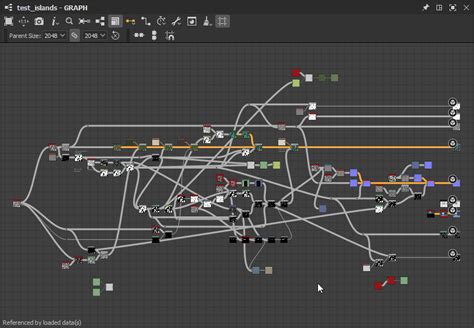
Designer presents a more noticeable learning curve due to its distinct user interface, feel, and workflow, which differ from many other Adobe products. While the developers have strived for user-friendliness, mastering its comprehensive toolset requires dedicated effort.
Similar to most Adobe products, Substance 3D Designer allows for workspace customization. Users can reorganize, hide, and relocate tools within toolbars and tabs to suit their project requirements. The software operates on a node-based workflow. A "node" acts as an anchor point performing a specific function and serves as a fundamental building block for a project. Nodes can be atomic, containing a single function like a specific color, or they can be part of a larger graph instance, combined with other nodes to achieve a more complex effect. For example, an atomic node might define a blue color, while another node could incorporate a shader. By mixing these and other nodes, users can construct intricate materials, such as a deep blue water material.
This node-based workflow enables the creation of non-linear elements that can be individually customized or modified at a later stage. Designer offers a range of cutting-edge design features not typically found in alternative 3D modeling software. Substance graphs are the primary interface for visualizing nodes in Designer, presenting a plot-and-line graph that illustrates the connections within the nonlinear environment. This feature allows for intricate crisscrossing, stacking, and multiplication of connections to produce highly complex materials like patterned fabrics or marble flooring.
Should you use LAYERS or NODES for VFX? (Complete Analysis)
Alternatively, nodes can be structured using Functions, which leverage mathematical values like integers instead of image information. This approach provides an enhanced level of control over all aspects of the final project, making it easier to fine-tune even the smallest settings for optimal results. The Material Definition Language (MDL), originally developed by Nvidia, is an incredibly valuable feature. It assigns tags to materials that correspond to real-world characteristics, ensuring consistent appearance across different rendering engines.
Designer's primary objective is to facilitate the creation of realistic Physically Based Rendering (PBR) textures that emulate the appearance of real-world materials. Such textures are crucial for ensuring that objects, characters, and environmental elements possess accurate colors, reflectivity, details, and other properties. For instance, a metal object like a sword should reflect light, a wooden chair should absorb it, and a forest scene requires different lighting characteristics than a meadow. This rendering software layers multiple textures to achieve the desired effect, all within its node-based workflow. However, it's important to note that Designer cannot be used to apply materials directly to 3D models; this function requires other software.
Substance Painter vs. Designer: Key Differentiators
When undertaking a Substance Painter vs. Designer comparison, the latter often emerges as a more universally applicable tool, particularly for tasks involving the creation of photo-realistic models, especially in gaming or VFX projects. Designer acts as a foundational element for numerous VFX software, including Maya, Unreal Engine, 3ds Max, and Unity. This tool is designed for the production of complex textures (materials), while Painter is used to apply those materials to 3D models.
| Feature | Substance Painter | Substance Designer |
|---|---|---|
| Workflow | Layer-based, direct painting on 3D models | Node-based, procedural material creation |
| Primary Use | Applying and refining textures on models | Creating base materials and textures from scratch |
| Learning Curve | More accessible, similar to 2D painting | Steeper, requires understanding node graphs |
| Output | Textured 3D models | Procedural materials, texture sets |
| Realism | Excellent for applying realistic details | Excellent for creating realistic base materials |
| Flexibility | High for on-model adjustments and variations | High for creating infinitely variable materials |
| Integration | Works with models from various 3D software | Generates materials used in Painter or other engines |
| Use Cases | Game art, character texturing, asset finishing | VFX, architectural visualization, material libraries |
Workflow and Approach
The fundamental difference lies in their workflow. Substance Painter offers a direct, paint-on-model approach, akin to digital painting. This makes it intuitive for artists accustomed to tools like Photoshop or Illustrator. You load a 3D model and directly paint its surface, layering materials, effects, and details.
Substance Designer, on the other hand, employs a node-based system. This procedural approach means you build materials by connecting functional blocks (nodes) that define every aspect of the texture, from color and roughness to metallic properties and normal maps. This method offers immense power for creating infinitely tileable and adjustable materials.
Target Audience and Project Types
Substance Painter excels in situations where direct control over texture application and refinement is paramount. This includes texturing game characters, props, and environments where specific details need to be hand-painted. It's also ideal for adding wear, tear, dirt, and other surface imperfections with precision.
Substance Designer is the tool of choice for creating the foundational materials themselves. If you're an artist tasked with building a library of realistic wood, metal, fabric, or stone textures, Designer is the way to go. Its procedural nature allows for the creation of materials that can be easily modified in resolution, scale, and variations without degradation in quality. These materials can then be exported and used in Substance Painter, other 3D software, or game engines.
Creating Textures vs. Applying Textures
A common point of confusion is the distinction between "creating textures" and "applying textures." Substance Painter is primarily for applying and refining textures directly onto a 3D model. While it uses textures and materials internally, its end goal is a fully textured asset.
Substance Designer is specifically for creating the texture maps and material definitions. It doesn't allow you to directly paint on a 3D model in the same way Painter does. Instead, you construct the material's properties through its node graph, and the output is a set of texture maps (e.g., albedo, normal, roughness, metallic) or a fully procedural material that can be used elsewhere.
For instance, if you're modeling watches in Blender and wish to bypass Blender's native node-based texturing, Painter is the appropriate choice. Designer, conversely, is solely for individuals aiming to create textures intended for use in other applications; you cannot texture models directly within it. Painter, however, permits you to import your models and subsequently texture them.
Importing and Integration
Substance Painter allows for the import of 3D models in various formats (OBJ, FBX, etc.). You can then work with a wide array of pre-existing materials and modifiers, and additional assets can be downloaded from Adobe's share platform. Painter also supports the direct drag-and-drop import of images and Adobe Illustrator (.ai) files. It's important to note that imported images should ideally have a square aspect ratio for optimal results, and for .ai files, Adobe Illustrator is a prerequisite. Users can also rename PDF and SVG files to .ai to trick Painter into importing them, with SVG being particularly useful for logos and vector-based graphics.
While Designer is excellent for creating highly intricate materials specifically tailored for projects like watch modeling, it's often not necessary if your goal is simply to texture existing models. The true power of Designer lies in its ability to generate reusable, procedural material assets with a broad feature set, capable of combining procedural textures and bitmaps.
Substance Painter was developed to enable 3D painting. It serves as a fantastic complement to Designer, as it can be used to both paint entire textures and create masks that can later be incorporated into Substance Designer workflows.
Which Tool Should You Choose?
The choice between Substance Painter and Designer largely depends on your role in the 3D pipeline and your specific project goals.
Choose Substance Painter if:
- You need to directly paint textures onto 3D models.
- You are focused on texturing characters, props, or environments for games or animation.
- You prefer a layer-based, direct manipulation workflow similar to 2D painting.
- You need to add detailed surface imperfections, weathering, or hand-painted elements.
- You are a beginner looking for a more intuitive entry into 3D texturing.
Choose Substance Designer if:
- You need to create reusable, procedural materials from scratch.
- You are building a library of high-quality textures for use across multiple projects or for sale.
- You require precise control over every aspect of a material's properties.
- You are working in VFX or architectural visualization where photorealism and material flexibility are paramount.
- You are comfortable with node-based workflows and a steeper learning curve.
Often, the most powerful workflows involve using both tools in tandem. Artists might create base materials in Substance Designer and then import those materials into Substance Painter to apply and refine them on their 3D models. This combination leverages the strengths of both software, offering both procedural power and direct artistic control.
Pricing and Accessibility
Both Substance Painter and Designer are available through Adobe's subscription plans. Users can experience their full capabilities during a 30-day free trial. Afterward, paid plans are required.
Substance 3D Texturing Plan: Priced at $19.99/month (as of the information provided), this plan includes Substance Painter, Substance 3D Sampler, Substance 3D Designer, and Substance 3D Assets. It offers tools for designing, saving, and painting 3D materials, along with a monthly allotment of 30 3D materials and 100GB of cloud storage.
Substance 3D Collection: Priced at $49.99/month, this comprehensive package covers modeling, texturing, and rendering. It includes Substance 3D Modeler, Substance Stager, and all the tools from the Texturing plan. Additionally, it provides 50 3D assets per month and 100GB of cloud storage.
These pricing structures reflect the professional-grade nature of the software and its integration into broader 3D production pipelines.
Conclusion: A Powerful Synergy
Ultimately, the "better" tool is subjective and depends entirely on the task at hand. Substance Painter offers an accessible and powerful way to bring 3D models to life through direct painting and material application. Substance Designer provides unparalleled control and flexibility for creating sophisticated, procedural materials that can serve as the building blocks for countless projects. For many professionals, the true strength lies in understanding when and how to leverage the unique capabilities of each, often in conjunction, to achieve the highest quality results in their 3D texturing endeavors. It's often recommended to explore tutorials for both Painter and Designer to truly grasp their individual differences and synergistic potential.