In today's visually driven world, images are essential for projects, presentations, and online content. However, the presence of watermarks on otherwise perfect images can often be a significant obstacle, preventing their use and limiting creative expression. This guide delves into the capabilities of Pixlr, a popular online photo editor, and its effectiveness in removing watermarks, while also exploring its features and alternatives. We will also address common questions surrounding its use and watermark removal in general.
Understanding the Challenge of Watermarks
Watermarks are often applied to images to indicate ownership, protect copyright, or prevent unauthorized use. While they serve a crucial purpose for creators, they can be a hindrance for users who need to utilize these images for their own projects. The need to use images for a project, but finding them adorned with watermarks, is a common predicament. This often leaves individuals with a scarcity of usable pictures to convey their intended message, making the watermark a significant impediment.

Pixlr: A Versatile Online Photo Editor
Pixlr is a widely recognized and accessible online photo editing application that offers a robust set of tools for various editing needs, including the removal of watermarks. While its primary design is not solely focused on watermark eradication, it proves to be a remarkably capable photo editor for this purpose. It provides users with fundamental editing functionalities such as the dodge tool, color replace tool, and smudge tool, among others. For the specific task of watermark removal, Pixlr utilizes a powerful tool known as the Clone Stamp tool.
The platform is designed with an intuitive interface, making it easy to navigate for users of all skill levels, from beginners to seasoned professionals. Its left-hand panel is populated with a diverse array of editing tools, including options for cropping, applying effects, using filters, and retouching. Pixlr is also increasingly incorporating AI-powered features, enabling users to create more imaginative photos with just a few clicks.
Key Features of Pixlr for Watermark Removal and Beyond:
- Watermark Removal: Effectively removes watermarks from photos in a matter of steps.
- Creative Toolkit: Offers a comprehensive suite of editing tools for artistic expression.
- AI Technology: Edits and generates photos with advanced artificial intelligence.
- Auto-Fix: Provides quick adjustments through automatic photo correction.
- User-Friendly Interface: Designed for easy navigation and use.
- Sharing Tools and Cloud Services: Robust features for seamless sharing and storage.
- Free Plan: An easily accessible online free version is available.
Despite its many advantages, some users have reported encountering issues, and the free version of Pixlr does contain advertisements.
Step-by-Step Guide: How to Remove a Watermark with Pixlr
Learning how to effectively use Pixlr's watermark removal capabilities can significantly enhance your workflow efficiency. For new users, following these straightforward steps will guide you through the process of removing a watermark from your image:
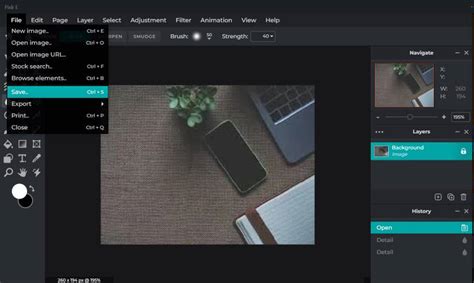
Access Pixlr and Upload Your Image: Launch the Pixlr free editor in your system by navigating to its website. Once the editor is open, click on the ‘Open Image’ button prominently displayed on the screen. You will then be prompted to upload the required image that contains the watermark you wish to remove.
Navigate to the Retouch Tools: On the top left corner of the Pixlr interface, you will find a menu bar. Click on the ‘Retouch’ option. Upon clicking, a panel will appear, revealing various retouching tools.
Utilize the Clone Stamp Tool: Within the Retouch panel, locate and select the Clone Stamp tool. This tool is the primary mechanism for removing unwanted elements like watermarks. To begin erasing the watermark, hover your mouse over the watermark area. The Clone Stamp tool works by sampling pixels from one part of the image and painting them over another. You will need to sample from an area of the image that is similar to the watermark's background and then carefully paint over the watermark itself.
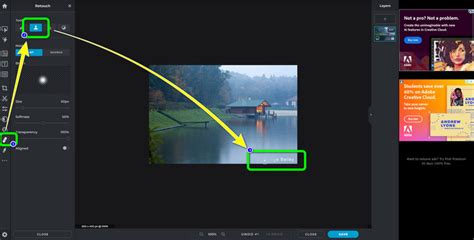
During the removal process, it is crucial to adjust the size, softness, and transparency of the brush accordingly. Experimenting with these settings will allow for a more seamless and natural-looking result. For instance, a softer brush edge can help blend the cloned pixels more effectively, reducing the appearance of an artificial patch. The resolution and type of the image should also be considered to ensure optimal results.
Save Your Edited Image: Once you have successfully erased the watermark, click the ‘Save’ button, typically located at the bottom of the screen. You can then choose the desired resolution and file type for your watermark-free image.
By implementing these four easy steps, you can effectively remove watermarks from your images using Pixlr.
Important Note on Pixlr's Free Version: The free version of Pixlr typically provides a limited number of photo editing sessions for tasks like watermark removal. To process more photos or to access advanced features without limitations, you may need to consider upgrading to its pro version.
Pixlr: A Free Photo Editor Without Its Own Watermark
A common concern when removing watermarks is whether the editing tool itself will impose its own watermark. Fortunately, Pixlr addresses this concern directly. Using a photo editor to remove an original watermark and then reapply another one is counterproductive and undesirable. Pixlr does not leave a watermark on the images after you have used it as a photo editor, ensuring that your final output is clean and unblemished by the editing process itself.
Pixlr: More Than Just Watermark Removal
While this guide focuses on watermark removal, Pixlr is a versatile tool capable of much more. It is often compared to Photoshop for its extensive features and capabilities, making it a powerful application for a wide range of editing tasks. Whether you are a beginner or an expert, Pixlr's photo editor is remarkably easy to use. It can be employed for general photo editing, graphic design, creating social media graphics, and much more. It possesses all the features that any editor would need to bring their creative ideas to life in their pictures.
Pixlr offers a free version that is readily available and includes a plethora of features, filters, and effects. However, to gain access to a wider range of advanced effects and filters, users may need to create an account with Pixlr.
Pixlr Alternative: Wondershare Pixcut
When seeking alternatives to Pixlr for watermark removal, Wondershare Pixcut emerges as a strong contender. This AI-powered photo editor is specifically designed for tasks like background removal, making it an excellent tool for eradicating watermarks, scratches, and other unwanted blemishes from images. It is also lauded for its user-friendliness and the fact that it is free to use.
Wondershare Pixcut offers cross-platform compatibility, meaning you can utilize it on various operating systems such as Windows and Mac. It also provides API integration options for developers.

How to Remove Watermarks with Wondershare Pixcut:
- Upload Your Image: Open Wondershare Pixcut on your system. Click on the ‘Upload Image’ option. The editor also supports uploading images via a URL or by using the ‘drop image’ functionality.
- Select the Watermark Area: Once the image is uploaded, it will open in the editor tool. You will find various options, including ‘Select,’ ‘Deselect,’ and ‘Brush Size.’ Click on the ‘Select’ button and adjust the brush size to accurately outline or cover the watermark you wish to remove.
- Erase and Save: After the watermark is selected, the AI will work to remove it. In some interfaces, you might need to click a specific "Remove" button. Once the watermark is successfully removed, you can proceed to save the image if no further edits are required. Wondershare Pixcut also assists in enlarging images without compromising their quality and can remove bulk backgrounds, making it a comprehensive solution for various image editing needs.
The pricing for advanced features or higher usage limits with some services, including potentially Wondershare Pixcut or similar professional tools, can be around $4.90 per month, though free tiers and trials are often available.
Alternatives to Pixlr for Watermark Removal
Beyond Wondershare Pixcut, other online tools can assist in watermark removal. One such option is ArkThinker Free Watermark Remover Online, which is presented as a strong alternative for web users. Compared to Pixlr, it often offers unlimited images and editing times for erasing watermarks. Its intuitive interface makes watermark removal straightforward, even for beginners.
Using ArkThinker Free Watermark Remover Online:
- Import Your Image: Click the ‘Add File to Start’ button to import your picture file containing the watermark.
- Select and Remove: After selecting the image, click the ‘Remove’ option and then highlight the watermark region. Continue this process until the watermark is completely erased.
- Download Your Image: To download the picture without the watermark, click the ‘Download’ button.
How to Remove Watermark from Photo with FREE AI Tool
Frequently Asked Questions about Pixlr and Watermark Removal
Can you add a watermark in Pixlr?Yes, Pixlr allows you to add watermarks to your images, such as text or logos. This feature provides a way to brand your images or protect them from unauthorized use.
Is Pixlr free?Pixlr offers a free version that includes many tools and functionalities. However, the free version may display advertisements on the right panel and has certain limitations compared to its paid versions.
Is Pixlr as good as Photoshop?Both Pixlr and Adobe Photoshop are excellent photo editing tools, but they cater to different user needs. Photoshop is generally preferred for professional-grade editing and complex manipulation, while Pixlr offers a more accessible and user-friendly experience for general photo editing and creative tasks.
Is it hard to remove a watermark from a photo?The difficulty of removing a watermark depends on several factors, including the complexity of the watermark itself and the background it covers. For an easier and more professional result, using a watermark remover with specialized features is often recommended.
Does Canva remove watermarks?No, Canva does not offer a built-in feature specifically for removing watermarks from images. However, Canva does support the addition of watermarks to your designs.
Respecting Copyright and Licensing
It is crucial to remember that while tools exist to remove watermarks, you should always respect the copyright and licensing terms associated with any photo. Before removing a watermark from a photo, especially for personal use, it is essential to check the original terms of use. Unauthorized removal and use of copyrighted material can have legal consequences. This guide is intended for educational purposes and to empower users with knowledge about photo editing tools.