Few things are more stressful than watching Photoshop freeze or crash right before a client deadline. Whether you are designing a brand logo, editing campaign visuals, or finalising social media creatives, losing hours of work can throw your entire schedule off track. Don’t worry. In most cases, you can recover your unsaved Photoshop files. This guide explains how to restore your work using Auto Save, backup folders, and cloud recovery options.
The Immediate Steps: Restarting and Manual Search
The first thing you should do is restart Photoshop. If Photoshop doesn’t automatically prompt you with a recovered file upon relaunching, you can manually look for the recovery files on your computer. These are often temporary files that can be crucial for salvaging your work. Look for files ending in “.psb” or “.tmp” - these are temporary recovery files that can often be opened in Photoshop.
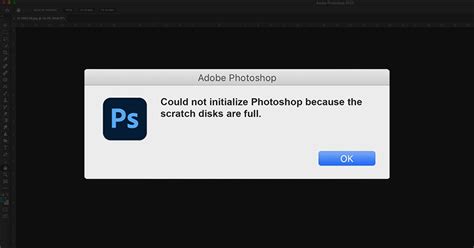
When a file has been corrupted, you can sometimes get the file back as a composite. If your project was saved in Adobe Creative Cloud, there’s a good chance it can be recovered easily.
Understanding the Causes of Crashes and Data Loss
Photoshop is a powerful tool, but it also relies on your system’s stability. A crash or freeze can happen for several reasons, and understanding these causes helps prevent file corruption or data loss in the future.
Software Integrity and Updates
Non-genuine software: Pirated or unofficial versions of Photoshop often crash or freeze due to missing updates and security patches. Genuine Adobe Photoshop is built with reliability and security in mind, helping reduce the risk of data loss through automatic recovery options and protection against malware or system instability.
System Resources and Performance
Photoshop relies heavily on RAM, storage space, and processing power. When these resources are insufficient, crashes happen. Outdated software is one of the most common causes of crashes. When you add any software to your computer around the time the images were corrupted, there could be an issue with that application or update.
File Corruption
File corruption in Photoshop is relatively rare, but when it does happen, it’s often linked to one of the issues above. If the files were all created on the same computer, run a hardware diagnostic on that computer to check for bad RAM or other problems.
Proactive Measures: Preventing Data Loss
Recovering unsaved Photoshop files can save the day, but the best strategy is to prevent data loss before it happens.
Leveraging Auto Save (Auto Recovery)
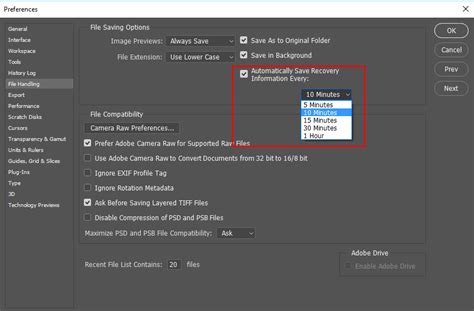
The auto save (also known as auto recovery) function automatically stores a copy of your project at regular intervals. By default, Adobe Photoshop saves your work every ten minutes. However, the default is 10 minutes, though we would recommend 1 minute to ensure that you don’t lose much progress. Many people like backing up their autosaves from time to time. Once Photoshop is closed normally, temporary Auto Save files are usually deleted.
To adjust the Auto Save feature, Windows users can launch Adobe Photoshop CC > Click the Edit option on the top-left corner and select Preference. Next, select File Handling > Automatic save recovery information every * minute. Mac users can enable AutoSave option with the given path - Photoshop > Preferences > File Handling. The AutoSave feature is exceptionally useful in the event of sudden application crash, power cut, or OS breakdown while working on a PSD file. You can also recover your work in case you accidentally closed the application without saving ongoing work.
Cloud Synchronization and Backup
By syncing your files online, you make sure that your work is always backed up and available from any device. Even when your computer system fails, you can rest easy knowing your files are safe on the cloud. If you’re working with cloud documents in Photoshop, your files are automatically and regularly saved and backed up to Adobe Creative Cloud in real time.
The Adobe Creative Cloud app syncs Photoshop files and libraries with other devices like computers, iPad, smartphones, etc. As a result, all the deleted files remain saved in the ‘Deleted’ folder till you manually remove them from it. To recover a PSD file after an unfortunate application crash or accidental erasure, open the ‘Deleted’ folder in your Creative Cloud account. Now select the desired PSD files and click on ‘Restore’ option. If you delete the PSD file from Creative Cloud in a rush, your file gets stored in the Archives folder of ‘Creative Cloud Files’ from where you can restore it. However, if deleted from Archives, you cannot recover it as the file remains permanently erased.
External Storage and Redundancy
Keeping copies of your files on an external hard drive or USB stick can give you another layer of protection against unexpected crashes.
Advanced Recovery Techniques
When immediate steps and preventative measures aren't enough, more advanced techniques can be employed.
Accessing Temporary Files
Besides AutoSave, Photoshop also has an incredible feature that saves temporary files of your work on the graphic editing app. Use it to retrieve your missing PSD file. You can navigate to the temp folder location to recover the unsaved or deleted PSD files.
Photoshop temp files location on Windows:Navigate to C:\Users\Your Username\AppData\Local\Temp.Other alternative to find the Temp PSD file is using Windows key + R. Now type %temp% and hit Enter key. Locate your PSD files labeled as ‘Photoshop’ and open it. Change the file extension from .temp to .psd to save it at a desired spot in your system or laptop.
Photoshop temp files location on MacBook:Finder > Applications > Utilities > Terminal. Type the command open /tmp to open the folder. Search for the files with the name Photoshop or PS label. Double-click on each to open in Photoshop. Next, choose ‘Save as’ to save the file using .PSD extension.
Note: It is not safe to access the Temp folder on Mac because it stores crucial system files with write protection. If you accidentally erase any of them, your Mac won’t boot again. So, be wary of this step.
When the software crashes too suddenly, there is often no AutoSave to recover from. This is when you check the Temp folder. Basically, these files are the data saved by any application while it is still running. If the application gets to shut down normally, it converts these temp files into permanent saves. On Windows, the Temp folder is hidden. The path of the Temp folder is C:/Users/UserName/AppData/Local/Temp/, but as it is a hidden folder, we will use a roundabout way for accessing it. In the Local folder, you will find the Temp directory. In Mac too, there is a directory that stores temporary files. This is because while the Windows temp directory does not hold any important system files without write-protection, Mac does so. Temporary files contain all the data present in the original formats. Thus to make the change, you first need to make file extensions visible. At the very right is a checkbox labeled ‘File name extensions‘. As you can see, the .tmp file extension is visible. You can now rename the file, removing the tmp with a .psd.
Utilizing Previous Versions and File History
Recovering PSD file from a previous version of Windows is simple, but you have to keep the File History setup on. Mac users have to click on Apple menu > System Settings > Privacy & Security in the sidebar to access Control. Now click on Files and Folders. Restore deleted PSD files from Adobe Creative Cloud.
On Windows, you need to have File History set up, and on Mac, Time Machine. If you don’t know what that means, you’re probably out of luck. Once you have File History set up on your computer, restoring the previous version of a file is a piece of cake. Click on the Restore previous versions option. Here, you can see all the old versions of the file backed up in File History with their respective time stamps.
For Mac, the process of restoring files from their previous versions is far more intuitive. You can see the past ‘images’ of the file and scroll backward till you find a version that matches your needs.
Restore Individual Files from Time Machine to New Mac
File Recovery Software
If you fail to recover your lost or deleted Photoshop file using the above-mentioned methods, only a professional Photoshop file recovery software can give you peace of mind. DataNumen PSD Repair provides a convenient batch repair feature that allows you to process multiple damaged PSD files in a single operation. SecureRecovery® for Photoshop software is distributed under a licensing model where the cost of the full version is comparable to the cost of recovering a single PSD document. Recovery Toolbox conducts a large-scale quarterly study aimed at determining the actual effectiveness of various programs and services designed to recover damaged PSD files created in Adobe Photoshop and improving the quality of data recovery using the online service and the Recovery Toolbox for Photoshop program. In total, more than 1,000 PSD files uploaded by users from around the world were tested. The files were not filtered or sorted: the researchers worked with what users uploaded. Each tool was tested on the same set of files. Based on the data obtained, a comparative table was compiled, indicating how successfully each tool coped with the task at hand.
The professional software not only helps in lost PSD file recovery, but it can also make sure that the original work quality doesn’t get affected in the whole recovery process. The DIY data recovery software is proficient at retrieving PSD, JPEG, JPG, GIF, PDF, Excel, and Word files. Be it data loss due to accidental erasure, file corruption, drive formatting, etc., the software will securely recover your PSD file.
When all else fails, data recovery software is your best bet. Disk Drill will prompt you to Enable data protection, which creates a Recovery Vault to help you recover files more easily in the future. This is the main screen of the application. You can select particular recovery methods to reduce your scanning time, though for your first time using the software you can safely ignore this option. A major difference you would notice from most other recovery tools out there is how organized it is. Better yet, you do not need to wait for the whole scan to complete. As you might have noticed, the found files are also under their respective sub-folders. Choose a location to save the recovered file to. As the software advises you, try to pick a destination, not on the drive you just scanned. Within seconds, Disk Drill will recover the file and save it to your selected location.
Sometimes, the photoshop file you have recovered ends up corrupted. Your best bet is to restore a previous version of the same file. You can try any of the many free PSD file repair services offered online, but they tend to be unreliable.
Specific Scenarios and User Experiences
Customer feedback highlights common issues and successful recoveries. For example, some users have reported that their PSD files were corrupted after a virus attack, turning them into executable files. Renaming them with a .PSD extension and using recovery tools helped in such instances.
Another user experienced a situation where Photoshop CS6 could not open a file after a virus. The file itself was small and recovered quickly. Some users noted that while tools recovered their pictures, they were slightly fuzzy or failed to open in certain applications, with Paint being an exception for opening full-size pictures.
One user recounted a power outage that damaged their file, rendering the autosave useless. They were able to recover their work using a recovery tool, although there were initial problems with saving the restored file, requiring the collapse of smart objects. The price of such tools was considered symbolic compared to the potential loss.
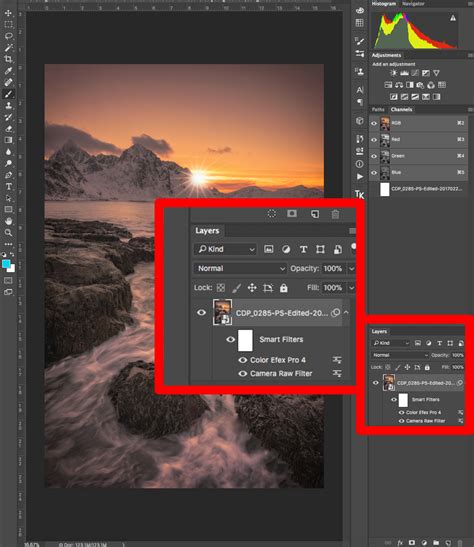
Smart objects sometimes present challenges. One user mentioned that while their PSD file was repaired, all Smart-objects needed to be re-assembled later in Photoshop CC. Another noted that after recovery, smart objects introduced some discord, but this was indicated as a note in the FAQ.
Important Considerations and Best Practices
While recovering lost files is possible, prevention remains paramount.
Software Versions and Compatibility
The version of Photoshop you are using can influence recovery options. Newer versions have more robust Auto Save and cloud integration features. For instance, the AutoSave feature is available in Photoshop CS6 and above versions.
Hardware and System Stability
Photoshop’s performance is intrinsically linked to your system’s hardware. Insufficient RAM, storage, or processing power can lead to crashes. If you suspect hardware issues, running diagnostics is advisable.
File Saving Habits
Always use "Save As" to save the file to a new name in a different location. This creates a distinct copy and reduces the risk of overwriting a good version with a corrupted one.
Conclusion: Safeguarding Your Creative Workflow
Crashes can happen, but your creativity does not have to stop with them. By setting up Auto Save, backing up your files, and keeping your software up to date, you can safeguard your work and recover quickly when the unexpected occurs. Remember, no matter which tool you use, there is little that can be done once the deleted file location has been overwritten by new data. The best strategy is always proactive prevention, ensuring your creative workflow remains uninterrupted.