Procreate has carved a significant niche in the digital art world, becoming a go-to application for illustrators on iPads. Its intuitive interface, sophisticated brush engine, and seamless integration with the Apple Pencil are undeniably attractive features. However, this popularity comes with a crucial limitation: Procreate's exclusivity to iOS devices. This exclusivity creates a barrier for countless artists who prefer or rely on Windows or Android platforms, leaving them searching for a comparable creative experience. This article aims to bridge that gap, exploring robust alternatives to Procreate for Windows and Android users, and introducing the ugee UE16 drawing monitor as a powerful complement to these versatile software options. We will delve into the strengths of leading Procreate alternatives and provide practical advice for a smooth transition, ensuring that creative freedom is not confined to a single operating system.
Part 1: Top Procreate Alternatives for Windows and Android
The landscape of digital art software is rich and varied, offering powerful tools that rival Procreate's capabilities on Windows and Android devices. While Procreate offers a streamlined, iPad-centric experience, several applications provide comparable or even expanded functionality for users on other platforms. Here, we review four of the most compelling Procreate alternatives, each with its unique strengths and ideal use cases.
Krita: The Open-Source Powerhouse
Krita stands out as a robust, free, and open-source digital painting and illustration application. It is highly prized for its extensive customization options, particularly its versatile brush engine, and its built-in support for animation. The sleek, clean layout of Krita makes it remarkably easy to navigate across different operating systems, including Windows, iOS, and Linux, ensuring a smooth and responsive pen input experience.
Key Features:
- Free and Open-Source: Accessible to everyone without cost, making it an excellent choice for beginners and hobbyists.
- Customizable Brushes: Offers a vast array of brush creation and modification tools, allowing artists to tailor their tools to specific needs.
- Animation Support: Includes a comprehensive set of tools for 2D animation, from frame-by-frame to onion skinning.
- Intuitive Interface: Despite its power, Krita maintains a user-friendly interface that parallels Procreate's ease of use.
Procreate Comparison: Krita's most significant advantage over Procreate is its cost - it is entirely free. For beginners and hobbyists exploring digital art, Krita offers an intuitive interface and a versatile brush engine that directly competes with Procreate's renowned ease of use. Its open-source nature also means a dedicated community contributes to its ongoing development and support.
Clip Studio Paint: The Professional's Choice for Comics and Animation
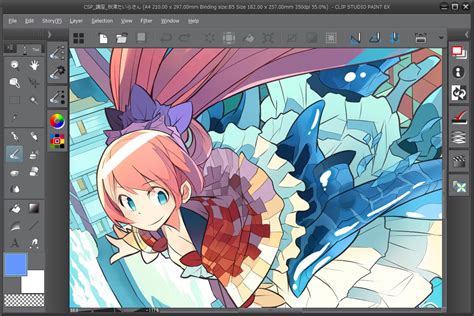
Clip Studio Paint (CSP) is a powerful, one-time purchase application that has become a favorite among illustrators, comic artists, and animators. It is widely regarded as a well-rounded application, particularly excelling in features tailored for comic and manga creation. Its sharp layer control and integrated 3D model tools are significant advantages for complex projects. The interface is clear and functions exceptionally well in tablet mode, providing precise pen handling.
Key Features:
- One-Time Purchase: Offers a perpetual license, avoiding ongoing subscription costs.
- Comic and Manga Tools: Features specialized tools for panel creation, speech balloons, perspective rulers, and story management.
- 3D Model Integration: Allows users to import and pose 3D models as references, invaluable for accurate anatomy and complex scenes.
- Advanced Animation: Supports multi-frame animation with advanced features beyond Procreate's capabilities.
Procreate Comparison: While Procreate offers basic animation features, software like Clip Studio Paint provides significantly more robust multi-frame animation support and advanced 3D model assistance, making it a more suitable choice for professional animators. Furthermore, Clip Studio Paint's dedicated comic paneling tools and speech bubble creation capabilities far surpass Procreate's more general design approach. The ability to precisely control line art, ink, and color for sequential art is a key differentiator.
Adobe Fresco: Seamless Integration and Natural Media Simulation
Adobe Fresco is a powerful drawing and painting application that offers live brushes and natural media effects designed to emulate traditional tools with remarkable accuracy. Its touch-optimized interface is specifically tailored for tablet use, providing an experience that closely mirrors the feel and responsiveness of using an iPad. For users already invested in the Adobe ecosystem, Fresco offers seamless cloud synchronization with other Adobe Suite applications.
Key Features:
- Live Brushes: Emulates the behavior of real-world paints, with dynamic blending and color mixing.
- Raster and Vector Layers: Uniquely allows for both pixel-based (raster) and scalable (vector) artwork within the same document, offering unparalleled flexibility.
- Cloud Sync: Integrates seamlessly with Adobe Creative Cloud, allowing work to be accessed and continued across devices and other Adobe applications like Photoshop and Illustrator.
- iPad-like Experience: Designed with touch and stylus input in mind, providing an intuitive and familiar workflow for many digital artists.
Procreate Comparison: Adobe Fresco is renowned for its exceptional natural media simulation and responsive touch gestures, which closely mimic Procreate's tactile feel. It stands as a strong alternative for Windows users looking to capture that Procreate-like experience. The ability to combine raster and vector layers in a single document is a significant advantage over Procreate, offering greater versatility for different artistic styles and project requirements. Moreover, as of recent updates, many premium features that previously required a subscription are now available for free, making it an even more compelling option.
Adobe Fresco Tutorial for Beginners: Getting Started!
Rebelle 7: Uncanny Realism in Watercolor and Oils
Rebelle 7 is an application that truly shines in its ability to simulate traditional media, particularly watercolors and oils, with uncanny realism. It offers a digital painting experience that can evoke the nuanced blending, bleeding, and texture of physical paints. While its interface is generally clean and user-friendly, some minor adjustments might be beneficial to optimize its ease of use in a tablet mode for certain workflows.
Key Features:
- Realistic Simulations: Unparalleled watercolor and oil paint simulations with unique blending and wet-on-wet effects.
- Expressive Brushes: Tools designed to mimic the behavior of traditional brushes, including drip, smudge, and impasto effects.
- User-Friendly Interface: Clean and organized, making it accessible for artists transitioning from traditional media.
- Unique Blending Effects: Offers advanced control over how colors interact, creating organic and natural-looking results.
Procreate Comparison: Rebelle 7 is an ideal choice for artists transitioning from traditional media to digital work. It offers a level of digital realism comparable to Procreate's expressive tools, but with a distinct focus on the unique properties of watercolor and oil paints. Instead of trying to replicate Procreate brushes, Rebelle 7 encourages users to explore its distinctive watercolor bleed or oil mixing capabilities, fostering a fresh artistic style.
Part 2: Transitioning Smoothly to Procreate Alternative Software
Switching from Procreate on an iPad to a Windows or Android application doesn't necessitate a complete overhaul of your creative habits. With a few strategic steps, the transition can be remarkably seamless, allowing you to leverage the power of your chosen platform without losing your established workflow.
1. Migrate Your Files Effectively
The first crucial step in transitioning is to ensure your existing work is preserved and accessible in your new environment. Begin by exporting your Procreate files (.procreate) into more universal formats such as PSD (Photoshop Document). This format is widely supported across different applications and is excellent at preserving layers, adjustments, and other critical editing data. By using PSD files, you make it significantly easier to continue your work in alternative applications without losing the integrity of your original artwork.
2. Recreate or Adapt Your Go-To Brushes
Brushes are the lifeblood of digital art, and replicating your favorite Procreate brushes in new software is key to maintaining consistency.
- For Krita/Clip Studio Paint: If these applications support importing .abr brush files (Photoshop brush files), you can often import Procreate brushes directly if they were exported in a compatible format. Alternatively, you can meticulously recreate Procreate brushes by utilizing the built-in brush customization tools. Pay close attention to tweaking settings like pressure taper (how brush opacity and size change with stylus pressure), texture grain, and stabilization. Aim to match brush dynamics by carefully adjusting parameters such as "Hardness" and "Spacing" to mimic Procreate's organic feel and stroke behavior.
- For Rebelle 7: Instead of trying to replicate Procreate brushes precisely, consider embracing Rebelle 7's unique strengths. Experiment with its specialized watercolor bleed or oil mixing features. This approach can lead to discovering new artistic styles and workflows that are distinct to Rebelle 7, offering a fresh perspective rather than a mere imitation.
3. Adapt to Keyboard Shortcuts and Workflow Tweaks
Transitioning to a Windows or Android setup often involves adapting to different input methods compared to Procreate's gesture-heavy, touch-first interface. Desktop applications typically rely more heavily on keyboard shortcuts and mouse inputs, especially when using a pen display.
- Embrace Shortcuts: Familiarize yourself with the keyboard shortcuts for frequently used actions. For instance, in Clip Studio Paint, assign "Rotate Canvas" to a shortcut key to enable natural hand-like rotation without needing to physically rotate the tablet. In Krita, using "Ctrl+Alt+Scroll" can provide smooth zooming functionality.
- Optimize Workflow: Understand that while Procreate excels at touch-based gestures, Windows/Android applications often offer enhanced multitasking capabilities and larger screen real estate with pen displays. Learning to effectively combine keyboard shortcuts, stylus input, and mouse usage will help you maintain a fluid workflow and fully leverage the advantages of your new setup.
Part 3: Switching from iPad to a Large Pen Display
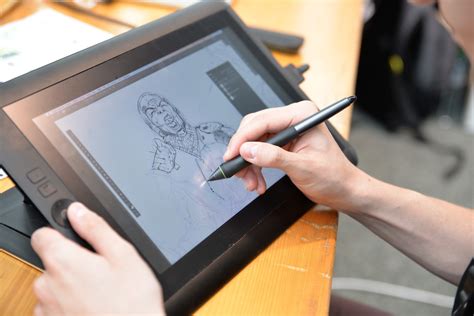
For illustrators who wish to run demanding applications like Photoshop alongside reference images, a large pen display offers an invaluable creative environment. These displays not only support detailed work but also facilitate efficient multitasking. Many hobbyists also appreciate the benefit of a larger drawing surface, as it provides ample space for their hands to rest comfortably during extended creative sessions, reducing fatigue and improving ergonomics.
The ugee UE16, a 15.6-inch pen display, emerges as a compelling option, offering a budget-friendly price point without sacrificing quality. It delivers vibrant colors and boasts four distinct display modes to cater to various creative needs. Let's explore why the UE16 is an excellent choice for bridging the gap between iPad simplicity and the expansive capabilities of Windows and Android creative software.
Full Compatibility: Breaking Down Platform Barriers
The ugee UE16 is engineered to erase platform boundaries, ensuring seamless performance across a wide array of operating systems and creative software.
- Operating Systems: It is fully compatible with Windows 7 and later, macOS 10.12 and later, Chrome OS 88 and later, Android 9.0 and later, and Linux. This broad compatibility means you can use the UE16 with virtually any modern computer or even compatible Android devices.
- Creative Software: The UE16 works flawlessly with industry staples such as Adobe Photoshop and Illustrator, as well as lightweight tools like ibis Paint X and MediBang. It also integrates perfectly with niche applications like Clip Studio Paint, ensuring that your preferred software will perform optimally.
16K Pressure Sensitivity: Nuance Beyond Compare
A standout feature of the ugee UE16 is its advanced 16K pressure sensitivity. This level of sensitivity, surpassing the typical 8K found on many tablets, allows the U-pencil to detect even the faintest strokes. This precision mimics the nuanced touch of real pencils, brushes, or charcoal, providing a more refined and accurate artistic feel than even the Apple Pencil. Whether you are sketching light guidelines or applying bold textures, the 16K sensitivity ensures a superior level of control and expressiveness.
15.6-inch Colorful Display: A Vivid Canvas
The ugee UE16 features a generous 15.6-inch anti-glare screen that delivers vibrant and precise visuals. With 143% sRGB color coverage and 8-bit color depth, it produces smooth gradients and accurate color reproduction, essential for professional-level artwork. The display supports multiple color profiles, including sRGB, Adobe RGB, DCI-P3, and a dedicated black-and-white mode, allowing you to switch based on your creative requirements. Furthermore, the fully laminated display minimizes parallax - the visual gap between the pen tip and the cursor - ensuring that your pen input is accurately translated onto the screen, creating a more natural drawing experience.
Ergonomic Design for Extended Creativity
Long creative sessions can take a toll on your wrists and hands. The ugee UE16 addresses this with an included adjustable stand, offering 10 different angle settings. This allows you to find the most comfortable working position, significantly reducing wrist strain. Its slim and portable build, measuring just 0.3 inches thick, makes it easy to transport between your home studio and a workplace, offering flexibility for artists on the go.
Customizable Shortcuts: Streamlining Your Workflow
Efficiency is paramount in digital art, and the ugee UE16 enhances it with extensive customization options for shortcuts.
- Realistic Shortcuts: The tablet itself features eight programmable keys along its side. These keys can be mapped to frequently used actions such as undo, brush size adjustments, and layer shortcuts, effectively replicating the gesture-driven workflow of Procreate and allowing for rapid command execution.
- On-Screen Shortcuts: Differentiating itself from many other drawing tablets, the UE16 offers an impressive sixteen on-screen shortcuts that can be customized to your preference. This provides an even greater level of control and personalization, ensuring that your most-used tools and commands are always within easy reach.
Part 5: Final Recommendations for a Seamless Transition
Choosing the right combination of software and hardware is crucial for a fulfilling digital art journey, especially when moving away from a platform-specific tool like Procreate. The following recommendations cater to different user profiles, aiming to provide the most effective and enjoyable experience.
For Students: An Affordable and Powerful Solution
Pairing Krita with the ugee UE16 drawing monitor offers an exceptionally affordable yet powerful solution ideal for students. Krita's robust feature set, including its extensive brush customization, animation tools, and overall stability, combined with the UE16's high-pressure sensitivity, accurate display, and customizable shortcuts, provides a seamless transition for those moving from Procreate. This combination delivers professional-grade tools without the steep learning curve or financial burden often associated with premium software. The free nature of Krita makes it an accessible starting point, while the UE16 ensures a high-quality input experience.
For Hobbyists or Animation Workers: Elevating Your Creative Output
For hobbyists, aspiring animators, or professionals looking to expand their capabilities, combining advanced software like Clip Studio Paint or Adobe Fresco with the ugee UE16 caters to more specialized and demanding needs. These premium tools, when utilized with the UE16's precise 16K pressure sensitivity, vibrant color display, and ergonomic design, significantly elevate the digital drawing and animation experience. Clip Studio Paint's specialized tools for comics and animation, or Adobe Fresco's unique live brushes and raster/vector flexibility, offer professional-level features that are perfectly complemented by the UE16's responsive and comfortable drawing surface. This setup allows for intricate detail work, complex animations, and a highly personalized workflow.
Is Procreate Available for Windows?
Sadly, when it comes to Procreate, Windows is not an option. Procreate is an illustration program exclusively designed for the Apple iPad and iPhone. There currently is no Procreate app for Windows, and you won't be able to get Procreate on Windows as it's native to the Apple ecosystem. Fortunately, for those looking for a Procreate alternative for Windows, there are many excellent applications available, even at different price points. Procreate is competitively priced at $9.99 and has continually grown in popularity among creatives due to its powerful features that allow for professional, high-quality work. However, if you're on a budget and wondering about free Procreate alternatives for Windows, you are in luck, as many powerful options exist.
Numerous apps function as excellent Procreate alternatives for Windows, offering a range of features to suit various artistic needs. These include robust options like Adobe Fresco, which is entirely free and offers both raster and vector layers, a feature Procreate lacks. Photoshop remains a popular choice for professionals due to its extensive capabilities, though its subscription model and complexity can be a deterrent for some. Clip Studio Paint is another strong contender, especially for comic and manga artists, offering specialized tools and a perpetual license. For those seeking open-source solutions, Krita provides a powerful and free platform with extensive brush customization and animation support. Other notable mentions include Affinity Photo and Designer, which offer professional-grade tools with a one-time purchase model, and lighter-weight options like Paint Tool SAI and Sketchbook, which are more accessible for beginners or those with less powerful hardware. The availability of free trials for many of these applications allows artists to test them thoroughly before committing.