For digital artists and creators utilizing Procreate on their iPads, selecting the right stylus is paramount to a seamless and expressive workflow. The evolution of Procreate, particularly with its version 5.3 update, has significantly narrowed the landscape of supported styluses, placing a strong emphasis on Apple's proprietary technology. This guide aims to demystify the choices, ensuring you find the perfect digital pen to unlock your creative potential within Procreate and across your iPad.
Understanding Procreate's Stylus Support: The Shift to Apple Pencil Technology
A crucial point for Procreate users to grasp is the app's evolving stance on third-party styluses. As of version 5.3, Procreate no longer supports styluses that do not leverage Apple Pencil technology. This means the previously available "Connect Third-Party Stylus" option within the app's Preferences, which allowed for pairing devices from brands like Adonit or Wacom, has been removed. This decision by Procreate signifies a clear direction towards a more integrated and streamlined experience, prioritizing the advanced features and compatibility offered by Apple's own stylus offerings.
If you're unsure about your iPad model, a quick check is in order. Navigate to Settings > General > About > Model Name on your iPad. Alternatively, you can find the model information on the back of your iPad. Knowing your specific iPad model is essential for determining which Apple Pencil is compatible with your device.
The Apple Pencil Ecosystem: Your Primary Gateway to Procreate
Given Procreate's current support structure, the Apple Pencil series stands as the primary and most recommended stylus for Procreate users. Each generation offers distinct advantages, and the best choice for you will depend on your specific iPad model.
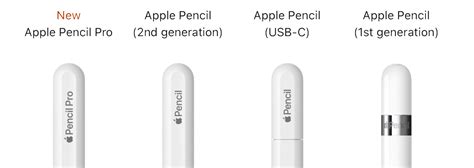
Apple Pencil Pro: The Latest Innovation for Compatible iPads
For users with the latest iPad Pro (M5, M4), iPad Air (M2, M4), or iPad Mini 7, the Apple Pencil Pro is the cutting-edge option. This stylus introduces advanced features that further enhance the drawing and creative experience.
The Apple Pencil Pro offers a range of sophisticated functionalities designed to elevate digital art creation. Among its key features are:
- Hover Functionality: This allows you to see a preview of your brush stroke before you make contact with the screen, offering greater precision and control, particularly for intricate details and brush manipulation.
- Haptic Feedback: The Pencil Pro provides subtle haptic feedback, giving a more tactile sensation to your interactions within Procreate and other compatible apps. This can range from a gentle nudge when using certain tools to a more pronounced response during specific actions.
- "Squeeze" Gesture: A new input method, the "squeeze" gesture, allows for contextual menus or tool switching with a simple press and hold of the barrel. This can be customized to bring up frequently used tools or actions, streamlining your workflow.
- Barrel Roll (Rotation Detection): This feature detects the rotation of the Apple Pencil, allowing for dynamic brush control. For example, you can alter the angle of a calligraphy brush or change the stroke of a textured brush by rotating the Pencil, mimicking traditional art tools.
- Automatic Pairing and Magnetic Charging: Like its predecessor, the Apple Pencil Pro magnetically attaches to compatible iPads for effortless pairing and automatic charging, ensuring you're always ready to create.
The integration of these features with Procreate promises an even more intuitive and responsive artistic process, allowing for nuanced control over line weight, shading, and brush dynamics.
Apple Pencil (2nd Generation): A Proven Powerhouse for Mid-to-Recent iPads
If you own an iPad Pro, iPad Air, or iPad Mini released between 2021 and 2024, the Apple Pencil (2nd generation) remains an exceptional choice. This stylus has been a favorite for many artists for years, offering a robust set of features that translate exceptionally well to Procreate.
Key attributes of the Apple Pencil (2nd generation) include:
- Pressure Sensitivity: This is a fundamental feature for digital artists, allowing the thickness and opacity of your lines to vary based on how hard you press the stylus onto the screen. This mimics the natural feel of traditional drawing and painting tools.
- Tilt Support: The ability to detect the tilt of the Apple Pencil enables shading and a variety of brush effects. Tilting the Pencil can affect the width of the stroke or produce different textures, similar to using a graphite pencil for broad strokes or fine lines.
- Magnetic Attachment and Wireless Charging: The Apple Pencil (2nd generation) conveniently attaches to the side of compatible iPads, where it charges automatically. This eliminates the need for separate cables and ensures the stylus is always ready for use.
- Double-Tap Shortcut: A customizable double-tap gesture on the flat side of the Pencil allows for quick switching between tools, such as toggling between your brush and the eraser, or accessing other frequently used functions. This significantly speeds up the creative process by reducing the need to navigate menus.
- Palm Rejection: This essential feature allows you to rest your hand comfortably on the iPad screen while drawing, just as you would on a physical canvas, without creating unwanted marks.
The experience with the Apple Pencil (2nd generation) is often described as effortless. Simply pick up the Pencil, open Procreate, and begin doodling. The intuitive nature of its features, combined with the vast array of Procreate brushes, allows for a fluid and highly responsive drawing experience.
Apple Pencil (1st Generation): The Foundation for Older iPads
For users with older iPad models that are not compatible with the 2nd generation or Pro, the Apple Pencil (1st generation) still offers a capable drawing experience. While it has some notable differences in charging and pairing compared to its successors, it provides the core functionalities essential for digital art.
Key features of the Apple Pencil (1st generation) include:
- Pressure Sensitivity: Crucial for expressive line work and shading, the 1st-gen Pencil accurately translates pressure into varying line weights and opacities within Procreate.
- Tilt Support: Similar to the 2nd generation, this allows for dynamic shading and brush effects by altering the angle of the stylus.
- Lightning Connector Charging: The 1st-gen Pencil charges via a Lightning connector, which plugs directly into the iPad's Lightning port. While this can sometimes obstruct the port for simultaneous charging, it ensures the stylus remains powered for your creative sessions.
- Simple Pairing: Pairing is achieved by connecting the Pencil to the iPad's Lightning port.
While the charging method might be less convenient than the magnetic attachment of newer models, the 1st-gen Apple Pencil, when paired with a compatible iPad and Procreate, still delivers a high-quality drawing experience.
Apple Pencil (USB-C): A Budget-Friendly, Limited Option
Apple introduced the Apple Pencil (USB-C) as a more affordable option. However, it's important to note that this model lacks pressure sensitivity. While it offers basic functionality for note-taking and general navigation, it is not recommended for artists who rely on pressure sensitivity for drawing and painting in Procreate. It does, however, magnetically attach to the side of compatible iPads and charges via USB-C.
Alternatives to Apple Pencil: Limited Options Since Procreate 5.3
Since Procreate's update to version 5.3, the landscape for third-party styluses has drastically changed. The app now exclusively supports Apple Pencil technology. However, there is one notable exception that warrants discussion, with significant caveats.
Logitech Crayon: A Stylus for Basic Use, Lacking Pressure Sensitivity
The Logitech Crayon is often mentioned as an alternative. It is compatible with a wide range of iPads released after 2018. It offers a comfortable grip, decent tilt recognition, and effective palm rejection, making it a suitable option for note-taking and light sketching.
However, it is critical to understand that the Logitech Crayon does not fully support pressure sensitivity. This is a significant limitation for artists using Procreate, as pressure sensitivity is fundamental for creating varied line weights and expressive strokes. While some artists may find it adequate for certain types of art, particularly if they are not heavily reliant on nuanced pressure control, it cannot replicate the full range of artistic expression that an Apple Pencil provides within Procreate. The experience with the Logitech Crayon for drawing in Procreate will be akin to using a non-pressure-sensitive stylus, where lines are generally of a uniform thickness unless manually adjusted.
New Logitech Crayon (USB-C): The Ultimate iPad Pencil Alternative
For those who primarily use their iPad for note-taking or general navigation with occasional light sketching, the Logitech Crayon can be a more budget-friendly option. However, for serious digital art creation in Procreate, the absence of pressure sensitivity is a substantial drawback.
Choosing the Right Stylus: A Decision Tree
To help you navigate the choices, consider these points:
- Identify Your iPad Model: This is the most critical first step. Refer to your iPad's settings or its physical casing to determine the exact model and its release year.
- Determine Your Needs:
- Professional Artist/Serious Creator: If you are an artist who relies on pressure sensitivity, tilt support, and the full expressive capabilities for drawing and painting in Procreate, an Apple Pencil is your only viable option.
- Note-Taker/Light Sketcher: If your primary use is for jotting down notes, annotating documents, or very basic sketching where pressure sensitivity is not a major concern, the Logitech Crayon might suffice.
- Compatibility Check:
- iPad Pro (M4 models), iPad Air (M2 models), iPad Mini 7: Apple Pencil Pro is the recommended stylus.
- iPad Pro (2018-2023 models), iPad Air (4th gen and later), iPad Mini (6th gen): Apple Pencil (2nd generation) is the compatible choice.
- Older iPads that support Apple Pencil: Apple Pencil (1st generation) is your option.
- General Use across many iPads (post-2018): Logitech Crayon is an alternative, but without pressure sensitivity.
The Importance of Pressure Sensitivity in Procreate
Pressure sensitivity is not merely a feature; it's the cornerstone of expressive digital art. In Procreate, it directly translates to:
- Line Weight Variation: Applying more pressure results in a thicker line, while lighter pressure creates a finer line. This is essential for creating dynamic sketches, varied lettering, and nuanced linework.
- Opacity Control: Pressure can also dictate the opacity of a stroke. This is vital for subtle shading, layering colors, and achieving a painterly effect.
- Brush Dynamics: Many Procreate brushes are designed to respond to pressure, altering their texture, flow, or shape based on how hard you press. Without this, the full potential of these brushes is lost.
Given Procreate's emphasis on artistic expression, the absence of pressure sensitivity in non-Apple Pencil styluses significantly limits their utility for serious digital art.
Beyond the Stylus: Enhancing Your Procreate Experience
While the stylus is central, other accessories can further refine your Procreate workflow.
Screen Protectors: The Paperlike Difference
A matte screen protector, such as the Paperlike, can transform the feel of drawing on an iPad. It provides a surface with a slight texture that mimics the drag of paper against a pencil. This increased friction enhances control, reduces screen glare, and offers a more satisfying tactile experience, making drawing feel more natural and less slippery.
Apple Pencil Tips: Maintaining Precision
Over time, the nib of your Apple Pencil can wear down, affecting its precision and potentially scratching your screen. Replacing the nib with genuine Apple Pencil Tips is crucial for maintaining optimal performance and protecting your iPad's display. These tips are designed to offer the right amount of resistance and are made from durable materials.
Conclusion: Prioritizing Compatibility and Functionality
In the current Procreate ecosystem, the choice for a recommended stylus is largely defined by Apple's offerings. The Procreate 5.3 update has solidified this direction, emphasizing the robust features and seamless integration of Apple Pencil technology. While alternatives exist, their limitations, particularly the lack of pressure sensitivity, make them unsuitable for artists seeking the full expressive potential within Procreate. By understanding your iPad's compatibility and prioritizing features like pressure sensitivity, you can confidently select the stylus that will empower your digital art journey.
tags: #procreate #recommended #stylus