Photoshop plugins have become indispensable tools for photographers and designers, offering extended functionality beyond the software's built-in capabilities. These third-party add-ons provide additional tools, features, effects, and automation options, empowering users to be more creative and streamline their workflows. Among these valuable extensions is the ramedia plugin, a powerful suite designed to enhance image processing and presentation. This article explores the various modules and features of the ramedia plugin, detailing its capabilities from precise framing and text application to advanced watermarking and batch processing.
The Web Frame Module: Precision and Aesthetics
The Web Frame module within the ramedia plugin offers a streamlined approach to framing images for web use, with several thoughtful additions to optimize workflow. The front-end interface is designed for simplicity, yet it packs a punch with its customizable options.
One of the key features is the ability to precisely control image dimensions. If a specific image length is desired, users can input this value into the "Long Edge" field and activate the "Auto-Calculate Ratio" checkbox. This ensures that the aspect ratio is maintained automatically, saving users from manual calculations. Alternatively, users can specify the "Short Edge," and the plugin will calculate the remaining dimension. When the "Short Edge" is prioritized, its heading becomes underlined, providing a visual cue for its dominant role in the resizing process.
For those aiming for a square output, the plugin simplifies the process. By entering the desired "Long Edge" value and enabling the "Create Square Border" checkbox, users can easily achieve a perfectly square frame.
The "Top/Bottom Border Offset" slider provides granular control over the vertical positioning of the image within the frame. This feature draws inspiration from traditional fine art practices, where artists historically positioned their work slightly higher within a matte or frame to achieve a more pleasing visual balance. This subtle adjustment can significantly impact the overall aesthetic appeal of the final image.
Furthermore, the ramedia plugin introduces enhanced color control for frames. Users can now change the color of the frame applied to both Web and Print Frames. This extends to the outer stroke, which was previously tied to Photoshop's secondary or background color. This change, while seemingly minor, addresses a point of potential confusion for some users and offers greater creative autonomy. The plugin now provides a dedicated "Stroke color" picker. A checkbox allows users to enable or disable the outer stroke altogether. An additional checkbox offers the option to use a mid-grey for the outer stroke, which can be particularly useful if a distinct color matching the inner stroke is not required. This allows for subtle highlighting, as demonstrated with a bright orange stroke that becomes more distinct against darker image areas along the bottom and left edges. The plugin's design philosophy prioritizes subtlety, avoiding overly large borders that could appear "tacky."
The Add Text Module: Dynamic Text Integration
The "Add Text" module is a significant feature, enabling users to store and apply multiple text strings to any location on an image. These text strings can be anchored either to the resized image itself or to the canvas, offering flexible placement options. To maintain a clean interface and save space when not in active use, most text options are hidden by default. They can be revealed by clicking a button adjacent to the "Scale" and "Opacity" fields, which remain consistently visible for easy access.
Once the text options are unhidden, users can modify the currently selected text string or add a new one. For seamless workflow, users can apply and switch between saved text strings without needing to unhide the text options, simply by selecting a different string from the "Text" pulldown menu.
Automatic Text: Unleashing Dynamic Content
A groundbreaking addition from version 1.3 of FAB Tools is "Automatic Text." This feature allows for the dynamic generation of text based on embedded image data. For instance, when processing a photograph of Kegon Falls in Nikko, Japan, with its vibrant early summer greens, the plugin can leverage this information. A darker green, sampled directly from the photo, can be chosen as the main border color, adding depth to the final piece by creating a visual layering effect.
The "Automatic Text" settings offer a wealth of options, even in a condensed interface. Beyond simply activating or deactivating "Automatic Text," there's an option to keep the text active while hiding all associated options, maintaining a clean workspace. The preview box also shares this functionality.
The "Replace" and "Append" options are central to "Automatic Text." The "Replace" option substitutes existing text with the newly entered string. These options are not strictly tied to saved watermarks but utilize the font settings associated with the text, allowing the text to serve as a label for remembering font preferences. The "Append" and "Append Split" options function similarly, but the text is added to the existing watermark text. For example, a watermark text of "Martin Bailey Photography K.K." would be appended with additional information.
Spacer options allow users to define the character or characters used to separate individual items within a list of shooting information.
From version 1.5, released in December 2021, the plugin boasts even more text customization. A "Second Line Text" field allows users to embed a second line of text, which can be activated or deactivated. This version also introduced the ability to add any font installed on the user's system to the "Font" pulldown menu for use in text watermarks. This is achieved through the "Add Font" button within the "Add Text" module. After clicking this button, users encounter six text fields: one for the font name and five for different font styles. The font name can be customized, but using the actual font name is recommended for clarity. For the Postscript name fields, users can input the font file name without the extension or retrieve the font style name from Font Book (on Mac) or System Font Viewer (on Windows). These names must precisely match the actual font names for the custom font to function correctly. After entering the style names, clicking "Store Font" and checking the preview confirms the font's successful integration. Users can add more styles beyond the default five, but they will only be displayed if they match the default style names. Custom fonts can be edited later via the "Edit Font" button. These custom fonts are stored in the "MBPCustomFonts.txt" file alongside other preference files.
Version 1.5 also introduced two new "Description Text" wrapping options. The description text is automatically extracted from the image's metadata if it has been added in Photoshop's "File Information > Description" field or in other applications like Capture One Pro or Lightroom. The first wrapping option allows text to wrap after a specified number of words. The second option enables text to wrap when the plugin encounters a specific character or string, with an opening parenthesis bracket being the default.
The "Safe Text Scaling" option is another significant addition. This feature is particularly useful for multi-line text watermarks that are intended to fill the border space vertically. Users can set a scale percentage higher than necessary, and "Safe Text Scaling" will automatically resize the text to fit the border. For example, instead of manually determining a 32% scale to fill a border, a user can set it to 50%, and the plugin will handle the precise scaling. The activation of "Safe Text Scaling" can be monitored in the "Add Text" module, below the "Text Anchor Target" options.
Finally, the "Automatic Text" area includes an option to select either the "Web Frame" border color or the "Print Frame" border color for the preview. This preview functionality is also now available for regular "Text Watermarks," allowing users to visualize their text before applying it.

Print Frame Module: Professional Printing Standards
The "Print Frame" module is dedicated to framing images for fine art prints, adhering to professional printing standards. It offers a comprehensive set of presets and customizable options to ensure accurate sizing and quality.
The module includes 30 pre-defined media presets, with two additional ones introduced in version 1.1.0. These presets are protected to maintain media format integrity and can only be modified in terms of border size and vertical offset. Beyond these, there are ten customizable formats, based on popular media sizes, including several square frames. These custom formats allow users to specify the "Long Edge," "Short Edge," and "Border width" in millimeters, assign a custom name, add a short description, and select the desired resized image resolution.
While the plugin cannot directly set image resolution during resizing, it uses the provided resolution value to ensure images are correctly sized for print. For instance, an 8x10 inch print with a base image resolution of 72 ppi would result in an image of 576x720 pixels. If this image were then printed at 300 ppi, its physical size would be reduced to approximately 1.92x2.4 inches. To verify this, users can check the resolution of a size before resizing for print using a different resolution, then open Photoshop's Image Resize dialog, disable "Resample," and enter the target resolution.
Drawing from extensive research, a recommended balance for fine art prints involves calculating 10% of the image's height for all four borders, with the image positioned 3% higher. Previously, the "Web Frame" module converted these percentages to pixels, requiring the border width to be specified in pixels.
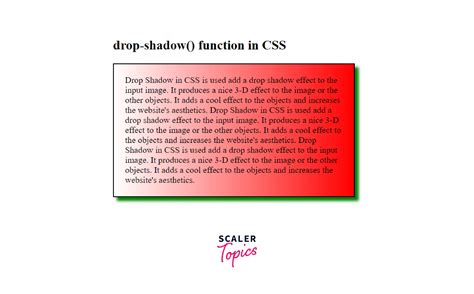
Version 1.3.6 introduced the ability to add a drop shadow to the inner image, creating a subtle lifting effect from the background. This option is initially hidden to save space but can be revealed by clicking the "Drop Shadow" header, which then displays controls for color, angle, distance, spread, size, and opacity.
Graphical Watermarks: Precision Placement
A significant new addition is the capability to precisely place graphical watermarks on an image. Users can select from nine anchor points, including corners, mid-sides, and the center of the image, to define the watermark's position. Multiple images can be loaded, and they can be easily changed or deleted via a pulldown menu.
The watermark's size can be scaled to a percentage of the resized image's width, and its opacity can be adjusted, which is particularly useful when overlaying watermarks on the image area itself. Once settings are configured, the watermark can be applied. For batch processing, a checkbox in either resize module allows for the automatic application of the watermark after resizing.
Image orientation is not a concern. From version 1.1.0, users can choose to anchor their watermark "Inside" or "Outside" the resized image border. Until the image is resized, these options appear in red, but the configured settings will be applied.
Autopilot: Revolutionizing Batch Processing
The "Autopilot" module, introduced in version 1.1.0, elevates batch processing to a new level of efficiency. By enabling the "Add Watermark" and "Add Text" checkboxes within the resizing and framing modules, users can apply frames to multiple images in a batch. The plugin remembers which images have been processed, preventing reapplication within the same session.
If "Autopilot" runs too quickly for the system to keep up, errors may occur, leading to its deactivation. In such cases, increasing the pause duration between actions, via the provided radio buttons, can resolve the issue. For example, on an 8-core CPU iMac Pro, a 0.5-second pause allows for batch processing of approximately twenty 50-megapixel TIFF files without problems.
To deactivate "Autopilot," users can select "FAB Tools" from the Plugin menu or use the "Deactivate Autopilot" option in the Shortcut menu, eliminating the need to open the plugin.
It is strongly recommended to work on copies of images when using "Autopilot," as occasional errors, especially with short pauses and automatic save/close enabled, might lead to saving erroneous files. It is advisable to run initial batches without "Save & Close" to familiarize oneself with "Autopilot's" behavior and find optimal pause settings.
To prevent accidental framing and saving of new files after processing is complete, an inactivity timer is built into "Autopilot." This timer, defaulting to five minutes, can be extended up to one hour. A longer inactivity timer is beneficial for users who may be working on images in other applications and wish to switch between programs.
Vision-based Autopilot Hexacopter tracking object - Complete Demonstration
Presets: Saving and Recalling Settings
A highly anticipated feature is the introduction of "Presets," allowing users to save and recall any combination of settings. This empowers users to create and manage custom configurations for various workflows. When saving a preset, users can select which of the four main modules' settings to include.
Beyond ramedia: A Broader Look at Photoshop Plugins
While the ramedia plugin offers a comprehensive set of tools, it's part of a larger ecosystem of Photoshop plugins designed to enhance creative workflows. These plugins extend Photoshop's functionality, offering specialized tools for tasks ranging from advanced retouching to graphic design.
For instance, plugins like "SuperPNG" facilitate the use of PNG files, while tools such as "Neat Image" focus on noise reduction. The "Nik Collection," although experiencing some compatibility issues, historically offered a suite of powerful editing filters. "ON1 Photo 10" provides a collection of apps for photo editing, and "Radiant Photo" utilizes AI for intelligent image optimization, including color correction, exposure adjustment, and portrait enhancement.
Other notable plugins include "Adobe Camera Raw," essential for raw photographers, and "Fontself," enabling the creation of custom fonts. "Ink" assists in documenting web design properties, while "Icons8" provides a vast library of icons. "Powtoon" can transform images into videos, and "Eye Candy 7" offers a wide array of visual effects. "GuideGuide" aids in alignment, "BrushBox" organizes brushes, and "Blow Up 3" excels at high-quality image resizing. "Optics" provides cinematic effects, and the "Ultimate Retouch Panel" offers extensive retouching tools. "Renamy" simplifies layer renaming in large projects, and "ParticleShop" enhances brush capabilities. "Eagle" acts as a digital asset manager, streamlining the organization and retrieval of design assets.
The integration of plugins through Adobe Creative Cloud is generally the most reliable method for installation. Generally, Photoshop plugins are safe to use as they extend functionality and are often promoted by Adobe itself, with no restrictions on their use.
Conclusion: Empowering Creative Expression
The ramedia plugin, with its detailed modules for web and print framing, dynamic text integration, precise watermarking, and powerful "Autopilot" for batch processing, represents a significant advancement in streamlining image editing workflows. Coupled with the ability to save and recall settings via presets, it offers unparalleled flexibility and efficiency. As part of the broader landscape of Photoshop plugins, ramedia empowers photographers and designers to push the boundaries of their creativity and achieve professional results with greater ease and speed. The continuous development and introduction of features like "Automatic Text" and enhanced font management underscore a commitment to providing users with cutting-edge tools for their digital artistry.