Are you primarily working with photographs? If yes, it means those photos definitely go through a lot of changes after you take them. This is called post-processing. Sometimes, you can even change the file type, especially when turning a photo into something that looks like an illustration. Or, you can take an illustration and make it look more like a photo, and vice versa! Interestingly, every single file type has its own special qualities and uses. So, when you are working with raster graphics (which is what photos are), you need to pick the best photo editing software for this job. Furthermore, Adobe Photoshop is not the right choice in every single situation. So, you need to try new, fresh, and worthwhile raster graphics editing software.
This article will answer the question: "What is a raster graphic file?" In addition to that, we will share a list of top raster graphics software that offers the best programs according to your requirements, catering to beginners to advanced users.
What is a Raster Graphic File?
A raster graphic file is just a grid of tiny dots, also known as a “bitmap image.” These dots are called pixels. They all join up to form the complete picture. Each small pixel, or square, holds a specific color or shade. Honestly speaking, one pixel is not important alone. Plus, all the pixels together create the final image that you see.
Moreover, raster graphic files are typically used when you ought to change non-line images. This includes things like digitized photos, art you have scanned, or very detailed illustrations and graphics. This is because these pictures have smooth color changes, line work that is not perfectly defined, and a lot of complex details. More importantly, being able to change the image pixel by pixel will help you create a perfect picture. This is precisely why raster graphic files are so ideal for product photography. Many raster programs include tools and functions that let you edit your product images right down to the smallest elements. On the flip side, you can fine-tune details like tones, shades, and blends for a polished final look.
Raster Graphics in Scientific Applications
In the context of research visualization, raster graphics are commonly used for displaying images, photographs, and complex visualizations where detailed representation is essential. Raster graphics provide a means to represent complex data, visualize intricate structures, and facilitate data analysis.
- Astronomical Imaging: Raster graphics are extensively used in astronomical imaging to capture and analyze images of celestial objects and phenomena.
- Remote Sensing and GIS: Raster graphics play a crucial role in remote sensing and geographic information systems (GIS).
- Imaging and Microscopy: Raster graphics are widely employed in medical imaging, microscopy, and other imaging techniques.
- Electron Microscopy: In materials science and nanotechnology, raster graphics are utilized in electron microscopy to capture and analyze high-resolution images of materials at the atomic scale.
- Neuroscience Imaging: Raster graphics are instrumental in brain imaging techniques such as functional magnetic resonance imaging (fMRI) and positron emission tomography (PET).
- Computational Simulations: Raster graphics are used to visualize the results of computational simulations and modeling in various scientific fields.
- Data Visualization: Raster graphics are essential for visualizing scientific data, particularly when dealing with multidimensional or continuous datasets.
Editing Constraints and Limitations
Once a raster image is saved and closed, it becomes challenging to modify individual elements, such as shapes or text, without affecting the entire image. Raster graphics have a fixed resolution, meaning they are composed of a specific number of pixels. Due to resolution dependence, raster graphics are NOT easily scalable without loss of quality. Furthermore, raster graphics can consume significant storage space, especially for high-resolution images.
Annotation, Segmentation, and Enhancement
Scientists can use raster graphic tools to annotate images with text, arrows, and other graphical elements to provide context, highlight specific regions, or explain key findings. In fields like medical imaging or biology, scientists often need to segment and analyze specific regions or structures within an image. Scientific images may suffer from noise or unwanted artifacts due to various factors, such as equipment limitations or interference. Raster graphic tools offer techniques like denoising filters and image restoration algorithms to reduce noise and enhance image quality. Scientists often work with images captured from experiments, simulations, or observations. Having knowledge of editing techniques allows scientists to enhance these images for better visibility and clarity.
Ethical Considerations in Scientific Research
The scientific community relies on transparent and unbiased reporting of results to ensure the reproducibility and validity of research. Modifying or artificially changing research results using a raster editor is strongly discouraged and considered unethical. It is crucial to maintain the integrity and credibility of scientific research by presenting accurate and unaltered data.
Raster vs. Vector Image
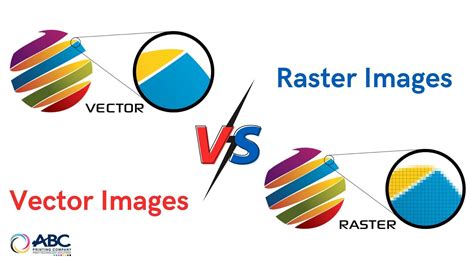
Raster graphic files rely on those square pixels we talked about, while vector images work very differently. They are actually controlled by mathematical formulas. These formulas create paths, curves, circles, and various other shapes. Moreover, vector designs or images offer greater flexibility in use because they are easily scalable. Not only that, their quality doesn’t depend on resolution and they are typically smaller in file size. For example, vector images are perfect for creating business logos. They are also ideal for promotional materials of any kind. This is because the mathematical paths ensure crisp and clean details. Furthermore, these details can be easily sized up or down to perfectly fit any of your needs.
When working with photography, images go through all sorts of post-processing stages. Sometimes you convert the file type, especially when converting photos to illustrations and vice versa. Each file type has its own unique properties and uses. So when you’re dealing with raster graphics, it’s important to use the right photo editing software. Photoshop isn’t necessarily your go-to in this scenario.
Raster Graphics Editor Software Options
This raster graphics editing software list offers options for everyone, regardless of your skill level. There is definitely something here for you whether you are a beginner or an expert, and whether you have an endless or limited budget to spend. According to the reviews of Q&A communities and online forums, these raster graphics editor programs or software are great for all graphics editors, graphic designers, and photo editors.
1. Adobe Photoshop
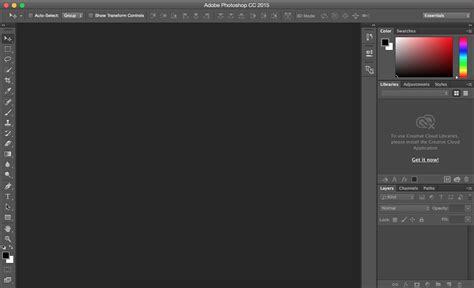
Adobe Photoshop dominates the market as the go-to for professional raster editing. Users create composites, retouch portraits, and design web graphics with ease. It offers neural filters powered by AI, which intelligently enhance faces or remove backgrounds in seconds.
- Price: Subscription model (around $22.99/month for a single app).
- Pros:
- An extensive plugin ecosystem expands functionality dramatically.
- Cloud syncing allows seamless work across desktop, web, and mobile devices.
- Regular updates introduce cutting-edge tools, such as generative fill and expand.
- Perfect for professional photographers who make detailed edits.
- Unlimited layers and masks, with the ability to add text.
- Can sync your desktop to iPad to take work wherever you go.
- Cons:
- Subscription model adds up over time.
- Steep learning curve challenges newcomers initially.
- Not the ideal tool to use for on-image copy.
- Pricier than most programs on our list.
- How it Compares: If you’re an advanced user who has the budget to spend, Photoshop is a top choice for what is one of the best overall image editing software programs to use. Some of the features are already unmatched in general-and you can always expect new, innovative features to roll out. And now, there’s the ability to sync to your iPad, a relatively new feature that can help those on the go.
2. Affinity Photo
Affinity Photo is a great raster graphics program that often gets compared to Adobe Photoshop graphic designing software. It 100% stands out as a strong competitor when you are looking for new software. Its affordable price helps a lot. Furthermore, Affinity Photo is a top choice because of its simple interface, easy layer-based editing, and features that save you time.
- Price: $34.99 (Mac and Windows); $9.29 (iPad); $82.99 (all platforms)
- Pros:
- Simplified interface that features task-focused workspaces.
- Affordable price when compared to other software programs, like Photoshop.
- You can import and export PSD files. Furthermore, you can also import PSB files.
- Includes great features like 360-degree image editing, nondestructive editing, batch processing, clipping path, photo retouching, layer-based compositing, and cool lighting filters.
- Supports plugins that were originally made for Photoshop.
- Layer-based editing for non-destructive image editing workflows.
- Live filters for real-time viewing of modifications.
- Recording of workflow steps (much like actions in Photoshop).
- Cons:
- It currently only supports iPad tablets for its mobile version.
- Highlight and shadow adjustments could honestly be better and need improvement. Image layers and layers panel also need to be updated.
- Some tools are said to run slowly, specifically tone-mapping, background removal, image masking, and panorama stitching.
- How it Compares: The great thing about Affinity Photo is how many of its features are designed just to save you time. Plus, the program’s support for various plugins is worth considering if a task requires you to use Photoshop. It means you can easily use it alongside your existing workflows. Moreover, the affordable one-time fee makes it a smart choice if your main focus is on raster graphics.
3. GIMP (GNU Image Manipulation Program)
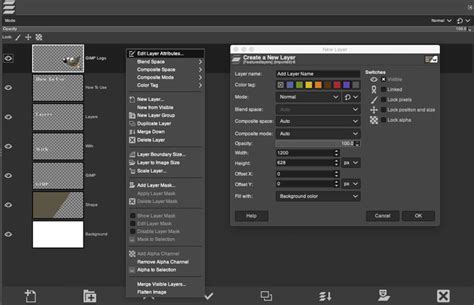
GIMP (or GNU Image Manipulation Program) is a cross-platform image editor available for Windows, OS X, GNU/Linux, and more-you can even change the source code and distribute changes made, just like an open-source software program. GIMP includes sophisticated editing tools for photographers, graphic designers, and illustrators alike, while compatible with many third-party plugins.
- Price: Free
- Pros:
- It is constantly being developed because of its open-source nature. This means any issues or bugs get fixed quickly before content display.
- It has support for third-party plugins to extend its functionality for more image editing requirements.
- The program includes essential tools like layers, brushes, filters, animation packages, and various enhancement tools.
- It is compatible with most image file types having a procedural design.
- Its robust color management features for both your digital and print media projects.
- Retouch or restore images with high-quality photo manipulation tools.
- Flexibility to transform images into unique pieces of art-or simply from scratch.
- Graphic design elements for icons, design elements, and art-specifically for user-interface components and mockups.
- Highly customizable with tutorials and community support.
- Cons:
- It might require some programming knowledge or expertise if you want to heavily customize the program.
- The software has a steep learning curve for beginners. The interface is considered less intuitive than its commercial rivals.
- GIMP lacks native support for CMYK color, which is the industry standard needed for professional printing work.
- How it Compares: Out of the raster graphics software programs on our list, GIMP is the only one that works within the open-source model. This means if you have programming knowledge, you have the ability to customize this program to your own needs and workflow. On the flip side, it may be difficult to navigate as a beginner - but for more intermediate to advanced users, GIMP may be worthwhile to try out for its flexibility.
4. Pixlr Express
If you’re looking for a convenient photo editing tool for raster graphic files, Pixlr Express might be perfect for you-even if you’re just starting out. Pixlr Express prides itself on being convenient and easy to use, especially when it comes to needing quick photo edits. Pixlr Express is also an online tool-so you access it through your browser instead of a downloaded application.
- Price: Free; paid plans available at 99¢/month, $4.90/month, and $9.91/month
- Pros:
- It features an easy-to-use dashboard for simple access.
- The tool automatically saves your files, so you never lose work and can just pick up where you stopped.
- You can edit photos (even transparent images) directly within Dropbox using its dedicated extension.
- It includes a free 6-month trial with 25 GB of storage on Dropbox.
- It offers a mobile app available for both iOS and Android devices.
- Essential photo editing tools for making quick adjustments.
- Easy-to-use retouching features to help fix blemishes, remove spots, and more.
- Drawing tool to create illustrations or incorporate doodles or scribbles on an image.
- Popular photography filters and effects like mosaic, bloom, clarity, glamor, and more.
- "Element" feature adds more advanced photo editing opportunities.
- Dark and light mode to help with eye strain-or simply your own preference.
- Cons:
- It only exists online via a web or mobile app. (Although, some people view this as a plus since it saves storage space on your computer.)
- It is a newer program. So, some of its features are still in a testing (beta) stage.
- You ought to have Flash player enabled in your browser if you are using the web version.
- How it Compares: Pixlr Express is the only online-based tool featured on our list. That’s why it is an excellent raster graphic software to test if you are already experiencing storage issues on your device. Pixlr Express is a great choice if you need a program designed to save you time. This is due to its compatibility with Dropbox, its auto-saving function, and its convenient mobile app.
5. Pixelmator Pro
When it comes to looking for a cheaper alternative to Photoshop, Pixelmator Pro is at the top of many photographers’ lists. While it’s not a complete replacement, a lot of users say what’s lacking in Pixelmator Pro in comparison to Photoshop isn’t totally needed for many photo editing tasks.
- Price: $49.99
- Pros:
- It offers easy use when working with raster graphic layers. Plus, it handles rasterizing vector support simply.
- It features a clean window interface with embedded toolbars and menus.
- The program includes useful features like filters, color presets, brushes, effects, and drawing tools.
- It uses machine learning for features like automatic layer naming and image upscaling.
- It includes support for Sidecar and Apple Pencil.
- ML Denoise helps remove noise and image compression artifacts.
- The Arrange Tool allows you to resize and rotate without damaging the image.
- Automatic naming of layers and image upscaling with machine learning.
- Cons:
- It is only available for macOS. So, Windows users cannot use it.
- Beginners experience a learning curve due to the number of tools, despite its clean look.
- It lacks non-destructive adjustment layers. This is a key feature for professional and flexible editing workflows.
- It currently has no history panel. Hmm…it is hard to undo or revisit specific past edits easily.
- How it Compares: While Pixelmator Pro may have an interface that’s easy to navigate, the ease comes with knowledge. So if you’re an advanced photographer with raster graphic experience (and looking to save some money), Pixelmator Pro is a great alternative to pricier software programs on our list, like Photoshop and Illustrator.
6. Artweaver
Artweaver is a realistic painting tool that comes in both a free and an affordable paid version. It is useful not only for making original artwork but also for a great way to turn your photos into pieces of art. This software is easily accessible for both new and advanced users alike. This is thanks to its easy-to-use interface and good customizability. More in detail, it supports a wide range of tools, presets, and more. Artweaver even features brush types that copy famous painters like Van Gogh, and its interface looks similar to Photoshop.
- Price: Free; €34
- Pros:
- It has a highly configurable brush system. It offers a large variety of brush types and presets.
- It has compatibility with plugins to easily add more functionality.
- The software supports many tools, layers, and essential filters.
- It includes a recording capability so you can capture and replay the entire painting process.
- The program offers native 64-bit support and can use multiple CPU cores for better performance.
- It features industry-standard editing tools like fill, crop, and selection tools.
- It supports pen tablets and recognizes features like pressure, pen erasers, and tool ID.
- It is compatible with all common raster graphic file formats like TIFF, JPEG, GIF, PCX, and BMP.
- Intuitive interface you can customize to your personal workflow.
- Ability to work with other artists over the internet, either on the same project simultaneously or communicating through a team chat.
- Cons:
- It functions primarily as a painting tool rather than a dedicated program for extensive image adjustment.
- The interface appears less advanced and modern compared to several other programs on our list.
- The program only supports Windows 7, 8, and 10. Its compatibility is limited.
- Its speed can be affected. The program has a noticeable lag for users when working on larger or higher-resolution files.
- It only supports TrueType fonts, leaving out the more modern and flexible OpenType fonts.
- How it Compares: Artweaver is quite different from many of the other raster graphic software programs we have discussed. It functions more as a painting tool than a program you would use just to simply adjust a photo. But, Artweaver offers a fantastic price point if your goal is to create raster graphics of this artistic type. Or, it is simply free for users of any level of expertise.
7. paint.NET
If you’re just starting out, paint.NET is a great place to learn how to edit and retouch raster graphic files thanks to its simple user interface. Designed to be intuitive and easy to learn, this software is a fast image editor that’s responsive and has all of the tools you need to make a rich image.
- Price: Free
- Pros:
- It is quick and very responsive to every single action or click.
- It comes with many special effects, including blurring, sharpening, red-eye removal, distortion, and 3D rotate/zoom.
- It provides robust drawing tools for creating curves, gradients, coloring, and handling text editing.
- This program uses the same layer technology found in more expensive software, like Photoshop.
- There is a growing online community that offers many helpful tutorials and plugins.
- It is automatically updated with free features, improvements, and bug fixes.
- Cons:
- Not meant for professionals, as the program doesn’t offer a lot of advanced features.
- Text integration is not as seamless as other software programs on our list.
- How it Compares: paint.NET might have a somewhat cluttered interface in comparison to more modern tools, but the tools and features for raster graphics, specifically, cannot be overlooked. If you’re just starting out, paint.NET is a great tool to start out on to learn how to edit and retouch raster graphics.
Free Raster Graphics Editor | Free Graphic Design Software
Raster File Formats
Raster graphics formats are image file formats that store and represent images as a grid of pixels, where each pixel contains color and intensity information. Each raster graphics format offers unique features and characteristics, catering to different needs and use cases.
- PNG (Portable Network Graphics): PNG is a versatile format that supports lossless compression, preserving image quality without any loss of information.
- JPEG (Joint Photographic Experts Group): JPEG is a widely used format for storing digital photographs and complex images. It uses lossy compression, which reduces file size by selectively discarding image data.
- TIFF (Tagged Image File Format): TIFF is a versatile format used for storing high-quality images with support for lossless compression. It allows for multiple layers, color depths, and embedded metadata. TIFF files are commonly used in professional environments, such as printing and archiving.
- GIF (Graphics Interchange Format): GIF supports animation, allowing multiple frames to be combined into a single file. It also supports indexed color, where a limited palette of colors is used to reduce file size.
- BMP (Bitmap): BMP is a straightforward format that stores images pixel by pixel without any compression. It supports both color and grayscale images and is widely supported on various operating systems.
- PSD (Photoshop Document): PSD is Adobe Photoshop’s native file format, supporting layers, masks, and other advanced features.
Conclusion
To work with raster graphics effectively, there are numerous powerful tools available that offer a wide range of features and functionalities. Whether you are a beginner looking to make quick edits or a seasoned professional requiring advanced manipulation capabilities, there is a raster graphics editor suited to your needs. Understanding the fundamental differences between raster and vector graphics, exploring the capabilities of various software options, and considering your specific project requirements will empower you to make informed decisions and elevate your creative output.