Creating digital art is a journey filled with creative expression, but it can also be a process that requires meticulous attention to detail. Even with the most precise digital inking and painting, minor imperfections can creep into a piece, akin to the dreaded dust motes that plague traditional scans. Fortunately, Clip Studio Paint offers a powerful and intuitive tool designed to tackle these small blemishes: the "Remove Dust" tool. This article will explore the functionality and application of this essential feature, drawing upon its various modes and settings to ensure your artwork is as clean and polished as possible.
Understanding the "Correct Line" Tool Suite
Before delving specifically into the "Remove Dust" tool, it's beneficial to understand its context within Clip Studio Paint's broader "Correct Line" toolset. This suite of tools is dedicated to refining and manipulating lines and shapes on vector layers, offering a level of precision and flexibility that is invaluable for illustrators, comic artists, and designers. The "Correct Line" tool itself is designed to correct drawings, frame borders, balloons, and rulers on vector layers, providing a foundational layer of control.
Within this suite, several specialized sub-tools exist, each with a distinct purpose:
- Control Point: This sub-tool grants granular control over vector lines. Users can move, add, and delete control points, effectively reshaping the line. It also allows for switching corners, altering line width, and adjusting line density, offering a comprehensive approach to vector line manipulation.
- Pinch Vector Line: This tool transforms a line by allowing users to drag and distort portions of it, creating organic or stylized curves with ease.
- Adjust Line Width: As the name suggests, this sub-tool enables users to scale the width of vector lines by simply dragging over them. This is useful for quickly varying line thickness across a drawing.
- Remove Dust: This is the focus of our discussion, designed to automatically detect and eliminate small imperfections on the canvas.
- Fill Leftover: This sub-tool is designed to fill small transparent or translucent gaps within an opaque area, using the predominant color surrounding these spots. This is particularly useful for sealing any minor holes in linework.
- Redraw Vector Line Width: This tool allows for the modification of vector line width by tracing over existing lines, effectively re-drawing their thickness.
The "Remove Dust" tool, therefore, is a specialized component within this powerful set of line-correction and refinement tools, offering a dedicated solution for a common digital art problem.
The "Remove Dust" Tool: Functionality and Modes
The "Remove Dust" tool is a highly effective feature for automatically detecting and erasing small specks and imperfections that can mar a digital artwork. Its primary function is to identify unwanted pixels and remove them, saving artists significant time compared to manual erasure. The tool is accessible through the Tool palette, typically found within the "Correct Line" tool group.
The "Remove Dust" tool operates through several distinct modes, each tailored to different scenarios and types of artwork:
Remove Dust from Transparency
This mode is ideal for artwork where the background is transparent. It identifies and removes small opaque or semi-opaque spots that are surrounded by transparency. This is particularly useful when working with scanned line art that has been converted to have a transparent background, or when creating assets for animation or web use.
Remove Dust from White Background
When working with artwork that has a solid white background, this mode is your go-to. It detects and removes small spots that are not white and are surrounded by white areas. This is a common scenario when scanning traditional drawings or when creating illustrations on a white canvas.
Fill Transparent Gaps with Surrounding Colors
This mode addresses a slightly different issue: small transparent or semi-transparent gaps that appear within an otherwise opaque area. Instead of simply erasing these gaps, the tool intelligently fills them with the predominant color found in the surrounding opaque regions. This is crucial for ensuring that linework is completely sealed and that there are no unintended transparent holes in solid fills.
Fill Transparent Gaps with Foreground Color
Similar to the previous mode, this option targets small transparent or semi-transparent gaps within opaque areas. However, instead of using the surrounding colors, it fills these gaps with the currently selected foreground color. This provides an alternative for situations where you might want to deliberately fill gaps with a specific color, perhaps for stylistic reasons or to create a more solid inked appearance.
Advanced Settings and Customization
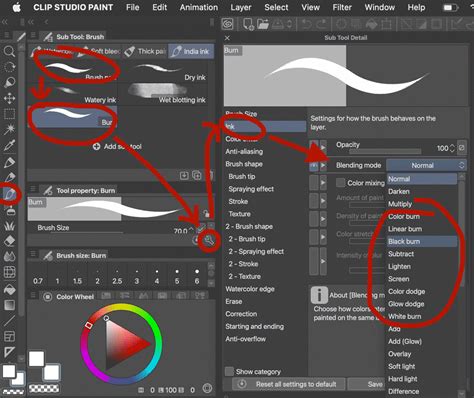
The true power of the "Remove Dust" tool lies in its extensive customization options, accessible through the "Sub Tool Detail" palette. This palette allows users to fine-tune how the tool operates, ensuring it precisely meets the needs of their artwork.
Key settings available within the "Sub Tool Detail" palette include:
- Dust Size: This slider controls the maximum size of the flecks that the tool will consider as "dust." A larger number means the filter will be more aggressive in its cleaning, potentially removing larger imperfections. Conversely, a smaller number will focus on only the tiniest specks. This is a critical parameter for balancing thoroughness with precision.
- Shape of Selection Area: This setting allows you to define the geometric shape that the tool uses to detect dust. Options might include square, circle, or other shapes, influencing how the tool interprets potential imperfections.
- Reference for Dust Selection: This crucial setting determines what the tool references when identifying dust. For instance, you can specify whether it should look for dust against transparency, against a white background, or within opaque areas. This directly correlates to the different modes of operation.
- How Dust is Detected: This setting further refines the detection process. It might involve parameters related to the color difference threshold, the density of the speck, or other algorithmic factors that govern what the tool flags as dust.
By adjusting these settings, artists can ensure that the "Remove Dust" tool effectively targets only the unwanted imperfections without inadvertently affecting legitimate parts of the artwork. For example, when dealing with a scanned ink drawing, you might need to set the "Dust size" option fairly large to eliminate a stubborn speck, while for a clean digital linework, a much smaller setting might suffice.
Practical Applications and Workflow Integration
The "Remove Dust" tool is incredibly versatile and can be integrated into various artistic workflows.
Preparing Scanned Artwork
For artists who ink and draw on paper and then scan their work into Clip Studio Paint, the "Remove Dust" tool is an absolute lifesaver. Scanner dust typically appears as dark flecks across the artwork, which can be tedious to manually erase.
A common workflow involves:
- Scanning: Scan your artwork into Clip Studio Paint.
- Tonal Correction: If the scan is grayscale, use "Edit > Tonal Correction > Brightness/Contrast" to increase the white areas (brightness) and darken the lines (contrast). This helps to make the lines stand out and the background cleaner.
- Convert Brightness to Opacity: For line art, "Edit > Convert brightness to opacity" is a powerful option. This command turns white pixels transparent while keeping black pixels opaque, effectively creating a transparent background for your linework. If you want to ensure no semi-transparent gray pixels remain, the "Binarization" options under Tonal Correction can be used to convert pixels to pure black or white.
- Apply "Remove Dust": With the image prepped, select the "Remove Dust" tool. Choose "Remove dust from transparency" as the mode. Adjust the "Dust size" and other parameters in the "Sub Tool Detail" palette until the stray specks are eliminated. The "Preview" checkbox is invaluable here, allowing you to see the effects in real-time.
Cleaning Up Digital Linework
Even when working entirely digitally, minor imperfections can occur. Perhaps a brush stroke leaves a stray pixel, or a fill operation creates a small gap. The "Remove Dust" tool, particularly in its "Fill leftover" or "Fill transparent gaps with surrounding colors" modes, can quickly seal these minor issues. This ensures that your linework is clean and ready for coloring or further refinement.
Working with Colored Images
While the "Remove Dust" tool is often associated with line art, it can also be helpful for cleaning up colored images. If you have a colored illustration on a white background and notice small specks of unwanted color or noise, you can use the "Remove dust from white background" mode. As noted in user feedback, you may need to adjust the "Dust size" significantly to catch these specks, and it might not be perfect for highly detailed color images, but it can still save considerable time.
Beyond Dust: Related Tools and Features
The "Remove Dust" tool is just one part of Clip Studio Paint's extensive toolkit for refining artwork. Understanding its place alongside other features can enhance your overall workflow.
- Filters: Clip Studio Paint offers a wide array of filters, including "Noise" (which can add or remove noise, a related concept to dust), "Crystallize," and "Spin blur." These can be used for stylistic effects or to address larger-scale imperfections. "Quick Filters" and "Quick Effects" provide rapid application of common adjustments.
- Vector Layer Tools: As mentioned, the "Correct Line" tool suite, including "Control Point," "Pinch vector line," and "Adjust line width," are crucial for manipulating vector lines. The ability to "Redraw vector line width" offers another layer of control over line thickness.
- Smart Shape Tools: For creating precise geometric shapes and lines, the "Smart Shape" tool is invaluable.
- 3D Model Integration: Features like "Paint on 3D models," "3D head model," and "3D object material registration" allow for the integration of 3D assets, which can sometimes require cleanup or refinement.
- Layer Management: Tools like the "Layer Comps palette" and the ability to "Apply effects to multiple layers" are essential for managing complex projects and ensuring consistency.
- Color Adjustments: Features like "Color Match," "Realistic mixing," and tonal corrections (Brightness/Contrast, Levels) are vital for achieving the desired color balance and appearance.
Clip Studio Paint Tutorial 🎓 Master the Fill Tool (Colour faster and better)
The "Remove Dust" tool, while seemingly simple, is a powerful ally in the digital artist's arsenal. By understanding its various modes, mastering its advanced settings, and integrating it thoughtfully into your workflow, you can ensure your artwork is free from distracting imperfections, allowing your creative vision to shine through with clarity and polish. Whether you're dealing with the remnants of a scanner bed or the subtle artifacts of digital creation, this tool provides an efficient and effective solution for achieving a clean, professional finish.