Creating a compelling visual narrative often involves manipulating the viewer's perception of motion and focus. A common technique to achieve this is by employing motion blur, a visual effect that simulates the blurring of moving objects in a photograph or film. This article delves into the sophisticated workflow of using ReelSmart Motion Blur (RSMB) within DaVinci Resolve, focusing on advanced techniques to isolate and enhance motion, particularly for scenarios involving a central subject amidst a bustling environment.
The Challenge of Dynamic Environments
Imagine a presenter delivering a piece to camera on a busy street, a bustling train station, or any location teeming with activity. The inherent "hustle and bustle" of such an environment can be a powerful tool to enhance the narrative. However, capturing this dynamic energy while maintaining the clarity and focus on the presenter presents a significant technical challenge. The goal is to accentuate the sense of movement in the background and among the crowds, while keeping the presenter sharp and distinct.
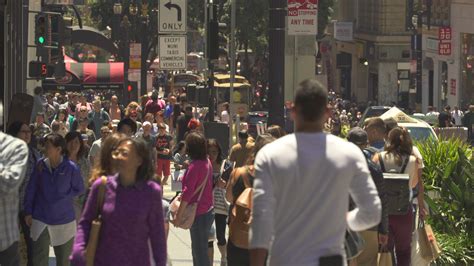
A fundamental question arises: can this effect be achieved by simply shooting a regular piece to camera with all the people moving around the presenter, and then applying a motion blur to the entire shot in post-production? The initial hypothesis suggests that since the presenter is likely to be moving minimally (primarily through speech), they might not experience significant blurring. This leads to the query about whether this approach would yield a substantial and effective motion blur effect.
Harnessing RSMB's Power: Foreground/Background Separation
The answer to achieving such a nuanced effect lies in the advanced capabilities of specialized plugins like RSMB. A key feature that directly addresses this scenario is RSMB PRO's support for a foreground/background (FG/BG) separation matte. This functionality allows users to apply distinct motion blur amounts to different regions of the frame. Essentially, it provides a mask that tells RSMB which parts of the image to blur heavily and which to leave relatively untouched.
The workflow would involve creating a matte that clearly defines the presenter as separate from the background elements. This matte, when fed into RSMB PRO, enables the application of a significant motion blur to everything except the presenter. The people moving in the background, the general environment, and any other dynamic elements can be subjected to a heavy blur, thereby intensifying the sense of motion and chaos, while the presenter remains the clear focal point.
Advanced Techniques: Pre-composition and Frame Accumulation
For even greater control and to overcome potential issues, alternative or supplementary techniques can be employed. One such method involves pre-composing elements and utilizing frame accumulation. If manual rotoscoping of the presenter is already part of the workflow, this presenter can be isolated into a separate pre-composition. Within this pre-composition, techniques like SmoothKit's Frame Accumulate (though its availability might be platform-dependent, as noted by users working in environments like Shake) can be used to average multiple frames. This averaging process can naturally smooth out subtle movements, contributing to a cleaner, more defined presenter.
If, after applying motion blur to the entire scene, the presenter becomes too soft, a matte becomes indispensable. A sophisticated approach involves a blend of frame blending and motion blur. In this scenario, the pre-composed motion blur pass would render only the background using RSMB, specifically employing the "BG only" mode. This mode is crucial because it ensures that pixels from outside the presenter's area are used, preventing odd visual artifacts if the presenter's color palette differs significantly from the background. Subsequently, to apply motion blur to the presenter, they would be rendered as a separate "FG1 only" layer and composited over the frame-averaged background layer. This layered approach ensures that the background receives its intended blur, while the presenter layer can have its motion blur adjusted independently, or even have minimal blur applied if desired.
Understanding RSMB's Core Functionality and Support
ReelSmart Motion Blur (RSMB) is a powerful plugin designed to add realistic motion blur to footage. Originally developed to address the inherent choppiness of video footage when played back at film rates (typically 24 frames per second), RSMB provides crucial shutter speed correction, lending a more cinematic quality to the final output. Its versatility extends across numerous professional video editing and compositing applications, including DaVinci Resolve.
The plugin's capabilities are not limited to simple blur application. RSMB Pro, in particular, offers advanced features that are invaluable for complex visual effects. These include:
- Foreground and Background Separation: As discussed, the ability to define distinct blur levels for foreground and background elements using a specified matte is a cornerstone of its advanced functionality.
- Alpha Channel Support: RSMB can leverage an alpha channel to aid in tracking dark images when mattes are involved. This is particularly beneficial for computer-generated (CG) elements, masked footage, or keyed material where precise tracking is paramount.
- User-Defined Points for Motion Estimation: For instances where RSMB's automatic motion tracking encounters difficulties, users can manually guide the motion estimation process. By creating and animating shapes, users can explicitly define the paths of moving objects, ensuring accurate blur application even in challenging scenarios.
- GPU Acceleration: To expedite rendering times, RSMB is GPU accelerated, making it a practical tool for professional workflows where efficiency is critical.
The plugin's broad compatibility is a testament to its widespread adoption. It is supported in a multitude of industry-standard software, including After Effects, Final Cut Pro, Fusion Studio, Premiere Pro, and, crucially for this discussion, DaVinci Resolve, specifically within its Fusion page.
Addressing Common Issues and Misconceptions
When working with motion blur plugins, users can sometimes encounter unexpected results. One common point of confusion relates to bit depth and blur direction. It has been observed that when using bit depths other than 32 bits per channel (bpc) in applications like After Effects, the motion blur might default to a 45-degree angle rather than accurately following the actual motion of the object. This can lead to an unnatural appearance. Furthermore, a significant reduction in blur amount is often necessary when transitioning from lower bit depths (e.g., 8 bpc) to higher ones (e.g., 32 bpc) to achieve comparable visual results. This behavior, while seemingly counterintuitive, is often related to how the software interprets and renders color data at different precision levels.
Another frequent issue is the blurring of the entire frame, irrespective of whether objects are actually moving or if a matte is intended to isolate specific areas. This can occur if the motion vector data is not correctly generated or interpreted. For instance, when rendering motion vectors from 3D software like Maya, it is crucial to use the "Normalized 2D Motion Vector" pass rather than the standard "2D Motion Vectors" pass. The normalized pass provides more accurate directional information, which is essential for RSMB to correctly apply blur only to moving elements. A tutorial linked on the RSMB website (or similar resources) typically clarifies these critical distinctions.
How To Add MOTION BLUR In Davinci Resolve
The misconception that motion blur must blur the entire frame, regardless of alpha or motion data, often stems from incorrect setup. The ideal workflow, as highlighted by advanced users and documentation, involves rendering moving and non-moving objects separately. This separation allows for granular control over the blur applied to each element. When using a linear key color to cut out stationary objects from an alpha channel, for example, it's essential to ensure that the motion vector data itself is accurately representing the movement of the desired elements. If the entire frame appears blurred, it usually indicates an issue with the source motion vectors or how the plugin is interpreting the alpha channel and motion data in conjunction.
RSMB in DaVinci Resolve: A Seamless Integration
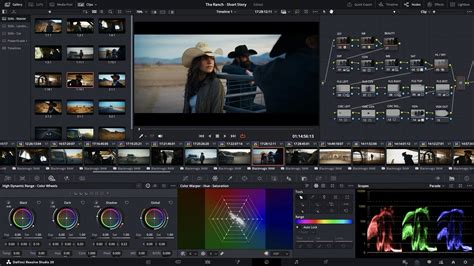
DaVinci Resolve, particularly its powerful Fusion page, offers a robust environment for implementing advanced visual effects like those described. The full suite of RSMB Pro features is available within Resolve's Fusion page, allowing editors and VFX artists to seamlessly integrate RSMB into their grading and editing workflows. This means that the sophisticated FG/BG separation, alpha channel support, and manual motion guidance can all be utilized directly within the Resolve project.
The ability to render-only licensing for command-line "headless" execution further enhances RSMB's utility in large-scale production pipelines, enabling automated rendering processes without requiring interactive software licenses.
Conclusion: Elevating Visual Storytelling with Targeted Motion Blur
The scenario of a presenter in a bustling environment, with the background heavily blurred to emphasize motion, is a prime example of how sophisticated post-production techniques can elevate visual storytelling. By leveraging the advanced features of ReelSmart Motion Blur, particularly its foreground/background separation capabilities and integration with DaVinci Resolve's Fusion page, filmmakers can achieve precise control over motion blur. Understanding the nuances of motion vector generation, bit depth considerations, and the importance of mattes is crucial for unlocking the full potential of these tools. Ultimately, RSMB empowers creators to craft dynamic, engaging visuals that guide the viewer's eye and enhance the emotional impact of their narratives.