RunwayML is a browser-based video editor that utilizes machine learning and a user-friendly interface to achieve impressive results, often with outcomes that would typically demand significantly more time and sophisticated expertise. This platform democratizes advanced video editing techniques, making them accessible to a broader audience. While a previous article touched upon the basic masking features of Runway, this tutorial delves deeper into the practical application of its background removal capabilities, demonstrating how to transform ordinary footage into visually striking content, akin to classic commercial productions.
Understanding the Power of Background Removal
In the realm of video creation, achieving the perfect shooting environment isn't always feasible. Traditionally, green screens have been instrumental in isolating subjects from their original backgrounds, allowing for the seamless integration of new scenes. However, the process of setting up and executing a green screen shoot can be time-consuming and labor-intensive. RunwayML offers a powerful and intuitive solution, enabling users to easily remove backgrounds from their videos without the need for physical green screens or complex post-production workflows. This capability is particularly valuable for creators looking to enhance their visual storytelling, create engaging social media content, or even pursue innovative side hustles.
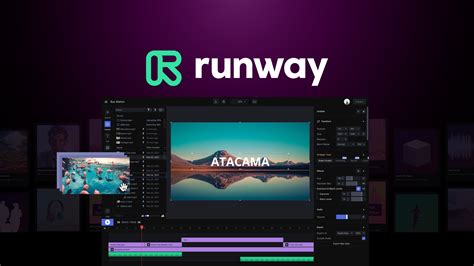
Getting Started with Runway ML
RunwayML's strength lies in its accessibility. The platform is entirely browser-based, meaning no software installation is required. Users can begin their editing journey directly from their web browser. For those new to the platform, the initial steps involve navigating the user interface and understanding how to import and manage media.
Importing Your Video Clip
The first step in utilizing Runway ML's background removal tool is to import your video footage. From the main Dashboard, you will need to navigate to the 'Assets' section. Within 'Assets,' you can find options to start a new project. For background removal, selecting the 'Green Screen' option is the most direct route, even if you haven't used a physical green screen.
You can upload your clips by dragging and dropping them directly from your computer into the RunwayML interface. Alternatively, if you have already uploaded media to RunwayML, you can sort through the 'Assets' section on the left-hand side of the application. For detailed information on supported video formats, users can refer to the platform's documentation.
Input Best Practices for Optimal Results
To achieve the most effective background removal, the quality of your original clip is paramount. RunwayML's AI performs best when working with footage that has a well-defined main subject. It is highly recommended to use clips that feature still or smooth camera movements, as this reduces the complexity for the AI to track and isolate the subject. The clearer the distinction between the subject and the background in the original footage, the more precise the automated background removal will be.
Creating the Mask: Isolating Your Subject
Once your video clip is imported, the core of the background removal process begins with creating a mask. This mask is essentially a digital outline that tells RunwayML which parts of the video you want to keep and which parts constitute the background to be removed.
Initial Masking
The process starts by clicking on an area of your clip that you wish to select. It is generally advisable to begin by clicking on a central area of your main subject. RunwayML uses this initial click as a keyframe, establishing a point of reference for the AI to analyze the rest of the video clip.
If there are additional areas of your subject that were not initially captured by the first click, you can continue clicking on different parts of the subject until the mask encompasses it satisfactorily. Conversely, if the mask has included areas you wish to exclude, the 'Exclude' function within the 'Controls' sidebar can be used to deselect those regions. The platform allows for easy toggling between selection and exclusion modes, often facilitated by keyboard shortcuts like keys 1 and 2.
Refining the Mask with Keyframes and Tools
The first mask you create serves as a crucial keyframe. RunwayML's AI will use this as a baseline for processing the entire clip. It is essential to preview the mask to ensure accuracy. By hitting 'Preview' and playing the entire video clip, you can identify any areas where the mask may have been missed or incorrectly applied.
For more complex clips or to achieve a higher degree of precision, RunwayML offers additional tools. The 'Brush' tool, found in the 'Controls' sidebar, allows for manual painting over detailed areas, providing fine-grained control over the mask. This manual touch-up process is often easier when zoomed in, which can be controlled using simple zoom shortcuts like '+' and '-'. Importantly, these manual adjustments are propagated to subsequent frames in the clip, saving considerable time.
Utilizing View Options for Clarity
During the masking process, the 'View' options in the sidebar can significantly aid in visualizing and refining your mask. You can switch between different display modes:
- Overlay: This mode often shows the mask with a degree of transparency, making it easier to see underlying details and adjust the mask accordingly. The 'Transparency' toggle within this view is particularly helpful.
- Preview: This mode shows the video with the background removed, giving a clear indication of the final result.
- Alpha Channel: This mode displays the mask as a black and white image, where white represents the masked (kept) areas and black represents the areas to be removed. This is the most technical view but offers ultimate clarity on the mask's precision.
Adding New Backgrounds and Effects
Once your subject is successfully masked and the background removed, RunwayML opens up a world of creative possibilities. The masked clip can be treated as a standalone element, ready to be integrated into new visual environments.
Replacing the Background
A classic application of background removal is to place the subject in a completely new setting. After masking, you can select your masked clip and navigate to the 'Effects' tab located on the right-hand side of the app. Here, you can experiment with various options to add a new background. This is where you can recreate scenarios like the iconic iPod commercials, placing your isolated subject against a fresh, dynamic backdrop.
Exploring Edge Detection and Other Effects
RunwayML offers a range of effects that can be applied to your masked clips. One such effect is 'Edge Detection.' By adding this effect to your clip and adjusting its parameters, you can alter the visual appearance of the subject's edges, adding a stylistic flair. The editable parameters for effects like Edge Detection offer flexibility, with no definitive "right" or "wrong" answers. The amount of effect to apply is largely a matter of taste and depends on the specific clip you are working with. Experimentation is key to discovering unique looks; for instance, applying the effect more heavily than usual can push the boundaries of its artificiality and reveal interesting visual outcomes.
Adding and managing multiple effects within RunwayML is designed to be straightforward. You can layer as many effects as you desire, further enhancing the creative potential of your video. The software is continuously updated with new features, aiming to simplify complex editing tasks and make them more accessible to users of all skill levels.
Exporting Your Masterpiece
After you are satisfied with the background removal and any applied effects, the final step is to export your work. RunwayML provides straightforward options for exporting your processed video clip.
Exporting the Masked Clip
When you're happy with the entire clip, you have a couple of choices. You can choose to export the clip directly from the masking interface or, for further editing, add the clip to the main timeline. To export, locate and select 'Export Mask' at the top right corner of the screen. A menu will appear, offering additional options for your export.
Within this export menu, you can customize various settings. For example, you can opt to 'Change the Background Color' to a hue of your preference or select 'Format options' such as MP4 or ProRes. It's important to note that ProRes exports are typically available on Pro plans or higher.
Advanced Export Options
Beyond standard video formats, RunwayML also allows for the export of an 'Alpha Matte.' To do this, you would check the 'Export Matte' checkbox, usually located under the 'Background Color' options. An Alpha Matte is a grayscale image that represents the transparency information of your video, which can be useful for further compositing in other professional video editing software.
If you wish to continue editing within RunwayML with your newly masked clip, you can select 'Done Masking.' This action will open the masked clip in a Video Editor Project, where you can then add a new background, adjust brightness and contrast, apply other effects, and build out your video sequence.
Troubleshooting and Legacy Tools
While RunwayML's background removal capabilities are robust, it's worth noting that the platform, like any technology, evolves. The 'Remove Background' tool, in some instances, might be considered a legacy tool. This means that newer, potentially more advanced algorithms or features might be available or under development. However, for most common use cases, the existing tools provide excellent results.
A helpful tip for troubleshooting or achieving finer control is to remember the existence of various adjustment tools available in the control sidebar. These can help refine masks that might not be perfect on the first automated pass.
The Future of Content Creation with Runway ML
RunwayML represents a significant advancement in making sophisticated visual effects accessible. For the emerging generation of digital creators, particularly Gen Z, platforms like Runway ML are not just tools but gateways to creative expression and entrepreneurial endeavors. The ability to produce professional-looking content, such as engaging YouTube videos or captivating social media posts, without the traditional barriers of cost and complexity, unlocks immense potential. This technology empowers young creators to explore their artistic visions and potentially build lucrative side hustles, contributing to a new era of democratized content creation. The green screen revolution, powered by AI, is here, and it's making visual storytelling more accessible and exciting than ever before.
Frequently Asked Questions
Q: Do I need any special equipment to get started with background removal in Runway ML?A: No, for many background removal tasks, you don't need a physical green screen. Runway ML's AI can often remove backgrounds from footage with a clear subject and distinct background, even without a green screen. However, for the best results with challenging backgrounds, a green screen setup is still beneficial.
Q: Can I use Runway ML for background removal if I have no prior video editing experience?A: Absolutely! Runway ML is specifically designed with a user-friendly interface that caters to beginners. While it also offers advanced features for seasoned professionals, the core background removal tools are intuitive and easy to learn.
Q: How can I learn more about video editing and green screen techniques using Runway ML?A: Runway ML provides its own tutorials and resources. Additionally, exploring online platforms like Skillshare, YouTube, and other educational websites that offer courses and guides on video editing and green screen technology can be highly beneficial for expanding your knowledge and skills.
tags: #runway #ml #background #remover