Photoshop, a titan in the digital imaging landscape, has undergone significant transformations over the years, particularly concerning its 3D capabilities and the organization of its extensive filter library. For users who have relied on specific functionalities, the gradual removal or relocation of these features can be a source of confusion and disruption. This article delves into the reasons behind the phasing out of Photoshop's 3D features, the implications for users, and a common point of contention regarding the management of filters, offering insights for both new and seasoned professionals.
The Sunset of Photoshop's Integrated 3D Tools
Adobe has made the decision to discontinue Photoshop's built-in 3D feature set. This move is primarily driven by technical limitations and the evolving hardware landscape. For technical reasons, Photoshop’s 3D feature set will not reliably work in modern operating systems. As of Photoshop version 22.5, the process of removing these features has begun. This means that many 3D features are not working properly, and users may encounter warning messages when attempting to use them.
The foundation of many of these 3D features was built on OpenGL, a graphics API that has seen significant advancements and shifts in its implementation. Specialized, dedicated video hardware, known as Graphics Processing Units (GPUs), have evolved dramatically over the past 25 years. What began as novel, expensive gaming hardware in the mid-to-late 1990s has become a first-class element in virtually all modern personal computers. While this evolution has benefited many aspects of digital creation, it has also led to incompatibilities with older software architectures. Adobe is choosing to move away from supporting these older 3D functionalities, opting instead to "do something else."
Implications for 3D Workflows
The removal of 3D features will have direct consequences for users who have integrated these tools into their professional workflows. Photoshop files will continue to open in current and future versions of Photoshop, but direct interaction with 3D layers will force those layers to be rasterized. This effectively "bakes" the layer pixels in place, meaning the layer will no longer retain its 3D properties and will become a flat, pixel-based image. While the file itself will remain a 3D object, the ability to manipulate it in its 3D form will be lost.
How to Enable 3D Menu in Photoshop
Specific 3D functionalities that are being removed include the ability to create or edit documents using 3D layers, the VR 360 feature, and the capability for 3D printing. The "Generate Normal Map" function, previously found under Filter > 3D, is also no longer available in recent versions, much to the dismay of 3D artists who relied on it. The Lighting Effects filter, which was not originally GPU dependent and was built as a separate plugin, has also been affected by the shift towards GPU acceleration and will be removed.
Navigating the Transition: Older Versions and External Tools
For users who still require access to Photoshop's legacy 3D features, Adobe recommends using Photoshop 22.2. It is important to note that only one version of Photoshop 22.x can be installed at any given time, meaning users cannot have both 22.0 and 22.1 installed simultaneously. Users can check their Photoshop version by navigating to Photoshop > About Photoshop.
Adobe is also encouraging users to explore their dedicated 3D product suite. While these tools are not included with a standard Creative Cloud subscription, they offer advanced 3D capabilities. Adobe Dimension is one such product, and for those seeking more robust 3D texturing and material creation, Substance offers a powerful, albeit separate, subscription-based solution. The Substance collection is priced at approximately $50 a month. Adobe has stated they will support the older 3D features for up to two years, though the exact nature of this support remains somewhat ambiguous.
Technology Previews and Workarounds
To assist users during this transition, Photoshop offers a "Technology Preview" preference that can emulate the last known working state for 3D features. By going to Photoshop > Preferences > Technology Previews and checking the box for "Deactivate Native Canvas," users can restart Photoshop and gain temporary access to some of the older 3D functionalities. However, it's important to be aware that creating or editing a document while using this override and then switching back to normal mode can lead to unexpected behavior. The Ray Tracer itself has not changed, but the material model has, and Photoshop attempts to match previous versions as closely as possible. These issues can be intermittent and related to GPU resources.
The Shifting Landscape of Photoshop's Filter Menu
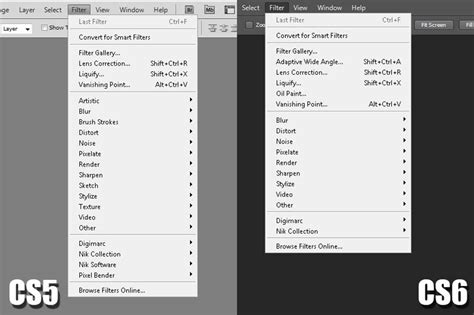
Beyond the significant changes in 3D, Photoshop has also made alterations to its filter organization, particularly with the introduction of Photoshop CS6. The user interface saw a notable shift, including a darker color scheme. More significantly for many users, the Filter menu in the Menu Bar was "filtered," with entire groups of filters-Artistic, Brush Strokes, Sketch, and Texture-being removed from their direct access points.
The Filter Gallery Conundrum
While these filters were not permanently deleted, their relocation to the Filter Gallery meant that users who preferred the direct access of earlier versions had to adapt. This change, while seemingly minor, has implications, especially when working with Smart Filters. Smart Filters allow for non-destructive editing, meaning filter settings can be adjusted later by double-clicking on the filter's name in the Layers panel.
The problem arises when filters are applied from the Filter Gallery. If a filter, like the Cutout filter (formerly under the Artistic group), is accessed through the Filter Gallery in Photoshop CS6 and later, it appears in the Layers panel as "Filter Gallery" rather than its specific name (e.g., "Cutout"). This can become problematic when multiple Smart Filters are applied, making it difficult to recall which specific filter was used and to re-edit its settings efficiently. For instance, applying Cutout, Spatter (from Brush Strokes), and Diffuse Glow (from Distort) as Smart Filters, if accessed via the Filter Gallery, would all appear simply as "Filter Gallery" in the Layers panel. This could potentially slow down a user's workflow as they attempt to decipher their editing history.
Restoring Direct Filter Access
Fortunately, Adobe recognized this potential workflow impediment and provided an option to revert the Filter menu to its previous structure. This setting is found within Photoshop's Preferences. On a Windows PC, users can navigate to Edit > Preferences > Plug-Ins. On a Mac, this would be Photoshop > Preferences > Plug-Ins. Within the Plug-Ins preferences, there is an option labeled "Show all Filter Gallery groups and names." By default, this option is unchecked.
When this option is checked and Photoshop is restarted, the filters that were previously only accessible through the Filter Gallery will reappear in their respective groups under the Filter menu. This allows users to select filters like Cutout directly from the menu bar. When applied as a Smart Filter, the filter will now be listed by its actual name in the Layers panel, facilitating easier re-editing. It is crucial to remember, however, that even with this option enabled, if a filter is explicitly selected from the Filter Gallery window itself, it will still be listed as "Filter Gallery" in the Layers panel. The benefit comes from selecting the filter directly from the main Filter menu.
This adjustment in the Filter menu's presentation highlights a recurring theme in software development: the balance between streamlining interfaces and preserving the granular control that experienced users often depend on. The ability to customize this aspect of the Filter menu offers a valuable compromise, allowing users to tailor their Photoshop experience to their specific needs and preferences, ensuring that even complex filtering workflows remain manageable and transparent.