In the realm of digital design and desktop publishing, efficiency is paramount. While the visual allure of a meticulously crafted layout is undeniable, the speed and fluidity with which it's created often hinge on the often-overlooked power of keyboard shortcuts. Much like the rapid-fire typists seen in crime dramas who seemingly bypass the mouse, designers can unlock a new level of productivity by embracing the keyboard as their primary input device. This is particularly true within Adobe InDesign, a professional-grade software renowned for its robust features and, consequently, its extensive array of shortcuts.
The premise is simple yet profound: by mastering InDesign's keyboard shortcuts, users can accomplish more tasks in less time, making the entire design process feel smoother and more intuitive. This isn't merely about saving a few seconds here and there; it's about fundamentally changing how you interact with the software, reducing physical strain, and fostering a more focused workflow. The convenience of accessing frequently used functions without having to navigate through menus or toolbars is a significant advantage, transforming mundane operations into near-instantaneous actions.
Understanding the InDesign Shortcut Ecosystem
Adobe InDesign, in its latest iterations, boasts an impressive number of built-in keyboard shortcuts, estimated to be upwards of 407. This sheer volume can initially seem daunting, leading many to rely on the mouse for everyday tasks. However, the true potential of InDesign is unlocked when a strategic selection of these shortcuts is learned and integrated into one's workflow. The software thoughtfully displays these shortcuts next to the corresponding menu items, offering a constant, albeit sometimes overwhelming, reminder of their availability.
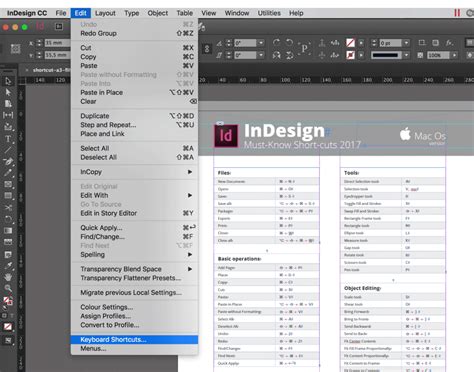
For many, the most effective approach to internalizing these commands is to create a personalized reference. This could take the form of a printable A4 cheat sheet, a handy desk companion for those moments of recall. Such a resource allows designers to focus on the most common and impactful shortcuts, those used daily, thereby incrementally increasing their productivity. The creation of such a cheat sheet is a practical step towards becoming a more proficient InDesign user, much like having a readily accessible reference for Illustrator shortcuts if one also works with that Adobe sibling.
Navigating and Customizing InDesign Shortcuts
The process of accessing and managing InDesign's keyboard shortcuts is designed with flexibility in mind. While the software comes with a comprehensive set of default shortcuts, users are empowered to create their own or personalize existing ones to better suit their individual workflows. This customization is crucial, especially for repetitive tasks such as applying specific paragraph or character styles, or for executing multi-step operations that can be consolidated into a single key combination.
To begin customizing, one typically navigates to "Edit" > "Keyboard Shortcuts…". This action opens a dialog box where users can manage their shortcut sets. It's important to note that certain pre-defined sets, such as "Default" and "QuarkXPress," cannot be directly edited. Instead, selecting them prompts the creation of a new, editable set based on their configurations. This ensures that the original settings remain intact while allowing for personalized modifications.
The customization process involves several key steps:
- Select or Create a New Shortcut Set: Choose an existing set as a base or start fresh.
- Select the Product Area: Identify the specific area of InDesign the command belongs to (e.g., Tools, Panels, Menus).
- Select the Command: Pinpoint the exact command you wish to assign or modify a shortcut for.
- Define the New Shortcut: Click in the "New Shortcut" box and press the desired key combination. It is crucial to avoid assigning single-key shortcuts to menu commands, as this can interfere with text input.
- Contextual Assignment: InDesign allows for context-specific shortcuts. This means a shortcut can perform different actions depending on the active panel or selection. For example,
Cmd+Gmight group objects when in the "Object" context but merge table cells when in the "Table" context. The "Default Context" ensures the shortcut works universally.
10 MUST KNOW InDesign Keyboard Shortcuts
When assigning a shortcut, paying attention to the "Current Shortcut" field is vital. If the chosen key sequence is already in use, InDesign will display the command it's currently assigned to, preventing accidental overwrites. The "Context" dropdown menu offers fine-grained control over when a shortcut is active, ensuring it functions precisely as intended.
Beyond Shortcuts: A Holistic Approach to Productivity
While keyboard shortcuts are undeniably a cornerstone of efficient InDesign usage, they represent just one facet of a broader productivity strategy. Adobe InDesign CC, for instance, offers extensive training resources that can elevate users to "master user" status, covering all design fundamentals and advanced techniques. Similarly, courses focused on specific versions like Adobe InDesign CS6 can provide a deep dive into that particular software's capabilities.
Beyond mastering the software itself, several other practices can significantly boost productivity:
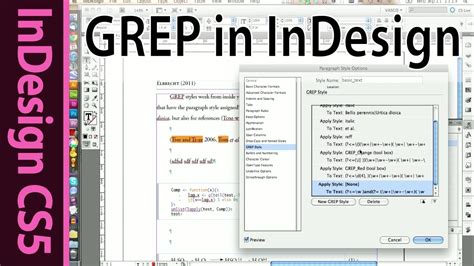
- Automation with Scripts and GREP: InDesign's scripting capabilities and GREP (Global Regular Expression Print) expressions allow for the automation of complex and repetitive tasks, from text formatting to data manipulation.
- Effective Use of Tables of Contents (TOC): Properly utilizing the TOC feature can streamline the creation of long documents and ensure consistency in navigation and referencing.
- Streamlined Word File Import: Efficiently importing Word documents, preserving formatting and styles, is crucial for many workflows.
- Learning and Skill Enhancement: Continuously learning and refining InDesign skills through tutorials and courses is an ongoing investment in productivity.
- Avoiding Common Mistakes: Awareness of prevalent InDesign pitfalls, such as the "20 Most Common InDesign Mistakes," can prevent time-consuming errors and rework.
- Multilingual Project Management: For those working on international projects, understanding InDesign's features for multilingual content is key.
The ability to quickly change effects, strokes, swatches, links, and layers without resorting to the mouse is a prime example of how shortcuts streamline operations. Gone are the days of fumbling through toolbars for essential functions like spell-check, copy, redo, undo, or paste. These basic, yet critical, commands become instantaneous with the correct key combinations.
Similarly, tasks that often require painstaking precision, such as aligning elements or adjusting page grids, are made significantly easier. Accessing grid views, for instance, can be a simple key press, eliminating the need to search through menus. This efficiency extends to fundamental file operations like saving, saving a copy, saving all, printing, opening, or exiting documents.
The Tangible Benefits of Keyboard-Centric Workflows
The advantages of embracing keyboard shortcuts in InDesign are multifaceted. Primarily, there's a significant increase in speed. For users who find themselves more adept at typing than mousing, the keyboard offers a direct and rapid path to command execution. This speed translates directly into saved time, allowing designers to take on more projects or dedicate more time to the creative aspects of their work.
Beyond speed, there's a notable improvement in ergonomics. Reducing reliance on the mouse can alleviate strain on the wrist and hand, contributing to long-term health and comfort. This is particularly relevant for professionals who spend many hours a day working on their computers.
Furthermore, a keyboard-centric workflow can foster a deeper level of engagement with the software. When commands are readily accessible via the keyboard, the flow state is less likely to be interrupted by the cognitive load of searching for tools or menu items. This sustained focus can lead to more innovative design solutions and a heightened sense of control over the creative process.
Applying Styles with Precision and Speed
One of the most impactful areas where keyboard shortcuts shine is in the application of styles. In a typical workflow, applying a paragraph or character style to text involves selecting the text, navigating to the Paragraph or Character Styles panel, locating the desired style, and clicking to apply it. This process, repeated dozens or even hundreds of times an hour, can be significantly streamlined.
By assigning custom shortcuts to frequently used styles, designers can apply them with a simple key press. This not only saves time but also ensures consistency across a document. For instance, a shortcut for a "Heading 1" style (Cmd+1 or similar) or a specific body text style can be set up to apply instantly.
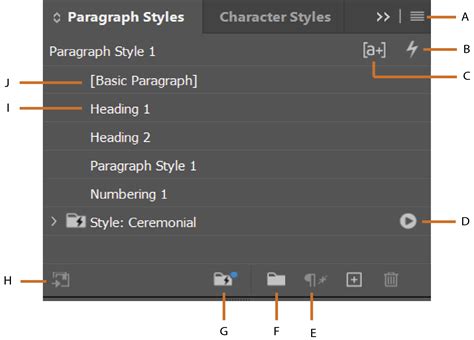
The process for creating custom style shortcuts has evolved. In versions prior to InDesign CC 2020, a numeric keypad was often required for certain shortcut functionalities. However, modern versions offer more straightforward methods. To assign a shortcut to a style (paragraph, character, object, table, or table cell), one opens the relevant style panel, double-clicks the style to edit its properties, and then navigates to the style's settings (often within a "General" tab). A dedicated "Shortcut" field is usually available where the desired key combination can be entered.
It's worth reiterating the importance of not overdoing custom shortcuts. While the temptation to assign a shortcut to every conceivable command is understandable, it can lead to an unmanageable number of combinations, defeating the purpose of easy recall. A curated list of the most frequently used shortcuts is far more effective than an exhaustive, overwhelming collection. Recording these custom shortcuts or taking screenshots of the relevant style panels can be helpful for long-term reference.
Accessing Preset and Custom Shortcut Lists
InDesign provides a straightforward method for viewing its extensive list of preset keyboard shortcuts. Within the "Keyboard Shortcuts" dialog box, the "Product Area" dropdown menu allows users to filter shortcuts by category, such as "Tools," "Panels," or specific menu sections. Selecting a category will display all associated shortcuts.
To view a list of one's own custom shortcuts, the "Set" dropdown menu is used. Selecting a named set (e.g., a custom set created by the user) will reveal the personalized shortcuts. InDesign can also generate a text file containing the complete list of shortcuts, which can then be opened in a default text editor. This comprehensive list can be a valuable resource, allowing users to identify potential shortcuts for commands they frequently use but haven't yet assigned a key combination to.
For those who wish to further refine their shortcut management, InDesign's Find/Change dialog box can be employed. By copying the entire list of shortcuts into a new document and using Find/Change, users can isolate specific commands or categories, such as all tool-related shortcuts, making it easier to create a tailored cheat sheet or reference.
The integration of keyboard shortcuts into an InDesign workflow is not just a matter of convenience; it's a strategic decision that impacts speed, health, and the overall creative process. By understanding the available shortcuts, customizing them to personal needs, and embracing a keyboard-first approach, designers can unlock a new level of mastery within this powerful design software. The journey from basic user to InDesign expert is significantly accelerated by the intelligent application of these digital keystrokes.