Does the prospect of diving into Adobe Photoshop feel like staring at a labyrinth of tools and menus, leaving you intimidated and unsure where to begin? Do typical tutorials tend to make your eyes glaze over, feeling more like a chore than an inspiring journey? You are certainly not alone. Many aspiring digital artists find themselves daunted by the perceived complexity of Photoshop, believing it's a realm reserved for seasoned professionals. However, the truth is far more liberating: if you possess the fundamental ability to draw on paper, you absolutely possess the capacity to create captivating digital art within Photoshop. This guide is designed to demystify the process, transforming that initial apprehension into confident creation, even if you consider yourself a complete novice. We aim to make the learning experience as engaging and accessible as possible, encouraging you to pause, experiment, and replay as much as you need - these are not just acceptable practices, but integral parts of the creative flow. Even those with some familiarity with Photoshop may discover valuable new shortcuts and techniques that streamline their workflow. In a remarkably short time, you'll find yourself creating with a newfound digital fluency, as if you were born to it.
The Genesis of an Idea: From Distracting Backgrounds to Dynamic Cityscapes
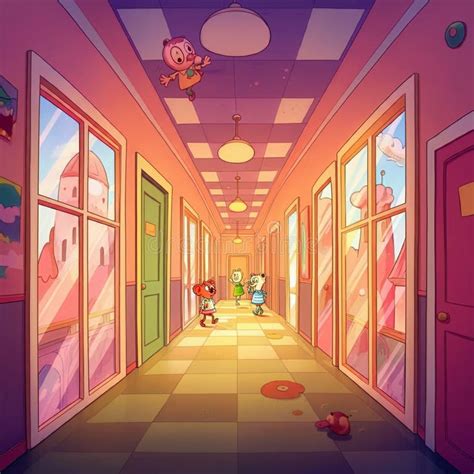
The journey to creating a unique cartoon cityscape often begins with a practical need, a problem to solve. For instance, the inspiration for this guide arose from a personal project: the creation of a background for an animation. The initial attempt resulted in a background that, while perhaps visually interesting in isolation, proved to be overwhelmingly bright and busy, ultimately detracting from and distracting from the main animated characters. This common pitfall highlights a crucial aspect of digital art: the need for balance and harmony between different elements within a composition. The goal is to create an environment that enhances, rather than competes with, the focal points of your artwork. Fortunately, the beauty of digital tools like Photoshop is that they offer unprecedented flexibility. Unlike traditional media, where mistakes can necessitate laborious erasing or complete redrawing, digital art allows for effortless adjustments and refinements. This means you can experiment freely, iterate on your ideas, and arrive at a polished final product without the frustration of starting over.
Laying the Foundation: Understanding Photoshop's Essential Toolkit for Beginners
Before we plunge into the creative process, it's beneficial to familiarize ourselves with a few core Photoshop tools that will serve as our digital brushes and canvas. Don't let the sheer number of options overwhelm you; we'll focus on the essentials that are most relevant to building our cityscape.
The Brush Tool (B) is your primary instrument for drawing and painting. You can select from a vast array of brush presets, adjust their size, hardness, and opacity, and even create custom brushes. For a cartoon style, you might experiment with textured, slightly irregular brushes to give your lines a hand-drawn feel.
The Eraser Tool (E), contrary to the initial anecdote, is incredibly useful for refining edges and removing unwanted marks. Its power lies in its precision; you can control its size and hardness to achieve clean lines or soft transitions.
The Eyedropper Tool (I) might seem simple, but it's a time-saver. It allows you to sample colors directly from your canvas, ensuring color consistency and making it easy to pick up hues you've already used.
The Gradient Tool (G) is perfect for creating smooth transitions of color, ideal for skies, distant hills, or the subtle shading on buildings.
The Shape Tools (U) (Rectangle, Ellipse, Polygon, etc.) are invaluable for quickly constructing geometric elements like building blocks, windows, and doors. These can be easily resized and recolored without losing quality.
Finally, Layers are the backbone of non-destructive editing in Photoshop. Think of them as transparent sheets stacked on top of each other. You can draw on one layer without affecting what's on another, allowing for easy modifications, rearrangements, and the ability to isolate elements for editing. Mastering layers is arguably the most crucial step towards becoming proficient in Photoshop.
Building Blocks of a Cartoon Metropolis: From Simple Shapes to Architectural Marvels
Our cityscape will be constructed from fundamental shapes, gradually evolving into recognizable structures. The beauty of a cartoon style lies in its inherent simplification and exaggeration. We don't need photorealistic detail; we need personality and charm.
Begin by creating a new document. For a cityscape, a wider aspect ratio is often effective. Let's start with the sky. Select a soft, large Brush Tool and a pleasing sky blue. On a new layer, paint a gentle gradient from a lighter blue at the top to a slightly warmer hue near the horizon. This establishes the mood and depth.

Next, let's introduce the ground. Using the Gradient Tool or a large Brush Tool, fill another layer with a flat color for the ground - perhaps a muted green or brown. This will serve as our sidewalk or street level.
Now, for the buildings. This is where the Shape Tools and Layers truly shine. On a new layer, use the Rectangle Tool to draw a basic rectangular shape for a building. Don't worry about making it perfect; cartoon buildings often have slightly imperfect, hand-drawn qualities. Duplicate this shape by holding Alt (or Option on Mac) and dragging. Resize, reposition, and stack these rectangles to create the basic forms of your structures.
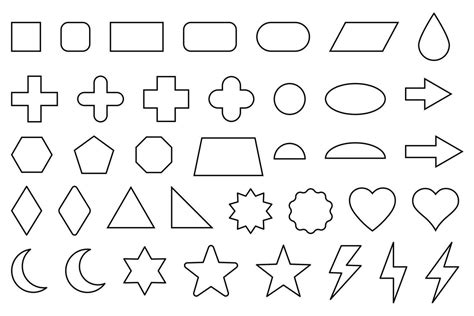
To add variation, use the Polygon Tool to create triangular roofs or the Ellipse Tool for rounded tops. Think about different building heights and widths to create visual interest. Remember to keep each building element on its own layer or group of layers. This allows you to easily adjust individual components later. For instance, you can select a building, duplicate it, and then scale it down to create a smaller, adjacent structure.
Adding Detail and Character: Windows, Doors, and Decorative Flourishes
Once the basic building forms are in place, it's time to imbue them with life through details. Windows and doors are essential elements that not only add realism but also provide opportunities for stylistic expression.
For windows, you can use the Rectangle Tool again, drawing smaller rectangles on top of your building layers. To create a sense of depth or reflection, you can fill these window shapes with a dark blue or grey, and then use a softer Brush Tool to add a subtle highlight. Alternatively, for a more stylized look, experiment with different shapes for windows - circles, arches, or even irregular polygons.
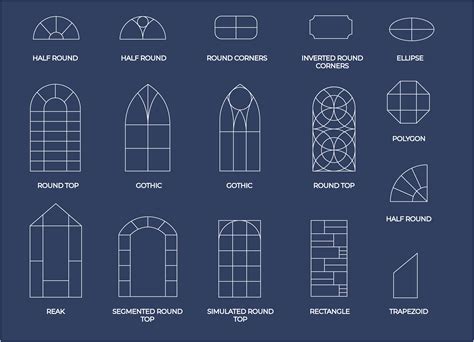
Doors can be created similarly, using the Rectangle Tool and adding a simple doorknob with a small circle. Consider varying the size and placement of doors to suggest different building functions. Some might be grand entrances, while others are service doors.
To break up the monotony of uniform buildings, introduce decorative elements. Use the Brush Tool to draw simple awnings, balconies, or even stylized signs. You can create a repeating pattern for a series of windows or balconies by drawing one element, copying it, and then using the Move Tool to arrange them.
For a more organic feel, introduce some variation in the building outlines. Select a building layer, and then use the Lasso Tool to make small, irregular selections along its edges. With the Brush Tool set to a slightly darker or lighter shade of the building's color, carefully paint along these selected edges to create a subtle, hand-drawn imperfection. This technique adds a touch of organic charm that is characteristic of hand-drawn animation.
Bringing the City to Life: Color Palettes, Shading, and Atmosphere
Color is paramount in establishing the mood and personality of your cartoon cityscape. Since we're aiming for a vibrant and fun aesthetic, don't be afraid to experiment with bold and unexpected color combinations.
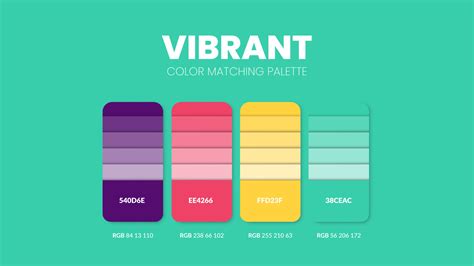
Start by defining a cohesive color palette. You can use the Eyedropper Tool to sample colors from your sky and ground, or you can use online color palette generators for inspiration. Aim for a palette that complements each other and evokes the desired feeling - perhaps warm, sunny colors for a cheerful day, or cooler tones for a more mysterious evening.
Shading is crucial for giving your buildings volume and depth. For a cartoon style, shading doesn't need to be complex or photorealistic. Simple, flat shapes of color can be very effective. Identify a light source - for instance, the sun in your sky. Then, on a new layer set to a blending mode like "Multiply," use a darker shade of each building's color to paint simple shadow shapes. Think about where light would naturally be blocked - the underside of eaves, the side of a building opposite the light source, or the areas where one building casts a shadow on another.
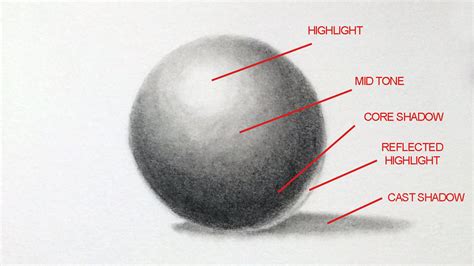
Alternatively, you can use a softer Brush Tool with a reduced opacity to paint subtle gradients of shadow. This can create a softer, more diffused look. For highlights, use a lighter shade of the building's color on a new layer set to a blending mode like "Screen" or "Overlay," and paint where the light would directly hit.
To enhance the sense of atmosphere, consider adding background elements. For a cityscape, this might include distant, silhouetted buildings that fade into the background with a cooler, less saturated color. You can also add subtle details like flying birds, clouds, or even a distant moon or stars, depending on the time of day you're depicting.
Advanced Touches and Creative Exploration: Adding Life and Personality
Beyond the fundamental elements, there are numerous ways to inject personality and dynamism into your cityscape. Think about the stories these buildings might tell.
Consider adding unique architectural features that are characteristic of a cartoon world. Perhaps buildings lean at odd angles, have unusually shaped windows, or feature whimsical decorative elements like giant teacups or rocket ships on their roofs. These exaggerations contribute to the playful and imaginative nature of the cartoon style.
Sketch to animation with AI. #architecture #aiarchitecture #architecturesketch
Introducing elements of life is also key. You can draw simple cartoon characters walking on the sidewalks, tiny cars driving on the streets, or even fantastical creatures peeking out from windows. These elements add scale and a sense of narrative to your scene. Remember to keep these characters and elements in a style consistent with your cityscape.
Experiment with different textures. For instance, you can use a rougher Brush Tool for brickwork or a smoother brush for glass. You can also import textures from external sources and use them as clipping masks over your building shapes for a more complex look.
The concept of "negative space" is also important. The areas between your buildings are just as significant as the buildings themselves. Ensure these spaces are balanced and don't feel too empty or too cluttered.
Iteration and Refinement: The Power of Pausing and Playing
As you progress, remember the advice to pause, replay, and experiment. Digital art is an iterative process. Don't be afraid to step away from your work for a short while and then return with fresh eyes. You might notice areas that need adjustment, colors that could be enhanced, or details that could be added.
Use Ctrl+Z (or Cmd+Z on Mac) liberally to undo mistakes or experiment with different approaches. Duplicate layers before making significant changes so you can always revert to a previous state. The goal is not to achieve perfection in the first pass, but to build and refine your creation through exploration.
If you find a particular building or element isn't working, don't hesitate to delete it and try again. Perhaps you can repurpose a shape or color from a discarded element into something new. This flexibility is one of the greatest advantages of using Photoshop.
The video tutorial mentioned earlier covers a lot of ground quickly. It's perfectly normal not to retain every single technique immediately. The true learning happens when you actively engage with the software, applying what you've seen and discovering new possibilities through hands-on practice. The more you play with the tools, the more intuitive they become.
By following these steps, focusing on fundamental shapes, embracing color, and allowing for iterative refinement, you'll be well on your way to creating your own unique and fun cartoon cityscape in Photoshop. This process, far from being intimidating, is an exciting opportunity to bring your imagination to life in the digital realm, proving that with a little guidance and a lot of creativity, anyone can become a digital artist. Happy creating, and don't forget to share your vibrant cityscapes!
tags: #illustrate #with #photoshop