In the fast-paced world of graphic design, efficiency is paramount. Bloggers, designers, and creative professionals alike constantly seek ways to streamline their workflow without compromising on quality. Adobe InDesign, a powerful tool for page layout and design, offers a multitude of features to achieve this. Among these, the "Step and Repeat" function stands out as a true time-saver, enabling the effortless creation of repeating objects at precise intervals. This guide delves deep into the functionalities of "Step and Repeat," illustrating its diverse applications and providing practical steps for its implementation.
Understanding the "Step and Repeat" Concept
At its core, "Step and Repeat" is a sophisticated yet straightforward tool designed to duplicate objects multiple times, precisely controlling the spacing and arrangement. It allows designers to take an original object or a group of objects and replicate them horizontally, vertically, or in a grid pattern, with user-defined offsets. This capability is invaluable for tasks such as creating patterns, laying out grids for images or text, or distributing design elements consistently across a page. While it might sound like a military directive, its application in graphic design is purely about maximizing productivity.
The Fundamentals of Using "Step and Repeat"
To begin leveraging the power of "Step and Repeat," you first need an object to duplicate within your InDesign document. This could be a simple shape, a text frame, or even a complex graphic element. The key principle is that the settings applied during the "Step and Repeat" process will be mirrored across all duplicated instances. Therefore, if you create a black square, "Step and Repeat" will generate black squares. If you opt for a hot pink circle, the outcome will be a series of hot pink circles.
Step 1: Creating Your Base Object
The initial step involves drawing the shape or object you intend to repeat. For instance, if you aim to create a grid of squares for photo placement, you would start by drawing a single square. While coloring it black can aid visibility during the creation process, the color itself is secondary as it will be overridden by the image content later. It's crucial to remember that the characteristics of the initial object-its size, color, stroke, and fill-will be replicated.
Step 2: Accessing the "Step and Repeat" Command
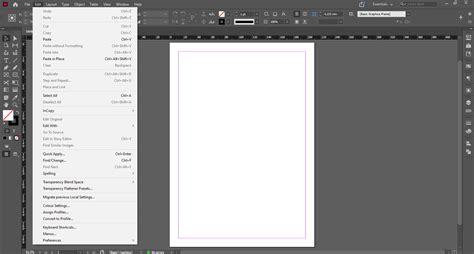
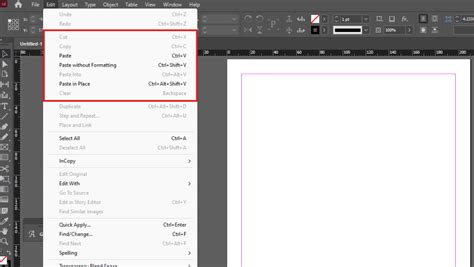
Once your object is drawn and selected, navigate to the "Edit" menu in InDesign and choose "Step and Repeat." Alternatively, you can employ the keyboard shortcut: Command + Option + U on macOS or Ctrl + Alt + U on Windows. This action will reveal a dialog box populated with various options to control the duplication process.
Step 3: Defining "Repeat" and "Offset" Values
The "Step and Repeat" dialog box presents two primary sets of controls: "Repeat" and "Offset." The "Offset" values dictate the horizontal and vertical distance between each duplicated object. It's often advisable to adjust these values first, as excessively large offsets can lead to errors, particularly if they extend beyond the document's boundaries. InDesign will prevent you from repeating objects in a way that makes them impossible to view or manage within the layout.
For example, if you're creating a grid of squares with no gaps between them, you'll need to determine the exact width and height of your original square. InDesign's top menu displays the dimensions (Width 'W' and Height 'H') of the selected object. If your square measures 14p1.2 (using picas as a unit of measurement, though pixels or inches are also viable), you would input "14p1.2" into both the "Horizontal Offset" and "Vertical Offset" fields.
The "Repeat" section allows you to specify how many times the object should be duplicated. You can opt for a simple linear repetition or a grid layout. To create a grid, you'll check the "Create a grid" box and then input the desired number of rows and columns. For instance, entering "2" for rows and "3" for columns will generate a total of six repeated objects arranged in a 2x3 grid.
Step 4: Adjusting and Refining the Layout
Upon applying the "Step and Repeat" settings, InDesign will generate the duplicated objects. It's common to realize, after the initial creation, that minor adjustments are needed. For example, you might decide you want a 3x3 grid instead of a 2x3. Rather than undoing the operation and starting over, InDesign offers flexibility. You can select existing duplicated objects and repeat the "Step and Repeat" process on them.
If you wish to modify the existing grid into a larger square arrangement, you could select the bottom row of your 2x3 grid. Then, uncheck the "Create a grid" option, as you are now only performing a single repetition of the selected objects. Crucially, you would remove the "Horizontal Offset" value, ensuring the new copies are placed directly beneath the selected ones, effectively creating a third row. This iterative adjustment process allows for fine-tuning without discarding previous work.
Once the layout is satisfactory, you can proceed to modify the colors of the boxes or, as in the example of a photo grid, place your images using File > Place (or Command + D / Ctrl + D). The "Step and Repeat" tool, therefore, acts as a foundational element, saving significant time in setting up complex layouts.
InDesign Tutorial: Step and Repeat
Beyond Simple Duplication: Advanced Applications
The utility of "Step and Repeat" extends beyond basic grids. It can be instrumental in creating intricate patterns, distributing elements along curves, or even in generating repeating visual motifs for branding.
Pattern Creation
Creating seamless repeating patterns is a common design requirement, especially for backgrounds, textiles, or decorative elements. "Step and Repeat" simplifies this by allowing you to define a tile and then replicate it with precise offsets to form a larger, cohesive pattern. By carefully managing the horizontal and vertical offsets, you can ensure that the edges of the repeated elements align perfectly, creating a smooth, continuous design.
Distributing Objects Evenly
In projects requiring precise alignment and spacing, such as brochures, flyers, or even data visualizations, "Step and Repeat" ensures uniformity. Whether you need to arrange a series of labels, icons, or informational blocks, the tool guarantees equal spacing, eliminating the tedium of manual alignment and reducing the potential for human error.
Repeating Transformations
While the core "Step and Repeat" function focuses on positional duplication, the underlying principles can be extended to other transformations. In some contexts, particularly when comparing with other design software like Adobe Illustrator, the concept of "Transform Again" emerges. This refers to the ability to duplicate an object and then apply a transformation-such as scaling, rotating, or skewing-and then repeat that transformation multiple times. In InDesign, while direct "Transform Again" for complex transformations might be handled differently, the "Step and Repeat" dialog box's ability to define offsets for both horizontal and vertical positioning is the primary mechanism for controlled, multi-instance duplication.
Incorporating Text and Graphics
The "Step and Repeat" tool is not limited to simple shapes. You can select text frames containing specific wording, or even groups of graphics, and apply the "Step and Repeat" function. This is particularly useful for tasks like creating a series of identical labels with placeholder text, or for repeating a logo or graphic element across a document for branding consistency.
"Duplicate" vs. "Step and Repeat" in InDesign
It's worth noting the distinction between InDesign's "Duplicate" command and the "Step and Repeat" function. The "Duplicate" command (often accessed by holding Option/Alt and dragging, or via Edit > Duplicate) replicates the last performed action, including movement. If you move an object a certain distance and then use "Duplicate," it will create a copy at that same distance. This is useful for creating a series of objects with consistent spacing based on a single initial move.
"Step and Repeat," on the other hand, offers a more controlled and versatile approach. It allows you to explicitly define the number of repetitions and the precise horizontal and vertical offsets before the objects are created. This is particularly advantageous when you need to create a specific number of duplicates with predetermined spacing, or when you intend to create a grid layout. While "Duplicate" is excellent for simple, sequential repetitions, "Step and Repeat" provides greater precision and flexibility for more complex layout tasks.
Considerations for Efficient Workflow
While "Step and Repeat" is a powerful tool, integrating it effectively into your workflow involves a few best practices. Firstly, understanding your document's units of measurement (picas, points, inches, millimeters, pixels) is crucial for accurate offset calculations. Secondly, always ensure your objects are correctly aligned and positioned before applying "Step and Repeat," as this establishes the baseline for all subsequent duplicates.
Furthermore, remember that "Step and Repeat" is a feature designed to save time, not to replace careful project management. While it efficiently duplicates elements, it's still important to manage your links properly, ensuring that embedded files are not inadvertently included when they shouldn't be. This is a general principle of working with InDesign and other design software, ensuring that your projects remain organized and manageable.
Conclusion: Embrace Repetition for Efficiency
The "Step and Repeat" function in Adobe InDesign is a testament to the software's commitment to streamlining the design process. By mastering its capabilities, designers can significantly reduce the time spent on repetitive tasks, allowing them to focus on more creative and strategic aspects of their work. Whether you're laying out a magazine, designing a poster, or building a complex pattern, "Step and Repeat" is an indispensable tool in your InDesign arsenal, empowering you to create with both precision and speed.