Ambient Occlusion (AO) is a crucial rendering technique in computer graphics, used to calculate how exposed each point in a scene is to ambient lighting. This process results in a more realistic and visually appealing depiction of depth and detail by simulating the darkening of areas that are more enclosed or closer to other surfaces. In essence, it mimics how light scatters and gets blocked in the real world. For instance, the interior of a tube is typically more occluded (and hence darker) than the exposed outer surfaces, and the deeper you go inside the tube, the more occluded (and darker) the lighting becomes. The result of this computation is stored in a bitmap named the “Ambient Occlusion” map.
Substance Painter is a powerful tool for 3D texturing, and its ability to bake various maps, including Ambient Occlusion, is fundamental to creating detailed and lifelike assets. However, users, especially those new to the software or specific workflows like those involving Unreal Engine 5 (UE5), often encounter issues during the AO baking process. This article aims to demystify these problems, providing a comprehensive guide to troubleshooting and achieving optimal results.
Understanding the Ambient Occlusion Channel in Substance Painter
The Ambient Occlusion channel in Substance Painter is a dedicated space for manipulating and applying occlusion details. To paint custom occlusion details, an Ambient Occlusion channel is required. Once the channel has been added to a Texture Set, any layer can be used to paint new information. The default setup of a Substance 3D Painter project will combine the Ambient Occlusion channel with the Ambient Occlusion map from the additional maps. This means that painting over the baked additional map is not possible by default; the results of each map (the baked maps and the channels) will be multiplied together.
To effectively utilize the AO channel, one common technique is to create a new fill layer and place the baked ambient occlusion inside the “ambient occlusion” slot, via the properties panel. By default, the blending mode of the AO channel on any new layer is set to "Multiply." This mode is often used because it darkens the underlying textures, simulating the shadowing effect of AO. However, some users find that changing the blending mode of the AO channel on a new layer (regular or fill) to “normal” can yield better results in certain contexts, particularly when comparing with how AO is handled in game engines like Unreal Engine.
Common Ambient Occlusion Baking Problems and Their Solutions
Many users new to Substance Painter or advanced rendering pipelines encounter specific issues when baking AO maps. These problems can range from overly dark maps to tiling artifacts and incorrect occlusion between meshes.
The "Very Dark AO Map" Phenomenon
A frequent complaint, particularly when exporting assets from software like Marvelous Designer, is the generation of a "very dark AO map." This can occur when the model has a high level of detail or complex geometry that inherently creates deep crevices. When exporting a garment from Marvelous Designer using the "thick" preset, for example, the resulting geometry might be dense, leading to exaggerated self-occlusion during the bake.
Troubleshooting Steps:
- Adjust Bake Settings: Within Substance Painter's baking settings, experiment with the "Maximal thickness" and "Near limit" parameters. Increasing "Maximal thickness" can help capture occlusion over larger distances, potentially alleviating the issue of overly dark, localized shadows. Conversely, adjusting "Near limit" can fine-tune the proximity at which occlusion is calculated.
- Curvature and Thickness Maps: Ensure that your curvature and thickness maps are baked correctly. These maps often inform the AO calculation. If they are not representative of the geometry, the AO bake will suffer.
- Mesh Pre-processing: Before importing into Substance Painter, consider simplifying the mesh in your modeling software if it's excessively dense. Sometimes, a clean, optimized mesh yields better bake results.
- Self Occlusion: For elements like garments or objects with internal cavities, baking with "Self Occlusion" enabled can be crucial. This setting specifically calculates occlusion within the object itself, preventing areas like the inside of a collar from appearing unnaturally bright.
Disappearing AO Between Meshes with Ray Tracing
A peculiar issue arises when ray tracing is enabled in applications like Maya, causing AO between separate meshes to disappear. This suggests a conflict or misunderstanding in how ray tracing algorithms interact with baked AO data or how the AO itself is being generated.
Troubleshooting Steps:
- Bake AO Separately: Try baking the AO map for each mesh individually and then combining them in Substance Painter or your rendering engine. This can isolate issues related to inter-mesh occlusion.
- Check Export/Import Settings: Ensure that the AO map is being exported and imported with the correct settings. Sometimes, specific channels or data can be lost or misinterpreted during the transfer process.
- Ray Tracing vs. Baked AO: Understand that ray tracing is a dynamic rendering technique, while baked AO is a static texture. If you are relying on ray tracing for AO, you might not need to bake it, or you might need to configure your pipeline to either disable ray-traced AO when using baked AO or ensure they complement each other.
- Maya-Specific Solutions: For Maya, investigate settings related to AO generation within the renderer. Scripts like "AO to Vertex Colors?" might be attempting to transfer AO data to vertex attributes, which could be affected by ray tracing settings. Ensure that the vertex color baking process is compatible with your ray tracing setup.
Tiling Issues in AO Maps
When creating repeating textures, such as floor materials, it's common for the intention to be for the texture to tile horizontally but not vertically. However, AO maps can sometimes exhibit unwanted tiling in one direction, disrupting this desired effect.
Troubleshooting Steps:
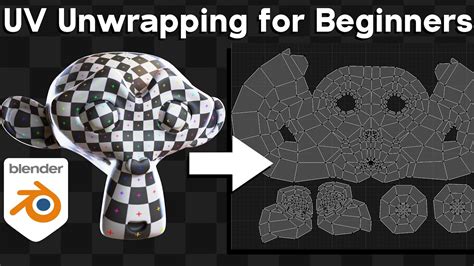
- UV Unwrapping: The primary cause of tiling issues is often incorrect UV unwrapping. Ensure that your UVs are laid out logically and that the tiling seams are placed in areas that will be less noticeable. For a floor material intended to tile horizontally, the UVs should stretch across the horizontal axis, with seams ideally placed at the edges of the texture.
- Procedural Generation: If the AO is generated procedurally within Substance Painter, examine the parameters of the procedural node. Ensure that any tiling settings within the node are configured to achieve the desired horizontal tiling without vertical repetition.
- Baking from High-Poly: If you are baking from a high-polygon model, ensure that the high-poly model's UVs are also set up for the intended tiling. The bake process will transfer the occlusion details based on these UVs.
- Post-Processing: In some cases, minor tiling artifacts can be corrected in post-processing by using texture editing software to blend seams or by using tiling-aware filters.
Problems with Destructible Meshes in Unreal Engine
Assets intended for use as destructible meshes in Unreal Engine often present unique baking challenges, with Ambient Occlusion being a common culprit. The dynamic nature of destructible meshes means that UVs and baked data need to be robust.
Troubleshooting Steps:
- Consistent UVs: For destructible meshes, maintaining consistent UV layouts is paramount. If a mesh breaks apart, the UVs on each piece should still align correctly so that textures and AO maps appear seamless.
- Baking for Multiple States: Consider if your AO bake needs to account for different states of the destructible mesh (e.g., intact vs. broken). This might involve baking AO for a "broken" version of the mesh or ensuring the AO map is general enough to work across various states.
- Unreal Engine's AO Implementation: Research how Unreal Engine specifically handles AO for destructible meshes. There might be engine-specific settings or recommended workflows that differ from standard static mesh pipelines. The "Overlay" node, for instance, is sometimes preferred over "Multiply" in Unreal Engine for combining AO, as it can provide a better visual result.
General Baking Issues and "Strange Results"
Many users report "strange results" or dark spots when baking AO with default settings. This often stems from a misunderstanding of how the baker interprets the mesh and its normals, or from issues with the mesh's topology.
Troubleshooting Steps:
- Mesh Normals: Ensure that the normals of your model are correctly oriented (facing outwards) and that there are no overlapping faces or internal geometry that could confuse the baker. In Maya, you can often "Harden/Soften Edges" and "Unify Normals" to fix these issues.
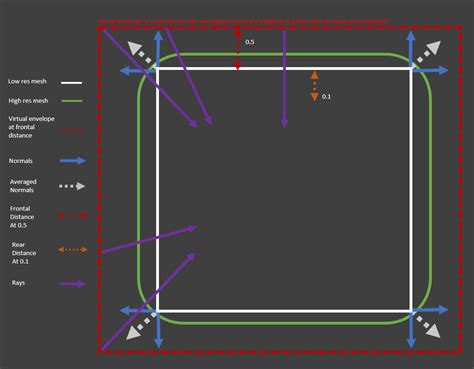
- Cage Settings: In Substance Painter's baker, the "Cage" settings are critical. The cage is a slightly inflated version of your mesh that dictates where the rays are cast from during the bake. If the cage is too small, it won't capture occlusion in crevices. If it's too large, it can cause bleeding of occlusion into open areas. Experiment with "Cage Offset" and "Cage Thickness" to find the optimal balance.
- Ray Distance: The "Ray Distance" parameter in the baker controls how far the rays are cast. If this value is too low, it won't capture occlusion on larger forms. If it's too high, it can lead to excessive bleeding of shadows.
- High-Poly to Low-Poly Workflow: If you're baking from a high-poly to a low-poly model, ensure that the high-poly model is well-detailed and that the low-poly model has sufficient UV space and resolution to capture the baked information. The "Match by Mesh Name" option is essential here if you have identically named parts in your high and low-poly models.
Advanced Considerations and Best Practices
Beyond basic troubleshooting, several advanced techniques and considerations can elevate the quality and usability of your AO maps.
Increasing Occlusion Precision
In tools like Marmoset Toolbag, users might seek to "Increase Occlusion Precision." This generally refers to increasing the sample count or ray depth during the AO calculation. Higher precision leads to cleaner, more accurate occlusion but also increases bake times.
Strategies for Precision:
- Higher Sample Count: Many baking tools allow you to increase the number of rays cast per pixel. More samples lead to a less noisy result.
- Ray Depth: For complex scenes or geometry, increasing the ray depth can help capture secondary and tertiary occlusions, adding finer detail.
- Anti-Aliasing: Ensure anti-aliasing settings are appropriately configured in your baking software to smooth out jagged edges in the AO map.
Baking Individual Elements vs. Everything Together
A common question is whether to bake an "individual element, or everything together, using Self Occlusion." The choice depends on the asset and the desired outcome.
- Baking Everything Together: This is often the default and works well for single, self-contained objects. Self-occlusion is crucial here to capture internal details.
- Baking Individual Elements: For complex assets composed of multiple distinct parts (e.g., a character with separate armor pieces), baking each part individually can offer more control. This allows you to fine-tune settings for each element and can prevent unwanted occlusion bleeding between parts that are close but not touching. It also makes it easier to manage and re-bake specific components if needed.
AO in Unreal Engine: Multiply vs. Overlay
As mentioned, the default blending mode for AO in Substance Painter is "Multiply." While this is a common and effective method, some users find that the "Overlay" blending mode can produce more pleasing results within Unreal Engine.
Understanding the Difference:
- Multiply: Darkens the underlying texture based on the AO map's values. This is a direct simulation of shadowing.
- Overlay: Blends the AO map with the underlying texture in a way that preserves highlights and shadows, often resulting in a more subtle and integrated look.
When importing textures into Unreal Engine, you can control how AO is applied. Often, the AO map is fed into a specific AO channel or multiplied with the base color within the material editor. Experimenting with both "Multiply" and "Overlay" in Substance Painter and observing the results in Unreal Engine is recommended to determine the best approach for your project.
Simple Master Material Setup in Unreal Engine 5 (Tutorial)
Avoiding Tiling Artifacts in Directional Bakes
For materials intended to tile in one direction, preventing unwanted tiling in the other is key. This is especially true for AO maps that might inherit directional artifacts from the baking process or the source mesh.
Mitigation Strategies:
- Seamless Textures: Ensure that your base textures are truly seamless in both directions before baking AO onto them.
- Baking Parameters: Carefully review the baking parameters, especially if using procedural generation. Ensure that any tiling controls within the procedural node are set to achieve the desired directional tiling.
- Baking from Optimized Meshes: A clean, well-structured mesh with appropriate UVs is the foundation for a good bake. If the source mesh has issues that lead to directional artifacts, these will likely be baked into the AO map.
The "Black Line" Anomaly
A specific issue where a "black line" appears in an otherwise good AO bake can be perplexing. This often points to a geometric anomaly or a specific edge case that the baker is struggling to interpret.
Potential Causes and Fixes:
- Edge Seams: The black line might be occurring along an edge where two parts of the mesh meet, or where a UV seam is located. Ensure that the cage and ray distance are correctly set to capture occlusion along these edges without extending too far.
- Normal Issues: As with general baking problems, incorrect or flipped normals on specific vertices or faces can cause localized artifacts like black lines.
- Geometry Overlap: If parts of your mesh are overlapping, the baker might misinterpret this as a deep crevice, leading to an overly dark or black line.
- Baking Software Specifics: Some baking software might have specific settings to handle edge occlusion or UV seam artifacts. Consult the documentation for your particular tool.
By systematically approaching these common issues and understanding the underlying principles of Ambient Occlusion baking, users can significantly improve the quality of their assets in Substance Painter and other texturing applications, leading to more realistic and visually compelling 3D models.
tags: #substance #painter #ambient #occlusion #bake #problem