The digital photography landscape is constantly evolving, with new formats emerging to offer enhanced features and efficiency. One such format that has gained prominence, particularly with Apple's ecosystem, is HEIC (High Efficiency Image Container), also known as HEIF (High Efficiency Image File Format). While HEIC offers significant advantages in terms of file size and image quality, its compatibility with Android devices can present a challenge. This article explores why this format difference exists and provides a comprehensive guide on how to convert HEIC files to JPG on Android, ensuring seamless image sharing and accessibility.
Understanding HEIC and its Advantages
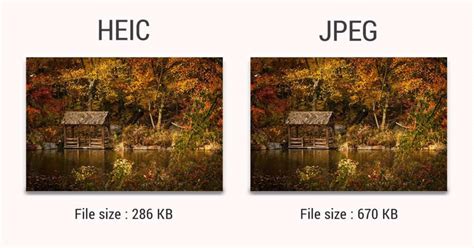
HEIC, or High Efficiency Image Container, is a file format for storing images and image sequences. It's a variation of the High Efficiency Image File Format (HEIF). The primary advantage of HEIC is that it compresses images to smaller file sizes while maintaining high quality, making it an efficient format for saving space without sacrificing image clarity. HEIC uses advanced compression techniques, often leveraging HEVC (High Efficiency Video Coding) technology, which allows for reductions in file size by up to 50% compared to JPEG, without a noticeable loss in image quality. This efficiency is particularly beneficial for devices with limited storage capacity, such as smartphones.
HEIC files are created by the camera applications of modern iPhone and Android devices, and professional digital cameras. In June 2017, Apple announced the support for HEIF in macOS High Sierra and iOS 11, and since then, it has become the default image format for iPhones. This means that photos taken on newer iPhones are often saved as .heic files. HEIC can also store multiple images within a single file, which is useful for features like iPhone burst photography, "live" photos, and more.
The Compatibility Conundrum: HEIC on Android
While HEIC offers these benefits, its adoption by the Android ecosystem has been more gradual. Android 9 (Pie) and subsequent versions have introduced some level of native support for HEIC files. However, this support is not always universal across all applications and devices. Many older Android devices, or specific applications, may not be able to open, display, or edit HEIC files natively. This can lead to frustration when transferring photos from an iPhone to an Android device, as users may find their images inaccessible.
The reason behind this incompatibility often stems from the underlying technologies and patent licensing. HEIF and HEVC are subject to patent licensing concerns, which can create legal implications for implementing HEIF support, particularly in paid software or hardware products. JPEG, on the other hand, is an open file format standard and has been the most popular image format on the web for a long time, ensuring broad compatibility.
Why Convert HEIC to JPG?
The Joint Photographic Experts Group (JPEG) format, commonly identified by its .jpg or .jpeg file extension, is a universally recognized and supported image format. Its widespread compatibility across operating systems, devices, and applications makes it the de facto standard for image sharing. Converting HEIC files to JPG ensures that your high-quality images can be easily viewed, shared, and edited on any Android device without any issues.
JPEG utilizes a lossy compression technique, meaning some image data is discarded to reduce file size. However, the degree of compression can be altered, allowing for a balance between file size and image quality. While a JPG cannot have a transparent background, it offers a robust and reliable option for most everyday image needs.
How To Transfer Photos From iPhone To Android Phone - Full Guide
Methods for Converting HEIC to JPG on Android
Fortunately, there are several effective ways to convert HEIC files to JPG on your Android device, catering to different user preferences and needs. These methods range from utilizing built-in device features to employing third-party applications and online tools.
1. Leveraging Built-in Android Features
Many modern Android devices come with built-in support for handling HEIC files, either through their gallery applications or file manager.
- Gallery App Conversion: Some Android devices have built-in features in their gallery apps that can convert HEIC files to JPG without additional software. To use this, open a HEIC file in your photo app and look for 'Save As…' or 'Export' options to save it as JPG. This method is fast, secure, and doesn't require downloads, making it ideal for quick conversions. Typically, you can find this functionality within the settings or options menu of these apps.
- File Manager Options: In some cases, your device's file manager might offer an option to convert HEIC files when you try to open or share them.
2. Utilizing Third-Party Apps from the Google Play Store
The Google Play Store offers a wide array of applications specifically designed to convert HEIC files to JPG. These apps often provide additional features and a more streamlined conversion process.
- HEIC Converter Apps: There are several apps available on the Google Play Store designed for this purpose. Apps like "HEIC Converter," "Luma," or "HEIC to JPG" allow for quick and straightforward conversion. These applications typically work by:
- Tapping a "+" icon to select the HEIC files you wish to convert.
- Choosing JPG as the desired output format.
- Initiating the conversion process.
- Saving the converted JPG files to a specified location on your device.These apps often offer options to resize output photos and to keep or remove EXIF data.
- Photo Editing Apps: If you prefer more control over the conversion process, consider using a photo editing app on your Android device. Many popular photo editors not only convert HEIC files to JPG but also offer you the option to edit the image before saving it. With editing software, you can adjust various aspects of the image, such as brightness, contrast, and saturation, before converting it to JPG.
3. Online HEIC to JPG Converters
For users who prefer not to install additional applications, online converters provide a convenient solution. Numerous websites offer free HEIC to JPG conversion services.
- How to Use Online Converters:
- Access a free converter on any web browser.
- Select your HEIC image from your device or drag and drop it onto the converter's page.
- The website will automatically upload and convert your HEIC image.
- Download the converted JPG file.
- Popular Online Tools: Websites like "HEICtoJPG," "CloudConvert," or "Canva" (which offers an online image converter) are excellent options. These services allow you to convert your MacOS and iOS photos to widely used JPEG or PNG without compromising quality or changing your workflow.
- Privacy and Security: It's important to note that when using online converters, you are uploading your files to a third-party server. Reputable services often state that uploaded files are deleted from their servers after a short period (e.g., one hour) to ensure privacy. They may collect file names and conversion types for internal analysis but not personal data. CloudConvert, for instance, is ISO 27001 certified and emphasizes its commitment to user privacy.
4. Cloud Storage Services
Cloud storage platforms can also facilitate HEIC to JPG conversion, especially when syncing files between devices.
- Automatic Conversion: Agree, simply upload your HEIC files to a cloud service like Google Drive, Dropbox, or iCloud. Cloud platforms often automatically convert HEIC files to JPG when uploaded, ensuring compatibility across devices. Cloud storage services like Google Drive or Dropbox often offer automatic conversion of HEIC files to JPG when syncing with Android devices.
- Viewing HEIC Files: Some cloud storage services, such as Dropbox or Microsoft OneDrive, can display HEIC files within their mobile apps, offering a way to view them even if native support is limited.
Understanding EXIF Metadata
When converting HEIC files, you might encounter options related to EXIF (Exchangeable image file format) metadata. Most cameras embed hidden information, called metadata, into every photograph taken. This includes details like the camera model, settings used (aperture, shutter speed, ISO), date and time the photo was taken, GPS location, and more.
- Keeping EXIF Data: Retaining EXIF data can be useful for photographers who want to keep a record of the shooting conditions or for geotagging photos.
- Removing EXIF Data: Removing EXIF data can be beneficial for several reasons:
- Privacy: It prevents the sharing of potentially sensitive information like your location.
- File Size Reduction: EXIF data adds to the overall file size. Removing it can result in slightly smaller JPG files.
- Compatibility: In rare cases, some older software might have issues displaying files with certain EXIF tags.
Most HEIC converter tools, whether apps or online services, provide an option to keep or remove this metadata during the conversion process.
Batch Conversion for Efficiency
For users with a large number of HEIC files to convert, batch processing is a crucial feature. Many third-party apps and some online converters support batch conversion, allowing you to select multiple HEIC files or folders containing HEIC images and convert them all at once. This significantly saves time and effort compared to converting files individually.
Alternative Approaches and Considerations
- Manual Renaming (Not Recommended): While it might seem like a quick fix, manually renaming a .heic file extension to .jpg is generally not recommended. This does not actually convert the file's data; it merely changes its label. The file will likely remain unreadable by most JPG-compatible applications.
- Offline Converters: If you prefer an offline solution due to security concerns or a lack of reliable internet access, programs like DocuFreezer offer more advanced settings for output JPEGs, including options for color mode, watermarking, and compression. These typically require installation on a computer.
- API Integration: For developers or businesses needing to integrate HEIC to JPG conversion into their applications or workflows, many services offer APIs that allow for custom integrations.
Conclusion: Embracing Compatibility
The HEIC format offers compelling advantages in terms of efficiency and quality. However, for seamless sharing and universal accessibility on Android devices, converting HEIC files to JPG remains a practical necessity. With a variety of methods available, from simple built-in tools to robust third-party applications and convenient online converters, bridging the gap between HEIC and JPG on Android is a straightforward process. By understanding the options and choosing the method that best suits your needs, you can ensure your cherished photos are always viewable and shareable, regardless of the device you're using.