Encountering issues when Substance Painter fails to load a 3D scene can be a frustrating roadblock in the texturing workflow. This problem often stems from a variety of factors, ranging from file format incompatibilities and outdated software to graphics driver issues and specific export settings. Understanding these potential pitfalls and systematically troubleshooting them is key to getting back to your creative process.
File Format and Version Incompatibilities
A common reason for Substance Painter failing to load a 3D scene is the use of a Substance 3D file format (SBS) that is not supported by the version of the software attempting to load it. As Substance 3D Designer evolves, its file format also undergoes changes. When a file is saved after an update to the software, its format version is updated accordingly. Therefore, if you are attempting to load an SBS file created with a newer version of Substance 3D Designer into an older version of the software, you will likely encounter an error.
To address this, the first and most crucial step is to verify that you are utilizing the latest version of Substance 3D Designer that your current license permits. For users on platforms like Steam, the application typically updates automatically by default, ensuring you have access to the most recent features and file format support. If you suspect your software is not up-to-date, manually check for updates within the application or your platform's software management system. It's also worth considering if your license is indeed current and grants access to the newest versions. Sometimes, a subscription or license may be tied to specific versions, and an expired or outdated license could prevent access to the latest software, and by extension, the latest file format support.
Graphics Driver and GPU Performance Issues
Another significant area to investigate when Substance Painter fails to load 3D scenes relates to the graphics processing unit (GPU) and its drivers. In some instances, particularly on laptop systems, a third-party application or a specific power management plan might be enforcing settings that prevent the 3D View within Substance Painter from utilizing the system's dedicated GPU. This can lead to performance issues, including the inability to load complex 3D scenes.
The primary solution here is to ensure that your graphics drivers are up-to-date. Outdated or corrupted drivers are notorious for causing a wide range of graphical glitches and performance problems in 3D applications. In most cases, updating graphics drivers is achieved through a dedicated application provided by the GPU manufacturer (e.g., NVIDIA Control Panel, AMD Radeon Software, or Intel Graphics Command Center). It is recommended to download the latest drivers directly from the manufacturer's website rather than relying solely on operating system updates. When updating, consider performing a clean installation, which removes any old driver files before installing the new ones. This can help prevent conflicts.
Furthermore, it's essential to check your system's power management settings. On laptops, "Power Saver" or similar modes can throttle GPU performance to conserve battery life. Ensure that your system is set to a "High Performance" or "Balanced" power plan when running demanding applications like Substance Painter. You may also need to configure specific settings within your GPU's control panel to ensure that Substance Painter is set to use the dedicated high-performance GPU, especially if your system has both integrated and dedicated graphics cards. This is often found under settings like "Manage 3D settings" in NVIDIA Control Panel or "Graphics profiles" in AMD Radeon Software, where you can assign specific applications to use a particular GPU.
High Polygon Count and Mesh Complexity
The complexity of the 3D mesh being imported into Substance Painter can also be a contributing factor to scene loading failures. While Substance Painter is designed to handle high-resolution assets, there can be practical limits to the polygon count or overall mesh complexity that a system can manage, especially when combined with other running applications or hardware limitations.
A user's workflow involved exporting a high-poly FBX from ZBrush and a corresponding low-poly FBX from Maya, with matching subtool names suffixed with _HP and _LP. The user found success by progressively reducing the number of active points in the high-poly mesh. This was achieved through a combination of exporting subtools in smaller batches, often based on UV sets rather than the entire character, and by reducing unnecessarily high subdivisions per subtool. The process continued until the active points were around the 20 million range, which then allowed the scene to load. This highlights that there can indeed be limitations, not always immediately apparent, to the polygon count in the high-poly mesh that can affect import performance and stability.
If you are experiencing issues, consider optimizing your high-poly mesh before exporting. This might involve:
- Decimation: Using ZBrush's Decimation Master or similar tools to reduce the polygon count while preserving detail as much as possible.
- Strategic Exporting: As the user discovered, breaking down very large or complex models into smaller, manageable parts for import can sometimes bypass issues related to single, massive scene loading.
- Checking UVs: Ensuring that UVs are correctly laid out and do not have excessive overlapping or degenerate faces, which can sometimes cause issues during mesh processing.
FBX Export Settings: ASCII vs. Binary
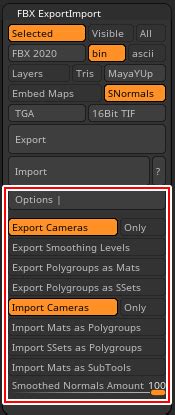
The format in which your FBX files are exported can also play a role in Substance Painter's ability to load them. If you are exporting your FBX files using the ASCII format, it is recommended to try using the Binary format instead. ASCII FBX files can significantly increase file size due to their text-based nature, which can become unreasonably high and may be something Substance Painter struggles to process efficiently or at all. Binary FBX files are more compact and generally preferred for performance and compatibility reasons in game development and 3D texturing pipelines.
When exporting from software like Maya or ZBrush, look for the "File Type" or "Format" option within the FBX export dialog. Selecting "Binary" instead of "ASCII" is a straightforward change that can often resolve import issues related to file size and data integrity.
Software Updates and License Management
Beyond just Substance 3D Designer, it's crucial to ensure that all components of the Substance 3D Collection, including Substance Painter itself, are kept up-to-date. Software developers frequently release updates that include bug fixes, performance improvements, and support for newer file formats or features. An outdated version of Substance Painter might not be compatible with newer FBX versions or other project files.
Regularly check for updates for Substance Painter through your Adobe account or the Creative Cloud desktop application. Similarly, ensure that your operating system and any other relevant software in your pipeline (e.g., 3D modeling software, renderers) are also updated. Compatibility between different software versions is a dynamic aspect of 3D workflows, and staying current is often the simplest way to avoid a host of potential problems.
Workflow Considerations for Complex Scenes
For particularly complex characters or scenes, a methodical approach to importing and baking can prevent failures. If you're working with a character composed of numerous subtools, consider importing them into Substance Painter one by one or in small, logical groups rather than the entire character at once. This allows you to isolate potential issues with specific parts of the mesh.
The process of baking high-poly details onto a low-poly mesh is another critical step where problems can arise. Ensure that your naming conventions for high-poly and low-poly meshes are perfectly consistent, including the _HP and _LP suffixes if you are using them. Mismatched names are a frequent cause of baking errors, which can indirectly lead to scene loading problems if the baking process fails prematurely.
When dealing with very high polygon counts, as mentioned earlier, consider what level of detail is truly necessary for the baking process. Sometimes, a slightly decimated high-poly mesh is sufficient for baking accurate normals and other maps, significantly reducing the data Substance Painter needs to process.
Preparing Models for Substance 3D Painter in Blender | Adobe Substance 3D
System Resources and Background Processes
While less common, it's worth briefly considering system resources. Substance Painter, especially when dealing with high-resolution textures and complex 3D models, can be memory-intensive. If your system is running many other applications in the background, or if you have insufficient RAM, it could impact Substance Painter's ability to load and process large scenes. Closing unnecessary applications and ensuring your system has adequate resources can sometimes resolve performance-related loading issues.
By systematically addressing these potential causes â from software versions and graphics drivers to mesh complexity and export settings â you can effectively troubleshoot and resolve issues when Substance Painter fails to load your 3D scenes, ensuring a smoother and more productive texturing experience.