Embarking on the journey of learning Photoshop can be a gateway to creating impressive digital artwork. This powerful software, utilized by designers and photographers worldwide, offers a vast array of tools and techniques to transform your creative visions into reality. While the interface might initially appear complex, it is meticulously designed for efficiency, allowing for intricate manipulation of photos, textures, shapes, and line drawings.
Understanding the Photoshop Interface and Core Concepts
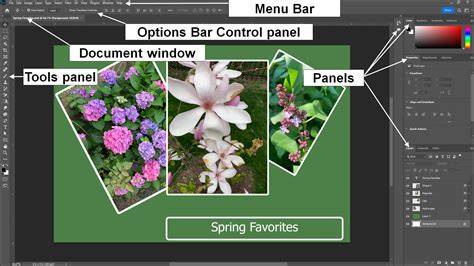
To effectively navigate Photoshop, understanding its fundamental components is crucial. The workspace is organized for optimal workflow. On the left side of the screen, you'll find the Tools panel, a collection of icons representing various editing functions. As you select a tool, the Options bar at the top of the screen dynamically updates to display relevant settings and controls for that specific tool. Photoshop's interface is also highly customizable; you can arrange panels and toolbars to suit your personal preferences and editing style, creating a workspace that feels intuitive and efficient.
At the heart of Photoshop's power lies the concept of layers. Think of layers as transparent sheets stacked upon one another. Each layer can contain distinct elements of your image, whether it's a portion of a photograph, text, a shape, or a texture. Working in layers offers immense flexibility, allowing you to add, adjust, or modify content on one layer without impacting the elements on the layers below. This non-destructive workflow is invaluable, as it enables you to easily undo or refine any changes you're not satisfied with.
To create a new layer, you can click the "Create a New Layer" button, typically found at the bottom of the Layers panel, or navigate to Layer > New > Layer from the top menu. The Layers panel itself is a central hub, displaying all the layers present in your document, their order, and their visibility. Within this panel, you can also manage layer styles, which allow you to add effects such as drop shadows, glows, or bevels to your layers.
Essential Tools for Beginners
Aspiring Photoshop experts must start somewhere, and for many, this begins with familiarizing themselves with the foundational tools. Beginner students often start by exploring the Photoshop interface, learning where to access tools, panels, and menus. Specific tools like the Brush Tool, Eraser Tool, and Pen Tool are essential for creating visually appealing and subtly retouched images.
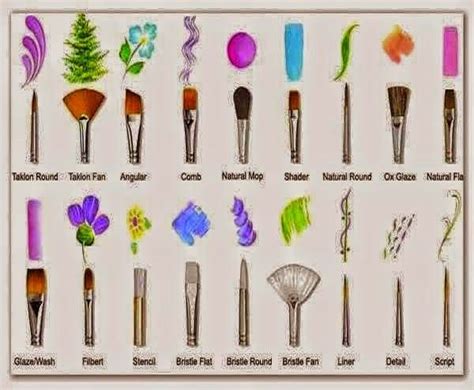
The Brush Tool is incredibly versatile, used for painting, erasing, and applying various effects. Photoshop comes with a vast library of preset brushes, and you can also create or download custom brushes to achieve unique artistic styles. The Eraser Tool functions as its name suggests, allowing you to remove pixels from a layer. The Pen Tool, while initially appearing intimidating, is crucial for creating precise selections and vector shapes. It allows you to draw paths with anchor points, which can then be converted into selections or used to create editable vector masks. Mastering the Pen Tool is key to achieving professional-looking results in many design tasks.
Getting Started with Your First Project
When you're ready to begin your first project, you'll need to import your image. Let's imagine you're creating a postcard from a beautiful beach photograph you've captured. To add your photo, simply drag and drop a JPEG or PNG file from your desktop directly into your Photoshop project. Once the image is in your project, it will appear as a new layer.
You can then reposition and resize this photo layer. Click and drag the corners or edges of the image to make it larger or smaller, adjusting it to fit your desired composition. Pressing Enter or Return will confirm your transformations. Photoshop often automatically converts imported rasterized images into Smart Object layers during this process. Smart Objects are crucial for maintaining image quality, as they allow you to transform and apply filters non-destructively.
Adding and Manipulating Elements with Layers
The power of layers becomes immediately apparent when you want to add new elements to your composition. To add a cartoon umbrella or perhaps a shark in the water to your beach scene, you can simply create a new layer and paint or draw directly onto it. This ensures that your additions are separate from the background beach photo, allowing for easy adjustments or removal.
You can also add other images, textures, or colors to individual layers without affecting the content in the layers below. This modular approach to image creation is fundamental to efficient Photoshop workflow.
Advanced Techniques for Enhanced Editing
As you become more comfortable with the basics, you'll want to explore more advanced techniques that can elevate your work.
Layer Masks: The Art of Non-Destructive Editing
A layer mask is a powerful tool that allows you to control what parts of a layer are visible and what parts are hidden, without permanently erasing any pixels. Imagine you want to add a person who wasn't originally in your beach postcard photo. You would drag and drop a photo of the person onto your project, creating a new layer for them.
To integrate this person seamlessly, you'll use a layer mask. First, click on the layer containing your subject (the person you want to add) in the Layers panel. Then, select your subject by clicking "Select Subject" in the options bar. Photoshop's AI will attempt to automatically select the most prominent subject in the image. Once selected, click the "Add Layer Mask" button at the bottom of the Layers panel. A layer mask thumbnail will appear next to your image thumbnail in the Layers panel.
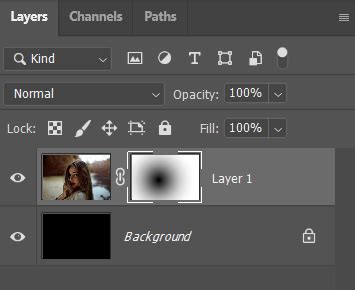
The layer mask works with black and white. Painting with black on the mask will hide parts of the layer, while painting with white will reveal them. Grays will create semi-transparency. This allows you to precisely blend your added person into the beach scene. You can refine your selection using the "Add" or "Subtract" buttons on the mask, or utilize tools like "Refine Hair" for complex edges.
Removing Unwanted Elements
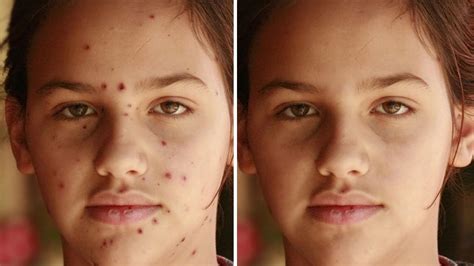
One of the most common and useful applications of Photoshop is removing unwanted elements from your pictures, such as garbage bins, power lines, or photobombers. The Spot Healing Brush tool is particularly effective for this. Select the Spot Healing Brush tool from the Tools panel (or press the J key). In the options bar, you can adjust the size and hardness of the brush. Then, simply click or paint over the blemish or object you want to remove, and Photoshop will intelligently blend the area with the surrounding pixels.
For more complex removals or to clone specific textures from one area to another, the Clone Stamp Tool is invaluable. It allows you to sample pixels from a source area and paint them onto a target area, effectively copying and pasting parts of the image.
Working with Text
Adding text to your designs is straightforward with the Type Tool. Click on the image where you want to place your text, and a new text layer will be created. You can then type your desired words. To make style changes, highlight the text and use the options in the Options bar or the Character panel to adjust the font, size, color, alignment, and spacing.
Leveraging Neural Filters for AI-Powered Edits
Photoshop's Neural Filters are a groundbreaking feature that harnesses the power of Adobe Sensei AI technology to perform quick, automatic edits. To access these filters, navigate to Filter > Neural Filters from the top menu. If a filter you wish to use isn't already installed, you'll be prompted to download it. Once applied, you can adjust the filter's settings to achieve your desired outcome. These filters can automate tasks like colorizing black and white photos, smoothing skin, changing facial expressions, or even generating entirely new elements based on your input.
Photoshop's Neural Filters are dumb
Paths to Learning Photoshop
There are numerous avenues for individuals eager to learn Photoshop, catering to various learning styles and commitment levels.
Self-Study and Online Resources
For those who prefer to learn at their own pace, a wealth of free and paid resources are available. Many creators generously share their projects and impart knowledge through online tutorials, videos, and blogs. YouTube is an excellent platform for finding educational content, from beginner introductions to advanced technique breakdowns. Adobe itself offers a free "Get Started" course, perfect for absolute beginners, and many other video tutorials for Photoshop CC. Websites like Phlearn also provide comprehensive beginner's guides.
In addition to video content, online communities and discussion boards can be invaluable for seeking advice, sharing your work, and learning from others' experiences. Local libraries often provide access to books and tutorials, and sometimes even free lectures, which can be a great starting point.
Structured Learning: Courses and Bootcamps
For a more structured and guided learning experience, enrolling in a live course, bootcamp, or workshop is highly recommended. These programs provide direct instruction, hands-on practice, and invaluable feedback from experienced instructors.
Live Photoshop Training for Beginners is arguably the most effective method for beginners to acquire the skills necessary for professional advancement. Whether in-person or live online, these courses offer direct interaction with instructors, allowing for real-time questions and personalized guidance. This interaction is pivotal, providing the support needed to overcome challenges and solidify understanding. Most training centers also offer additional benefits, such as payment plans, setup assistance, and the opportunity to retake the course for free within a certain period.
Noble Desktop offers a comprehensive suite of Photoshop training options:
- Adobe Photoshop Bootcamp: This 18-hour course covers the essentials of image editing and design, including image manipulation, working with text, applying filters, and navigating the interface. Participants receive feedback on hands-on projects and benefit from setup assistance and a free retake.
- Photoshop Advanced: Designed for those with prior experience, this 12-hour class delves into more refined techniques such as photo retouching, advanced masking methods, channel selections, and complex color grading. It also introduces generative AI features.
- Photoshop Masterclass: Spanning 30 hours, this masterclass guides students from beginner to expert, focusing on realistic professional projects like retouching, visual effects, color correction, and advanced mask and layer usage, including the Pen Tool for vector masks.
- Digital Design Certificate: This extensive 138-hour program offers an all-encompassing digital design education, incorporating Photoshop alongside other Adobe Creative Cloud applications like Illustrator and InDesign. It covers vector graphics, photo retouching, page layout, and even web design fundamentals using HTML and CSS.
The structured curriculum, demonstrations, in-depth explanations, and direct software experience provided by live training make it an exceptional way for beginners to grow into proficient users.
The Next Steps in Your Photoshop Journey
After completing a beginner course, the path forward involves continuous learning and skill diversification. To progress towards professional proficiency, you should actively explore different tools, techniques, and emerging trends. Expanding your portfolio with more advanced or polished images is also crucial. Collaborating with other creatives can offer new perspectives and learning opportunities.
Consider specializing in a particular area, such as 3D design, portrait photography, or digital illustration, and dedicating time to mastering it. Staying updated with the latest Photoshop software updates is also essential, as Adobe frequently introduces new features and improvements.
Advanced Learning and Specialization
The natural progression after foundational training is to enroll in more advanced classes, bootcamps, and certificate courses. These programs focus on complex techniques and tools, refining your images to a professional caliber. Depending on your career aspirations, you might choose to learn 3D design, digital illustration, or explore other Adobe Creative Cloud applications that complement Photoshop, such as Illustrator for vector graphics or InDesign for page layout.
The portfolio development and career advancement opportunities provided by professional training are significant. With the guidance of a skilled instructor, you can prepare for employment in fields like photography, graphic design, digital design, and marketing. You may also choose to become a freelance professional or launch a side business in photo editing. Even for personal projects, the advanced skills acquired can be immensely rewarding.
Practicing and Experimenting
Regardless of your chosen learning path, consistent practice and experimentation are key to mastering Photoshop. Work on small projects to apply what you've learned, and gradually progress to more complex ones. Don't be afraid to experiment with new tools and techniques; this is how you'll discover your unique style and improve your skills.
When learning Photoshop, start with simple projects and work your way up to more complex ones. The time it takes to become proficient varies for each individual, with some mastering the software in a few weeks and others taking several months. The journey of learning Photoshop is ongoing, filled with continuous discovery and creative potential.