It's a moment of mild panic, isn't it? You're deep in a Photoshop project, ready to grab that trusty brush or the precise selection tool, and… poof! It's gone. The toolbar, that essential strip of icons, seems to have vanished into thin air. This common predicament, where essential Photoshop tools disappear, can bring creative momentum to an abrupt halt. However, understanding the underlying mechanisms of Photoshop's interface and its customization options can quickly resolve this issue, allowing you to return to your work without further disruption. The flexibility of Photoshop is one of its greatest strengths, and this adaptability extends to its toolbar configurations.
The Customizable Nature of Photoshop's Toolbar
Photoshop is wonderfully flexible, and that flexibility extends to its toolbars. You can actually customize which tools appear, and these settings are saved as part of your preferences and your workspace. This is usually a good thing, allowing you to tailor Photoshop to your specific workflow. The ability to hide or show specific tools can declutter the interface, presenting only those most relevant to a particular task. This personalization is a key feature that empowers users to create an environment optimized for efficiency. However, this same customization can inadvertently lead to the disappearance of tools if not managed carefully. Understanding how these settings are saved and applied is crucial for troubleshooting.
Common Scenarios Leading to Missing Tools
Several common scenarios can lead to the perplexing disappearance of your Photoshop toolbar. One frequent culprit is the process of updating Photoshop. When you install a new version and opt to save your preferences or workspace settings, the toolbar might not automatically include the very latest tools that have been introduced in that update. New features are often added, and if your saved configuration predates their introduction, they won't appear by default.
Another frequent cause is simply switching workspaces. Photoshop offers different pre-set workspaces (like 'Photography,' 'Graphic and Web,' or 'Painting') designed for specific tasks. Each workspace is pre-configured with a set of tools deemed most useful for that particular discipline. If you've jumped from one workspace to another, you might find yourself in a setup where certain tools you're accustomed to aren't visible by default because they are not part of that specific workspace's default configuration. For instance, a workspace optimized for photography might hide advanced 3D tools, or a painting workspace might not prominently feature tools typically used for web design.
The Simplest Solution: Resetting Your Workspace
Often, the simplest solution to a missing toolbar is to reset your current workspace. This action restores the workspace to its default configuration, which should bring back all standard tools. To do this, navigate to the menu bar at the top of your Photoshop window. Click on 'Window,' then hover over 'Workspace.' From there, you should see an option to 'Reset [Your Current Workspace Name].' For example, if you are currently in the 'Photography' workspace, the option will read 'Reset Photography.' This is a quick and effective way to revert to a known, functional state.
How to Reset Photoshop Default Preferences & Settings in 56 Seconds
Accessing the Tool Gallery for Granular Control
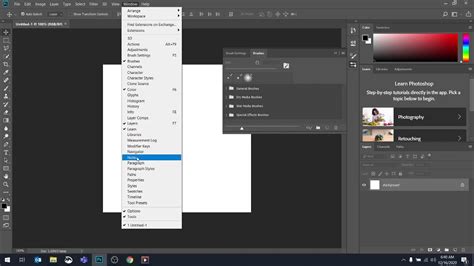
If resetting your workspace doesn't quite do the trick, or if you're looking for a more granular approach to managing your tools, Photoshop has a dedicated tool gallery. This panel lists all available tools, allowing you to selectively choose which ones you want to be visible in your main toolbar. To access this powerful feature, go to the 'Window' menu and select 'Tools.'
The 'Tools' panel displays a comprehensive list of every tool available in Photoshop. Each tool can be toggled on or off for visibility in the main toolbar. This is where you can go if a specific tool seems to be missing and you want to ensure it's enabled. You can scroll through the list, identify the tool you need, and ensure its checkbox is ticked. This panel is exceptionally useful for users who have customized their toolbars extensively and want to reintroduce specific functionalities.
Advanced Customization: Editing the Toolbar Directly
For those who like to have complete control over their interface, Photoshop offers the ability to directly edit your toolbar. This is a more hands-on approach that allows for deep customization. To access this editing mode, right-click on any visible tool in the toolbar itself. This action will bring up a contextual menu. Within this menu, you'll find an option to 'Edit Toolbar.'
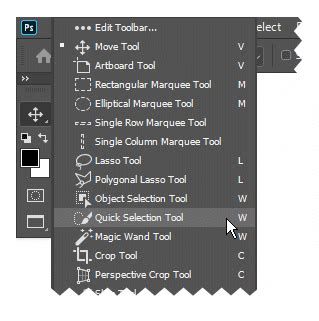
Clicking 'Edit Toolbar' opens a dialog box that presents a comprehensive list of all Photoshop tools, categorized for easier management. You can drag and drop tools from the 'Extra Tools' section into your main toolbar, or rearrange the order of existing tools within the toolbar. You can also remove tools you rarely use to keep your toolbar streamlined. This level of control allows you to create a truly personalized tool palette, ensuring that the tools you use most frequently are always at your fingertips, while less common ones are easily accessible via the 'Edit Toolbar' dialog. This feature is invaluable for power users who have developed highly specific workflows.
Ensuring You Have the Latest Updates
While updates can sometimes cause this issue by not properly migrating settings, it's also worth ensuring you're on the latest version of Photoshop. Sometimes, bugs that cause tools to disappear are fixed in subsequent patches and minor updates. Adobe regularly releases updates that address known issues and introduce performance improvements. If you suspect a bug might be the cause, checking for and installing the latest available version of Photoshop can often resolve the problem. To check for updates, go to the 'Help' menu and select 'Updates.'
Thinking Beyond the Obvious: Edge Cases and Deeper Issues
While the common solutions usually suffice, it's worth considering some less frequent, yet possible, scenarios. Corrupted preference files can sometimes lead to unpredictable behavior within Photoshop, including the disappearance of interface elements. If resetting the workspace and checking the tool gallery haven't resolved the issue, you might consider resetting your Photoshop preferences. This is a more drastic step, as it will revert all your custom settings back to their defaults, but it can resolve deeper-seated configuration problems. To do this, you typically hold down Ctrl+Alt+Shift (Windows) or Cmd+Option+Shift (macOS) immediately after launching Photoshop. The application will prompt you to confirm that you want to delete the settings file.
Another, albeit rare, possibility is a conflict with third-party plugins or extensions that might be interacting with the Photoshop interface in an unintended way. If you have recently installed any new plugins, try disabling them temporarily to see if the toolbar reappears. This can be a process of elimination to identify if an external piece of software is the root cause.
Furthermore, consider the possibility of a corrupted installation. While uncommon, if the Photoshop application files themselves have become damaged, it could lead to various interface malfunctions. In such cases, a clean reinstallation of Photoshop might be necessary. This involves completely uninstalling the application, ensuring all related files and folders are removed, and then performing a fresh installation.
Finally, always ensure your operating system is up-to-date and that your graphics card drivers are current. Outdated drivers can sometimes cause rendering issues within applications like Photoshop, which might manifest as missing interface elements. Regularly updating your system software and drivers is a good practice for maintaining overall software stability and compatibility.
Don't let a disappearing toolbar derail your creative flow. By understanding the customizable nature of Photoshop's interface and systematically working through these troubleshooting steps, you can swiftly restore your essential tools and get back to creating.
tags: #tools #disappeared #photoshop