VSCO, a platform renowned for its professional photo editing tools and vibrant creative community, offers a robust search feature that allows users to discover inspiration, connect with fellow photographers, and explore a vast array of visual content. However, a common point of inquiry revolves around the accessibility of this search functionality, particularly for those who are not registered members of the VSCO community. This article aims to demystify the requirements for utilizing VSCO's search capabilities, explore the privacy settings that govern profile visibility, and shed light on how creators can manage their presence within the platform.
The Core Requirement: A VSCO Account for Full Community Access
At the heart of VSCO's operational philosophy lies a commitment to community safety and the protection of intellectual property. To ensure that content posted on VSCO is safeguarded from misuse and to maintain a secure environment for its users, a VSCO account is a prerequisite for full engagement with the community, including the utilization of its search features. This policy is in place to foster a reliable and trustworthy space where creators can share their work with confidence.
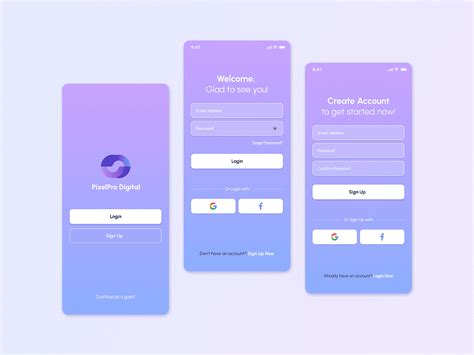
The platform acknowledges that some creators may wish to share their VSCO profiles with a wider audience, including individuals who do not possess a VSCO account. To accommodate this, VSCO has implemented profile customization options that empower members to control the visibility of their content to non-account holders. This nuanced approach aims to balance the need for a secure, account-gated community with the desire for broader content dissemination.
Navigating VSCO Search: What You Can Discover
When logged into a VSCO account, the search functionality opens up a world of possibilities. Users can actively search for creators, specific images, or informative blogs by employing keywords or relevant hashtags. This powerful tool is designed to help individuals find inspiration that resonates with their artistic sensibilities, to develop and refine their unique photographic style, and to forge meaningful connections with other creators who share similar ambitions and creative pursuits. Furthermore, it serves as a gateway to discovering new opportunities within VSCO's extensive global community, which comprises millions of photographers from diverse backgrounds and skill levels.
Developing a Photography Practice — VSCO Creator Sessions
The platform emphasizes that VSCO search is not merely a passive browsing tool but an active component of a photographer's journey. It can be instrumental in making meaningful connections with other creators, thereby fostering a collaborative and supportive ecosystem. By engaging with the search feature, photographers can expand their network, gain new perspectives, and potentially uncover avenues for career growth and development.
Understanding Profile Visibility and Viewer Access
For creators who wish to extend their reach beyond the VSCO community, VSCO offers specific settings to manage profile visibility for users without an account. This feature, however, is contingent upon upgrading to a Plus or Pro membership and is currently available exclusively on iOS devices.
Accessing Profile Customization Features (iOS):
- Navigate to the Profile Section: Upon opening the VSCO mobile application, locate and tap on the "Profile" section icon, typically found in the bottom navigation bar.
- Initiate Profile Editing: Within the Profile section, tap on the "Edit" option.
- Locate Viewer Access Settings: Scroll down the editing page until you find the "Viewer Access" section.
- Toggle Visibility: Here, you will find a toggle switch. By default, this toggle is set to "off," meaning users without a VSCO account cannot view your profile. You can toggle this setting "on" or "off" to allow or disallow non-account holders to view your profile, respectively.
Accessing Profile Customization Features (Desktop):
While the primary control for viewer access is on the mobile app, the desktop experience also offers profile management capabilities.
- Visit VSCO.co: Open a web browser and navigate to the official VSCO website at vsco.co.
- Access Profile Section: Log in to your account and select the "Profile" section.
- Edit Profile: Click on the "Edit Profile" option.
- Select Profile Icon: Within the editing interface, select the "Profile" icon.
- Locate Viewer Access: Scroll down to find the "Viewer Access" section.
- Toggle Visibility: Similar to the mobile app, you will find a toggle to allow or disallow users without a VSCO account to view your profile.
It is important to note that the ability to control viewer access for non-account holders is a premium feature, underscoring VSCO's strategy of offering enhanced functionalities to its paying members.
Safety First: The Rationale Behind Account Requirements
VSCO's unwavering commitment to safety is the driving force behind its policy requiring an account for full community access and search functionality. This measure is designed to create a more controlled and secure environment, minimizing the potential for harassment, spam, and other forms of misuse. By verifying users through account creation, VSCO aims to foster a more respectful and constructive community space.
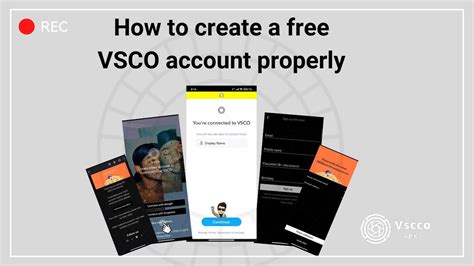
For individuals who are not yet VSCO members but are eager to explore what the community has to offer, VSCO provides resources such as an article on "How to create a VSCO account." This proactive approach ensures that prospective members have a clear pathway to join and engage with the platform.
Frequently Asked Questions: Clarifying VSCO's Policies
Can anyone search on VSCO?
No, for the safety and integrity of the VSCO Community, a VSCO account is required to utilize the search feature. If you are not yet a member, you can learn how to create an account to access the full range of community features.
Can I remove myself from search results?
Currently, VSCO does not offer a direct feature for private profiles or the ability to completely remove oneself from all search results. However, for content that you prefer not to appear in general searches, VSCO offers a "Private Spaces" feature. This allows you to post content within a more controlled environment, separate from public search visibility.
If I block someone, can they still search my profile?
When you block another creator on VSCO, they are prevented from performing several actions. They cannot follow you, send you messages, join any "Spaces" you have created, view content directly on your profile, or interact with your content anywhere on the platform. Blocking is a comprehensive measure to ensure your privacy and control over interactions.
Managing Your VSCO Account and Settings
VSCO provides users with a comprehensive suite of tools to manage their account preferences, privacy controls, storage, and overall settings. These controls are primarily accessible within the VSCO App, with some limited functionalities available on the web.
Key Areas for Settings Management:
There are two main areas within the global navigation menu where settings are located:
Settings: This section governs the app's behavior, synchronization processes, appearance, and various account-related actions. Within Settings, you can manage:
- Preferences: This includes options for app behavior, notifications, and other user-specific adjustments.
- Sync: Controls how your data is synchronized across devices.
- Appearance: Allows customization of the app's visual theme.
- Account: Provides access to account-specific information and actions.
- Privacy & Data: This crucial section controls how location data is handled, including options to:
- Keep Location Data: Determines whether location information is stored with your photos.
- Share Location Data When Exporting: Allows you to choose whether to include location data when sharing your edited images outside of VSCO.
Privacy & Data: As mentioned above, this section is dedicated to managing location data, offering granular control over its storage and sharing.
VSCO Settings on Web:
While the VSCO App is the primary hub for most settings management, the web interface offers some essential account functions. On your Account page at vsco.co, you can:
- Change your password.
- Delete your account.
Frequently Asked Questions about Settings:
Can I manage all my settings on the web?
No, the majority of settings, including Preferences, Sync, Appearance, and Privacy & Data controls, are exclusively available within the VSCO App. The web interface is primarily for account security (password changes) and account deletion.
Where do I manage push notifications?
To manage push notifications, open the VSCO App, navigate to "Settings," and then adjust the "Push Notifications" toggle under the "Preferences" section.
What happens when I sign out of all devices?
Selecting the "Sign Out of All Devices" option will immediately log your VSCO account out from every device where you are currently signed in. This is a useful security measure if you suspect unauthorized access or wish to ensure your account is secure across all your logged-in devices.
In conclusion, while VSCO prioritizes a secure, account-gated community for its core features like search, it also provides avenues for creators to manage their profile visibility and engage with a broader audience through premium features. Understanding these settings and policies is key to maximizing the VSCO experience, whether you are a seasoned professional or an aspiring photographer.