Many photographers, especially those just starting their journey into digital image creation, often find themselves at a crossroads when faced with Adobe's powerful software offerings: Photoshop and Lightroom. The confusion is understandable, as both are essential tools in the digital photographer's arsenal, yet they serve distinct purposes and possess unique strengths. This article aims to demystify the differences between Lightroom and Photoshop, detailing what each is used for, what capabilities each offers that the other lacks, and ultimately, how to choose the right tool for your photographic endeavors.
What is Photoshop?
Originally conceived in 1990 as a tool for straightforward image editing, Adobe Photoshop has evolved into a comprehensive and sophisticated software suite. Its capabilities extend far beyond basic photo adjustments, encompassing a vast array of functions that cater to a diverse user base. Photoshop is not solely for photographers; it is a critical application for graphic designers, animators, publishers, architects, and even 3D artists. Its versatility makes it a cornerstone of creative industries.
One of the key distinctions of Photoshop is its inherent lack of built-in image organization features. While there are supplementary tools available for this purpose, Photoshop itself does not function as a digital asset management system. However, once an image is opened within Photoshop, the potential for manipulation is virtually limitless.
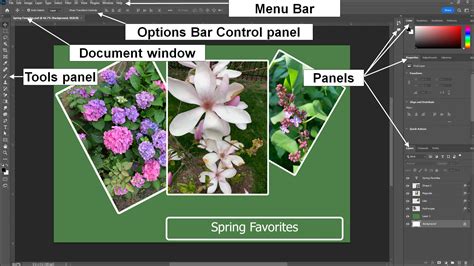
Photoshop can certainly handle basic photo edits with relative ease. Its true strength, however, lies in complex image manipulation and advanced local editing. Whether the goal is to stitch together multiple photographs into a single composite image, meticulously remove unwanted elements from a photograph, or create intricate digital illustrations for various publications, Photoshop is the go-to solution. The very phrase "Photoshopped" has entered our common lexicon, a testament to the software's profound ability to alter images, sometimes to the point of appearing realistic while being entirely fabricated. This power, for better or worse, defines Photoshop's impact on visual culture.
What is Lightroom?
Adobe Lightroom, on the other hand, is a program specifically designed for the development and organization of images captured by digital cameras, with a particular emphasis on RAW files. While it possesses excellent editing capabilities that address the vast majority of photographic needs, these are not as extensive or as geared towards graphic design and complex manipulation as Photoshop's tools.
Lightroom's popularity among photographers, often surpassing that of Photoshop, stems from several key strengths. Foremost among these is its exceptional cataloging and organization functionality. Lightroom provides extensive tools for managing photo libraries, making it easy to locate specific images later. Users can sort photos based on their EXIF data, which includes information such as camera make and model, date and time of capture, aperture, shutter speed, ISO, and much more. Furthermore, Lightroom allows for the creation of custom folders and collections, enabling photographers to group images in any way they see fit for projects or shoots.
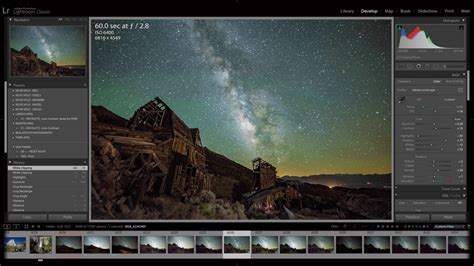
Beyond its organizational prowess, Lightroom's post-processing features are robust, though not as dramatically transformative as Photoshop's. These features are continuously evolving and are sufficient for 99% of typical photographic editing requirements. A significant advantage of Lightroom is its "non-destructive" editing approach. All edits are stored separately from the original file, allowing users to revisit and modify them at any point without permanently altering the source image. This flexibility ensures that the original data is always preserved.
It is important to note that Adobe offers two primary versions of Lightroom: Lightroom Classic and Lightroom (formerly known as Lightroom CC). Most professional photographers opt for Lightroom Classic, the desktop-centric version that stores files locally. The cloud-based "Lightroom" is designed for multi-device synchronization and has a more streamlined feature set, making it ideal for mobile workflows. While this article primarily focuses on Lightroom Classic, the principles discussed largely apply to the cloud-based version as well.
Lightroom's Image Editing Capabilities
Adobe Lightroom boasts an extensive suite of post-processing tools meticulously crafted to transform raw image data into polished, final images suitable for display or printing. It also efficiently handles JPEG, HEIC, PNG, PSD, and TIFF files. The core editing power resides within Lightroom Classic's Develop Module, with nearly identical tools available in the cloud-based Lightroom.
The Develop Module offers a comprehensive array of tools, including:
- Histogram and Tools Sub-Modules: A visual representation of tonal distribution, alongside tools for cropping and straightening images, removing spots and red-eye, and advanced selection capabilities such as the Graduated Filter, Radial Filter, Adjustment Brush, and Custom Masks.
- Basic Sub-Module Treatment: This foundational panel allows for adjustments to color and black and white conversion, application of camera profiles, white balance correction (Temperature and Tint), and tonal adjustments (Exposure, Contrast, Highlights, Shadows, Whites, and Blacks). It also includes presence adjustments like Texture, Clarity, Dehaze, Vibrance, and Saturation.
- Tone Curve Sub-Module: Offers both Parametric and Point Curve adjustments, with dedicated control over Red, Green, and Blue channels. It also includes a Region tool for fine-tuning Highlights, Lights, Darks, and Shadows.
- Color Mixer Sub-Module: Provides granular control over Hue, Saturation, and Luminance for individual colors.
- Color Grading Sub-Module: Enables sophisticated color adjustments for Midtones, Shadows, and Highlights, controlling Hue, Saturation, and Luminance.
- Detail Sub-Module: Focuses on Sharpening (Amount, Radius, Detail, Masking) and noise reduction, including AI-Powered "Denoise" and manual noise reduction options for Luminance and Color.
- Lens Corrections Sub-Module: Automatically removes chromatic aberration and enables profile corrections based on lens data. Manual options include distortion correction, defringe, and vignetting.
- Transform Sub-Module: Offers Auto Transform, as well as manual adjustments for Vertical, Horizontal, Rotate, Aspect, Scale, and X/Y Offset to correct perspective and tilt.
- Effects Sub-Module: Includes Post-Crop Vignetting (Style, Amount, Midpoint, Roundness, Feather, Highlights) and Grain (Amount, Size, Roughness) for creative effects.
- Camera Calibration Sub-Module: Allows for adjustments to Process Version and the Tint of Shadows, along with Hue and Saturation controls for Red, Green, and Blue primary color channels.
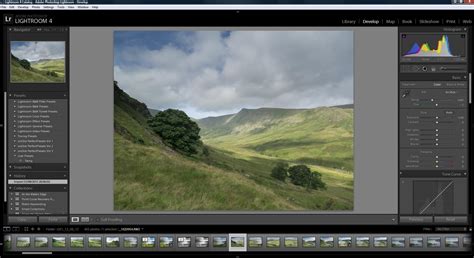
This extensive list underscores Lightroom's power in refining images, from fundamental exposure and color adjustments to correcting complex lens-specific issues like barrel distortion. The Basic panel, in particular, forms the backbone of most image editing workflows within Lightroom.
Beyond these core editing tools, Lightroom includes dedicated modules for creating slideshows, preparing images for printing, exporting image galleries for the web, and even geolocating images on a map. While many photographers may overlook these tangential features, they can prove invaluable for specific workflows.
Photoshopâs Image Editing Capabilities
The extensive list of Lightroom's editing tools might seem comprehensive, but it's important to note that Photoshop can perform all of these same adjustments and more. Within Photoshop, there is a powerful feature called "Camera Raw," accessible via "Filter > Camera Raw Filter" in the top menu. This filter effectively mirrors Lightroom's entire suite of adjustment options, albeit with a slightly different interface. Therefore, any edit achievable in Lightroom can also be executed in Photoshop.
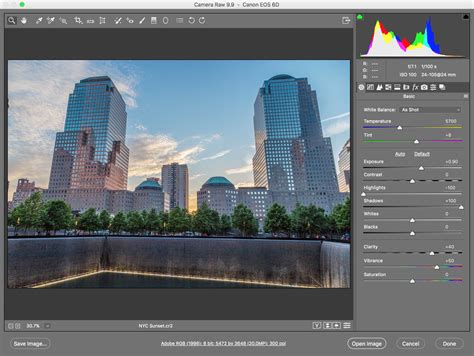
However, this is merely the starting point for Photoshop's capabilities. It significantly surpasses Lightroom in terms of local editing precision and extends into the realms of graphic design and digital art. Photoshop's layer-based system is a fundamental difference, allowing users to combine multiple images and adjustments in a multitude of ways. This enables highly complex manipulations, such as seamlessly replacing one subject with another, for instance, swapping a cat for a dog. Essentially, for any task requiring intricate, localized edits, such as adding or removing objects with a high degree of control, Photoshop is the definitive tool, whereas Lightroom is not designed for such deep-level manipulation.
A more recent and powerful addition to Photoshop, which is absent in Lightroom, is its suite of generative AI tools. These advanced AI features offer unprecedented creative possibilities for image generation and manipulation.
Some photographers integrate Adobe Bridge with Photoshop to manage their image libraries, acknowledging Photoshop's lack of native organizational tools. While Bridge offers decent file management capabilities, it functions more as an extension of the operating system's file structure rather than a dedicated database or catalog system. In contrast, Lightroom's strength lies in its ability to search for images and organize them into collections with unparalleled efficiency. Photographers accustomed to Adobe Bridge often find Lightroom to be a significant upgrade in terms of workflow and ease of use for managing large image libraries.
Which to Start With â Lightroom or Photoshop?
The crucial question for many beginners is whether to begin with Lightroom or Photoshop. Given that all of Lightroom's image manipulation tools are present within Photoshop, it might seem logical to simply start with the latter. However, for the vast majority of photographers, starting with Lightroom is the recommended path for several compelling reasons:
- Ease of Learning and Specialized Interface: Lightroom is significantly easier to learn than Photoshop. Its user interface is specifically designed for photo organization and editing, making it intuitive and efficient for photographers.
- Comprehensive Editing Power: Lightroom provides an extensive array of post-processing tools that are more than adequate for 99% of photographic editing needs.
- Robust Workflow and Organization: Lightroom establishes a solid foundation for a photography workflow, emphasizing organization from the outset. This is crucial for managing large volumes of images.
- Efficiency in Batch Processing: Lightroom excels at processing large numbers of photos quickly. For instance, you can copy white balance corrections from one image to hundreds of others from the same shoot and then easily revert these changes if needed. This batch editing capability is a major time-saver.
- Non-Destructive Editing: As mentioned, Lightroom's edits are non-destructive, meaning the original file is never permanently altered. This provides immense flexibility, allowing you to undo or modify edits at any time. Photoshop, while capable of non-destructive editing through layers and smart objects, also has a strong destructive editing component, especially when working with standard pixel layers.
- Seamless Integration: If you find yourself needing Photoshop's advanced capabilities, the workflow is seamless. You can right-click an image in Lightroom and select "Edit In > Edit in Adobe Photoshop." Once edits are completed in Photoshop, saving the file automatically updates the image back in Lightroom, preserving the non-destructive workflow.
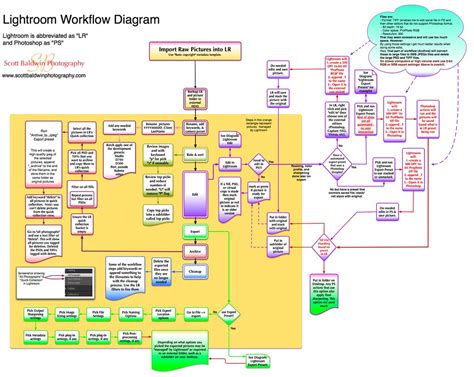
While these are the primary advantages, Lightroom offers further benefits. However, there are specific scenarios where Photoshop is indispensable due to its unique functionalities. For this reason, the most effective approach for most photographers is to use Lightroom and Photoshop in tandem. Lightroom serves as the primary tool for organizing photos and performing the majority of edits. Photoshop then becomes the specialized tool for tasks requiring layers, compositing multiple images, or executing complex local adjustments.
Lightroom vs Photoshop for Photo Editing | Adobe Photography Basics
Which One to Buy
Adobe's primary distribution model for Photoshop and Lightroom is through subscription-based plans, most notably the Photography Plan. Purchasing them separately does not typically offer a price advantage. Therefore, the question of "which one to buy" often becomes moot, as most photographers will eventually acquire both through a bundled plan.
While Adobe's subscription model has faced criticism, it remains the standard offering. The Photography Plan, which includes Photoshop, Lightroom Classic, and Lightroom, is generally the most cost-effective way to access these powerful tools.
Ultimately, reliable and efficient software is paramount for any photographer. Lightroom effectively covers nearly all organizational and editing needs for the majority of photographers. However, when the need arises for more complex blending, advanced local adjustments, or graphic design work, Photoshop stands ready to provide the necessary capabilities. Understanding the distinct roles of each application allows photographers to design a workflow that best suits their creative vision and project requirements, often leading to the realization that the most powerful solution involves leveraging the strengths of both.