DaVinci Resolve, a powerhouse in post-production, offers a robust environment for video editing, color grading, visual effects, and audio post-production. A key component that significantly expands its creative capabilities is the OpenFX (OFX) plug-in architecture. OpenFX provides an open standard for visual effects plug-ins, allowing third-party effects to seamlessly integrate into DaVinci Resolve. This open approach fosters a rich ecosystem of tools, empowering users to achieve a vast array of visual styles and enhancements.
Understanding the OpenFX Standard in DaVinci Resolve
At its core, OpenFX in DaVinci Resolve refers to a standard for visual effects plug-ins. This standard enables third-party developers to create plug-ins that are not confined to a single host application but can be utilized across multiple software platforms. For DaVinci Resolve users, this translates into the ability to incorporate a diverse range of special effects into their video projects, sourced from various independent companies. The "open" nature of the OpenFX standard means it is not proprietary to any single entity, making it freely accessible for use. This inclusivity actively encourages a broad spectrum of developers to contribute to the plug-in landscape, resulting in a rich and varied selection of effects available for integration with DaVinci Resolve. The inherent design of the OpenFX standard ensures that these plug-ins maintain compatibility and can be easily incorporated into the DaVinci Resolve workflow.
OpenFX is an open, cross-platform plugin system. It not only allows Resolve to include many built-in ResolveFX plugins but also supports third-party plugins from developers such as Roboformfx, Redgiant, and others. Many beginners find themselves struggling with node operations and the practical application of plugins. This article aims to demystify how to effectively use OpenFX effects within DaVinci Resolve.
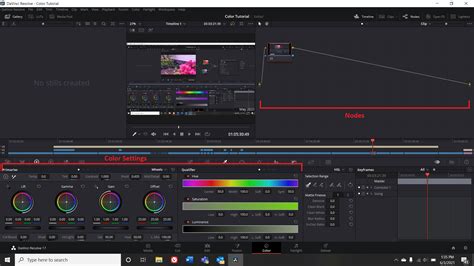
OpenFX plugins in DaVinci Resolve are primarily utilized within the Color page. This page is built around a node-based workflow, which is a fundamental requirement for the effective use of OpenFX. When a plugin is added, its influence is confined to the specific node it is placed on and any subsequent nodes in the chain. In essence, the placement of a plugin dictates which downstream nodes will inherit its effect. Therefore, the position of a plugin within the node tree directly determines the scope and application of the effect. Once the core concept of nodes is grasped, the utilization of OpenFX becomes much more intuitive.
Integrating and Utilizing OpenFX Plugins
The process of using OpenFX plugins within DaVinci Resolve is designed to be accessible, even for those new to the software's advanced features. To begin, it is essential to ensure that the desired OpenFX plugin is correctly installed on your system. Once installation is confirmed, accessing these plugins within DaVinci Resolve is straightforward. Navigate to the "Effects Library" tab, typically found in the upper-left quadrant of the DaVinci Resolve interface. Within the Effects Library, you will find a dedicated section for "OpenFX," which lists all currently installed and compatible plugins.
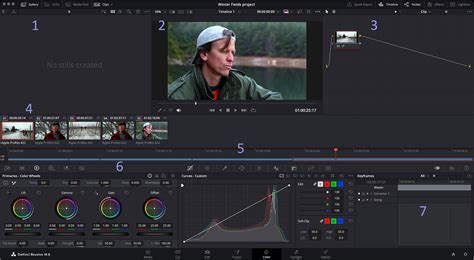
To apply an effect, the process is as simple as a drag-and-drop operation. Locate the desired OpenFX plugin in the Effects Library and drag it directly onto the clip within your timeline. For more granular control and integration with the node-based workflow, OpenFX plugins are most commonly applied to nodes on the Color page. You can drag and drop an effect onto an existing node or create a new, empty node specifically for it. Once an OpenFX plugin is added to a node, that node will display an "FX" icon, visually indicating the presence of an effect. For improved clarity, especially when working with multiple effects, it is highly recommended to right-click on the node, select "Node Label," and assign a descriptive name, such as the plugin's name.
After applying an OpenFX plugin to a node, the settings panel, typically located on the right side of the interface (often referred to as the OpenFX Inspector), will become active. This is where you can meticulously adjust the various parameters of the effect to achieve the desired visual outcome. For instance, a denoise plugin might offer controls for noise strength and processing range, while a film emulation plugin could provide adjustments for color temperature, grain, and tone.
A crucial tip for maintaining a smooth workflow, particularly when dealing with demanding effects, is to optimize your playback and rendering. If the preview performance diminishes after adjusting settings, avoid immediately lowering the image quality. Instead, consider enabling the render cache or, for more localized control, right-click the node and enable "Node Cache." This can significantly improve real-time feedback without compromising visual fidelity.
Beyond the initial application and adjustment, managing your plugins effectively is also an important aspect of the workflow. If an effect is not yielding the desired results or is causing unintended side effects, you can easily remove it by selecting the effect in the OpenFX Inspector and clicking the "Remove" button (often represented by a trash can icon). For plugins that you frequently use and wish to access quickly, DaVinci Resolve offers a "Favorites" system. You can mark a plugin as a favorite by clicking the star icon next to its name in the Effects Library. Later, you can access all your favorited plugins by opening the three-dot menu (…) on the right side of the Effects Library and selecting "Favorites."
Enhancing Workflow with Node Placement and Organization
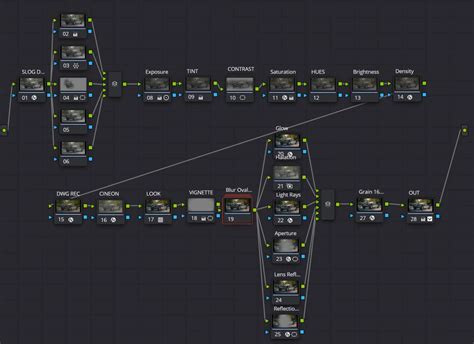
The strategic placement of OpenFX plugins within the node tree is paramount for controlling their impact and achieving a well-organized workflow. The order in which nodes are processed directly influences the final look of your footage. A best practice is to place "fixing" plugins-such as denoise, skin smoothing, and patch/repair tools-in the earlier nodes of your node tree. This allows these foundational corrections to be applied to the raw footage before more stylistic elements are introduced. Subsequently, "styling" plugins, including film emulations, color filters, and lighting effects, should be placed in later nodes. This approach ensures that the stylistic treatments are applied on top of a cleaned and corrected image, leading to more predictable and professional results.
How color nodes work in DaVinci Resolve [Beginners Guide]
Expanding Your Creative Arsenal with Additional OpenFX Plugins
The inherent flexibility of DaVinci Resolve extends to its ability to incorporate a vast array of third-party OpenFX plugins, allowing users to tailor the software to their specific creative needs. You can indeed add more OpenFX plugins to DaVinci Resolve, significantly broadening the spectrum of available effects and enhancements for your video projects.
To integrate new OpenFX plugins, the general process involves installing the plugin files into the designated OpenFX plugin directory on your computer. The exact location of this directory can vary depending on your operating system and the specific plugin, but it is usually clearly documented by the plugin vendor. Once the plugin files are correctly placed, they should automatically appear within the OpenFX library in DaVinci Resolve, ready for use.
However, it is crucial to exercise due diligence before installation. Not all OpenFX plugins are guaranteed to be compatible with every version of DaVinci Resolve. Therefore, it is highly recommended to verify the compatibility of a plugin with your specific DaVinci Resolve version before proceeding with the installation. Plugin vendors typically provide this information on their websites or within their product documentation. Failure to do so might result in the plugin not appearing in Resolve, causing errors, or even leading to software instability.
When you encounter a plugin that requires a purchase, and you have not yet acquired a license, DaVinci Resolve may display a red 'X' pattern on the viewer. This indicates that you are in a preview mode and can only observe the effect's potential without being able to render it officially. Purchasing the plugin will unlock its full functionality.
Popular OpenFX Plugin Collections
While DaVinci Resolve comes equipped with a growing library of built-in ResolveFX, the true power of OpenFX lies in the extensive third-party offerings. These can dramatically enhance your creative toolkit:
ResolveFX: DaVinci Resolve Studio, the paid version of the software, includes a comprehensive suite of ResolveFX filters optimized for efficient playback and GPU acceleration. These filters cover a wide range of needs, from color correction and stylization to advanced image processing. Each ResolveFX filter features a "Global Blend" setting, allowing you to control the intensity of the effect and achieve a more natural integration with your footage.
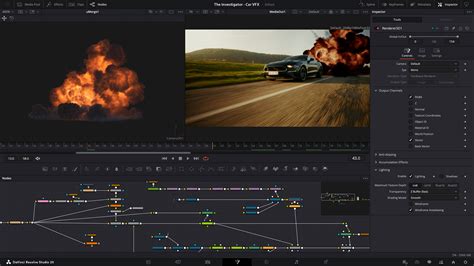
Red Giant Universe: This popular collection offers a vast array of video transition and effects plugins designed for editors and motion graphic artists. Universe boasts a continuously expanding library of effects and presets, providing tools for everything from stylized looks and transitions to complex visual elements. The plugins are known for their user-friendliness and GPU acceleration.
Boris FX Sapphire: Sapphire plugins are renowned for their robust visual effects and transition capabilities. This extensive suite includes over 270 distinct effects and provides access to more than 3000 presets. It also features powerful effect and transition generators, offering a high degree of customization and creative control for professional visual effects work.
Other Notable Plugins: The world of OpenFX extends to numerous other specialized plugins. These can include tools for creating advanced 3D titles, generating particle effects, simulating vintage film looks, crafting realistic lighting effects, implementing picture-in-picture compositions, generating convincing lens flares, and simulating elements like smoke and fire. Many of these are fully GPU-accelerated, ensuring smooth performance.
Specialized OpenFX for Monitoring and Analysis
Beyond creative effects, OpenFX also plays a role in professional monitoring and signal analysis. For instance, Drastic Technologies has developed OpenFX plugins such as the FlowCaster Remote Monitoring plugin and the ScopeDirect Signal Analysis Tools plugin.
FlowCaster Remote Monitoring: This plugin offers a comprehensive set of collaboration, review, and approval tools for editors. It allows for the creation and export of session markers to and from Resolve, facilitating seamless communication within a post-production team. When FlowCaster is installed, it places an OpenFX plugin in the location where Resolve expects to find it. To use the FlowCaster plugin to send video from Resolve to a FlowCaster.live session, you would create a new meeting on the FlowCaster.live site, copy the Meeting ID, then run Resolve, add an Adjustment Clip, and place the FlowCaster plugin on it.
ScopeDirect Signal Analysis Tools: Plugins like 4KScope, HDRScope, and 2110Scope, which support ScopeDirect, also install an OpenFX plugin for DaVinci Resolve. These tools provide essential signal analysis capabilities, crucial for broadcast and high-end post-production workflows. Similar to FlowCaster, using these involves adding an Adjustment Clip and applying the respective DrasticScope plugin to it.
It is important to note that while Windows installations for these plugins often place them automatically, macOS users may need to add them manually by navigating to the application's contents and extracting the necessary zip files.
Troubleshooting and Best Practices for OpenFX Usage
While OpenFX offers immense flexibility, users may occasionally encounter issues. One such problem, reported by users, occurs when attaching an OpenFX plugin to a clip, potentially leading to unexpected behavior. While there's no single guaranteed fix, a systematic troubleshooting approach is often effective. Steps that have been found to resolve such issues include:
- Install the Latest Graphics Drivers: Outdated or corrupt graphics drivers are a common source of instability in video editing software. Ensuring you have the most recent drivers for your GPU is a critical first step.
- Clean Uninstall and Reinstall: A thorough uninstallation of DaVinci Resolve and all OpenFX plugins, followed by a fresh installation (with DaVinci Resolve installed first), can resolve conflicts and corrupted files.
- Operating System Reinstallation: In rare, persistent cases, a complete reinstallation of the operating system might be necessary to eliminate deep-seated software conflicts.
A specific side effect that can occur when using OpenFX plugins, particularly those designed for outputting frames like FlowCaster or DrasticScope, relates to the caching system in Resolve. If caching is enabled, the plugin might start sending frames to the monitoring or analysis tool once the background renderer begins, even if the clip is paused. This is an intended behavior of the background rendering process interacting with the plugin's output.
The Role of Creative Controllers
For users seeking to streamline their workflow and enhance their interaction with DaVinci Resolve and its OpenFX plugins, creative controllers offer a compelling solution. Devices like TourBox are designed to act as specialized input devices, akin to a game controller or a custom keyboard. They allow users to bypass complex keyboard shortcuts by assigning frequently used commands and parameters to physical buttons, knobs, and dials. This not only speeds up the editing and grading process but can also make the experience more intuitive and enjoyable. Features like "HoverAdjust" on some controllers can further refine the color-grading experience by allowing precise adjustments without needing to constantly move the mouse cursor.
In conclusion, OpenFX is a vital framework for anyone serious about leveraging the full potential of DaVinci Resolve for visual effects. By understanding how to integrate, utilize, and manage these plugins, users can significantly expand their creative capabilities and achieve professional-grade results. The open standard fosters innovation, ensuring a continuous influx of new tools and techniques to the DaVinci Resolve ecosystem.