Adobe Photoshop, a titan in the realm of digital imaging for over three decades, has undergone a significant transformation with the integration of Artificial Intelligence (AI). This evolution, particularly with the introduction of Photoshop AI generative fill in early 2023, has ushered in an era of faster, more intelligent, and remarkably intuitive image editing. AI-powered tools within Photoshop are no longer just supplementary features; they are becoming integral to the creative workflow, empowering both novice and seasoned professionals to achieve results previously unimaginable or prohibitively time-consuming.
The Dawn of Generative AI in Creative Workflows
Generative AI, encompassing technologies like large language models (LLMs) and multimodal models that blend text, images, and more, is rapidly moving from the headlines into practical applications. This technology allows users to creatively transform everything from design to video. Adobe's foray into this domain with its Firefly generative AI models, trained on licensed content such as Adobe Stock and public domain material, signifies a commitment to both innovation and ethical development. These models are designed for realism and professional-grade quality, offering a commercially safe avenue for AI-driven creativity.
Photoshop AI Generative Fill: A Powerful New Paradigm
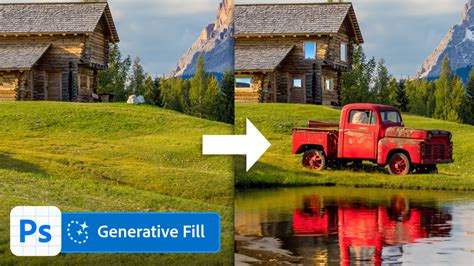
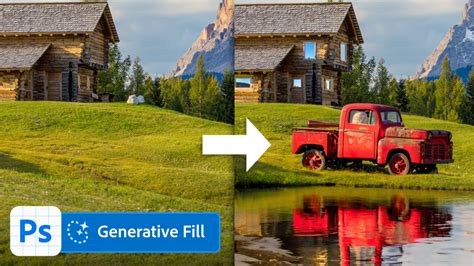
At the forefront of Photoshop's AI integration is the Generative Fill feature. This powerful tool enables users to effortlessly fill, edit, and remove image elements with just a few clicks, fundamentally changing how we approach image manipulation. Powered by machine learning AI, it can generate parts of images or even entire composite photos in a fraction of the time it would take a human editor. The AI meticulously analyzes each pixel of an image, matching the lighting, perspective, coloring, and shadows to produce remarkably realistic results.
Seamless Editing with Generative Fill
One of the most compelling aspects of Generative Fill is its non-destructive nature. Every generated element is organized into its own layer, complete with a layer mask, allowing users to easily revert any changes they are not satisfied with. This means that enhancements and modifications made using Generative Fill can be further refined with any of Photoshop’s other robust tools, such as blending modes or filter effects, offering unparalleled flexibility.
The primary advantage of Generative Fill is the immense time savings it offers. Previously, adding or removing elements from images was a laborious process, often requiring the use of the clone tool to meticulously match surrounding pixels and careful adjustments for lighting and shadows. Generative Fill automates these complex steps, ensuring a flawless photo every time an element is added or removed. Furthermore, this technology has the potential to reduce reliance on expensive stock photography subscriptions, as users can now generate unique assets directly within Photoshop.
While early iterations of Adobe's AI features in Photoshop betas were met with a degree of underwhelm, the formal release in September 2023 showcased incredible improvements, making Generative Fill a truly transformative tool for complex editing tasks.
Accessing and Utilizing Photoshop's AI Capabilities
To harness the power of Photoshop AI Generative Fill, a subscription to Adobe’s Creative Cloud platform is necessary. Alternatively, users can experiment with these features for free on Adobe’s Firefly web app. The cost for Photoshop typically starts around $21 a month as a standalone product, though subscription bundles offer access to a wider suite of Adobe tools.
For those looking to test the waters, Adobe offers a 7-day free trial of Photoshop AI, providing full access to its advanced features. Once subscribed and Photoshop is downloaded and installed via the Creative Cloud dashboard, users are ready to explore the AI-powered editing landscape.
Navigating the Generative Fill Contextual Taskbar
Upon opening Photoshop and working with AI features, users will encounter the Generative Fill contextual taskbar. This intuitive bar provides quick access to essential tools and settings. Key functions include:
- Select Subject: This button allows Photoshop to automatically detect and select the main subject of your photo, streamlining the selection process for subsequent edits.
- Add Adjustment Layer: This feature enables users to apply a variety of adjustment presets to alter the color and tone of their images, offering a quick way to enhance the overall mood and aesthetic.
To initiate edits, users can make selections using various tools: the Select Subject tool, marquee or lasso tools, and the object selection, quick selection, or magic wand tools.
How to Remove IMPOSSIBLE STUFF in Photoshop!
Diverse Applications of Photoshop's AI Tools
Photoshop's AI tools offer a wide array of applications, empowering users to perform tasks ranging from complete image creation to intricate modifications of existing photographs.
Extending Image Canvases
One of the most celebrated uses of Generative Fill is its ability to extend the pixels of an image. This is invaluable for users who need to expand the canvas area of a photograph. For instance, with the crop tool selected, users can drag the sides of the image container to create additional space. Photoshop then intelligently fills these blank areas with content that seamlessly blends with the existing image, generating multiple variations for the user to choose from. This process is non-destructive, as the new content is placed on a separate layer with a mask, preserving the original image.
Replacing and Enhancing Backgrounds
Generative Fill excels at replacing backgrounds, allowing for dramatic transformations of an image's setting. To achieve this, users typically ensure nothing is selected, then select their subject. By inverting the selection, the background becomes isolated. A text prompt is then entered to describe the desired new background, such as "salt flats in Utah" or "mountain trail." Photoshop then generates the new background, seamlessly integrating it with the subject.
Modifying Existing Elements
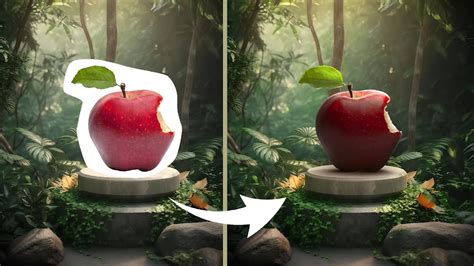
Beyond background replacement, Generative Fill can be used to alter specific elements within an image. For example, to change a person's jacket, a user would select the jacket using a selection tool, being careful to include only the pixels of the item to be changed. Entering a prompt like "puffer jacket" will then instruct Photoshop to replace the selected area with a puffer jacket, matching the surrounding lighting and style.
Removing and Replacing Objects
The ability to remove or replace unwanted objects is another significant AI capability in Photoshop. Similar to the content-aware tool but with enhanced precision, Generative Fill can remove blemishes or entire objects from a photo and fill the void with pixels that match the surrounding environment. For instance, to replace the lower half of a dress, a selection is made around the area, and Generative Fill is applied. When no text prompt is provided, the AI intelligently fills the selection with pixels that mimic the surrounding image, effectively removing the unwanted element.
Generating Images from Scratch
Photoshop's AI generative fill can also be used to create entirely new images. While the tool performs best with images within a 1024-pixel limit to maintain quality, it can generate compelling scenes from a blank canvas. By making selections on the canvas and providing descriptive text prompts, users can create complex compositions, such as majestic mountain ranges or serene lake scenes. Accents and figures, like a man with dogs looking at scenery, can also be generated by making specific selections and using appropriate prompts.
Tips for Effective AI-Powered Editing
To maximize the effectiveness of Photoshop's AI tools, several best practices can be followed:
- For Removal: To remove an element, simply select the area where the object is located, click Generative Fill, and then click "Generate" without entering a text prompt. This instructs Photoshop to fill the selection with content that closely matches the surrounding pixels.
- Selection Precision Matters: The shape and size of your selection are crucial. For instance, when adding a hat, drawing a selection that closely matches the desired hat shape will yield better results. Smaller selections tend to add smaller design elements, while larger selections can accommodate larger objects.
- Descriptive Prompts are Key: Avoid instructional words like "create," "alter," or "make." Instead, focus on descriptive adjectives and nouns. For example, instead of telling Photoshop to "make the dog bigger," it's more effective to select the dog and prompt for "a larger dog breed" or describe the desired size increase. Less is often more with these AI tools.
- Visibility of Selections: For users who find the "marching ants" (selection outline) difficult to see, Photoshop's Object Selection tool can help make selections more prominent and easier to manage.
- Combining Images: Photoshop's AI is adept at blending multiple images. By ensuring images are on the same layer and creating a selection that encompasses parts of each image, Generative Fill can seamlessly merge them.
Creative Combinations and Composites
A particularly innovative application is the ability to combine images, as demonstrated with video game character images created in Midjourney. By creating a blank canvas and carefully selecting areas between images, Generative Fill can be used to blend them seamlessly, creating coherent composite images. Stacking layers and ensuring unified elements are key to achieving professional-looking results.
Usage Rights and Commercial Use
Initially, Adobe had restrictions on the commercial use of images created with their AI programs. However, they have since clarified that any images generated using Photoshop's Generative Fill are now permitted for commercial use. This is because Adobe has trained its generative AI models strictly on licensed Adobe Stock images and public domain content, mitigating concerns about copyright infringement.
The Evolving Landscape of AI in Photoshop
Photoshop's AI suite is a powerful and evolving set of tools. While Generative Fill, Generative Expand, and Generative Remove are among the most popular, other AI-powered features contribute significantly to the creative process.
- Sky Replacement: This tool allows for dramatic enhancements to landscape photography by enabling users to replace existing skies with a variety of presets, including sunsets, blue skies, and more "spectacular" options, with adjustable parameters for brightness and integration.
- Generate Background: Particularly useful for product photography, this feature allows users to remove the existing background of a subject and generate a new one, ranging from simple colored or patterned backgrounds to more complex cityscapes.
- Neural Filters: These filters offer more nuanced and detailed photo editing capabilities, including the transformation of facial features.
- Adobe Sensei: This is Adobe's overarching AI and machine learning framework that powers many of these intelligent features within Photoshop and other Creative Cloud applications.
Beyond Adobe's native tools, third-party plugins like Luminar AI and Topaz Labs offer additional AI-powered editing solutions. The continuous updates to Photoshop ensure users always have access to the latest advancements in AI-driven image manipulation.
While Photoshop's AI tools are incredibly capable, they are not a panacea for all editing needs. Limitations, such as potential quality issues with images exceeding 1024 pixels or challenges with generating highly realistic faces, hands, and animals consistently, still exist. However, for many tasks, from resizing photos with Generative Expand to erasing photobombing objects with Generative Remove, Photoshop's AI offers significant advantages. The key to unlocking their full potential lies in understanding their specific design and application, and in continuous experimentation and learning through tutorials and practice.
The integration of AI into Photoshop represents a significant leap forward, democratizing complex editing techniques and empowering a new generation of creators to push the boundaries of digital artistry. As AI technology continues to mature, we can expect even more sophisticated and seamless integrations within Photoshop, further redefining the possibilities of image creation and manipulation.