In the realm of digital image editing and computer graphics, the concept of "blending modes" (also known as blending modes or mixing modes) stands as a cornerstone for manipulating how pixels interact between layers. These powerful tools, found in sophisticated software like Adobe Photoshop and GIMP, allow artists and designers to achieve a vast array of visual effects by dictating the relationship between pixels on an upper layer and those on a lower, or "base," layer. The top layer is not necessarily a distinct layer in the application's interface; it can also be the result of applying a painting or editing tool. The fundamental principle behind blend modes is to alter the appearance of the base layer based on the characteristics of the blend layer, leading to effects ranging from subtle color shifts to dramatic transformations. Understanding these modes unlocks a deeper level of control and creative expression in digital art.
The Foundation: How Blend Modes Govern Pixel Interaction
At their core, blend modes determine how pixels are affected when using painting tools, editing tools, or when working with multiple layers. Each blend mode operates on the principle of comparing and combining color channel values-specifically the red, green, and blue (RGB) components-of the pixels in the base layer (let's denote a color channel value as 'a') and the blend layer (denoted as 'b'). The outcome of this interaction is a new pixel value that forms the composite image.
A fundamental aspect of blend modes is their interaction with opacity. While the default state of content on a layer is opaque, obscuring what lies beneath, adjusting the opacity of the top layer allows for greater transparency. Moving the opacity slider to the left makes the layer more transparent, and this alteration affects the entire layer, irrespective of any current selections. A shortcut for adjusting layer opacity involves a two-finger tap on the layer, which reveals a narrow blue bar at the top of the canvas. Sliding a finger left on this bar reduces the layer's transparency.
The Dissolve Mode: A Touch of Randomness
One of the simpler blend modes is Dissolve. This mode doesn't rely on complex mathematical calculations but instead takes random pixels from both layers. The proportion of pixels taken from each layer is influenced by the opacity of the top layer. When the top layer's opacity is greater than that of the bottom layer, most pixels are drawn from the top. Conversely, with low opacity, the majority of pixels originate from the bottom layer. This mode can introduce a subtle, randomized texture, particularly useful for achieving a distressed or aged look without the predictability of other methods.
The Darkening Spectrum: Multiply, Color Burn, and Their Kin
A significant category of blend modes focuses on darkening the base layer, creating richer shadows and more intense colors. These modes are invaluable for tasks like adding depth, enhancing contrast, or integrating elements seamlessly.
Multiply: The Essence of Darkening
The Multiply blend mode is a fundamental tool for darkening images. It operates by taking the RGB channel values (typically ranging from 0 to 1) of each pixel in the top layer and multiplying them with the corresponding pixel values from the bottom layer. The composite image becomes darker overall, unless a pixel is white in either layer or black in both. Where either layer contains white, the resulting composite adopts the color of the other layer. This mode is commutative, meaning that swapping the positions of the two layers does not alter the final result. When two identical layers are multiplied, the effect is equivalent to applying a quadratic curve, or gamma correction with a gamma value (γ) of 2. For more intricate adjustments, directly using the Curves dialog in image editing software often provides greater flexibility than relying solely on Multiply. If one layer consists of a uniform color, such as 50% gray (0.8, 0.8, 0.8 in normalized RGB values), Multiply blend mode results in a straight-line curve.
Color Burn: Intensifying Contrast
Color Burn is a mode specifically designed to mimic the effect of the burn tool used in traditional darkroom photography to darken images. It operates by increasing the contrast between the base and blend colors. This process leads to higher mid-tone saturation and a reduction in highlight detail, resulting in a more dramatic darkening effect than Multiply. The mechanism involves dividing the inverted bottom layer by the top layer and then inverting the result. Blending with white produces no change. When the top layer contains a homogeneous color, this effect is equivalent to changing the black point to the inverted color. However, it's important to note that the operation is not always invertible due to potential clipping of shadows.
Linear Burn: A Smoother Darkening
Linear Burn offers a darker result than Multiply but with less saturation than Color Burn. It decreases the brightness of the base color based on the value of the blend color. This mode essentially sums the values in the two layers and subtracts 1. It can also be viewed as inverting each layer, adding them together (similar to Linear Dodge), and then inverting the result.
Darken Only: The Pixel Selector
Darken Only functions by comparing the base and blend colors at a pixel level and retaining the darker of the two. This mode does not blend pixels in a mathematical sense but rather selects the minimum value for each color component. Older projects that used a "Darken" mode in applications like Procreate have been updated to a "Shade" mode since version 5.4, reflecting a refinement in how this effect is achieved.
The Lightening Spectrum: Screen, Color Dodge, and Their Counterparts
Conversely, a suite of blend modes is dedicated to lightening the base layer, producing brighter effects, ethereal glows, and enhanced highlights.
Screen: The Essence of Lightening
Screen is the inverse of Multiply and serves as a fundamental mode for lightening images. In this mode, the values of the pixels in the two layers are inverted, multiplied, and then inverted again. Like Multiply, Screen is commutative. When one layer is white, the composite takes on the color of the other layer. Screen blend mode produces varying levels of brightening depending on the luminosity values of the blend layer.
Color Dodge: Brightening with Precision
Color Dodge is inspired by the dodge tool used to brighten images in traditional photography. It creates a brighter effect than Screen by decreasing the contrast between the base and blend colors. The mechanism involves dividing the bottom layer by the inverted top layer. This lightens the bottom layer based on the value of the top layer; the brighter the top layer, the more its color influences the bottom layer. Blending any color with white results in white. Blending with black has no effect on the image. Similar to Color Burn, the operation is not always invertible due to potential clipping of highlights. When the top layer contains a homogeneous color, this effect is equivalent to changing the white point to the inverted color.
Linear Dodge (Add): Amplifying Brightness
Linear Dodge, also known as Additive Blending, simply sums the values in the two layers. Blending with white always results in white, and blending with black has no effect. When the top layer contains a homogeneous color, this effect is equivalent to changing the output black point to this color and the input white point to the inverted color. This mode produces the same visual result as "Add," and since it consistently produces the same or lighter colors than the input, it is also referred to as 'plus lighter'.
Lighten Only: The Opposite of Darken
Lighten Only operates in direct opposition to Darken Only. It compares the base and blend colors at a pixel level and retains the brighter of the two. This mode selects the maximum of each component from the foreground and background pixels.
The Interactive Blend: Overlay, Soft Light, and Hard Light
This group of blend modes creates effects that are more nuanced, often combining elements of both darkening and lightening to produce results that feel more natural or dynamic.
Overlay: A Harmonious Blend
Overlay works as a combination of Multiply and Screen. It simultaneously lightens and darkens images by shifting the mid-tones. Darker blend colors tend to shift the mid-tones towards darker colors, while lighter blend colors shift them towards lighter colors. This mode preserves the highlights and shadows of the base color while allowing patterns or colors from the blend layer to overlay the existing pixels.
Soft Light: A Gentle Touch
Soft Light is akin to a gentler version of Overlay. It applies subtle darkening or lightening effects based on the luminance values of the blend layer. The result is a softer, more diffused spotlight effect compared to Overlay. If the blend color is lighter than 50% gray, the image is lightened. If the blend color is darker than 50% gray, the image is darkened. All variations of Soft Light produce the same result when the top layer is pure black or pure neutral gray.
Hard Light: A Focused Intensity
Hard Light is a more intense combination of Multiply and Screen. It uses the brightness values of the blend layer to perform its calculations. The effect is similar to shining a harsh spotlight on the image. If the blend color is lighter than 50% gray, the image is lightened, as if it were screened. If the blend color is darker than 50% gray, the image is darkened, as if it were multiplied. The inverse relationship between Overlay and Hard Light makes them "commuted blend modes."
The Transformative Blend: Hue, Saturation, Color, and Luminosity
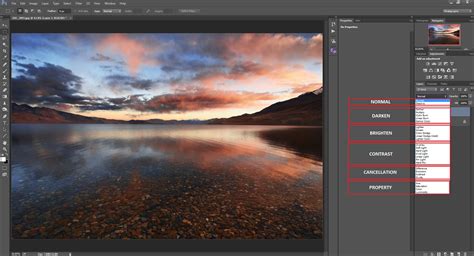
Moving beyond simple darkening and lightening, these blend modes interact with color in more sophisticated ways, allowing for precise color adjustments and thematic alterations. Photoshop's implementations of these modes are based on a color space with hue, chroma, and luma dimensions, which is distinct from HSL and HSV.
Hue: Shifting the Color Tone
The Hue blend mode preserves the luminosity and saturation of the base layer while adopting the hue of the blend layer. This is exceptionally useful for recoloring monochromatic images or subtly shifting the color palette of a photograph without altering its brightness or color intensity.
Saturation: Adjusting Color Intensity
Saturation blend mode retains the hue and luminosity of the base layer but adopts the saturation of the blend layer. This allows for fine-tuning the intensity of colors within an image. For instance, increasing saturation can make colors more vibrant, while decreasing it can mute them.
Color: Applying a New Palette
The Color blend mode adopts both the hue and saturation from the blend layer while preserving the luminosity of the base layer. This is a powerful tool for applying a new color scheme to an image, effectively coloring black and white photographs or drastically altering the mood of a scene by changing its dominant colors.
Luminosity: Controlling Brightness
Luminosity blend mode retains the hue and saturation of the blend layer while adopting the luminosity of the base layer. This mode is particularly valuable for image sharpening, as human vision is more sensitive to variations in lightness than to color differences. By manipulating luminosity, artists can enhance detail and texture without introducing unwanted color shifts.
The Extreme Blend Modes: Vivid Light, Linear Light, and Pin Light
These modes represent the more extreme end of the blend mode spectrum, capable of producing dramatic and often intense results by pushing the boundaries of contrast and brightness.
Vivid Light: Amplified Contrast
Vivid Light is an extreme version of Overlay and Soft Light. It combines Color Dodge and Color Burn effects, rescaled so that neutral colors (50% gray) become the neutral point. When the blend layer's color is lighter than 50% gray, it effectively moves the white point of the base layer down by twice the difference, resulting in a lightening effect. Conversely, when the blend layer's color is darker than 50% gray, it moves the black point up by twice the difference, creating a darkening effect. Anything darker than 50% gray is darkened, and anything lighter is lightened.
Linear Light: A Precise Balance
Linear Light is a blend mode that combines Linear Dodge and Linear Burn effects, again rescaled around neutral colors. Dodge is applied when the value on the top layer is lighter than middle gray, and burn applies when the top layer value is darker. The calculation simplifies to the sum of the base layer and twice the top layer, minus 1. This mode offers a more controlled and precise application of extreme lightening and darkening.
Pin Light: Simultaneous Darken and Lighten
Pin Light performs a Darken and Lighten operation simultaneously. It replaces colors based on the blend color. If the blend color is lighter than 50% gray, pixels darker than the blend color are replaced, and pixels lighter than the blend color do not change. This mode can create striking contrasts by selectively darkening or lightening areas based on the blend layer's values.
The Mathematical and Boolean Realms: Subtract, Divide, and Beyond
Beyond the visually intuitive modes, some blend operations rely on more direct mathematical or even logical calculations, offering unique ways to manipulate image data.
Subtract: Diminishing Brightness
The Subtract blend mode darkens colors in a drastic manner by subtracting brightness. It sums the pixel values of one layer with the other and then subtracts 1. In cases of negative values, black is displayed. This mode can be used to create desaturated or muted effects.
Divide: The Inverse of Subtraction
Divide is the opposite of Subtract. This blend mode divides the RGB channel values of the bottom layer by those of the top layer. The darker the top layer, the brighter the bottom layer will appear. Blending any color with black yields white; blending with white has no effect. When blended with a homogeneous color like gray, this mode uniformly increases an image's contrast, particularly in the highlights.
Difference: Highlighting Discrepancies
Difference subtracts the bottom layer from the top layer and takes the absolute value of the result. As such, Difference never returns negative values. Blending with black produces no change, as the values for all colors are 0. A primary utility for this mode is during the editing process, where it can be employed to verify the alignment of pictures with similar content. White pixels invert the colors of the base layer, while black pixels produce no change.
Boolean Arithmetic Modes: Logic Gates at Work
Some applications, such as Aviary's Peacock and KDE's Krita, offer boolean arithmetic blend modes. These modes combine the binary expansion of the hexadecimal color at each pixel of two layers using boolean logic gates (like AND, OR, XOR). This approach offers a highly specialized and precise method of pixel manipulation, often used in procedural generation or advanced compositing.
Blending Modes - Photoshop for Beginners | Lesson 5
Blend Modes in Practice: Tools and Applications
The application of blend modes extends beyond just layer interactions. Many graphics editing programs allow users to modify basic blend modes by applying different levels of opacity to the top "layer," which can also be represented by a painting or editing tool.
When blend modes are utilized with painting tools, such as the Brush tool in Photoshop or any painting tools in GIMP, the calculation is based on pixels already present on the target layer. If no pixels exist, the "painted" pixels are created as if in Normal blending mode. Subsequent strokes that overlap are then calculated based on the tool's blending mode and applied directly to the layer. A key distinction between tool blending and layer blending is that the results of tool blends are generally not adjustable after the stroke is made, except by using the Undo command. Layer blends, on the other hand, can be dynamically adjusted with opacity or even switched entirely.
The diverse array of blend modes, from the subtle darkening of Multiply to the extreme contrast of Vivid Light, provides digital artists with an expansive toolkit. Mastering these modes is not merely about understanding their mathematical underpinnings but about intuitively grasping how they can be employed to achieve specific aesthetic goals, enhancing images and bringing creative visions to life.