The XP-Pen Artist 156 is a popular choice for digital artists seeking a pen display that offers a good balance of features and affordability. However, like many sophisticated pieces of technology, users can sometimes encounter frustrating driver-related issues that hinder their creative workflow. This article aims to demystify these common problems and provide a comprehensive guide to troubleshooting XP-Pen Artist 156 driver issues, ensuring your digital canvas remains a space of creation, not frustration.
Understanding the Crucial Role of Drivers
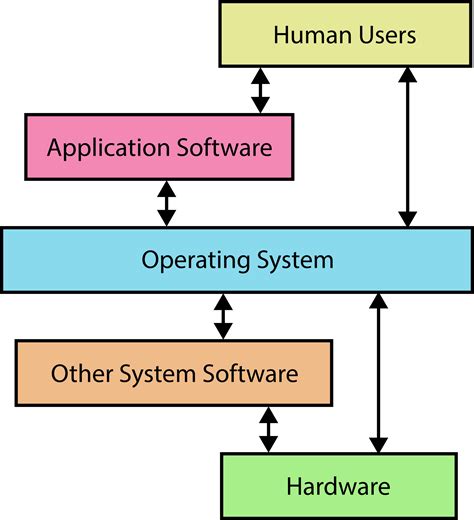
At its core, a driver is a piece of software that acts as a translator between your hardware (the XP-Pen Artist 156) and your operating system (like Windows or macOS). Without the correct drivers, your computer wouldn't understand how to communicate with the pen display, rendering its drawing surface, pen pressure sensitivity, and express keys useless. Think of it as the essential language that allows two different entities to converse and function together. When these drivers are outdated, corrupted, or incorrectly installed, the communication breaks down, leading to the issues artists often face.
Common XP-Pen Artist 156 Driver Problems and Their Manifestations
The symptoms of driver issues can vary, but they often fall into a few common categories. Recognizing these symptoms is the first step in diagnosing the problem.
- Pen Not Detected or Unresponsive: This is perhaps the most common and frustrating issue. The pen may not register on the tablet at all, or it might behave erratically, with no pressure sensitivity or an inability to click. This can feel like the entire device is broken, but it's often a driver communication failure.
- Express Keys Not Working: The customizable shortcut buttons on the XP-Pen Artist 156 are a significant productivity booster. When these keys fail to respond or perform unintended actions, it points towards a driver configuration problem or a failure in the driver's ability to communicate these inputs to the software.
- Screen Display Issues: While less common for driver-related problems specifically, sometimes incorrect driver installations can lead to display anomalies such as flickering, incorrect resolution, or the pen display not being recognized as a second monitor. This is often related to the graphics driver interacting with the pen display driver.
- Software Incompatibility: Certain creative applications, like Adobe Photoshop, Illustrator, or Clip Studio Paint, might not recognize the pen input or its advanced features if the drivers are not properly installed or configured for that specific software.
- Intermittent Connectivity: The pen display might work for a while and then suddenly stop responding, requiring a restart of the device or the computer. This can be a sign of a driver conflict or a driver that isn't stable.
The Foundation of Troubleshooting: A Clean Installation
The most effective way to resolve a wide array of driver issues is often to perform a clean installation of the latest drivers. This process ensures that any remnants of previous, potentially corrupted installations are removed, providing a fresh start for the driver software.
Step 1: Uninstall Existing Drivers
Before downloading and installing new drivers, it's crucial to remove any existing XP-Pen drivers from your system.
Windows:
- Navigate to "Control Panel" > "Programs" > "Programs and Features."
- Look for any entries related to "XP-Pen" or "Driver."
- Select the relevant program and click "Uninstall."
- Follow the on-screen prompts to complete the uninstallation.
- It is also advisable to check the "Device Manager" (search for it in the Windows search bar). Under "Human Interface Devices" and "Mice and other pointing devices," look for any XP-Pen related entries. Right-click and select "Uninstall device." Crucially, if prompted, check the box to "Delete the driver software for this device."
macOS:
- Open the "Applications" folder.
- Look for an "XP-Pen" folder or an uninstaller utility provided by XP-Pen.
- Run the uninstaller if available.
- If no specific uninstaller is found, you may need to manually remove driver files. This is a more advanced step and often requires specific instructions from XP-Pen support or community forums. A common approach involves removing files from specific system library folders.
Step 2: Restart Your Computer
After uninstalling the drivers, a system restart is essential. This ensures that all temporary files and registry entries related to the old drivers are cleared from your system's memory.
Step 3: Download the Latest Drivers
Always download the most current drivers directly from the official XP-Pen website. Avoid using drivers from third-party sites, as these may be outdated, incomplete, or even contain malware.
- Go to the XP-Pen support or download section.
- Select your specific tablet model (Artist 156).
- Choose the correct operating system (Windows or macOS) and the latest available driver version.
- Download the driver installer file to a convenient location on your computer.
Step 4: Install the New Drivers
With the old drivers uninstalled and your computer restarted, it's time to install the fresh drivers.
- Locate the downloaded driver installer file.
- Important: Before running the installer, it is highly recommended to disconnect your XP-Pen Artist 156 from the computer. This prevents potential conflicts during the installation process.
- Run the installer file (you may need administrator privileges).
- Follow the on-screen instructions carefully. Do not skip any steps.
- When prompted, connect your XP-Pen Artist 156 to your computer.
- Allow the installation process to complete without interruption.
Step 5: Final Restart and Testing
Once the installation is finished, restart your computer one last time. After your computer has booted up, open your preferred drawing software and test the functionality of your XP-Pen Artist 156. Check pen pressure, express keys, and general responsiveness.
Addressing Specific Issues with Driver Settings
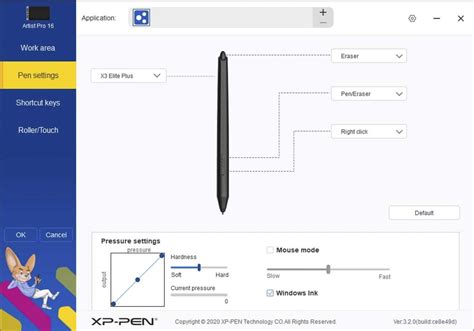
Sometimes, the drivers are installed correctly, but specific settings within the driver software are not configured properly. The XP-Pen driver software provides a control panel where you can customize various aspects of your pen display.
- Pen Pressure Settings: Within the driver's control panel, you can usually find options to adjust pen pressure sensitivity. If your pen feels too light or too heavy, experiment with these settings. There's often a calibration test where you can draw and see how your strokes vary with pressure.
- Express Key Configuration: The express keys can be assigned to specific keyboard shortcuts or application functions. Ensure that the correct functions are assigned to each key within the driver software. Sometimes, assigning a function for a specific application will override general settings, so check if you're using the tablet with multiple programs.
- Mapping: The driver software allows you to map the tablet's screen area to your monitor's display area. Ensure this mapping is set correctly, especially if you are using multiple monitors. An incorrect mapping can lead to the cursor not aligning with your pen strokes.
- Tablet Mode: Some drivers offer different modes for how the tablet input is interpreted. Ensure it's set to "Pen" mode and not "Mouse" mode, as this can affect pressure sensitivity and overall drawing feel.
Advanced Troubleshooting and Common Pitfalls
If a clean installation and driver setting adjustments don't resolve your issues, consider these advanced steps and common pitfalls:
- Driver Conflicts: Other input devices or drivers on your system might conflict with the XP-Pen drivers. This can include other drawing tablet drivers (even if they are for a different brand), gaming mice drivers, or certain accessibility software. Try temporarily disabling or uninstalling other peripheral drivers to see if the issue resolves.
- Operating System Updates: Sometimes, a recent operating system update can cause driver incompatibilities. Check the XP-Pen support website for any new driver releases that specifically address compatibility with the latest OS patches. Conversely, if you recently updated your OS and the tablet stopped working, a driver rollback or update might be necessary.
- Antivirus and Firewall Interference: Although less common, some aggressive antivirus or firewall software might mistakenly flag driver components as suspicious and block them from running correctly. Temporarily disabling your antivirus/firewall (with caution) during driver installation or operation can help diagnose this. Ensure you re-enable it afterward.
- USB Port Issues: A faulty USB port or a poor-quality USB cable can cause intermittent connection problems. Try using a different USB port on your computer, preferably a direct port on the motherboard rather than a USB hub or front panel port. Ensure the USB cable is securely connected at both ends.
- Power Management Settings: On some systems, particularly laptops, aggressive power-saving settings can disable USB ports or devices to conserve power. Check your computer's power management settings to ensure that USB selective suspend is disabled, or that the USB ports are not being turned off.
- Corrupted System Files: In rare cases, underlying Windows or macOS system files might be corrupted, affecting driver performance. Running system file checker tools (like
sfc /scannowin Windows Command Prompt) can help identify and repair these issues.
Seeking Further Assistance
If you've exhausted all the troubleshooting steps above and are still experiencing problems with your XP-Pen Artist 156 drivers, it's time to seek help from official channels.
- XP-Pen Official Support: The XP-Pen website usually has a comprehensive FAQ section, troubleshooting guides, and a customer support contact form or email address. Be prepared to provide details about your operating system, the specific driver version you are using, and a clear description of the problem.
- Online Communities and Forums: Many online forums and communities dedicated to digital art and XP-Pen products exist. Searching these forums can often reveal solutions that others have found for similar issues. Posting your problem with as much detail as possible can also solicit help from experienced users.
How to Download & Install Drivers For Xp-Pen Tablet in Windows 11
The Importance of Regular Driver Updates
To minimize the occurrence of driver issues, it's a good practice to regularly check for driver updates on the XP-Pen website. Manufacturers frequently release new driver versions to improve performance, add compatibility with new software, and fix bugs. Staying updated can prevent many problems before they even arise, ensuring a smoother and more reliable creative experience with your XP-Pen Artist 156. Itâs also worth noting that while the provided text mentions cookies and analytics, these are unrelated to the functionality of the XP-Pen drivers themselves and are typically associated with website usage rather than device drivers. The information about Google Analytics cookies, advertising cookies, and user preferences relates to website tracking and personalization, not the software that enables your pen display to function. Therefore, any troubleshooting related to XP-Pen Artist 156 driver issues should focus on the official XP-Pen software and your operating system's settings, not on website cookies.