The question of whether a PNG file can be directly converted to CMYK is a common one, particularly for individuals venturing into the realm of professional printing. While PNG is a versatile format, its inherent design and typical use cases often lead to complications when preparing graphics for print, which predominantly relies on the CMYK color model. Understanding the fundamental differences between these formats and the implications of their conversion is crucial for achieving desired print results.
The Nature of PNG: Designed for the Digital Realm
PNG, which stands for Portable Network Graphics, was conceived in the late 1990s with the primary objective of serving as an image format for the burgeoning World Wide Web. Its core design philosophy prioritized portability and broad compatibility across various platforms and applications. This approach meant keeping the set of options for core functionality streamlined, thereby enabling a relatively simple reader to interpret all files in the format. The emphasis was on promoting widespread accessibility and ease of use for digital display.
A key characteristic of PNG is its use of lossless data compression. This means that when an image is compressed into a PNG file, no image data is lost. Consequently, PNG files are renowned for maintaining high image quality, making them ideal for graphics that require sharp details and clarity, such as logos, icons, and illustrations. Furthermore, PNG supports transparent backgrounds, a feature that significantly enhances its utility for web design, allowing images to be seamlessly integrated over different backgrounds without a noticeable solid border. This ability to handle transparency is a significant advantage over older formats like JPEG.
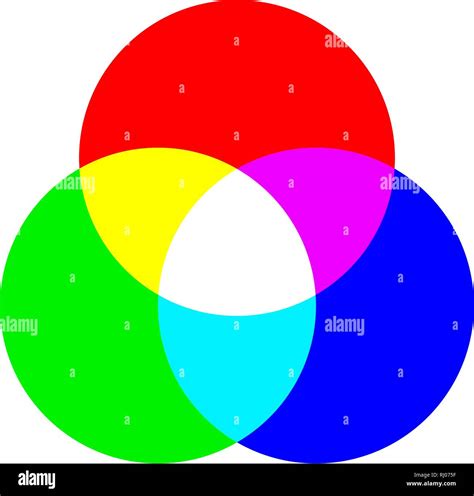
However, the very strengths that make PNG so effective for web use also present challenges when preparing for print. The color space typically associated with PNGs, and indeed most digital displays, is RGB (Red, Green, Blue). RGB is an additive color model where light is combined to create colors. Screens emit light, and by mixing different intensities of red, green, and blue light, they can reproduce a vast spectrum of colors. This model is excellent for vibrant, screen-based imagery but is not directly translatable to the subtractive color model used in printing.
The Demands of Print: The CMYK Color Model
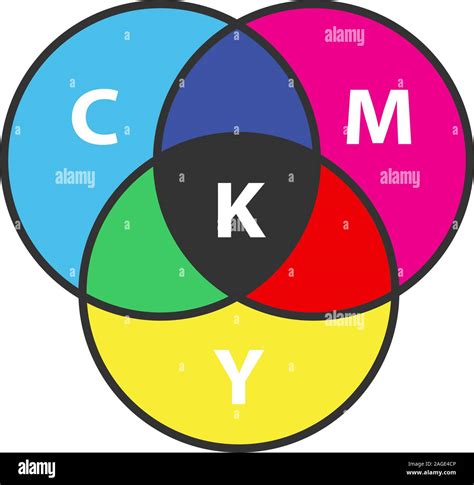
In contrast to RGB, the CMYK color model is fundamental to the process of color printing. CMYK stands for Cyan, Magenta, Yellow, and Key (which is black). This is a subtractive color model, meaning that colors are created by subtracting light. In printing, inks of these four colors are applied to a substrate, typically paper. When light hits the paper with ink on it, certain wavelengths of light are absorbed (subtracted) by the ink, and others are reflected back to the viewer's eye. By varying the proportions of these four inks, a wide range of colors can be achieved.
The Cyan ink absorbs red light, the Magenta ink absorbs green light, and the Yellow ink absorbs blue light. When all three inks are combined, they theoretically absorb all light, producing black. However, in practice, the combination of Cyan, Magenta, and Yellow inks often results in a muddy brown rather than a pure black. This is why a separate black ink (Key) is used to achieve deeper blacks and enhance shadow detail, as well as for text and line art, which benefits from crisp, solid black.
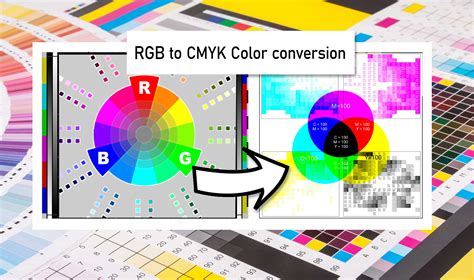
The conversion from RGB to CMYK is not a simple one-to-one mapping. The range of colors that can be produced by an RGB display (the RGB gamut) is generally larger than the range of colors that can be produced by CMYK inks on paper (the CMYK gamut). This means that some colors that appear vibrant and accurate on a screen may shift or appear duller when printed. This color shift is a primary concern when preparing RGB images, including PNGs, for professional printing.
Converting PNG to CMYK: The Process and Potential Pitfalls
When a PNG image, typically in RGB, is converted to CMYK, a process of color separation occurs. The image's color information is analyzed and translated into the proportions of Cyan, Magenta, Yellow, and Black ink required to reproduce those colors on a printing press. This conversion can be performed using various software applications, including Adobe Photoshop, Illustrator, or dedicated online converters.
A browser-based utility designed for converting PNG to CMYK without damaging the quality of the resultant image offers a convenient solution for users who may not have access to professional design software or who need a quick conversion. Such tools operate online, eliminating the need for software installation. They typically allow for the separation of the PNG into its four individual CMYK channels: Cyan, Magenta, Yellow, and Key (Black).
For users needing specific color channels, these converters often provide options to activate corresponding checkboxes. Furthermore, the "Create a Monochrome CMYK" option allows for obtaining a grayscale version of each CMYK channel, which can be useful for specific design applications or for previewing how each color component will be rendered.
However, the conversion process is not always seamless. The primary concern, especially for elements like logos, is how the colors will appear when printed. If a logo is designed in RGB and then converted to CMYK without careful management, the colors can indeed change drastically. For instance, a bright, vibrant red in RGB might translate to a more muted, brick-red in CMYK, or a specific shade of blue might become a deeper, less luminous hue. This is due to the limitations of the CMYK gamut compared to the RGB gamut.
The worry about a logo appearing pixelated and blurry is also a valid concern, but it's more directly related to the resolution of the original PNG file rather than the RGB to CMYK conversion itself. PNG files, being lossless, can retain high resolution. However, if the original PNG logo was created at a low resolution (e.g., 400x400 pixels) and is intended to be printed at a large size, it will inevitably appear pixelated and blurry regardless of the color space conversion. This is because the printer has to enlarge the existing pixels, making them visible. For print, it is always advisable to use graphics with a sufficiently high resolution (typically 300 DPI at the intended print size) or, ideally, vector-based graphics.
What are Vector and Raster Graphics?
Addressing Specific Design Scenarios
Consider the scenario where a logo is in a PNG file with a white background, and the user has "cut the white background in Photoshop and then put the logo back in Illustrator on the business card." This suggests an attempt to isolate the logo. If the intention was to remove the white background to make it transparent, this is a valid step. However, the subsequent placement "back in Illustrator" is crucial. If the logo was then embedded as a raster PNG within Illustrator (which is a vector-based program), it would still retain its raster characteristics, including potential pixelation if scaled too large. For optimal print results, especially for logos that will be used across various applications, it is best to recreate them as vector graphics in Illustrator. This ensures scalability without loss of quality.
Regarding the question of whether anything needs to be done to a background image that is also in PNG format and RGB, the answer is yes. Similar to the logo, if this background image is intended for print, it will need to be converted to CMYK. The same considerations about color shifts and resolution apply. If the background image is a photograph or a complex graphic, a professional design tool will allow for more nuanced control over the conversion process, potentially using ICC profiles to manage the color transformation more accurately.
For individuals not deeply familiar with designing for print, the process can seem daunting. The key takeaways are:
- Resolution is paramount: Ensure all images intended for print have a high enough resolution (300 DPI at the intended print size).
- Vector is ideal for logos and sharp graphics: If possible, recreate logos and line art in vector software like Illustrator.
- Understand color space limitations: Be aware that RGB colors may not translate perfectly to CMYK. Previewing the CMYK output is essential.
- Use appropriate software: For critical print projects, professional design software offers greater control over color conversion and image preparation.
The approach PNG took, prioritizing portability and a limited set of options for core functionality, was a deliberate choice for its intended web environment. This inherent characteristic means that while a PNG file can be converted to CMYK, it requires careful handling to mitigate potential issues related to color accuracy and image quality when transitioning from the digital screen to the printed page. The goal is to provide users with options while acknowledging the inherent constraints of different color spaces and output mediums.