Adobe InDesign stands as a powerful and versatile platform for creating a wide array of digital publications, including e-books in the EPUB format. For author-designers focused on content and book design, InDesign offers a streamlined approach, moving beyond archaic "assembly from components" methods. This tutorial aims to demystify the process of exporting projects and documents to EPUB format, addressing common issues encountered by InDesign users, particularly those new to EPUB export. Understanding these fundamental aspects is crucial before delving into more specific, individual answers.
Understanding EPUB Formats: Reflowable vs. Fixed Layout
The EPUB format is not a monolithic entity; it exists in two primary forms: EPUB 2 and EPUB 3, with the latter and its variants being the standard for new projects. Within these versions, there are two distinct layout approaches: Fixed-Page (FXL) and Reflowable.
Fixed-Page EPUB, also known as FXL, utilizes complex code to meticulously replicate each page as it appears in the InDesign document, aiming to mimic a print layout. While this might seem intuitive for beginners, FXL is largely considered an outdated approach. Its primary utility is limited to "picture book" formats like children's books, graphic novels, or visually dense informational sources such as repair manuals, how-to guides, or art books where precise visual replication is paramount.
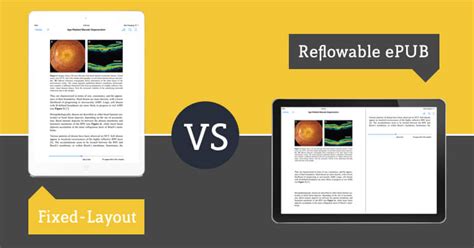
Reflowable EPUB, on the other hand, is the modern, "native" mode for e-books. Its content is inherently "liquid," dynamically adjusting and flowing to fill the reader's screen, much like content in a web browser. This adaptability makes it the ideal choice for most e-books, allowing readers to customize font sizes and reading experiences. If the goal is an exact electronic replica of a document, PDF is a more suitable format. EPUB, by its nature, depends heavily on the specific e-reader application chosen by the user.
Designing for the EPUB Medium: Content Flow and Structure
The fundamental principle of reflowable EPUB is a single, continuous text flow. Unlike print or PDF, EPUB documents cannot be split into multiple, independent text frames or articles. All content, including images and ancillary elements like a Table of Contents (TOC) frame, must be anchored within this primary text flow. Simply placing content on pages as one might for print will not yield the desired EPUB structure.
For instance, an image intended to appear within or after a specific paragraph must be anchored to the end of that paragraph. Similarly, a TOC frame needs to be anchored to a suitable paragraph, such as the document title or copyright information. It is imperative to establish a clear content flow and organization that is both simple and consistent.
Styling for EPUB: The Power of Paragraph and Character Styles
Mastery of Paragraph and Character styles is not merely recommended but essential for successful EPUB export from InDesign. The consistent and precise application of styles, with no spot or override formatting, forms the backbone of a well-structured EPUB. Every single paragraph must be associated with a defined paragraph style, and any local overrides, including those for bold or italic text, must be managed with character styles.
This rigorous styling ensures that InDesign can accurately translate the intended formatting into EPUB's underlying HTML and CSS. When designing for EPUB, remember that traditional page breaks and tabs do not function as they do in print. Page breaks are largely ignored by most EPUB readers, and tabs are not supported at all. Any reliance on tabs for layout or spacing must be replaced with functional equivalents, such as the use of styles or nested structures.
Image Handling in EPUB Export
InDesign offers a dual approach to image management for EPUB exports. A streamlined global option is available within the EPUB export menu, which applies to all images in the document. Complementing this is an individual setting option, accessible by right-clicking on any image. This individual setting provides a significantly expanded selection of format, scaling, positioning, and export options. Crucially, these individual settings take precedence over global ones, though they can be disabled during export in favor of the global settings.
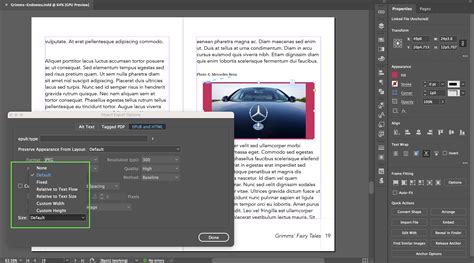
When exporting to EPUB, InDesign will automatically attempt to shrink images to less than full width to accommodate the reflowable nature of the format. However, to ensure optimal display, it's advisable to define picture boxes for your photos first. Placing images on the pasteboard, sizing them as desired, and then placing them inline with the text (often achieved by cutting and pasting with the Text tool) is a robust method. This approach helps avoid unmanageably large images on the pasteboard and ensures better control during export. The "Fit Content Proportionally" command under Object > Fitting is invaluable for fitting images precisely within their defined picture boxes.
Anchoring Images and Content for Predictable Flow
Properly anchoring images and other content is critical for maintaining a predictable reading order and appearance in reflowable EPUBs. Images must be anchored to the text they relate to, typically at the end of the paragraph they are meant to follow. This ensures that the image is positioned correctly relative to the text when the content reflows on different devices.
To anchor an image, use the anchor icon on the image frame. Click and drag this anchor to the desired position within the text. The image will then be positioned after the paragraph it's anchored to. It's important to note that an image cannot be anchored to text on a different page. To visualize these anchors, enable "Show Text Threads" under View > Extras.
The Articles palette (Window > Articles) is another vital tool for defining the reading order of content, especially for complex layouts or when content might not flow naturally. By dragging and dropping frames into the Articles pane in the desired sequence, you instruct InDesign on how the content should be read by assistive technologies and e-reader software.
Accessibility in EPUB: Alt Text and Semantic Tagging
Accessibility is a cornerstone of modern digital publishing, and EPUB is no exception. For images, this means providing alternative text (Alt Text). Alt Text serves as a textual description of an image, crucial for visually impaired readers using screen readers and for situations where images cannot be displayed.
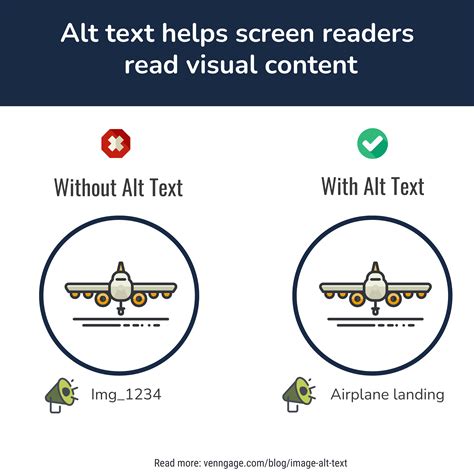
Alternative text can be stored as metadata within the image file itself, making it reusable across documents. Adobe Bridge, included in Adobe's Creative Cloud suite, is an excellent tool for managing image metadata. Within Bridge, you can access the Metadata pane and add descriptive information such as headlines, descriptions, or titles to your image files. InDesign can then access these metadata values and use them as the source for Alt Text during EPUB export.
When exporting, InDesign allows you to assign specific EPUB and HTML tags to elements within your document. This semantic tagging is vital for accessibility and for e-reader software to correctly interpret the content. For example, headings should be tagged as <h1>, <h2>, etc., using the Export Tagging options within Paragraph Styles. Lists should be correctly identified as unordered (<ul>) or ordered (<ol>) lists. Tables should be structured with header rows and data cells, enabling assistive technologies to navigate them effectively.
To define the reading sequence and ensure semantic correctness, use the Paragraph Styles panel (Window > Styles > Paragraph Styles) to assign appropriate EPUB and HTML tags. Even if your style is named "Heading Level 1," you can assign it the <h1> tag. For bulk tag management, the "Edit All Export Tags" option in the Paragraph Styles panel is highly efficient.
Tables of Contents (TOC) in EPUB
Creating a Table of Contents in InDesign for EPUB export is a straightforward process that leverages your defined paragraph styles. While you might have a visually designed TOC page, the EPUB TOC is generated dynamically based on the structure of your document.
To create a TOC, go to Layout > Table of Contents. In the dialog box, you can specify the title for the TOC page and, crucially, select the heading styles that should be included in the TOC. It is important to save these settings as a TOC style for reusability. The TOC frame can be positioned within the visible area of the page or placed outside, accessible only through the e-reader's navigation functions. For multi-level TOCs, the "Multi Level" option under TOC Style is essential.
Hyperlinks and Interactive Elements
Hyperlinks are a fundamental aspect of interactive digital documents, and InDesign provides robust tools for their creation. Text identified as a weblink can be easily converted into a clickable hyperlink. Select the text, right-click, and choose "New Hyperlink." Enter the web address in the dialog box.
How to Set Up Hyperlinks in InDesign for Use in Interactive Documents
For cross-references within the eBook, you can create hyperlinks that link to specific pages within the document. Highlight the text you want to use as the link, right-click, and select "New Hyperlink." In the "Link To" menu, choose "Page" and specify the destination page. You can also control the zoom settings for the destination page. When exporting to EPUB, these hyperlinks will function, allowing readers to navigate seamlessly through the content.
Font Embedding and Best Practices
When it comes to fonts in EPUB, a general recommendation is to not embed them. While EPUB 2 and EPUB 3 formats support font embedding (OpenType and TrueType, but not PostScript), embedding fonts can bloat file size and lead to numerous display and readability issues across different e-readers. Most e-reader applications are capable of using their native fonts to display your content as effectively as possible. If you are working at the CSS level, use only generic font specifications to allow the reader to handle the display. Forcing a specific font onto an EPUB reader is generally not a good practice.
If you must use specific fonts, ensure they have the necessary faces (Regular, Bold, Italic, Bold Italic) and that they are embeddable. However, the preferred approach is to rely on the reader's default font rendering.
EPUB Export Options in Detail
The EPUB export process in InDesign offers a comprehensive set of options to tailor your output. When you select File > Export and choose EPUB (Reflowable), a dialog box with several tabs appears: General, Image, and Contents.
General Tab
- EPUB Version: Choose between EPUB 2.0.1 (recommended for broader compatibility) and EPUB 3.0 (supports richer media like audio, video, and JavaScript).
- Cover: You can choose to rasterize the first page of your e-book as the cover or select an existing image.
- Table of Contents: Specify the TOC style youâve defined.
- Ordering: This determines the reading order. Options include "Based on Page Layout" (default), "Same as XML Structure," or "Same as Articles Panel."
- Book Margin: Set margins in pixels or ems.
- Publisher Entry & Unique Identifier: Essential for metadata, with the Unique Identifier often being an ISBN.
Image Tab
- Preserve Appearance from Layout: This option is crucial for maintaining the visual integrity of your images as they appear in InDesign.
- Image Conversion: You can specify image formats (GIF, JPEG, PNG) and resolution (ppi).
- JPEG Format Method: Choose between "Progressive" (gradual display) and "Baseline" (display after download).
- GIF Palette: Options include Adaptive, Web, System (Win), and System (Mac) to control color handling.
- Interlace: Enables progressive loading of images.
- Disable Image Compression: Offloads compression settings.
Contents Tab
- Content Format: Typically XHTML. "DTBook" is an XML-based format for the visually impaired.
- Breaks: Define breaks based on Paragraph Styles (e.g., Chapter Head styles).
- Footnotes: Specify their location.
- Include Style Definitions: Instructs InDesign to generate CSS based on your InDesign Paragraph and Character styles.
- Use Existing CSS File: For advanced users who wish to provide their own CSS.
- CSS Class: Control whether classes are included in the HTML.
- Generate External CSS: Option to create a separate CSS file.
- Page Margin: Define margins for the page in pixels.
Metadata: The Unsung Hero of EPUB
Adding comprehensive metadata to your EPUB file is not just good practice; it's essential for discoverability and organization. Metadata includes information such as the book title, author's name, a blurb, descriptive keywords, and copyright details. This information is searchable and helps readers find your work. InDesign allows you to input this metadata during the export process or by using the File > File Info dialog. When exported, this metadata populates the EPUB's OPF file.
Working with Multiple InDesign Files and Books
For larger projects or when chapters are managed as separate files, InDesign's Book feature is invaluable. You can create a Book file (.indb) and add individual InDesign documents to it. The Book panel allows you to organize the files in the correct order, and importantly, to globally update style sheets and color swatches across all documents in the book from a primary file. This ensures consistency throughout your project.
Image Placement and Anchoring Techniques
When images need to appear precisely alongside specific text, anchoring them inline with the text is the solution. This can be achieved by anchoring the image box to the baseline of the relevant text line. The default placement aligns the bottom of the image box to the baseline of the text. You can then adjust the "baseline shift" in the Application Bar to fine-tune the vertical position of the image relative to the text.
Alternatively, for images that should appear adjacent to text but not necessarily inline, you can drag and drop the anchor icon from the image frame to the desired text location. This creates a more flexible anchoring that maintains proximity between the image and text. If multiple images need to stay together, group them first and then anchor the group.
Object Export Options for Fine-Tuning
For more granular control over individual image exports, InDesign's "Object Export Options" (available in CS 5.5 and later) are indispensable. This feature, accessed by right-clicking on an image, allows for custom rasterization, scaling, alignment, and spacing. Crucially, it's also where you can assign Alt Text to images, enhancing accessibility.
Interactive PDFs as an Alternative
While EPUB is the standard for reflowable e-books, InDesign interactive PDFs offer an alternative for preserving precise layouts. Interactive PDFs are not strictly EPUBs but can be shared easily and include interactive elements like hyperlinks, buttons, and multimedia. This format is particularly well-suited for books with non-traditional designs, such as portfolios, magazines, or heavily illustrated guides where maintaining the exact layout is paramount.
Final Considerations for EPUB Export
Exporting an InDesign document to EPUB requires careful preparation and an understanding of the medium's unique characteristics. By mastering styles, anchoring, image handling, and accessibility features, you can produce high-quality, reflowable EPUBs that offer an excellent reading experience across a wide range of devices. Remember that EPUBs are fluid; aiming for an exact print replica is counterproductive. Instead, embrace the reflowable nature and design for a dynamic, adaptable digital format.