For many photographers, the name "Adobe Lightroom" is synonymous with photo editing. It’s the industry standard, the go-to for organizing and enhancing vast libraries of images. However, the subscription-only model and the recent controversies surrounding Adobe's terms of service have led many to seek alternatives. Whether you're looking for a more affordable option, a perpetual license, or a different workflow, a wealth of powerful photo editing software exists that can rival, and in some cases even surpass, Lightroom. This article delves into the diverse landscape of Lightroom alternatives, examining their strengths, weaknesses, and suitability for various user needs, from the casual enthusiast to the seasoned professional.
Understanding the Lightroom Ecosystem and its Drawbacks
Adobe Lightroom, particularly Lightroom Classic, has long been the reigning champion in the realm of photo management and non-destructive editing. Its integrated workflow, allowing users to import, organize, edit, and export images seamlessly, is a significant draw. The software excels at batch editing, enabling photographers to apply consistent adjustments across multiple files simultaneously. Lightroom Classic’s catalog system provides a robust method for managing large image libraries, while the newer cloud-centric Lightroom offers greater flexibility for cross-device editing and social media integration.
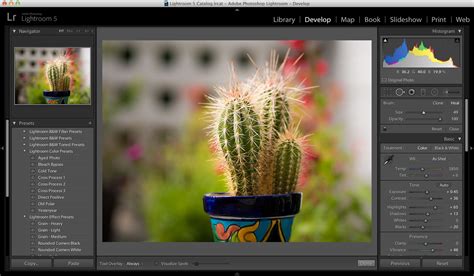
However, Lightroom's dominance comes with significant drawbacks for many users. The most prominent is Adobe's Creative Cloud subscription model. Unlike the perpetual licenses of yesteryear, Lightroom and its companion Photoshop can only be accessed through ongoing monthly or annual payments. This can become a substantial recurring expense, especially for hobbyists or those on a tighter budget. The recent uproar over Adobe's updated terms of service, which some interpreted as granting Adobe extensive access to user content, has further fueled concerns about privacy and security, particularly for professionals working under Non-Disclosure Agreements.
Furthermore, while Lightroom is more accessible than Photoshop, it can still present a steep learning curve for beginners. Its interface, though streamlined compared to Photoshop's layers-based complexity, can be intimidating for those new to digital photo editing.
The Top Contenders: Professional-Grade Alternatives
For photographers seeking a professional-grade alternative that doesn't compromise on features, several options stand out. These are the programs that often get mentioned in the same breath as Lightroom, offering robust RAW processing, advanced color correction, and sophisticated organizational tools.
Capture One Pro: The Professional's Choice for Color and Tethering
Capture One Pro is widely regarded as the closest competitor to Lightroom, and for many professionals, it’s the preferred choice. Its RAW processing capabilities are exceptional, with many users believing it offers superior color grading and tonal transitions compared to Lightroom.
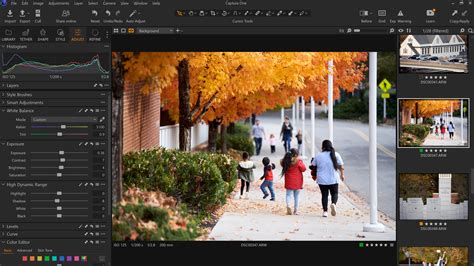
One of Capture One's standout features is its industry-leading tethering workflow, making it the go-to software for many studio photographers. The 'Sessions' workflow, which groups RAW files, adjustment settings, and metadata within a single folder network, is particularly useful for managing projects and collaborating with clients. While Lightroom supports tethering, Capture One is considered the benchmark in this area.
Capture One also offers manual and AI masking tools, along with Photoshop-style adjustment layers, providing significant flexibility within the software. However, for highly complex local edits, users might still find themselves needing a dedicated layer-based editor like Photoshop or Affinity.
Specifications:
- Operating System (PC): Windows 10 (64-bit) 22H2 or Windows 11 23H2 or later
- Operating System (Mac): macOS 14 or later
- Processor: Intel Core i3 or AMD Jaguar CPU (PC) / Apple Silicon (M-Series) (Mac)
- Hard Drive: 10GB
- RAM: 8GB (16GB recommended)
- Minimum Screen Resolution: 1200x800 pixels (1920 x 1080 recommended)
Reasons to Buy:
- Excellent RAW processing.
- Superb color adjustment tools and superior color grading.
- Adjustment layers and masks.
- Session or Catalog workflows.
- Professional tethering capabilities.
Reasons to Avoid:
- More expensive than Lightroom, though a perpetual license is available.
- May still require an external editor like Photoshop for advanced layer-based work.
- Lacks an AI-powered noise reduction tool as advanced as Lightroom's.
DxO PhotoLab: Unparalleled Noise Reduction and Lens Corrections
DxO PhotoLab is a formidable contender, particularly lauded for its exceptional image processing algorithms. Its DeepPRIME XD2 noise reduction technology is among the best available, and its lens corrections are incredibly accurate, often correcting optical imperfections before they even manifest.
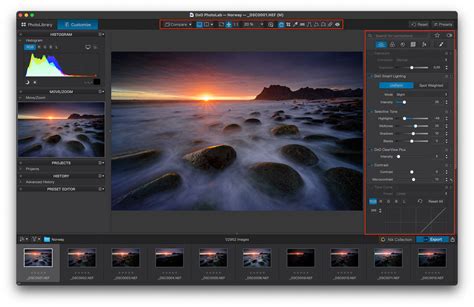
While earlier versions lacked robust organizational tools, DxO PhotoLab has evolved into a true Lightroom competitor with the addition of good organizational features. Its processing algorithms are a significant draw, delivering stellar RAW processing results that even pixel peepers will appreciate. The clone tool also features a useful option to adjust the scale or angle of the source, simplifying object removal on complex backgrounds.
A notable omission compared to Lightroom and Capture One is the absence of AI-powered automatic masking for subjects and backgrounds. However, it does include an Auto Mask tool to assist with local edits.
Specifications:
- PC: Microsoft Windows 10 version 22H2 or 11 version 22H2 (64-bit)
- Mac: macOS 13.6 (Ventura)
- Hard Drive Space: 4GB
- Minimum Screen Resolution: 1920 x 1080
Reasons to Buy:
- Great denoise and lens corrections.
- Improved tone control.
- Single fee option (perpetual license).
- Exceptional image processing capabilities.
Reasons to Avoid:
- Can be tougher to learn than some alternatives.
- The Elite version can be pricey.
- Not all features are compatible with all Fujifilm files.
Accessible Workflows and AI-Powered Editing
For those who find Lightroom intimidating or too expensive, a range of more accessible and often more affordable alternatives exist. These programs often leverage artificial intelligence to streamline common editing tasks, making them ideal for beginners and enthusiasts looking for quick, high-quality results.
Luminar Neo: AI-Infused Editing for Speed and Creativity
Luminar Neo has carved out a niche for itself by embracing artificial intelligence to simplify complex editing tasks. It offers a streamlined workflow with basic image organization and a plethora of AI-powered tools that can transform images in minutes.
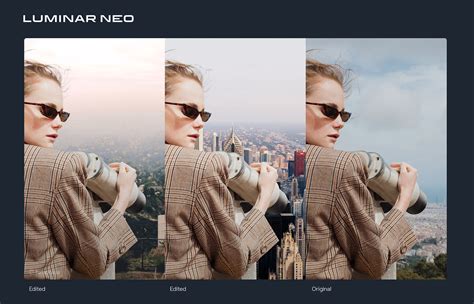
Its AI Enhance tool, for example, consolidates adjustments for shadows, highlights, contrast, and saturation into a single slider, providing impressive results with minimal effort. Luminar Neo also boasts one of the best AI sky replacement tools available. While not a direct Lightroom clone, its user-friendly interface and automated functions make it an excellent choice for those who want to edit quickly and effectively. The software is available as a perpetual license, offering a one-time purchase option.
Specifications:
- Operating System (PC): Windows 10 (64-bit) v1909 or higher
- Operating System (Mac): macOS 12.0 or higher
- Processor: Intel i5 8th gen or better, AMD Ryzen 5 or better (PC) / Intel i5 8th gen or better, Apple Silicon (Mac)
- Hard Drive: 10GB
- RAM: 8GB (16GB recommended)
- Minimum Screen Resolution: 1280×768px
Reasons to Buy:
- Great results with little effort due to AI tools.
- Cross-platform editing capabilities.
- Available as a ‘perpetual’ license.
- Integrated image catalog.
- Generative AI features.
Reasons to Avoid:
- AI tools can be inconsistent; some miss the mark while others are brilliant.
- Workflow and layout can sometimes feel inconsistent.
- Uninspiring presets.
- Heavy commercialization.
ACDSee Photo Studio Ultimate: A Familiar Interface with Perpetual Licensing
ACDSee Photo Studio Ultimate aims to provide an Adobe-like experience without the steep learning curve or subscription model. Its interface is inspired by Lightroom and Photoshop, offering both batch editing and layer-based workflows.
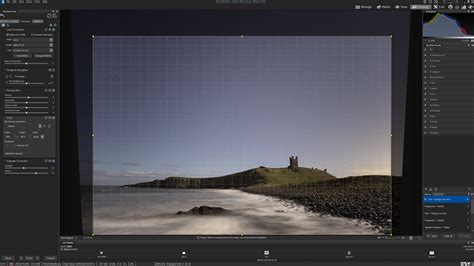
Available only for Windows, ACDSee is a great option for those with modest computing setups due to its accessible system requirements. It offers a more affordable monthly subscription than Adobe's Lightroom plan, and crucially, it can be purchased as a perpetual license. The AI-powered noise reduction tool is particularly impressive, and the software excels as a RAW image processor, delivering excellent quality results. While it may lack the finesse and scope of some pro-grade software, its accessibility and perpetual licensing make it a compelling choice.
Specifications:
- PC: Intel or AMD processor with 64-bit support, Intel i5 or better processor.
- Mac: N/A
- Hard Drive Space: 5GB
- Minimum Screen Resolution: 1280 x 800
Reasons to Buy:
- Simple to use with a less steep learning curve than Lightroom/Photoshop.
- Quality RAW processing with highly effective AI noise reduction.
- Subscription or perpetual license options.
- Lightroom and Photoshop-style interfaces.
Reasons to Avoid:
- Updates can feel incremental, making a perpetual license more tempting.
- Not primarily aimed at professional users, though some may find it works.
- Some modes could potentially be combined.
ON1 Photo RAW: A Feature-Rich All-in-One Solution
ON1 Photo RAW presents itself as a comprehensive photo editor that blends Lightroom's organizational capabilities with Photoshop-like editing features. It utilizes workspaces for cataloging, RAW processing, and local edits, all wrapped up in a reasonably priced one-time purchase.
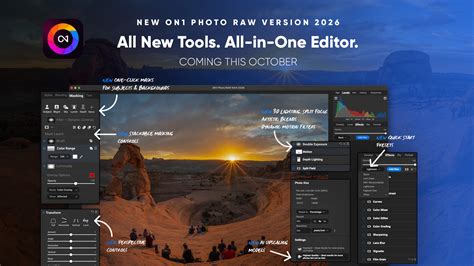
The Effects workspace is a highlight, offering a vast array of presets and AI tools, including sky replacement. While its RAW processing results might not reach the same pixel-perfect standard as Capture One or DxO PhotoLab, ON1 Photo RAW is a well-rounded and affordable option that provides significant value for money. Its modern interface and responsive sliders make for a pleasant editing experience, and the inclusion of AI-generated canvas expanding offers a taste of Photoshop's generative capabilities.
Specifications:
- PC: Four-Core Intel or AMD processor with 64-bit support.
- Mac: 2 GHz or faster processor with SSE 4.2 or better or Apple Silicon.
- Hard Drive Space: 6GB
- Minimum Screen Resolution: 1920x1080
Reasons to Buy:
- One-time purchase option available.
- All-in-one editor with cataloging and editing tools.
- Clean and simple UI.
- Wide range of AI tools and effects.
Reasons to Avoid:
- RAW processing could be better compared to top-tier competitors.
- AI features can be patchy.
Adobe Photoshop Elements: An Accessible Entry into the Adobe Ecosystem
For those who are hesitant to dive into the full Adobe Creative Cloud suite but still want an Adobe experience, Photoshop Elements offers a more accessible and affordable entry point. It strips down the complexity of Photoshop and Lightroom, providing guided edits and a simplified interface.
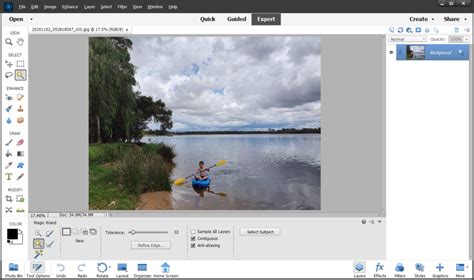
Elements is designed to ease users into photo editing with step-by-step instructions for common tasks. While it doesn't offer the same depth of RAW editing as Lightroom or its professional counterparts, it provides essential tools for image enhancement and organization. The inclusion of a "Full-fat Organizer app" and new AI features makes it a compelling package, especially when bundled with Premiere Elements. The three-year license offers a cost-effective solution for casual users.
Specifications:
- PC (minimum): Intel 6th Generation or AMD equivalent (or later), 8GB RAM, Windows 10 and 11 (64-bit only).
- Mac (minimum): Intel 6th Generation or Apple Silicon M1 (or later), 8GB RAM, macOS 13, macOS 14 (or later).
- Hard Drive Space: 10GB
- Minimum Screen Resolution: 1280x800 px
Reasons to Buy:
- Excellent new AI features.
- No subscription required (perpetual license).
- Full-fat Organizer app included.
- Guided edits for beginners.
- Good value, especially with bundles.
Reasons to Avoid:
- Ignores RAW files until free extras are downloaded.
- Media file display glitches in Organizer.
- Dated non-destructive editing.
- Primitive RAW support.
- Limited three-year license duration.
The Open-Source Frontier: Free and Powerful Alternatives
The open-source software movement offers a compelling alternative for those seeking completely free, powerful photo editing solutions. While these programs may lack the polish or user-friendliness of commercial software, they are constantly evolving and offer capabilities that rival paid options.
Darktable: A Feature-Rich Lightroom Alternative for Mac and Linux
Darktable is a highly capable open-source photography workflow application that functions as a virtual light table and darkroom. It boasts a proprietary RawSpeed processing engine, offering processing speeds well over double that of its open-source rival, RawTherapee.
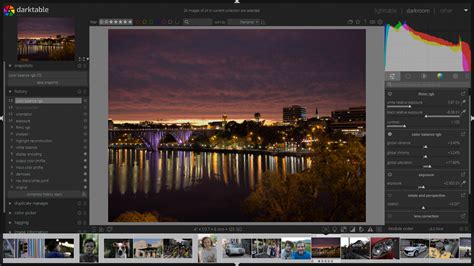
Darktable supports both global and local editing, providing a good range of tools for controlling image adjustments. It also includes features like printing and tethering functionality on Mac and Linux platforms, making it a more realistic alternative to Lightroom for users on those operating systems. While the Windows version lacks tethering and printing, all versions include a map view for geotagged images, though this can be prone to crashing. Its extensive documentation and active development community make it a strong contender for those willing to invest time in learning its intricacies.
Specifications:
- Operating System: Windows, macOS, Linux
- Hard Drive Space: Varies based on installation and catalog size.
- RAM: 8GB recommended.
Reasons to Buy:
- Completely free with no subscription.
- Powerful RawSpeed processing engine.
- Global and local editing capabilities.
- Tethering and printing support on Mac/Linux.
- Active development and supportive community.
Reasons to Avoid:
- Can have a steeper learning curve than commercial software.
- Map view can be unstable on some platforms.
- Lacks photo book and web gallery creation features.
RawTherapee: Advanced RAW Processing with Manual Control
RawTherapee is another powerful open-source RAW image processor that has been around since 2005. It's based on Dave Coffin's dcraw, a platform-agnostic command-line RAW converter.
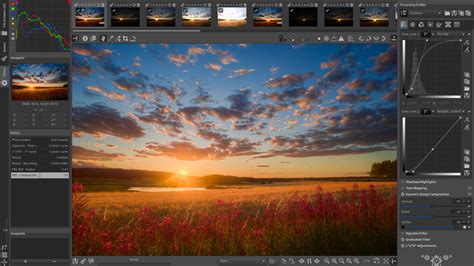
RawTherapee stores edits in sidecar files, offering a non-destructive workflow. It provides surprisingly good RAW support, even for challenging sensor types, and includes support for lens corrections through the third-party Lensfun library. While it lacks an overarching "Auto" function, it attempts to match the tone curve of the embedded preview, often resulting in reasonable exposures and good color by default. The software offers a staggering number of manual controls for image adjustment, appealing to users who prefer granular control.
Specifications:
- Operating System: Windows, macOS, Linux
- Hard Drive Space: Minimal, primarily for installation.
- RAM: 8GB recommended.
Reasons to Buy:
- Completely free with no subscription.
- Excellent RAW processing capabilities with extensive manual controls.
- Supports a wide range of cameras and lenses.
- Non-destructive editing via sidecar files.
Reasons to Avoid:
- User interface can be intimidating due to the sheer number of tools.
- No camera tethering or map view.
- Limited export options (raster images only).
- Performance can be slower than commercial alternatives.
LightZone: A Unique Approach Based on Ansel Adams' Zone System
LightZone offers a unique editing experience, inspired by Ansel Adams' famed Zone System. It uses a system of 16 zones, allowing users to adjust luminance levels in distinct areas of an image.
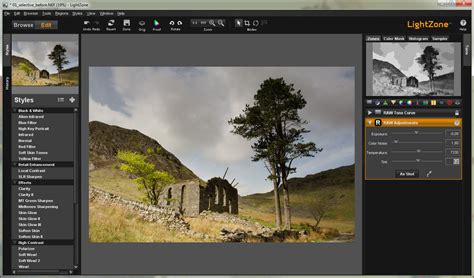
While its user interface may feel a bit dated, and its camera and lens support might be more limited than its rivals, LightZone's core editing philosophy is distinct. The ZoneMapper tool provides a visual preview of which areas of the image correspond to each zone, offering a different approach to exposure and contrast control. Although it's built on the RAW engines of RawTherapee and Darktable, its performance is not as swift. It offers fewer global editing tools and lacks features like map view or tethering, but its unique approach to luminance control makes it an interesting option for photographers seeking a different creative process.
Specifications:
- Operating System: Windows, macOS, Linux
- Hard Drive Space: Minimal, primarily for installation.
- RAM: 8GB recommended.
Reasons to Buy:
- Completely free with no subscription.
- Unique editing approach based on the Zone System.
- Interesting visual tools for luminance control.
Reasons to Avoid:
- User interface feels dated.
- More limited camera and lens support.
- Image quality at default settings can be weaker.
- Performance is slower than other options.
- Lacks many advanced features found in other editors.
The Hybrid Approach: Combining Tools for a Tailored Workflow
For some photographers, the ideal solution isn't a single all-encompassing program but a combination of specialized tools. This hybrid approach allows users to leverage the strengths of different software for specific tasks, such as culling, keywording, and editing.
Photo Mechanic: The Culling and Keywording Powerhouse
Photo Mechanic is a specialized tool designed for high-volume shooters, such as press, fashion, and sports photographers. Its primary strength lies in its lightning-fast speed for sorting and keywording images.
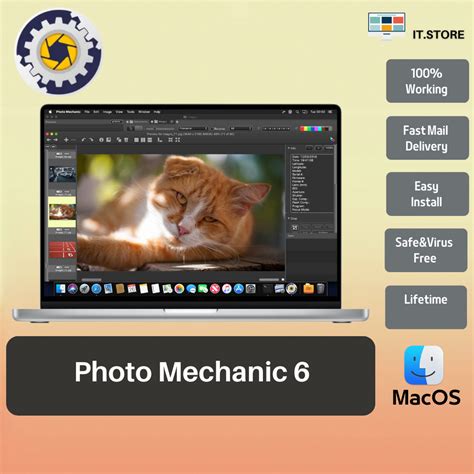
While it's a subscription-based service and not for everyone, its efficiency in managing large batches of photos is unmatched. By separating the culling and organization process from the editing phase, photographers can significantly speed up their workflow. This allows them to then export their selected and keyworded images to their preferred editing software, whether that be Lightroom, Capture One, or another alternative.
Specifications:
- Operating System: Windows, macOS
- Hard Drive Space: Minimal, primarily for installation.
- RAM: 8GB recommended.
Reasons to Buy:
- Extremely fast for culling and keywording.
- Essential for high-volume shooting workflows.
- Efficient metadata management.
Reasons to Avoid:
- Subscription-based.
- Does not offer photo editing capabilities.
- Can be overkill for casual photographers.
Making the Switch: What to Consider
Choosing the right Lightroom alternative depends heavily on your individual needs, budget, and workflow preferences. Here's a breakdown of key factors to consider:
- Budget: Are you willing to pay a subscription, or do you prefer a one-time purchase? Open-source options offer a completely free entry point.
- Workflow: Do you prioritize batch editing, detailed local adjustments, or AI-powered enhancements? Some software excels at specific tasks.
- Organization: How important is robust library management? Lightroom's catalog system is powerful, but alternatives offer varying levels of organizational tools.
- RAW Processing: If you shoot in RAW, the quality of the RAW converter is paramount. Capture One, DxO PhotoLab, and open-source options like Darktable and RawTherapee are strong contenders.
- AI Features: Do you want AI to automate tasks like masking, sky replacement, or noise reduction? Luminar Neo and ON1 Photo RAW are leaders in this area.
- Tethering: For studio photographers, reliable tethering is essential. Capture One is the industry standard.
- Learning Curve: Some software is more intuitive than others. Photoshop Elements and Luminar Neo are generally considered more beginner-friendly.
- Platform: Ensure the software is compatible with your operating system (Windows, macOS, or Linux).
I Sucked at Editing Photos, Until I Learned This.
Ultimately, the "best" Lightroom alternative is subjective. It's the one that best fits your shooting style, editing habits, and financial constraints. Many of these programs offer free trials, allowing you to test them thoroughly before committing. The landscape of photo editing software is constantly evolving, with new features and improvements emerging regularly. By understanding the strengths and weaknesses of each option, you can confidently navigate beyond the Adobe subscription and find a solution that empowers your photographic creativity.
tags: #adobe #lightroom #replacement