Adobe InDesign, a cornerstone of the graphic design industry, offers a robust suite of tools for creating professional layouts. While the visual interface is powerful, true efficiency in InDesign often lies in the mastery of its keyboard shortcuts. These digital accelerators can transform tedious mouse-driven tasks into rapid, precise actions, significantly boosting productivity for graphic designers who spend a considerable amount of time formatting type. This article delves into the world of InDesign shortcuts, with a particular focus on those that empower users to manipulate text formatting, including the often-sought-after shortcut for bolding text, and explores how to leverage these tools to their fullest potential.
Navigating Text with Precision
Before delving into formatting, efficient navigation within text is paramount. InDesign provides shortcuts to move the cursor and select text with remarkable speed and accuracy, often surpassing the capabilities of a mouse for intricate selections.
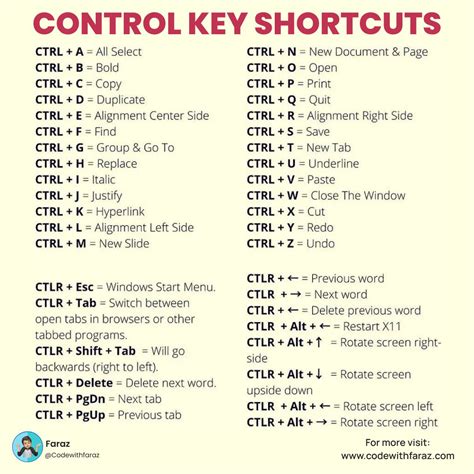
Jumping Between Words and Paragraphs: To quickly jump between singular words within selected text, use Cmd/Ctrl + Left/Right arrow. For a more substantial jump, moving between entire paragraphs, employ Cmd/Ctrl + Up/Down arrow. These commands are invaluable when reviewing or editing large blocks of text, allowing for swift traversal without constant clicking.
Navigating Lines: The Home and End keys are fundamental for jumping from the beginning to the end of a selected line or sentence. While seemingly simple, their consistent use can shave seconds off repetitive tasks.
Selecting Text Elements: Precision in selection is key to efficient formatting.
- To select individual characters with exacting detail, use specific selection shortcuts. This is perfect if you need to be very precise and is much easier than using a mouse.
- To select whole words, the shortcut is Cmd/Ctrl + Shift + Left/Right arrow. The right and left arrow keys allow you to select or deselect single words very easily.
- For selecting entire lines within a paragraph, the shortcut is Shift + Up/Down arrow. Remember, for these selection shortcuts to function, a text frame must be selected.
- To select multiple paragraphs efficiently, use Cmd/Ctrl + Shift + Up/Down arrow. This can save significant time when working with longer documents.
Text Selection by Clicking: For those who prefer a break from the keyboard, InDesign offers intuitive text selection methods using mouse clicks:
- A double-click selects a single word.
- A triple-click selects a line.
- A quadruple-click selects an entire paragraph.
Selecting All Text: To select all the text within a selected frame, use Cmd/Ctrl + A. If you have connected or threaded frames that span across multiple pages, Cmd/Ctrl + Shift + A becomes particularly useful, as highlighting text across such a layout can be a cumbersome task with a mouse.
The Nuances of Bolding in InDesign
The quest for a universal "bold" shortcut in InDesign, akin to the one found in word processors like Microsoft Word, often leads to confusion. The fundamental difference lies in how InDesign handles typography. Unlike word processors that may artificially embolden a font by thickening its existing strokes, InDesign relies on the actual font files.
Understanding Font Families and Weights
Many font families are designed with distinct weights, such as "Regular," "Bold," "Italic," "Bold Italic," and so on. When you apply a bold style in InDesign, you are typically instructing the software to use the designated "Bold" version of the typeface.
The Standard Bold Shortcut: The widely recognized shortcut for applying bold formatting in InDesign is Cmd/Ctrl + Shift + B. This command accesses the bold variant of the currently selected font, provided such a variant exists within the font family.
When the Shortcut Doesn't Work: The common scenario where Cmd/Ctrl + Shift + B might appear to fail is when the selected font does not have a dedicated bold weight. For instance, a script font like "Edwardian Script" might not come with a bold version. In such cases, the shortcut will have no visible effect.
Workarounds for Non-Bolded Fonts:
- Font Substitution: The most typographically sound approach is to find a different font that offers a bold weight or to select a font from a family that includes various weights.
- Applying a Stroke (Use with Caution): As a last resort, and with a strong caveat, one could artificially thicken the text by applying a stroke. This is generally discouraged for professional work as it distorts the intended letterforms and can lead to inconsistent results. The amount of stroke would need to be carefully adjusted, often to a value around "1 pt" or similar, depending on the font size and desired effect.
- Exploring Font Variations: Some font families, like "META" and "METAPLUS" mentioned in the user's notes, can have an extensive range of weights and styles. In such cases, it's crucial to correctly identify and select the desired bold variant from the font list rather than relying solely on the shortcut.
How to Bold Text in InDesign
Formatting Text with Speed
Beyond bolding, InDesign offers a plethora of shortcuts to rapidly alter text styles, eliminating the need to navigate through menus and panels.
- Applying Styles:
- Italic: Cmd/Ctrl + Shift + I
- Bold: Cmd/Ctrl + Shift + B
- Underlined: Cmd/Ctrl + Shift + U
- Regular (Remove Styles): Cmd/Ctrl + Shift + Y
These shortcuts allow for instantaneous style changes, making the process of refining type much more fluid.
Paragraph Alignment Shortcuts
Once a paragraph or a selection of paragraphs is highlighted, adjusting alignment is equally streamlined.
- Left Align: Cmd/Ctrl + Shift + L
- Right Align: Cmd/Ctrl + Shift + R
- Center Align: Cmd/Ctrl + Shift + C
- Justified: Cmd/Ctrl + Shift + J
- Fully Justified: Cmd/Ctrl + Shift + F
Mastering these alignment shortcuts can dramatically speed up the process of setting text blocks, ensuring consistency and visual appeal.
Adjusting Font Size with Keyboard Commands
Quickly modifying the size of selected text is also achievable through keyboard shortcuts.
- Increase Font Size: Cmd/Ctrl + Shift + >
- Decrease Font Size: Cmd/Ctrl + Shift + <
- Increase Font Size (Faster): Including the Alt/Option key while using the size increase shortcut will make the text size increase faster.
These commands, especially when combined with the Alt/Option key, provide a rapid way to scale text without constant adjustments in the properties panel.
Customizing Your Shortcut Workflow
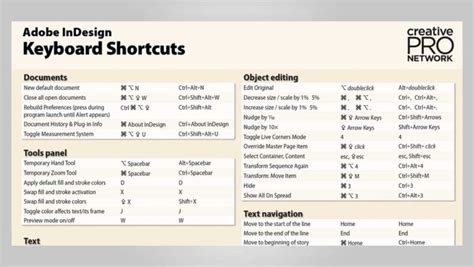
While InDesign comes with a comprehensive set of default keyboard shortcuts, the software also allows for deep customization, enabling users to tailor the interface to their specific needs and preferences. The latest versions of InDesign contain a significant number of shortcuts, exceeding 400 in total, making it impractical to memorize them all. Creating a personalized cheat sheet or focusing on the most frequently used shortcuts is a practical strategy for improving productivity.
Creating and Modifying Shortcuts
To create or modify keyboard shortcuts in InDesign:
- Close all open documents.
- Navigate to Edit > Keyboard Shortcuts….
- This action opens a dialog box where you can manage shortcut sets.
- Select or Create a New Shortcut Set: The "Default" and "QuarkXPress" shortcut sets cannot be directly edited. To modify them, you must first select one and then create a new set based on it.
- Select the Product Area: Choose the area of InDesign that contains the command you wish to assign or change a shortcut for.
- Select the Command: Identify the specific command within the chosen product area.
- Define the New Shortcut: Click in the "New Shortcut" box and press the desired key combination.
- Avoid Single-Key Shortcuts: It is strongly advised not to assign single-key shortcuts to menu commands, as these will interfere with typing text.
- Check for Conflicts: If a key sequence is already in use for another command, InDesign will display the conflicting command under "Current Shortcut."
- Set the Context: You can define when a shortcut should function by changing its "Context." This allows for multiple commands to be assigned to a single shortcut, with the context determining which command is executed. For example, Cmd+G can be used to group objects when in "Object Context," or to merge table cells when in "Table Context." Selecting "Default Context" ensures the shortcut works regardless of the document's current state.
- Save Changes: Click "OK" to save your new shortcut and close the dialog box, or click "Save" to keep the dialog box open and continue entering more shortcuts.
Beyond Shortcuts: Enhancing Productivity in InDesign
While keyboard shortcuts are a powerful tool for speeding up workflow, they are just one aspect of optimizing your InDesign experience.
- Automation with Scripts and GREP: For repetitive tasks, consider automating processes using InDesign scripts or GREP expressions. These can handle complex find/change operations and other automated workflows.
- Multilingual Projects: Streamlining work on multilingual projects requires specific strategies and often involves leveraging InDesign's features for language handling and text flow.
- Avoiding Common Mistakes: Familiarizing yourself with common InDesign pitfalls can prevent time-consuming errors and rework.
- Continuous Learning: Investing in InDesign tutorials and courses can significantly enhance your skills and unlock new levels of efficiency.
- Effective TOC Usage: Mastering the Table of Contents feature can save considerable time in document creation and management.
- Efficient Word File Import: Understanding the best practices for importing Word files into InDesign ensures that formatting is preserved and easily manageable.
By integrating these keyboard shortcuts into your daily workflow and exploring other productivity-enhancing techniques, you can significantly improve your speed, precision, and overall effectiveness when working with Adobe InDesign. The initial effort of learning and practicing these shortcuts will undoubtedly pay dividends in the long run, allowing you to focus more on the creative aspects of design and less on the mechanics of the software.