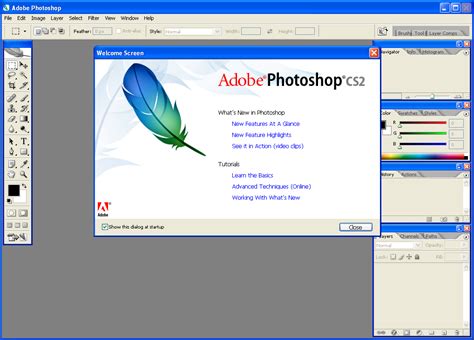
Adobe Photoshop, a name synonymous with digital image editing, has a rich history of innovation. Among its many iterations, Adobe Photoshop CS2 stands out as a significant release that introduced a host of powerful features and workflow enhancements, solidifying its position as the industry standard for creative professionals. Developed and published by Adobe Systems Incorporated, Photoshop has evolved from a humble beginnings into a comprehensive suite for raster graphics editing, with capabilities extending into limited vector and 3D manipulation, as well as video.
The Evolution of Photoshop's Naming and Versions
Initially, Photoshop's naming scheme was straightforward, relying on sequential version numbers. However, with the introduction of the Creative Suite branding in October 2002, each new version was designated with "CS" followed by a number. Thus, the eighth major version became Photoshop CS, and the ninth was Photoshop CS2. This nomenclature continued with subsequent releases like CS3, CS4, CS5, and CS6, with some versions, such as CS3 through CS6, being offered in both Standard and Extended editions, catering to a broader range of user needs.
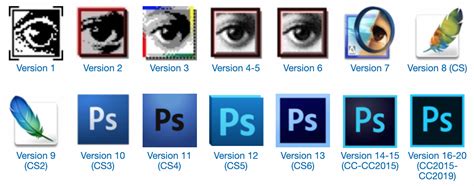
The genesis of Photoshop can be traced back to 1987 when brothers Thomas and John Knoll began developing a program to display grayscale images on a monochrome display. Thomas, a Ph.D. student, initially named it "Display." His brother John, an employee at Industrial Light & Magic, recognized its potential as a full-fledged image editing program and encouraged Thomas to pursue this direction. This collaboration led to a six-month break from Thomas's studies in 1988 to refine the software. Demonstrations to Apple Computer and Adobe Systems Incorporated proved successful, resulting in Adobe purchasing the distribution license in September 1988. Photoshop 1.0 was subsequently released exclusively for Macintosh on February 19, 1990. The handling of color gradually improved with each release, and Photoshop rapidly ascended to become the undisputed leader in digital color editing. The port to Microsoft Windows by Adobe chief architect Seetharaman Narayanan in 1993 further broadened its reach.
Understanding the Photoshop CS2 Interface and Core Concepts
Navigating Photoshop, even in its earlier versions like CS2, involves understanding several key components that form the foundation of its powerful editing capabilities.
Workspace Elements
- Panels: These are windows within Photoshop that offer controls over various aspects of your document. They can be docked, floated, or hidden to customize your workspace. Examples include the Layers panel, Options panel, Image Adjustments panel, and Filters panel.
- Tools Panel: Typically located on the left side of the screen, this panel houses all the tools available in the program. If a tool icon has a small black triangle in its bottom-right corner, it indicates a submenu with related tools.
- Document Window: This is the primary area where you view and work on the actual image or file. Any other open documents within Photoshop also appear in their own document windows.
- Dialog Boxes: These pop-up boxes appear when you select a filter or certain options, providing specific controls and settings for that function.
Essential Concepts for Document Creation
When creating a new document in Photoshop CS2, several settings are crucial for achieving the desired outcome:
- File > New: This command opens a dialog box where you can define the basic parameters of your document.
- Dimensions: The width and height of your document are critical. You can choose your preferred units of measurement, including inches, pixels, centimeters, millimeters, points, picas, or columns. Pixels are the smallest block of color information and are the standard for web design, as web dimensions are set in pixels.
- Resolution: Equally important as size, resolution determines the detail and clarity of your image. For web work, 72 pixels per inch (ppi) is common, as most monitors display images at this resolution. For print purposes, such as commercial photography, flyers, or brochures, a resolution of 300 ppi is recommended for high-quality output.
- Color Mode: The chosen color mode significantly impacts the final appearance of your image, depending on its intended use. The most commonly used modes are:
- RGB Color Mode: Composed of three color channels - Red, Green, and Blue. RGB is primarily used for web design and screen displays, as monitors use these colors to render images.
- CMYK Color Mode: Stands for Cyan, Magenta, Yellow, and Black. This mode is essential for print, as it represents the ink colors used by most conventional printers.
- Other options include Lab Color, Bitmap, and Grayscale.
- Document Presets: Photoshop offers presets for common document dimensions, simplifying the creation process and eliminating the need to remember specific sizes.
The Power of Layers in Photoshop CS2
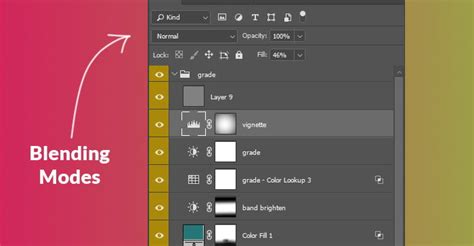
One of the most transformative features in Photoshop, and a cornerstone of CS2, is the Layers functionality. Layers allow you to stack images, blend them, add or remove color, and merge them together, providing unparalleled flexibility and non-destructive editing capabilities.
- Stacking Images: You can place multiple images or elements on separate layers, one on top of another.
- Blending Modes: Each layer can have a blend mode applied, which dictates how it interacts with the layers below it. This allows for sophisticated visual effects and compositing.
- Opacity: The opacity of a layer controls its transparency. 0% opacity makes the layer completely transparent, while 100% opacity makes it fully opaque.
- Merging Layers: When you have finished working with multiple layers, you can consolidate them into a single layer through merging. This can help simplify complex documents and reduce file size.
Key Tools in Photoshop CS2
Photoshop CS2 offered a robust suite of tools that empowered users to perform a wide array of image manipulation tasks.
Selection and Transformation Tools
- Move Tool: Allows you to select and reposition any element on the active layer.
- Lasso Tool: Enables freehand selections of objects on a layer.
- Polygonal Lasso Tool: Facilitates the creation of selections with straight, linear edges.
- Crop Tool: Used to trim an image to specific proportions or dimensions.
- Image Warp: Introduced in CS2, this tool allows for the distortion of images to fit around 3D objects or create perspective effects, making tasks like dressing a soda can with a new logo design much simpler.
Retouching and Painting Tools
- Eyedropper Tool: Samples a color from any part of an image, allowing you to use it in your work. You can control whether it samples a single pixel or an average of a range of pixels.
- Spot Healing Brush Tool: An excellent tool for removing blemishes and artifacts. It works by sampling surrounding areas and blending the anomaly away with a single click.
- Brush Tool: One of the most fundamental tools, essential for retouching and painting.
- Clone Stamp Tool: Used to duplicate image areas. By holding the Option/Alt key, you can sample a source area and paint it elsewhere.
- Eraser Tool: Removes pixel information from a document.
- Gradient Tool: Creates smooth transitions between two or more colors.
- Paint Bucket Tool: Fills an area with a solid color, with its behavior influenced by the tolerance setting.
- Smudge Tool: Mimics a brush but smudges pixels, allowing you to blend and push them around.
- Sponge Tool: Used to increase or decrease the saturation of an image.
Vector and Path Tools
- Pen Tool: Allows you to draw precise paths, which can be used for selections, masks, or as guides for vector shapes.
- Path Selection Tool: Enables you to select and manipulate entire paths.
- Shape Tools: Includes tools for drawing rectangles, rounded rectangles, ellipses, polygons, lines, and custom shapes.
Navigation and Utility Tools
- Hand Tool: Moves around an image without accidentally altering selected objects or layers.
- Zoom Tool: Used to magnify or reduce the view of your document, essential for detailed work.
Groundbreaking Features in Photoshop CS2
Adobe Photoshop CS2 brought forth several innovative features that significantly enhanced user workflows and expanded creative possibilities.
How To Use Vanishing Point In Photoshop
Smart Objects and Non-Destructive Editing
A major advancement in CS2 was the introduction of Smart Objects. These allow for non-destructive scaling, rotation, and warping of layers. When vector data from Adobe Illustrator CS2 is pasted or placed as a Smart Object, it remains "live," meaning any edits made in Illustrator are automatically reflected in Photoshop. This also functions similarly to symbols in Illustrator, where editing one linked copy updates all instances.
Vanishing Point Tool
The Vanishing Point tool revolutionized perspective-based editing. It allows users to clone, paint, and transform image objects while maintaining visual perspective. This was particularly useful for tasks requiring precise integration of new elements into existing scenes, such as adding graphics to curved surfaces or correcting perspective distortions.
Optical Lens Correction
Photoshop CS2 introduced the Optical Lens Correction tool, a powerful utility for addressing common camera lens flaws. It could effectively correct barrel or pincushion distortion, chromatic aberration, vignetting, and perspective issues in a single, user-friendly interface with a live preview.
Enhanced 16-bit Filter Support
Long-time users appreciated the expanded support for 16-bit filters. In CS2, more filters, including popular ones like Liquefy and Lens Blur, were upgraded to 16-bit compatibility, providing greater color depth and smoother tonal gradations.
Improved Layer Control
CS2 offered enhanced control over layers, allowing users to intuitively select, align, group, and move multiple layers simultaneously on the canvas. New Smart Guides assisted in aligning objects across different layers, snapping them to borders and centers.
Video Preview and Workflow Integration
For video professionals, Photoshop CS2 introduced a significant enhancement: Video Preview output. This feature allowed users to preview their broadcast graphics on an NTSC or PAL television monitor connected via IEEE 1394 (FireWire) while still working on them. This WYSIWYG (What You See Is What You Get) approach was crucial for ensuring that graphics would appear as intended on target display devices, addressing a long-standing need for video editors. The integration with other Creative Suite 2 applications, such as Illustrator CS2, GoLive CS2, and InDesign CS2, was also improved through Adobe Version Cue 2.0 and the new Adobe Bridge file-management application.
Camera Raw 3.0 and Batch Processing
The Camera Raw 3.0 workflow in CS2 was a significant upgrade for digital photographers. It allowed for the simultaneous modification of settings for multiple raw files. Furthermore, batch processing of raw files into formats like JPEG, TIFF, DNG, or PSD could be performed in the background without needing to launch the main Photoshop executable, greatly improving efficiency.
Increased RAM Compatibility
Photoshop CS2 took advantage of modern hardware by increasing its RAM compatibility. It could address more than 2GB of RAM, supporting approximately 3.5GB on systems with 64-bit processors, allowing for smoother handling of larger and more complex files.
File Formats and Extensibility
Photoshop's proprietary file format, .PSD (Photoshop Document), is designed to preserve all editing features, including layers, masks, transparency, text, alpha channels, spot colors, clipping paths, and duotone settings. This stands in contrast to formats like .JPG or .GIF, which are streamlined for output and lack editable layers. Photoshop also supports the .PSB (Large Document Format), which extends the PSD format to handle exceptionally large documents, with maximum dimensions of 300,000 pixels and file sizes up to 4 exabytes.
The functionality of Photoshop can be further extended through plugins. These add-on programs, developed by Adobe and third parties, come in various types, including filter, export, import, selection, color correction, and automation plugins. Filter plugins, often referred to as 8bf plugins, are particularly popular and can be found under the Filter menu.
The Legacy and Current Status of Photoshop CS2
Photoshop CS2, released on April 4, 2005, marked a pivotal moment in image editing software. Its comprehensive feature set, workflow enhancements, and improved integration with other Adobe products made it a compelling upgrade for professionals. However, it's important to note that Adobe has since discontinued support for CS2 applications. The activation servers for CS2 products were shut down on December 15, 2012, due to technical issues. While the software itself can still be used by those who have already installed it, it is no longer officially supported or available for download from Adobe. For current and ongoing professional work, newer versions of Photoshop through Adobe Creative Cloud are recommended.
Despite its discontinued status, Photoshop CS2 remains a testament to Adobe's commitment to innovation and its profound impact on the digital creative landscape. Its features and concepts laid the groundwork for many of the advanced capabilities found in today's leading image editing software.