Adobe Photoshop stands as a cornerstone in the realm of digital design, offering a vast array of tools and functionalities that empower creators to bring their visions to life. This guide delves into the fundamental and advanced techniques within Photoshop, providing a structured approach to mastering its design capabilities. From the essential building blocks of layers and masks to sophisticated effects and custom creations, this tutorial series aims to equip users with the skills necessary to produce unique and compelling designs for both print and online applications.
The Foundation of Photoshop Design: Understanding Layers
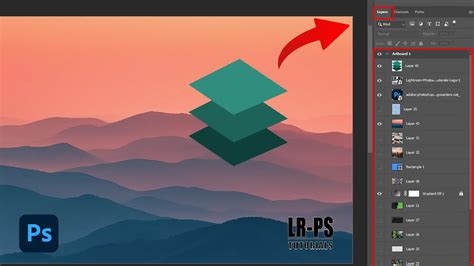
At the heart of any sophisticated Photoshop design lies the concept of layers. As the building blocks of digital art, layers provide an organized and flexible way to construct complex visuals. Learning to effectively utilize Photoshop's layer system is the key to unlocking the software's true versatility. Photoshop is a complex piece of kit, which can take years to learn properly, and the language of layers can be a difficult thing to master. However, having a good understanding of Photoshop layers gives you a solid foundation to build your digital art.
The process begins with creating a new layer for original artwork. This ensures that your foundational elements are kept separate and can be modified independently. Subsequently, you can add one image to another, integrating various visual assets into a cohesive composition. This layered approach allows for non-destructive editing, meaning you can make changes to individual elements without permanently altering the underlying artwork. This systematic method of building a layered design by creating a new layer for original artwork and by adding one image to another is fundamental to efficient workflow.
The Power of Precision: Harnessing Layer Masks
Layer masks are arguably one of the most fundamental and crucial aspects of Photoshop's design toolkit. As any beginner Photoshop tutorial will tell you, layer masks are one of the most fundamental parts of the software. Without them, your work is sure to look flat. They are the most flexible way to combine images, offering a sophisticated method for blending and integrating different visual elements.
A layer mask operates by hiding parts of a layer, thereby revealing what is on the layers below. This allows for seamless transitions between images, creating depth and realism in your composites. The ability to perform simple cut-outs and masking tasks is a basic requirement for any designer and often forms the backbone of any Photoshop work that you may undertake. The helpful layer mask tips provided can help to streamline your digital art workflow, making complex masking tasks more manageable and efficient. Mastering layer masks is essential for achieving professional-looking results and is a critical step in moving beyond basic image manipulation to true design.
Elevating Your Designs: Text, Graphics, and Effects
Once the foundational elements are in place and blended using layer masks, the next step involves adding creative flair through text, graphics, and effects. Text is a vital component of many designs, conveying information and adding a stylistic element. Photoshop offers a robust suite of tools for adding and manipulating text, allowing for precise control over typography.
Beyond simple text, you can embellish your designs with creative layer effects to achieve a unique look. These effects can range from subtle enhancements like drop shadows and glows to more dramatic transformations. Furthermore, Photoshop isn't just for photographs. You can take your designs further by making custom shapes within Photoshop, offering limitless possibilities for graphic elements. For those working with logos or other vector-based artwork, the seamless integration of designs made in Adobe Illustrator is a powerful workflow advantage. This synergy between different Adobe applications broadens the creative scope considerably.
Exploring Advanced Techniques and Creative Applications
Photoshop's capabilities extend far beyond basic compositing and text manipulation. The software is a powerful tool for a wide range of creative applications, from photo manipulation and digital painting to 3D rendering and even basic video editing.
Photo Manipulation and Enhancement
- Face-Aware Liquify: The latest versions of Photoshop CC include a powerful Liquify tool with facial recognition. This feature enables precise adjustments to facial features such as eyes, mouth, nose, and overall face shape, making caricaturing and subtle retouching remarkably easy.
- Camera Shake Reduction: For photographers, the Camera Shake Reduction filter is invaluable for salvaging otherwise blurry images. It intelligently analyzes motion and attempts to restore sharpness.
- Aging Photographs: Replicating the look of aged or sepia-toned photographs is a classic technique that can add a vintage aesthetic to designs. This goes beyond simple color conversion, involving the digital replication of distress and patina.
- Color Replacement Tool: This tool allows for rough painting over an image areas, effectively replacing existing colors with new ones, which can be useful for quick edits or creative effects.
- Dodge and Burn Tools: The Dodge tool allows for selective lightening of image areas, while its counterpart, the Burn tool, darkens them. Understanding brush options, Range, and Exposure is key to mastering these tools for nuanced tonal adjustments.
- Content-Aware Move Tool: This innovative tool allows you to move objects within an image, and Photoshop intelligently fills the vacated space, blending the surrounding elements seamlessly.
- Infrared Effect: Achieving an infrared effect, often characterized by surreal color shifts, can be done in Photoshop without specialized equipment. Images with a significant amount of green are ideal for this technique.
- Vintage Instagram Effects: For those who desire the popular vintage Instagram look without a smartphone, Photoshop offers the tools to recreate these stylized filters.
- Black and White with Color Accents: Mixing monochrome imagery with selective bursts of color is a striking stylistic choice achievable in Photoshop.
- Repairing Lips and Skin: Specific tutorials focus on using tools like the Spot Healing Brush to refine facial features, ensuring a polished and professional look. The Skin Aware technology in CS6 also offers advanced options for skin tone adjustments.
- Hair Color Modification: Photoshop CS6 introduced new tools specifically designed to change hair color, offering greater flexibility and realism in portrait retouching.
- Infrared Effect: The best way of getting a similar infrared effect is to take an image with lots of green in it. You don't need a dedicated camera to take an infrared image - you can do it in Photoshop instead.
- Fashion Photography Color Effects: Mimicking striking color effects achieved by fashion photographers who intentionally developed film in unconventional chemicals is possible through Photoshop.
Digital Painting and Artistic Styles
- Digital Painting Fundamentals: For those familiar with traditional painting, many core principles such as composition, color theory, and perspective transfer directly to digital painting in Photoshop.
- Custom Brushes: Discover how custom brushes can significantly enhance your workflow and boost creativity. The possibilities with Photoshop's Natural Brush Media window are almost endless.
- Coloring Hand-Drawn Sketches: Scanned hand-drawn sketches can be colorized to eliminate harsh black lines, saving artists considerable work. Dark lines are difficult to paint over while preserving the sketch's integrity.
- Andy Warhol-Style Pop Art: Transform bland portraits into vibrant pop art masterpieces, enlivening otherwise forgettable shots with a bold, iconic style.
- Fantasy Landscapes: Extensive tutorials guide users through the creation of immersive fantasy landscapes, leveraging Photoshop's extensive features.
- Fairy Creation: Detailed tutorials demonstrate how to craft a beautiful fairy from a single source image, showcasing advanced compositing and manipulation techniques.
- Tonal Range and Impactful Images: Learn to create a wider tonal range and produce classic images with added impact in just a few simple steps, often involving creative use of color and exposure.
Compositing and Illustration
- Convincing Composites: Master the art of creating believable image composites, a pursuit that is both enjoyable and highly creative. This involves skillfully merging multiple images into a single, cohesive frame.
- Merging Images with Vector Shapes: Learn to merge basic images and integrate them with vector shapes to craft unique editorial illustrations. This combines raster and vector elements for a distinctive look.
- Creating Custom Shapes: Beyond using pre-defined shapes, Photoshop allows for the creation of entirely custom shapes, expanding design possibilities.
- Editorial Illustrations: Combine various basic images and mix them with vector shapes to create unique editorial illustrations.
- Mix and Match Design Assets: Combine design assets into a simple, unique composite for print or online use.
Motion Graphics and UI Design
- Style Frames for Motion Graphics: Learn to create style frames, which are still snapshots that convey the overall look and feel of an animated or live-action video. These are crucial for visualizing the mood and aesthetic of motion graphics projects.
- UI Elements: Creating User Interface (UI) elements should be an integral part of every designer's skillset, and Photoshop provides the tools to craft these essential components.
- App Development Previews: Utilize artboards to create design previews of web pages across various devices, such as a 27â³ iMac, a 15â³ MacBook Pro, and an iPhone, which is highly relevant for app development workflows.
Special Effects and Creative Transformations
- Animated GIFs: Alter animated GIFs to fit the style of your latest project, making designs more eye-catching.
- Daytime to Nighttime Scenes: Transform a daytime scene into a nighttime one, inspired by the dramatic effects seen in films.
- Tilt-Shift Effect: Recreate the miniature-like appearance of tilt-shift photography using Photoshop's blur effects. Ben Secret explains an innovative approach to saturation by creating a miniature model village using the CS6 Tilt-shift blur effect.
- Text Submerged in Water: A specialized tutorial guides users through creating the effect of text appearing submerged in water.
- 3D Capabilities: Explore the 3D capabilities of Photoshop, even creating effects like a chocolate volcano using CS5 and beyond. Photoshop CS6 Extended offers a faster 3D performance thanks to its new 3D tools engine.
- Miniature Model Villages: Create the illusion of a miniature model village, often enhanced by the tilt-shift blur effect.
- Warping Text: Learn to warp text to conform to the shape of a portrait, a more sophisticated approach than simply overlaying text on an image.
- Fairy Creation from a Single Image: This detailed tutorial demonstrates how to construct a fantastical fairy figure starting from just one source image.
- Fantasy Landscapes: An extensive tutorial covers the creation of entire fantasy landscapes using Photoshop CS6.
- Pop Art Portraits: Convert portraits into pop art, offering a stylized artistic makeover for eye-catching results.
- Text and Image Combination: Discover techniques for combining text and images in visually interesting ways, moving beyond novice designs.
- Text Animation for Inspirational Videos: Learn to animate text over an image to quickly create inspirational quote videos within Photoshop.
Workflow Enhancements and Efficiency
- PSD Format: Saving your design in PSD format is crucial to retain its layers and effects for future editing. This non-destructive workflow is paramount.
- Exporting for Different Uses: After finalizing a design, save or export copies in various formats suitable for different applications, whether for web, print, or social media.
- Libraries: For those not currently using Libraries in Photoshop, this feature is a MUST SEE episode, offering a centralized way to manage assets.
- New Tools in CC 2015: Adobe regularly releases new versions of Photoshop, such as CC 2015, introducing great new tools that enhance capabilities and streamline workflows.
- Artboards: Artboards allow for the creation of multiple design layouts within a single document, ideal for previewing web pages or app interfaces on different screen sizes.
- Design Once, Apply Many: Learn to create a design once and then apply it to multiple different objects or contexts within Photoshop, saving significant time and effort.
- Step and Repeat: Master the Step and Repeat function to create patterns from scratch. Repeatable patterns have numerous applications, including adding texture to images.
- Refine Edge Box: Perfecting the use of the Refine Edge box tool is essential for complex selections, especially with challenging elements like frizzy hair or foliage. This tool makes difficult masking tasks significantly easier.
- Custom Brushes: Explore how custom brushes can enhance workflow and boost creativity.
- Vector Shape Layers: The introduction of vector shape layers in Photoshop CS6 opened up many new possibilities for scalable graphics.
- Blend Modes: Photoshop Blend Modes offer the power to combine layers and images for a vast array of effects, with 26 modes providing ample opportunities for experimentation.
- Eraser Tool for White Backgrounds: The Eraser tool can be used effectively to create clean white backgrounds by selecting and deleting unwanted areas.
- Exposure and Contrast Adjustments: The majority of images benefit from tweaks to exposure or contrast. Understanding histograms is key to fixing poorly exposed photos.
- Adding Frames and Borders: Using a combination of Photoshop and Lightroom, discover various methods for adding frames and borders to photos.
Video Editing in Photoshop
While primarily known as an image editor, Photoshop also incorporates powerful video editing tools, allowing for basic video manipulation and the creation of animated content.
Conclusion
This comprehensive exploration of Adobe Photoshop design techniques highlights the software's depth and versatility. By mastering fundamental concepts like layers and layer masks, and by exploring advanced tools for text, graphics, effects, and specialized applications, designers can elevate their work to new levels. Whether you are a beginner looking to build a solid foundation or an experienced user seeking to expand your skillset, Photoshop offers a continually evolving landscape of creative possibilities. The organized structure of tutorials, catering to various skill levels, ensures that learning is accessible and progressive, empowering users to create unique and impactful designs for any medium.