Page numbering is a fundamental element of document design, ensuring clarity, navigability, and professionalism, especially in lengthy publications. Adobe InDesign offers robust tools to manage page numbering, from simple sequential numbering to complex section and chapter designations. This article delves into the various methods for controlling page numbering, empowering designers to create precisely numbered documents for any purpose, whether it's a multi-chapter book or a report with specific front matter requirements.
Understanding the Fundamentals of InDesign Page Numbering
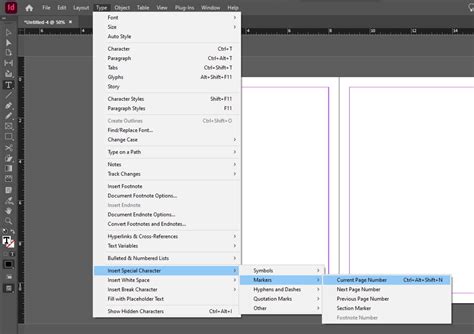
At its core, InDesign's page numbering relies on the concept of automatic page number markers. These are special characters that, when placed within a text frame, dynamically display the current page number. This automation is invaluable because as you add, remove, or rearrange pages within your document or book, the page numbers update accordingly, saving significant manual effort and preventing errors.
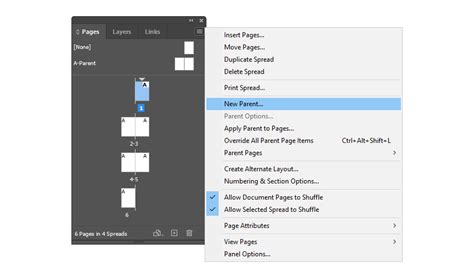
Page number markers are most commonly applied via Parent Pages (formerly Master Pages). When an automatic page number marker is placed on a parent page, it appears on all document pages that utilize that parent page. On a document page, the marker displays the actual page number. Conversely, if a parent page itself has a page number marker, it will display the parent page's prefix (e.g., "A-" for parent page A).
To implement automatic page numbering, you typically create a text frame on your parent page, large enough to accommodate the longest possible page number and any accompanying text. Within this frame, you insert the automatic page number marker. This ensures that the numbering is consistent across all pages using that parent.
Navigating Document Numbering Options
InDesign provides a comprehensive dialog box for managing page numbering: Numbering & Section Options. This is the central hub for controlling how your document's pages are numbered, particularly when dealing with non-standard sequences or when creating books composed of multiple InDesign files.
Initiating and Modifying Sections
A key feature for advanced page numbering is the concept of Sections. A section is a defined range of pages within a document that can have its own unique numbering scheme. This is particularly useful for documents that require different numbering styles for different parts, such as roman numerals for introductory sections and arabic numerals for the main body.
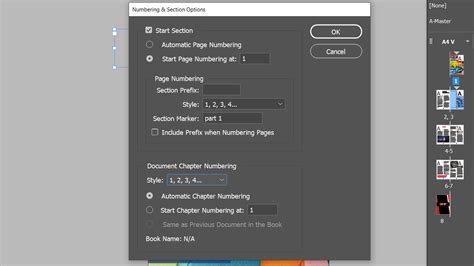
To begin a new section, you can right-click on the first page icon in the Pages panel and select Numbering and Section Options. Within this dialog box, you can choose to Start Section. This action effectively breaks the document into distinct segments, each controllable independently.
Setting the Starting Page Number
Within the Numbering & Section Options dialog, you can precisely define the starting number for any section. For instance, if you want a particular section to begin with page "1," you simply type "1" into the Start Page Numbering at field. This is crucial for scenarios where you might have a cover page or a title page that you don't want numbered, and the actual content begins on what should be labeled as page "1."
The dialog also allows for the creation of a Section Prefix. This prefix is a label that can be used to distinguish pages within different sections, especially when dealing with multiple documents in a book. For example, you could use "A-" for the first section and "B-" for the second, resulting in page numbers like "A-1," "A-2," "B-1," "B-2," and so on. This prefix is limited to eight characters and can be helpful in preventing InDesign from getting confused when dealing with duplicate page numbers, a common issue when manually setting up page numbering.
Choosing Page Numbering Styles
InDesign offers flexibility in the page numbering style you employ. From the Numbering Style dropdown menu in the Numbering & Section Options dialog, you can select from various formats, including:
- 1, 2, 3… (Arabic numerals)
- i, ii, iii… (Lowercase Roman numerals)
- I, II, III… (Uppercase Roman numerals)
- a, b, c… (Lowercase letters)
- A, B, C… (Uppercase letters)
This allows for the standard practice of using Roman numerals for front matter (like introductions and tables of contents) and Arabic numerals for the main body of the document.
Leveraging Book Features for Unified Page Numbering
When working with multiple InDesign documents that form a larger book, the Book panel becomes indispensable for managing page numbering across all chapters. This feature automates the process of ensuring sequential numbering throughout the entire publication.
Automatic Page Numbering in Books
One of the significant advantages of the Book feature is its ability to set up auto page numbering. If you add or remove a page in one of the book's files (chapters), the other files automatically adjust their page numbers. This eliminates the tedious and error-prone task of manually updating numbers across numerous documents.
In the Book panel, you can see the page numbers of all the included sections. Initially, these might appear to match up manually. However, a more robust approach is to let the Book feature manage this entirely.
Setting Up New Chapters with Auto Numbering
When adding new files (or chapters) to a book, you can configure InDesign to automatically set their page numbering. A crucial option here is to specify that new files should start on an even page. This is significant because new chapters often begin on a left-hand page (an even page number), which is essential for maintaining proper page spreads, where a new chapter starts as a distinct spread.
If you later add pages to a chapter, and you've used this automatic numbering feature, InDesign can intelligently add a blank page to complete the spread if necessary. This ensures visual consistency and proper layout.
Converting Existing Files to Auto Numbering
For files that have already been set up with specific page numbers, you can convert them to use the automatic book numbering system. This involves opening the individual document and adjusting its Document Numbering Options. A faster way to access these options within the Book panel is to double-click on the page numbers next to the document name. This directly opens the Document Numbering Options for that specific file, allowing you to integrate it seamlessly into the book's automatic numbering scheme.
How to use the Book feature in InDesign
Advanced Scenarios and Troubleshooting
Handling Cover Pages and Unnumbered Pages
Often, the first few pages of a document, such as a cover page or a table of contents, do not require visible page numbers. InDesign allows you to exclude these pages from the main numbering sequence.
One method involves applying a different master page that does not contain any page numbering elements, such as a master page named "None." You can select the specific page in the Pages panel, click the Pages panel menu button (the icon with lines in the top right), and choose to apply a different master page. Alternatively, you can select Override all Master Page items from the same menu, which gives you direct control over the page's elements.
However, you may encounter issues if you've previously set up specific page numbers manually. InDesign might warn you about duplicate page numbers. To resolve this, you need to ensure each "page 1" is uniquely identified. This can be achieved by going to the Pages panel menu and selecting Numbering and Section Options. Here, you can add a section prefix (e.g., "A-") to differentiate pages that might otherwise have the same numerical designation.
Using Text Variables for Headers and Footers
Beyond just page numbers, InDesign's Text Variables feature offers a powerful way to insert dynamic content into headers and footers, including page numbers, chapter titles, document creation dates, and file names.
Headers and footers run across the top and bottom of your document pages, providing essential background information. You can add many of these items by using text variables. InDesign comes with several preset variables, such as "Creation Date" and "File Name." You can also modify these or create your own custom variables. For instance, you can create a variable that displays the first instance of a specific paragraph style (like a heading) within the header or footer.
To use a text variable in a header or footer, you first create a text frame on the relevant parent page. Then, you insert the desired text variable into that frame. When the parent page is applied to a document page, the variable will automatically populate with the correct information for that specific page. If a header or footer text frame has been created on the parent page, you can insert the variable directly into it.
Understanding Parent Page Prefixes vs. Document Page Numbers
It's important to distinguish between the numbering displayed on a parent page and the numbering on a document page. When an automatic page number marker is on a parent page, it typically displays the parent page prefix (e.g., "A-1"). When the same marker is on a document page that uses that parent, it displays the actual document page number (e.g., "1," "2," "3"). This distinction is key to understanding how InDesign manages hierarchical page numbering.
Ensuring Consistency Across Documents in a Book
When working with a book comprising multiple InDesign files, the Book panel is your central control. By default, when you add a document to a book, its page numbering is handled by the book's overall structure. However, if a document was previously set up with its own section starts and numbering, you might need to adjust its Numbering & Section Options to align with the book's sequence.
You can access these options by double-clicking the page number in the Book panel or by navigating to the document's Pages panel and using the Numbering and Section Options command. This ensures that each chapter flows correctly into the next, maintaining a seamless page numbering experience for the reader.
Considerations for Large Documents and Numbering Limits
Adobe InDesign documents can be quite extensive, supporting up to 9,999 pages. However, the page numbers themselves can be much larger, reaching up to 999,999. This means you can accurately number a 100-page document that, for example, starts on page 9,949. This flexibility is crucial for projects that require extensive numbering schemes, such as very long books or complex multi-part publications.
Equitable Language in InDesign
It's worth noting that Adobe has been actively working towards more inclusive language within its software. Starting with InDesign version 17.0 (2022), the company has been updating terminology to reflect core values of inclusivity. While this doesn't directly impact the mechanics of page numbering, it's a sign of the evolving user experience within the software.
By understanding and utilizing these features, designers can achieve precise and automated control over page numbering in Adobe InDesign, ensuring that every document, from a simple flyer to an extensive book, is impeccably presented and easy to navigate.