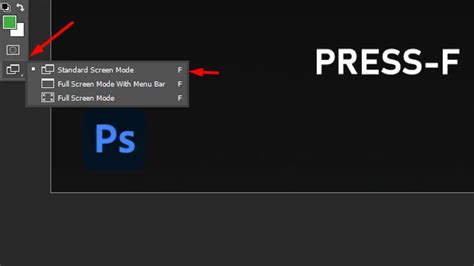
Photoshop, the industry-standard image editing software, offers a powerful array of tools and features designed to enhance your creative workflow. However, with its extensive interface, it's easy for the application's panels, menus, and toolbars to consume valuable screen real estate. This can be particularly frustrating as high-resolution photography demands more space for viewing and editing images. Fortunately, Photoshop provides several "Screen Modes" that allow you to minimize the interface and maximize the space dedicated to your artwork. This tutorial delves into these Screen Modes, explaining how to switch between them and leverage keyboard shortcuts to achieve an uncluttered workspace.
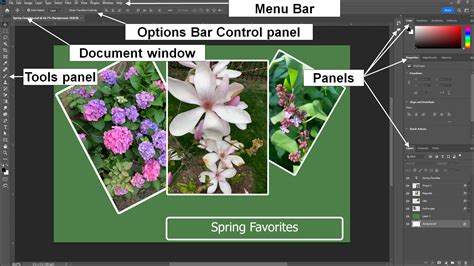
Understanding Photoshop's Screen Modes
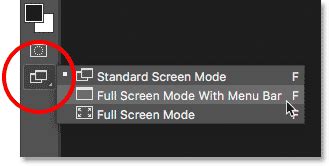
Photoshop offers three distinct Screen Modes, each controlling how much of the application's interface is displayed:
Standard Screen Mode
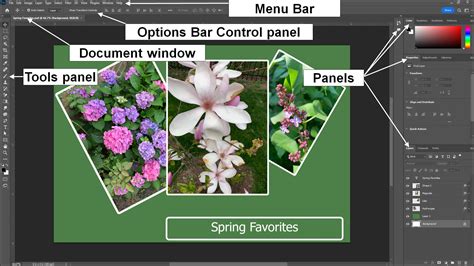
This is the default mode when you launch Photoshop. It presents the complete interface, including the Menu Bar, Options Bar, Toolbar on the left, and all open panels on the right. While it provides access to every tool and setting, it also occupies the largest portion of your screen, potentially obscuring parts of your image.
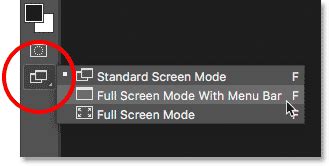
Full Screen Mode With Menu Bar
This mode offers a balance between interface visibility and image viewing. It hides certain elements that are part of the document window itself, such as the tab above the document, scroll bars, and the Status Bar. Additionally, the standard minimize, maximize, and close buttons typically found in the upper-left corner of the interface are also concealed. If multiple documents are open in separate tabbed windows, only the active document remains visible in this mode.
Full Screen Mode
As the name suggests, this mode completely hides the entire Photoshop interface, dedicating the whole screen to your image. This provides the ultimate immersive editing experience, allowing you to scrutinize your work without any distractions. When you first enter this mode, Photoshop may display a dialog box explaining its functionality. You can choose to disable this warning for future sessions by checking the "Don't show again" box.
Navigating Between Screen Modes
There are several convenient ways to switch between Photoshop's Screen Modes:
Using the Menu Bar
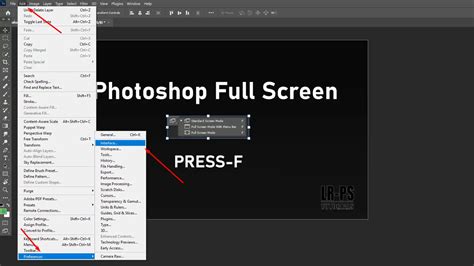
The most straightforward method is through the Menu Bar at the top of your screen. Navigate to View > Screen Mode. From the dropdown menu, you can select Standard Screen Mode, Full Screen Mode With Menu Bar, or Full Screen Mode. A checkmark next to a mode indicates that it is currently active.
Using the Toolbar
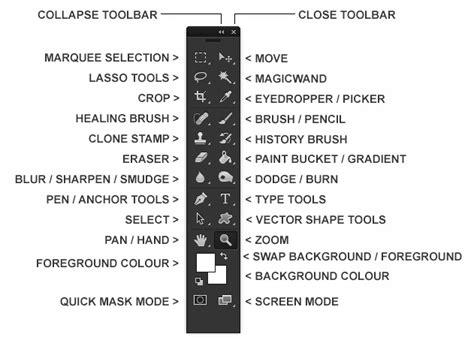
An alternative method is by using the Screen Mode icon located at the very bottom of the Toolbar on the left side of the screen. Click and hold this icon to reveal a fly-out menu, from which you can choose your desired Screen Mode. A small square next to a mode signifies its current selection.
Keyboard Shortcuts: The Fastest Way
For efficiency, Photoshop offers keyboard shortcuts to cycle through the Screen Modes:
- Press the 'F' key: This key allows you to cycle through the three Screen Modes. Pressing 'F' once will switch from Standard Screen Mode to Full Screen Mode With Menu Bar. Pressing 'F' again will take you to Full Screen Mode. Pressing 'F' a third time will return you to Standard Screen Mode.
Maximizing Your Workspace with Tab and Shift+Tab
Beyond the full Screen Modes, Photoshop provides additional shortcuts to selectively hide and show interface elements, offering further customization for your workspace:
- Press the 'Tab' key: This shortcut toggles the visibility of the entire main interface, including the Toolbar on the left, the Options Bar at the top, and all panels on the right. Pressing 'Tab' again will bring them back. These shortcuts work across all Screen Modes.
How To Cycle Through Tabs in Photoshop (Keyboard Shortcuts)
- Press 'Shift+Tab': This shortcut specifically hides or shows only the panels on the right side of the screen, leaving the Toolbar and Options Bar visible. This is useful when you need quick access to tools but want to declutter the panel area.
Understanding macOS and Windows Full Screen Behavior
It's important to distinguish between Photoshop's internal Screen Modes and the operating system's native full-screen functionality.
macOS Full Screen
In recent versions, Photoshop has begun to comply with macOS's standard full-screen behavior. When using macOS full screen, the typical method to exit is to move your mouse cursor to the top edge of the screen to reveal the menu bar, and then click the green button to exit. However, this can sometimes be problematic in Photoshop if the panels are displayed, obscuring the menu bar. A common workaround is to press 'Tab' to hide the panels, allowing the menu bar to appear, and then click the green button to exit macOS full screen.
The behavior of Photoshop's application frame can sometimes appear inconsistent with other macOS applications. Previously, Photoshop did not fully adhere to macOS standards. Now that it is, some users find the change unexpected. The lack of a dedicated macOS "Enter/Exit Full Screen" command within Photoshop can make exiting this mode more challenging. It's crucial to understand that Photoshop's traditional "Screen Mode" commands (accessible via the View menu) are distinct from the operating system's full-screen implementation.
For those who prefer to work without the application frame, disabling it aligns with the default behavior of many standard Mac applications. However, some users have reported that when the application frame is off and macOS full screen is engaged, they can become permanently stuck in full-screen mode, unresponsive to shortcuts like 'F' or 'Tab'. This often occurs when attempting to use Photoshop's native shortcuts to control the OS-level full-screen mode, which is not supported.
Windows Full Screen
While the user input primarily focuses on macOS, it's worth noting that Windows also has its own full-screen implementation. The principles of understanding which full-screen mode is active (Photoshop's or the OS's) remain crucial for efficient navigation.
Troubleshooting Stuck Full Screen Issues
If you find yourself unexpectedly stuck in full-screen mode, here are a few troubleshooting steps:
The Escape Key: The simplest way to exit most full-screen modes in Photoshop is by pressing the Esc key on your keyboard. This should return you to Standard Screen Mode.
Cycling with 'F': If 'Esc' doesn't work, try pressing the 'F' key to cycle through the different Screen Modes. This may dislodge the application from an unresponsive full-screen state.
Hiding Panels: As mentioned for macOS, if the menu bar is hidden, try pressing Tab to temporarily reveal the interface elements, which might then allow you to access the controls to exit full screen.
Revealing Panels via Window Menu: If you're in a mode where panels are hidden and you can't recall shortcuts, you can always go to the Window menu and manually select the panels you wish to display. Those with checkmarks are currently visible.
Corrupted Preferences: In rare cases, if Photoshop is persistently stuck in full-screen mode and standard methods fail, your Photoshop Preferences file might be corrupted. For Windows, you can try quitting Photoshop by going to File > Exit. On macOS, you might need to locate and reset the Photoshop preference files.
Adobe Lightroom Classic Comparison
The confusion surrounding full-screen modes is not unique to Photoshop. Adobe Lightroom Classic also exhibits similar behavior. It originally had its own proprietary full-screen mode before adopting macOS's native full-screen capabilities. Consequently, Lightroom Classic users may encounter situations where both full-screen systems coexist, leading to uncertainty about how to enter or exit full-screen. The key, as with Photoshop, is to discern which full-screen system is active and to utilize the corresponding commands and controls.
Conclusion
Mastering Photoshop's Screen Modes and the interplay between application-specific and operating system full-screen behaviors is essential for an efficient and comfortable editing experience. By understanding the different modes, utilizing keyboard shortcuts like 'F', 'Tab', and 'Shift+Tab', and knowing how to navigate OS-level full-screen, you can significantly enhance your workspace and focus on what matters most: your creative vision.