Adobe Photoshop Elements is renowned for its comprehensive photo editing capabilities, catering to a broad spectrum of users, from those just beginning their creative journey to seasoned professionals. A key component that significantly enhances the user experience is the Elements Organizer, a powerful, centralized hub designed to streamline the management of your entire photo and video collection. This integrated tool is not merely an afterthought; it's an essential part of the Photoshop Elements ecosystem, designed to provide quick access to your cherished memories without the frustration of sifting through countless disorganized folders. The beauty of Elements Organizer lies in its intuitive design, making it accessible even for individuals who might not consider themselves technologically adept.
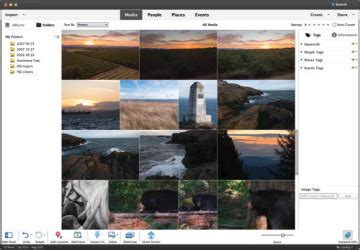
The Elements Organizer acts as the central command center for all your visual media, facilitating the import, organization, tagging, searching, and sharing of photos and videos. This unified approach ensures that users can efficiently manage their ever-growing digital archives. Whether you're looking to enhance everyday snapshots, experiment with artistic flair, or construct elaborate projects, Photoshop Elements, bolstered by its Organizer, provides the necessary tools. The Organizer's flexibility allows for viewing and managing your collection in numerous customizable ways, empowering you to arrange related photos and videos according to your personal preferences and needs. For instance, you can easily create a dedicated album for all the photos and videos captured during a specific summer vacation to Europe, ensuring that those particular memories are readily accessible.
Navigating the Elements Organizer Workspace
Familiarizing yourself with the Elements Organizer workspace is a crucial first step toward unlocking its full potential. The primary interface is typically divided into several key views, each serving a distinct organizational purpose.
Media View: The Core of Your Collection
The Media view serves as the foundational display of all your imported photos and videos. Within this view, users can not only see their media but also organize them, apply one-click edits, and perform a variety of other essential operations. This is where the bulk of your digital assets reside, presented in a manner that allows for immediate interaction and management. The ability to see all your content in one place is fundamental to efficient digital asset management.
People View: Bringing Faces to the Forefront
The People view is specifically designed to help you organize your photos by identifying and tagging the faces of individuals within them. A significant advantage of Elements Organizer is its capability to automatically create "People stacks" upon importing photos. This feature utilizes advanced algorithms to identify similar-looking faces, grouping them together intelligently. This automated process dramatically reduces the manual effort required to tag individuals, making it far easier to find all photos featuring a particular person or group of people. Once faces are identified and named, searching for specific individuals or combinations of individuals becomes remarkably straightforward.
Places View: Mapping Your Memories
In the Places view, you gain the ability to associate location information with your photos. This feature is invaluable for those who wish to easily locate images from specific destinations, whether it's a place you'd love to revisit or a memorable trip you want to recall. By adding location data, either manually or through the Organizer's potential integration with GPS data from your devices, you transform your photo library into a geographically indexed collection. This not only aids in searching but also adds a rich contextual layer to your memories.
Events View: Chronological Storytelling
The Events view is a powerful tool for creating thematic groupings of photos related to specific occurrences. You can establish an event, such as "Birthday Celebration," and then tag all the photos and videos that belong to that particular event. Once tagged, all associated media can be quickly accessed as a unified stack within the Events view. This allows for a more narrative approach to organizing your media, enabling you to relive specific moments and occasions with ease.
Advanced Organization and Tagging Strategies
Beyond the primary views, Elements Organizer offers sophisticated tagging and versioning features that significantly enhance organization and preserve the integrity of your original images.
The Power of Tags: Cross-Referencing Your Collection
The core of Elements Organizer's finding capabilities lies in its "tags" system. Tags are essentially keywords or labels that you create and apply to your photos and videos, making them easily searchable. The application of tags is remarkably intuitive; you can simply drag a tag onto a photo. The real power of this system is unleashed when you apply multiple tags to a single item. This allows for intricate cross-referencing. For example, you could tag a photo with "Dan" and "Sherree." Later, clicking on the "Dan" tag would display all photos featuring Dan, and then clicking on the "Sherree" tag in addition would refine the results to show only those photos containing both Dan and Sherree. A highly effective strategy involves applying three categories of tags to every photo: people (who was present), places (where the photo was taken), and events (what was happening). This multi-layered tagging approach facilitates extensive cross-referencing and provides a thorough documentation of each image. For subjects like nature and wildlife photography, tags might differ, but the principle of applying at least two or three relevant tags generally holds true.
Preserving Originals: The Importance of Version Sets
A critical aspect of photo management, and one that Photoshop Elements and its predecessor, Photoshop Album, excel at, is the paramount importance placed on preserving the original, unaltered photo. With either program, when you initiate an edit, a copy of the original image is automatically created. This is a fundamental principle because editing inherently involves discarding some information, and once lost, it cannot be recovered. The original file acts like a digital film negative; by keeping an unedited copy, you ensure that you can always return to the source material to repurpose an image for any future needs. Elements handles this preservation more robustly than Album through its implementation of "Version Sets." Version Sets keep edited and unedited copies of photos harmoniously together. When expanded, these sets reveal all associated versions, including the original and any edited iterations. This feature is invaluable for tracking the evolution of an image and for maintaining the option to revert to an earlier state.
Stacks: User-Controlled Groupings
Complementary to Version Sets are "Stacks." While Version Sets are automatically managed by the Organizer based on editing actions, Stacks are user-defined groupings. You have complete control over which photos and videos are included in a stack. This allows for the creation of custom collections that might not fit neatly into predefined categories like events or people. For instance, you could create a "Best of Summer" stack that pulls together your top shots from various events and locations throughout the season.
Seamless Editing Workflow
The process of moving between the Organizer and an editor, such as Photoshop or Photoshop Elements itself, is designed to be seamless. Typically, one can initiate an edit by selecting a photo and using a keyboard shortcut (like Ctrl+H) or by choosing an "Edit with…" option from a menu. This action opens a copy of the photo in the chosen editor. After making edits, saving, and closing the file, Elements Organizer intelligently recognizes the changes and automatically creates a new Version Set, linking the edited copy back to its original.
Enhancing Your Workflow with Organizer Features
Elements Organizer is packed with features designed to streamline your photo management tasks, from importing to sharing.
Effortless Photo Import
Getting photos from your camera or card reader into the Organizer is incredibly straightforward. A prominent "Get Photos" button allows you to select the source, whether it's a camera or a card reader. Photos are then copied into folders automatically named based on the date and time of import, providing an initial layer of chronological organization. For example, photos imported on July 23, 2005, at 13:07:12 might be placed in a folder named 2005-07-23 1307-12/.
Thumbnail Size Adjustment
The thumbnail size slider is a small but significant feature that offers considerable flexibility. It allows you to adjust the size of the photo thumbnails displayed in the photo well. When you need to tag a large number of photos quickly, you can shrink the thumbnails to fit more images on the screen at once. Conversely, if you need to make critical decisions about image quality or composition, you can enlarge the thumbnails to view fewer images with greater detail. This adaptability caters to different stages of the organization and selection process.
Timeline View: Navigating by Date
The Timeline view provides an intuitive way to jump to any point in your photo archive based on date. By clicking on a specific month, you can instantly navigate to photos from that period. Furthermore, the timeline visually indicates the relative number of photos taken in each month through bar height, offering a quick overview of your shooting activity over time.
Properties Window: Detailed Information at a Glance
The Properties window is an essential component for understanding the metadata and characteristics of your selected images. It displays a wealth of information, starting with "general" details. This window provides access to a comprehensive set of data associated with each image, contributing to a thorough understanding of your media.
Innovative Features and AI Integration
Recent updates to Photoshop Elements have introduced powerful new features, including generative AI capabilities, further enhancing its utility for both beginners and professionals.
Generative AI Tools: Creating from Text
Mirroring advancements in the mainline Photoshop application, Elements now empowers users to generate entirely new images or to incorporate generated backgrounds and objects into existing ones. These AI-driven features, powered by Adobe's Firefly generative AI technology, open up new avenues for creativity. To utilize these capabilities, users typically receive a certain number of generative credits, with options to purchase more if needed.
- Generate Image: This feature allows you to create images based on text prompts. You can select from art or photo styles, or let the program auto-decide, and then enter your descriptive text. The "Inspiration" button provides helpful suggestions and sample prompts. When generating an image within an existing editing session, the new creation appears as a layer on top of your current canvas. While the AI may not always perfectly interpret complex prompts, the results are often impressive, with a progression towards greater photorealism.
- AI Insert Object: This tool enables you to add specific objects to an existing image. The process involves brushing over the area where you want to insert an object and then describing it in text. The AI attempts to generate and place the described object, often with surprising accuracy and creativity. The tool can even offer variations in color or style for the inserted object.
- AI Remove: This is a sophisticated modification of the insertion tool. Instead of adding content, AI Remove uses artificial intelligence to identify and replace unwanted elements, such as people in the background, with content that seamlessly matches the surrounding environment. A notable enhancement is the "Find people in the background" button, which aids in automatically detecting and removing individuals, though it may require a second pass for complete success in some scenarios.
- Restore Photo: This AI-powered tool is designed to revive old, damaged photographs. It automatically detects and attempts to correct scratches, tears, and faded areas. Once downloaded, this feature operates as a one-step process, analyzing and repairing the image. While it may not always eliminate all imperfections, especially severe damage, it significantly improves the condition of many old photos. Notably, this tool processes locally and does not consume generative credits.
Quick Actions and Guided Edits: Simplifying Complex Tasks
Photoshop Elements offers "Quick Actions" that provide one-click enhancements for common edits like blurring, skin smoothing, dehazing, and colorization. These are accessible through the Quick Actions panel, delivering instant improvements. For users who desire more structured assistance, Photoshop Elements provides over 50 step-by-step "Guided Edits." These tutorials walk users through complex editing processes, making them accessible and understandable, fostering learning and creative exploration.
Enhanced Editing Modes
Photoshop Elements presents three distinct editing modes to accommodate different user needs and skill levels:
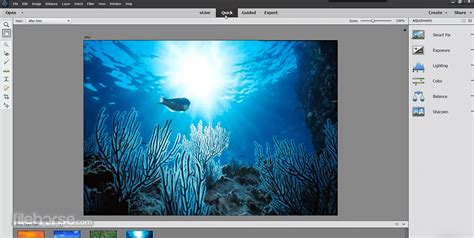
- Quick Mode: This mode features a simplified toolbar with user-friendly tools optimized for rapid edits. It's ideal for users who want to make straightforward adjustments quickly.
- Guided Mode: As mentioned, this mode offers step-by-step instructions for a wide range of editing tasks, making it an excellent learning tool.
- Expert Mode: This mode provides a more comprehensive set of tools, offering greater control and precision for users who want to fine-tune their edits with advanced techniques. It mirrors many of the functionalities found in professional editing software.
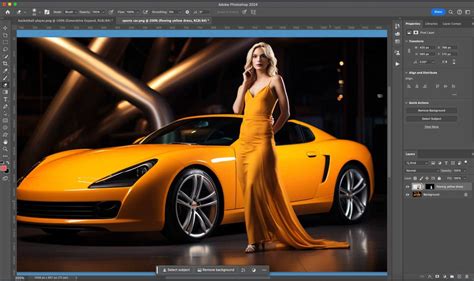
The Contextual Task Bar, adapted from Photoshop, further enhances efficiency by offering relevant editing buttons based on the current image selection, such as "Remove Background" or "Select Subject," eliminating the need to search through menus.
Photoshop Elements 101: Edit Photos in Photoshop Elements 2020 - 2. Introducing Quick Mode
System Requirements and Accessibility
Understanding the system requirements and platform availability is crucial for prospective users. Photoshop Elements is available for both Apple macOS and Microsoft Windows operating systems. The macOS version is native for Apple silicon processors, ensuring optimal performance. Notably, Photoshop Elements is also available on the Mac App Store, which simplifies installation, updates, and the process of transferring licenses between computers. A significant advantage for users is the ability to use Photoshop Elements offline, a feature not present in cloud-based applications like Photoshop and Lightroom.
The installation process typically involves a small helper application that manages the download and setup of the main software. While Adobe's documentation suggests a requirement of 10GB of available drive space, the installation itself on a PC might consume around 3.5GB.
The software is designed to be accessible, with a helpful Start Screen that not only serves as a portal to both Photoshop Elements and Premiere Elements but also offers valuable features like tips for new tools, links to recent files, and "Auto Creations."
Auto Creations: Automated Visual Storytelling
Upon importing media, the Start screen often displays "Auto Creations" that the program has automatically generated. These can include pleasant collages compiled from photos shot in similar locations and times, or slideshows with varied transitions and backgrounds. While these automated creations may benefit from some manual refinement, they offer a quick and engaging way to view and share collections of media.
WebP Support and Spell Checker
In recognition of evolving file formats, Photoshop Elements now supports WebP, a lightweight image format that has become prevalent on the web. This allows users to edit and save files in this format directly within the application. Furthermore, a new Spell Checker has been integrated, ensuring that any text overlays or annotations are free from grammatical errors, with a customizable dictionary for adding specific terms.
Pricing and Competitive Landscape
Photoshop Elements offers a more affordable entry point compared to the subscription-based professional Photoshop. A license for the latest version typically provides three years of usage, rather than a perpetual license. The pricing structure includes options for purchasing Photoshop Elements on its own or as part of a bundle with Premiere Elements. Updates from previous versions are also available at a reduced cost. A trial version is usually offered, allowing users to test the software before committing to a purchase.
The competitive landscape includes several notable alternatives:
- Corel PaintShop Pro: Often priced similarly or slightly lower, it offers many of Photoshop's features in a one-time purchase model.
- ACDSee Photo Studio: Available as a one-time license or through a subscription, it provides a comprehensive suite of editing and management tools.
- CyberLink PhotoDirector: This option often matches Photoshop Elements in price for a one-time license and offers a subscription model that includes additional effects and content.
While competitors may offer integrated solutions, Photoshop Elements' distinct Organizer application, despite being a separate utility, provides a powerful and focused environment for managing vast photo libraries, complementing the robust editing capabilities of the main application. The integration of AI-powered tools, user-friendly modes, and robust organizational features solidify Photoshop Elements' position as a leading choice for accessible yet powerful photo editing and management.