Adobe Photoshop stands as the industry-standard software for image manipulation and digital art creation. For both budding enthusiasts and seasoned professionals, acquiring proficiency in Photoshop is a gateway to unlocking immense creative potential. This guide delves into the core functionalities and advanced techniques of Adobe Photoshop, drawing upon the structured learning approach of the "Adobe Photoshop Classroom in a Book 2025 Release" to provide a comprehensive learning experience.
The Foundation of Digital Art: Understanding Layers
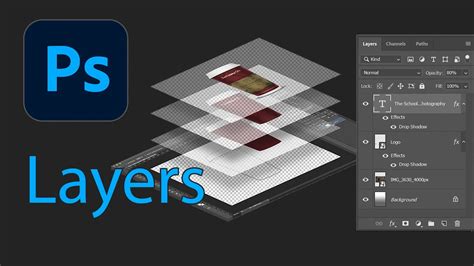
At the heart of Photoshop's power lies the concept of layers. Think of layers as transparent sheets stacked upon one another, each containing a distinct element of your image. This fundamental principle allows for non-destructive editing, meaning you can add, adjust, or remove elements on one layer without impacting the content of the layers beneath it. This flexibility is crucial for undoing mistakes, experimenting with different compositions, and refining individual components of your artwork.
To begin working with layers, you can create a new one by clicking the "Create a New Layer" button in the Layers panel or by navigating to the "Layer" menu and selecting "New" followed by "Layer." This simple action opens up a world of possibilities for organizing and manipulating your digital canvas.
Importing and Manipulating Images
The journey of creating impressive digital artwork often begins with importing existing images. Photoshop supports a wide range of file formats, including the ubiquitous JPEG and PNG. To bring an image into your project, simply drag and drop the file from your desktop directly into your Photoshop workspace.
Once imported, an image typically becomes a Smart Object layer. This is a beneficial transformation as it allows for non-destructive scaling and transformations. You can easily reposition and resize your imported photo by clicking and dragging its corners or edges. After making these adjustments, press "Enter" or "Return" to confirm. This ability to freely manipulate images is a cornerstone of effective photo editing and compositing.
Seamlessly Integrating Elements with Layer Masks
Layer masks are an indispensable tool for controlling the visibility of content on a specific layer. They function by allowing you to selectively hide or reveal parts of a layer without permanently deleting any pixels. This is particularly useful for compositing, where you might want to blend elements from different images.
Imagine you're creating a postcard and want to add a person to a beach scene who wasn't originally present. After importing the photo of the person, you'll want to make them a distinct layer. In the Layers panel, click on the layer containing your subject. Then, in the options bar, select "Select Subject." Photoshop's intelligent algorithms will attempt to automatically identify and select the most prominent subject in the image.
Once your subject is selected, a layer mask thumbnail will appear next to the image thumbnail in the Layers panel. The selection will be visible as white against a black background, indicating the areas that will be shown. You can further refine this selection using the "Add" or "Subtract" buttons to either expand or contract the masked area. For particularly intricate selections, such as hair, Photoshop offers a "Refine Hair" option that can automatically handle these challenging edges.

Refining Your Images: Removal and Retouching Tools
Photoshop provides a suite of powerful tools for cleaning up and enhancing your photographs. One common task is removing unwanted elements like garbage bins, power lines, or accidental photobombers. The "Spot Healing Brush tool" is an excellent choice for this purpose.
To use it, select the "Spot Healing Brush tool" from the Tools panel or by pressing the "J" key. In the options bar, you can adjust the brush size and hardness to suit the area you're working on. With the tool active, simply click on the unwanted element, and Photoshop will intelligently sample surrounding pixels to seamlessly blend the area.
Adding Text and Artistic Flair
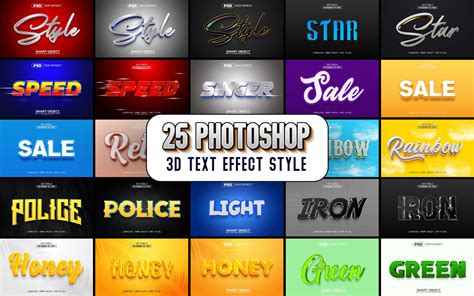
Typography plays a vital role in graphic design and image composition. Photoshop makes it easy to add and style text. To begin, click on the image where you wish to place your text. A text cursor will appear, allowing you to start typing. Once your text is entered, you can highlight it to make style changes, adjusting font, size, color, and alignment to perfectly complement your design.
Beyond text, Photoshop empowers you to paint and draw directly onto your images. Whether you want to add a whimsical cartoon umbrella to a beach photo or introduce a playful shark in the water, the painting and drawing tools offer endless creative possibilities. You can experiment with various brushes, colors, and shapes to make your unique mark on the digital canvas.
Leveraging AI for Advanced Edits: Neural Filters
In recent years, Adobe has integrated artificial intelligence into Photoshop through its "Neural Filters." These intelligent filters leverage the power of Adobe Sensei AI technology to perform quick and often dramatic edits to your images.
To access Neural Filters, navigate to "Filter" > "Neural Filters" from the top menu. If a filter you wish to use is not already installed, you will be prompted to download it. Once installed, you can apply the filter and then adjust its settings to achieve your desired outcome. These filters can automate complex retouching tasks, generate new image elements, and even alter facial features with remarkable precision.
Generative AI with Adobe Firefly
The integration of Adobe Firefly, Adobe's generative AI, opens up entirely new avenues for creativity within Photoshop. This powerful feature allows users to generate entirely new images from simple text prompts. Whether you need to retouch challenging images with AI-powered assistance or conjure entirely novel visual concepts, Firefly's capabilities are transformative. For instance, you could describe a fantastical landscape or a specific artistic style, and Firefly will generate corresponding imagery that can then be further refined within Photoshop. This represents a significant leap forward in content creation, making complex visual ideas more accessible than ever before.
Animating Graphics and Typography
Photoshop's capabilities extend beyond static images to include animation. By utilizing a timeline, you can animate graphics and type, and even combine them with video and audio elements. This feature is ideal for creating dynamic social media content, short promotional videos, or engaging motion graphics. You can control the timing, movement, and appearance of your animated elements, bringing your designs to life.
How to use video timeline animation in Photoshop with easy steps
Automating Repetitive Tasks
For users who perform similar editing tasks repeatedly, Photoshop offers powerful automation features. This can involve creating actions that record a series of steps and then play them back on multiple files, saving significant time and ensuring consistency. Automating repetitive tasks is key to increasing productivity, especially when working with large batches of images.
Editing Camera Raw Images
Photoshop's integration with Adobe Camera Raw (ACR) provides a robust environment for editing raw image files from digital cameras. ACR offers precise control over exposure, white balance, color, detail, and lens corrections without degrading the image quality. Editing in ACR allows you to make fundamental adjustments to your images before they are even brought into the main Photoshop workspace, ensuring the highest possible quality for your final output.
Exporting Your Work for Various Platforms
Once your masterpiece is complete, Photoshop offers a comprehensive array of options for exporting your work. You can save your files in various formats suitable for the web, mobile devices, video projects, and print. Understanding the nuances of different export settings, such as resolution, color space, and file compression, is crucial to ensure your images look their best across all intended platforms. Common export formats include JPEG for web use, PNG for images requiring transparency, and PDF for print-ready documents.
The Classroom in a Book® Advantage
The "Adobe Photoshop Classroom in a Book 2025 Release" is more than just a manual; it's an officially endorsed training series from Adobe, developed with direct input from product experts. This ensures that the content is accurate, up-to-date, and reflects best practices in Photoshop usage. The series employs a project-based learning approach, where each lesson guides you through real-world scenarios, allowing you to learn by doing.
Purchasing this book also grants access to valuable online extras. These include downloadable lesson files, enabling you to follow along with the tutorials, and a Web Edition that contains the complete text of the book, interactive quizzes, and step-by-step video tutorials. This multi-faceted approach caters to different learning styles and ensures a thorough understanding of the software.
The structure of "Classroom in a Book" allows users to progress through the lessons sequentially from start to finish or to selectively focus on specific topics of interest. This adaptability makes it an invaluable resource for both beginners taking their first steps into digital art and experienced users looking to expand their skill set or learn about new features.
Essential Requirements for Using This Guide
To fully engage with the tutorials and exercises presented in this guide, you will need access to Adobe Photoshop 2025 Release software, compatible with both Windows and macOS operating systems. While some fundamental knowledge of Photoshop can be beneficial, the "Classroom in a Book" series is designed to be accessible to newcomers, gradually building a solid understanding of the program's functionalities.
The comprehensive nature of this guide, combined with the practical, hands-on approach of the "Classroom in a Book" series, provides an unparalleled pathway to mastering Adobe Photoshop. From the foundational concept of layers to the cutting-edge capabilities of generative AI, this resource equips you with the knowledge and skills to create stunning visual content.